Windows 11 NVMe Not Detected? Top Ways to Fix It Now!
- User case
- Reasons why NVMe not detected in Windows 11
- Fixes for NVMe not detected in BIOS
- Solution 1. Reinstall the NVMe SSD
- Solution 2. Set up NVMe SSD in BIOS
- Solution 3. Disable Compatibility Support Module
- Solutions for NVMe not showing up in Disk Management
- Method 1. Update NVMe SSD driver
- Method 2. Get the missing drive letter back
- Method 3. Format the NVMe SSD
- Easiest way to backup NVMe SSD periodically to avoid data loss
- Summary
User case
NVMe SSD is not detected in Windows 11
You've installed a WD SN550 1TB NVMe SSD on your motherboard's M.2 slot, but it's not being recognized by your system. You've updated your BIOS to the latest version, but the issue persists. The SSD works fine on your friend's PC, and it's listed in the manufacturer's support list, so it's likely a problem with your motherboard. You may want to try resetting the BIOS to its default settings or checking the M.2 slot for any physical issues. If the problem still persists, it might be worth contacting the motherboard manufacturer's support for further assistance.
- Question from tom's HARDWARE
You're likely wondering why your NVMe isn't showing up, but don't worry, this article has got you covered. To tackle this problem, let's first figure out what's causing it, and then we'll dive into some simple and effective fixes to get your NVMe up and running.
Reasons why NVMe not detected in Windows 11
In Windows 11, NVMe SSD not detected issues can arise due to several reasons. Possible causes include outdated drivers, incorrect BIOS settings, or a faulty NVMe controller. Additionally, issues with the SSD itself, such as a corrupted firmware or a malfunctioning drive, can also prevent detection.
▸The NVMe SSD is not properly installed or plugged in.
▸BIOS is not compatible with SSD.
▸The driver is disabled in BIOS.
▸The driver is out of date or not installed.
▸The drive letter is missing.
▸The NVMe SSD may be corrupted or damaged.
To solve the issue of the NVMe not being detected in Windows 11, you can try updating your drivers, checking for BIOS updates, and ensuring the NVMe is properly seated in the PCIe slot. You can also try running the Windows 11 troubleshooter, checking for any issues with the NVMe controller, and verifying that the NVMe is enabled in the BIOS settings. Additionally, you can try using a different PCIe slot or checking for any physical damage to the NVMe or the motherboard.
Fixes for NVMe not detected in BIOS
If your NVMe SSD is not detected in BIOS, try the following solutions in order: ensure the NVMe SSD is properly connected to the motherboard, check if the SSD is set as the boot device in BIOS settings, update the motherboard BIOS to the latest version, and if none of the above works, try using a different NVMe SSD or checking the motherboard manual for specific instructions.
- Solution 1. Reinstall the NVMe SSD
- Solution 2. Set up NVMe SSD in BIOS
- Solution 3. Disable Compatibility Support Module
Solution 1. Reinstall the NVMe SSD
Before trying the following methods, you can check if the NVMe SSD has installation and insertion problems by checking if it exists.
1. The M.2 interface module, also known as the M.2 slot, is a small expansion card connector on the motherboard that allows you to install and remove M.
2. Remove the mounting screws, then insert the NVMe SSD into the slot and secure it with the screws.
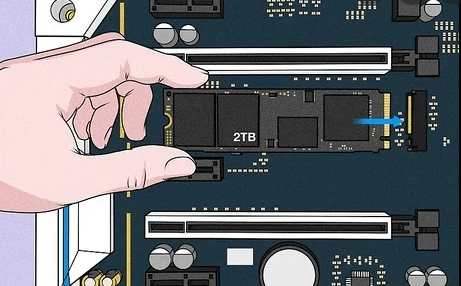
3. Reboot your PC and follow the on-screen instructions.
If the problem persists, you can try the following measures.
Solution 2. Set up NVMe SSD in BIOS
To resolve the issue of your NVMe drive not being detected in the BIOS, you need to reconfigure the SATA controller settings on your drive. This will ensure that your drive is properly recognized and accessed by your system.
1. Press F2 or Del to enter the BIOS settings when your computer is booting. Then, reboot your computer.
2. To change the PCI Express X4_3 Slot Bandwidth to M.2 mode, go to the Advanced tab and click on the drop-down menu next to PCI Express X4_3 Slot Bandwidth. Select M.
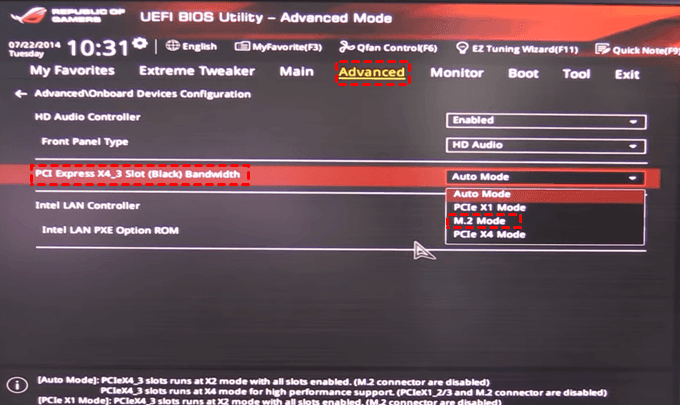
Tip: The exact process for setting up the CPU cooler will vary depending on your motherboard, as different models may have specific requirements or installation methods.
3. Save your changes and restart your computer, and confirm if the NVMe appears in the BIOS.
Solution 3. Disable Compatibility Support Module
The Compatibility Support Module (CSM) detects compatibility modes at boot time, and disabling it and enabling UEFI is necessary for NVMe SSD booting. This resolves the issue of NVMe not being detected in BIOS.
1. Reboot your computer and press F2 to enter the BIOS.
2. At the bottom of the Boot tab, set the Launch CSM option to Disabled.
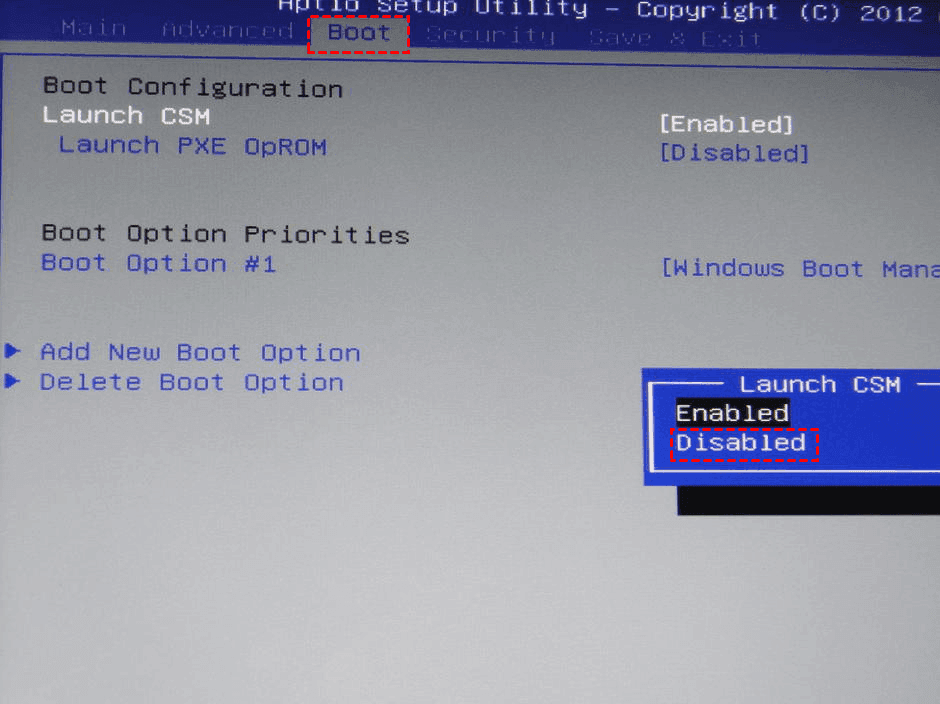
3. Confirm the changes and exit the BIOS. Reboot the computer and verify that the NVMe SSD appears in the BIOS settings.
Solutions for NVMe not showing up in Disk Management
If your NVMe SSD is not showing up in Disk Management, don't worry, there are two methods to resolve this issue. You can try booting your computer in Safe Mode and checking if the SSD is detected, or you can try using the Disk Management console to manually add the SSD as a new disk. If neither of these methods work, you may need to consult the manufacturer's documentation for further assistance.
- Method 1. Update NVMe SSD driver
- Method 2. Get the missing drive letter back
- Method 3. Format the NVMe SSD
Method 1. Update NVMe SSD driver
Outdated NVMe drivers may cause issues with NVMe SSDs not appearing in Disk Management. Updating them can resolve the problem.
1. To update the NVMe SSD driver, right-click the Start button and select Device Manager, then navigate to Disk drives and right-click on the NVMe SSD to select Update driver.
2. To update the drivers, tap on the search bar and type "Device Manager". Tap on the result to open it. In the Device Manager, tap on the "View" menu and select "Show Hidden Devices".
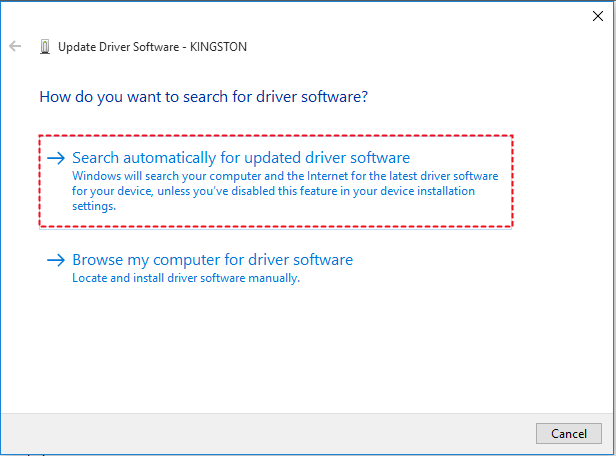
3. If the NVMe SSD is not detected in Disk Management after rebooting the computer, try using the built-in Windows tool, "Disk Management," to initialize the NVMe SSD. To do this, open Disk Management, right-click on the unallocated NVMe SSD, and select "Initialize." This will format the drive and make it accessible to the operating system.
Method 2. Get the missing drive letter back
1. Right-click the Start button and select Disk Management.
2. Right-click the partition where the drive number is missing, and select Change drive letter and paths from the menu.
3. In the new window, tap the Add button.
4. Select Assign the following drive letter and select a drive number in the list, then tap OK to save the changes.
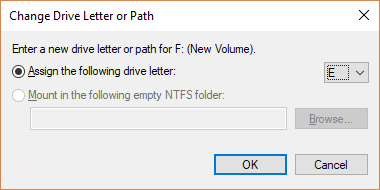
5. Reboot the computer and verify whether the SSD is detected in Disk Management. If it is, proceed with the installation.
Method 3. Format the NVMe SSD
Formatting the NVMe SSD can safely and effectively solve various problems caused by corrupted files or improperly installations, including issues such as the SSD not showing up in the BIOS. To do this, you can follow the steps below.
1. Right-click the Start button and select Disk Management from the list.
2. To repair a damaged partition, select it, right-click, and choose "Format" to reinitialize the drive.
3. Confirm the formatting details in the pop-up window, selecting NTFS and unchecking quick format, then click OK to initiate and complete the SSD formatting process.
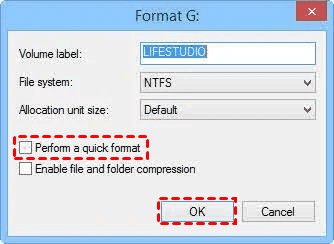
Formatting your NVMe SSD will delete corrupted data, allowing Windows to detect it again, but you may lose any data that was on the drive.
To prevent data loss, it is recommended to back up important files and data on your NVMe SSD before attempting any repair methods. You can use a free backup software to easily and regularly backup your NVMe SSD. This will ensure your data is safe and prevent any unnecessary loss.
Easiest way to backup NVMe SSD periodically to avoid data loss
To protect your data from loss during the process of trying the above fixes, you can use the free backup utility Qiling Disk Master Standard.
First of all, you can download and install Qiling Disk Master Standard, try it by yourself.
Step 1. Open this freeware, select Backup in the left tab page, and then select Disk Backup.

Step 2. The Task Name field allows you to name this backup field, making it easier to identify and distinguish it from other backups.

Step 3. Select the source disk that you want to back up.
Step 4. Save the image file to a specific location on your computer, ensuring that the destination has enough free space to hold the image files from the backup disk.

Step 5. Confirm your operation and click the Proceed button to create a disk backup in Windows 11, then wait for the process to complete.

Extra help: If you would like to restore the NVMe SSD backup image, please use the feature Disk Restore.
Summary
The problem of Windows 11 NVMe not detected can often cause you a lot of trouble, but trying the above solutions can help solve such problems, ensuring the NVMe SSD is ready for use as soon as possible.
With the free backup software Qiling Disk Master, you can easily backup important files with a few clicks, avoiding data loss, and also clone SSD to SSD or Windows 11 to another hard drive.
Related Articles
- How to Fix M.2 SSD Not Detected in Windows 10 - 11 Ways
Learn how to Fix M.2 SSD Not Detected in Windows 10 - 11 Ways with clear steps, key checks, and practical tips. - Quick Fix: Cloned SSD Won’t Boot in Windows 11, 10, 8, 7
Read this article to learn how to fix cloned SSD won't boot on Windows 11/10/8/7. If you don't want to get trapped, try an alternative in Windows to clone HDD to SSD without booting problem. - How to Fix Cloned Drive Won’t Boot Windows 11 Easily (5 Ways)
This article provides you with five solutions about your cloned drive won't boot windows 11, including a built-in tool as well as a reliable third-party software - Qiling Disk Master. - How to Do Windows 7 Differential Backup Safely and Quickly
This article introduces you to Windows 7 incremental or differential backup and reliable software to create Windows 7 differential backup step by step. - Backup Windows 8 to External Hard Drive and Protect Security
You will learn how to backup Windows 8 to external hard drive in two practical ways. And you don't need to worry about downtime and avoid data loss caused by system crash or other issues
Products
Articles & Tutorials
- Data Recovery
- Data Backup
- File Recovery
- File Backup
- File synchronize
- System Backup and Restore
- Disk and Partition Clone
- Technical articles
- Disk Master Help
- Windows Deleted File and Disk Recovery Tutorials
- Windows File and Data Recovery Tutorials
- More Windows Tutorials for Install, Security, Files, and PC Tips
- Windows Boot, Repair, and Recovery Environment Tutorials
- Windows Backup Tutorials
- Windows Restore Tutorials
- Windows Clone and Migration Tutorials
- Windows Server Backup, Recovery, and Management Tutorials
- Windows Disk, Partition, and Storage Management Tutorials