Windows File History vs Backup: Which One to Choose?
Overview of File History vs. Backup
Backup is the most fundamental data recovery solution, making it a necessity. You can utilize built-in backup tools or third-party backup software to ensure your data is safely secured.
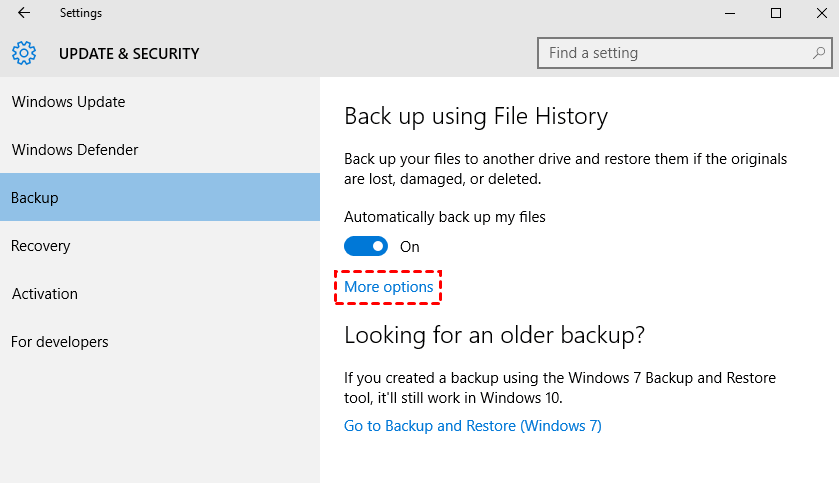
- File History: Windows Backup automatically creates incremental backups of files stored in Libraries, including those for users in a HomeGroup, to an external hard drive or network share. You can add or exclude folders as needed, and this feature is available on Windows 8 and later versions.
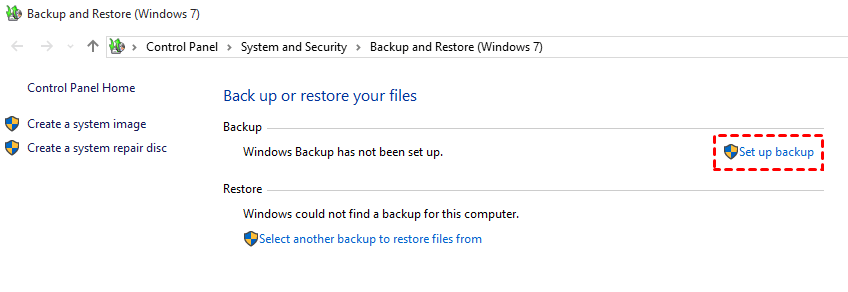
- Backup and Restore: Windows Backup, previously known as Windows NTBackup, is a built-in backup tool in Windows that allows users to create system image backups and file/folder backups, enabling them to restore their system and personal data from previous backups. It was reintroduced in Windows 10 after being removed in Windows 8.1.
- Qiling Disk Master Standard: This software allows users to create backups of their system, disk, partition, or files, and provides additional features such as automatic backup, email notifications, and image compression. It also enables easy restoration of backups in case of a disaster, and supports Windows 11, 10, 8, 7, XP, and Vista operating systems.

Now that you have a basic understanding of backup tools, the next step is to choose between them. To make an informed decision, you can delve into the detailed differences between File History and Backup, which will be covered in the next part. This will provide you with a comprehensive understanding of each tool's features and capabilities, enabling you to select the one that best suits your needs.
Windows File History vs. Backup in different aspects
When comparing Windows 10's File History, Backup and Restore, and third-party backup software, three key aspects stand out: backup contents, backup destination, and recovery. A chart can help visualize these differences, allowing you to see how each option stacks up in these areas.
| File History | Backup and Restore (Windows 7) | Qiling Disk Master Standard | |
| Backup Contents | Backup all files in the user folder, including desktop, documents, music, photos and videos, and other files, on an hourly basis by default. | Create a backup of the system, including entire drives and user folder files, and optionally create a system repair disc. | A backup system can be set up using a combination of storage devices such as hard disk drives (HDD), solid state drives (SSD), or USB drives, and can be partitioned or used to backup specific files as needed. |
| Backup Destination |
The device supports external hard drives and home network storage, but does not support internal drives or cloud drives. |
The system supports internal/external hard drives and network locations, but does not support cloud drives. | The device supports various storage options, including internal and external hard drives, USB flash drives, network locations, and cloud drives. |
| Recovery | You can restore lost, damaged or deleted files, or restore previous versions of your files, by using a file recovery software or a cloud storage service with versioning capabilities. This can help retrieve accidentally deleted files, recover files from a corrupted storage device, or go back to a previous version of a file before making changes. | Restore system image or restore files to the version backed up on the date you select. | Restore computer to an earlier date. Restore damaged hard drives or lost files, etc. |
File History or Windows Backup? That depends on your demands.
If you want to backup files in your user folder, File History is the best choice. You can learn a quick guide on how to backup specific folders in Windows 10.
If you want to protect your system and files, Windows Backup is the way to go. For internal disk backups, it's the best option. For detailed steps, check out the link: Create Windows 10 System Image Backup.
>> If you want an all-around backup utility that can meet your needs in different situations, Qiling Disk Master Standard is worth trying. And I'll introduce the detailed steps in the following.
Best way to backup Windows 11/10/8/7
Qiling Disk Master Standard is the best free backup software, meeting all users' needs, whether you want to backup the system, disk, partition, or files. It supports backing up to internal or external hard drives, USB flash drives, cloud drives, network location, and NAS devices, providing flexibility in backup options. Additionally, you can enjoy the following advantages in all backup types.
- Schedule backup: You can create backups based on different frequencies, such as daily, weekly, or monthly.
- Save disk space and improve backup efficiency: This software automatically runs an incremental backup after the first full backup, saving space by only backing up changed files since the last backup. It also offers features like normal compression, automatic splitting, and intelligent sector backup for further space-saving benefits.
- Support all Windows PC operating systems: It runs well on Windows 10, 8.1, 8, 7, Vista, XP, and the latest Windows 11.
To protect your Windows 10 system and data, or the entire disk, download and install Qiling Disk Master Standard on your computer. For server users, Qiling Disk Master Server is also available.
Step 1. Launch Qiling Disk Master Standard, click on "Backup" and select "System Backup".

Step 2. The system partition(s) has been automatically selected for backup, and the destination path for the backup files needs to be chosen.

Step 3. Confirm the operation and click "Proceed".

To make the backup process automatic and hassle-free, you can consider using a cloud backup service that integrates with your device's operating system, allowing it to automatically backup your data at regular intervals. This way, you can rest assured that your important files and folders are safely stored in the cloud, and can be easily restored if needed.
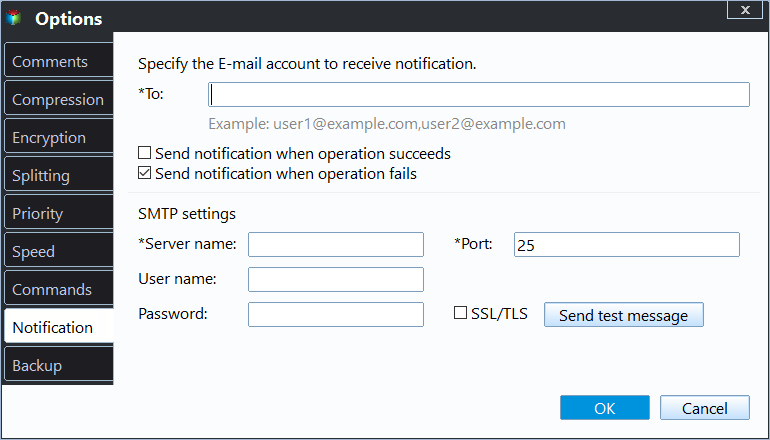
Options: You can enable email notification, choose the compression level for the backup image file, and select between intelligent sector backup and sector-by-sector backup.
Schedule Backup: You can set the backup task to run automatically at fixed intervals, with five schedule modes available: Daily, Weekly, Monthly, Event triggers, and USB plug in.

Backup Scheme: It allows changing the default backup method to differential backup, which only requires one full backup or one full backup plus differential backup during recovery, while also deleting old image files automatically with different cleanup methods, and this requires upgrading to higher editions.

🌟 Bonus tip:
- To restore from a backup, go to Backup and recovery, find the backup task and click Recovery, or click Browse for recovery on the toolbar, select the Image File, and follow the wizard to complete the recovery process.

Conclusion
When deciding between Windows 10 File History and Backup, consider your needs: File History is ideal for backing up user files, while Backup and Restore is better suited for backing up the system.
But if you want an all-in-one solution, the best backup software option is Qiling Disk Master Standard, which supports all backup types, including system, disk, partition, and file backup. It also allows users to backup files to cloud storage, among other features.
This software is capable of cloning and backing up data, allowing users to clone their SSD to a larger one, replace a laptop's HDD with an SSD, and perform other similar tasks. It can be used in Windows 10.
Related Articles
- Backup Data in Windows 10 with File History or Qiling Disk Master Standard
You can find 5 easy methods to backup data in Windows 10. You should always have a backup of your valuable data and it takes no effort. - 2 Workarounds That Let File History Backup to OneDrive
Normally, you cannot use OneDrive for File History, but you can trick File History to backup to OneDrive. Here is a step by step guide to show you how. - How to Manage Windows 10 Backup Options to Protect Your Data
Learn how to Manage Windows 10 Backup Options to Protect Your Data with clear steps, key checks, and practical tips. - Windows 10/11 System Restore Is Taking a Long Time? Causes and Fixes Are Here
This page covers full solutions to assist you in finding the reasons why is Windows 10 or Windows 11 system restore taking a long time. We'll also guide you through fixing this issue, and successfully complete system restore on your Windows 10/11 computer. - Windows 7 Startup Issues Troubleshooting (7 Effective Ways)
This guide explains Windows 7 Startup Issues Troubleshooting (7 Effective Ways) with clear steps, key checks, and practical tips. - How to Fix Windows 7 via Startup Repair or CHKDSK from Command Prompt?
This article helps to disable Windows 7 Startup Repair and fix Windows 7 Startup Repair loop via CHKDSK or Bootrec command prompt.
Products
Articles & Tutorials
- Data Recovery
- Data Backup
- File Recovery
- File Backup
- File synchronize
- System Backup and Restore
- Disk and Partition Clone
- Technical articles
- Disk Master Help
- Windows Deleted File and Disk Recovery Tutorials
- Windows File and Data Recovery Tutorials
- More Windows Tutorials for Install, Security, Files, and PC Tips
- Windows Boot, Repair, and Recovery Environment Tutorials
- Windows Backup Tutorials
- Windows Restore Tutorials
- Windows Clone and Migration Tutorials
- Windows Server Backup, Recovery, and Management Tutorials
- Windows Disk, Partition, and Storage Management Tutorials