Windows 7 Startup Issues Troubleshooting (7 Effective Ways)
- What is startup repair and when could you use it?
- Windows 7 startup issues troubleshooting- how to do
- Method 1: Removing recently attached devices or external hardware
- Method 2: Using Safe Mode
- Method 3: Run msconfig
- Method 4: Running CHKDSK and SFC command prompt
- Method 5: Using Last Known Good Configuration
- Method 6: Manually run startup repair
- Method 7: Using System Restore in Safe Mode
- How to protect your computer to avoid mess-up in startup issues
What is startup repair and when could you use it?
Startup Repair is a recovery tool that fixes problems like missing or damaged system files to load the operating system, and can be run manually if the computer fails to start.
Startup Repair can fix some system problems, but not all, such as firmware and hardware issues, Windows updates, logon errors, viruses, and hardware failures.
Windows 7 startup issues troubleshooting- how to do
Here are the 7 methods to fix Windows 7 startup issues with step-by-step methods:
Method 1: Removing recently attached devices or external hardware
If you've recently connected a device to your computer, like a camera, try removing it and restarting your computer. If that's the issue, your computer should boot normally.
Remove all external hardware except for the mouse and keyboard, restart your computer, and verify if it boots correctly.
Method 2: Using Safe Mode
In Safe Mode, Windows loads only the most basic components, and a simple restart from safe mode may solve your problems, but you may still need to troubleshoot further.
Step 1. Restart your computer. Then, press F8 key repeatedly until you see the Advanced Boot Options.
Step 2. Select Safe Mode and hit Enter to start the operation.
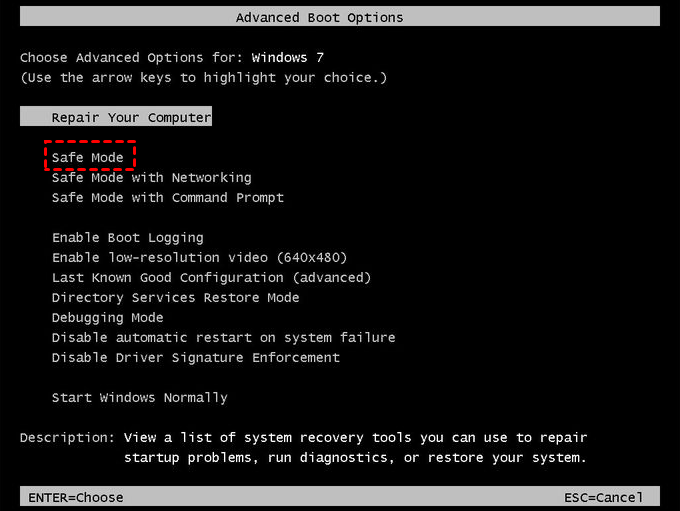
In safe mode, you can still try to disable services in msconfig and run anti-virus software to remove viruses on your computer.
Method 3: Run msconfig
Recently added software may cause Windows 7 boot problems. Try disabling startup services on msconfig.
Step 1. Boot your computer into Safe Mode. Click Start, type msconfig in the search box and select it.
Step 2. Go to the Startup or Services tab and click Disable all.
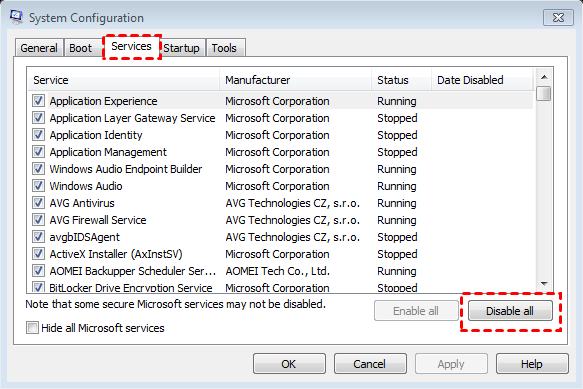
Step 3. Now, click Apply > OK >Restart to apply these changes on your computer.
Method 4: Running CHKDSK and SFC command prompt
Step 1. Go to Advanced Boot Options and select Safe Mode with Command Prompt.
Step 2. Type the following commands and hit Enter.
- chkdsk C: /r (C: refers the installation location of Windows operating system)
- sfc /scannow /offbootdir=c:\ /offwindir=c:\windows
Method 5: Using Last Known Good Configuration
To troubleshoot Windows 7 startup issues, you can use the "Last Known Good Configuration" option, which loads the drivers and registry data that worked well the last time the system started up. This can help resolve startup problems.
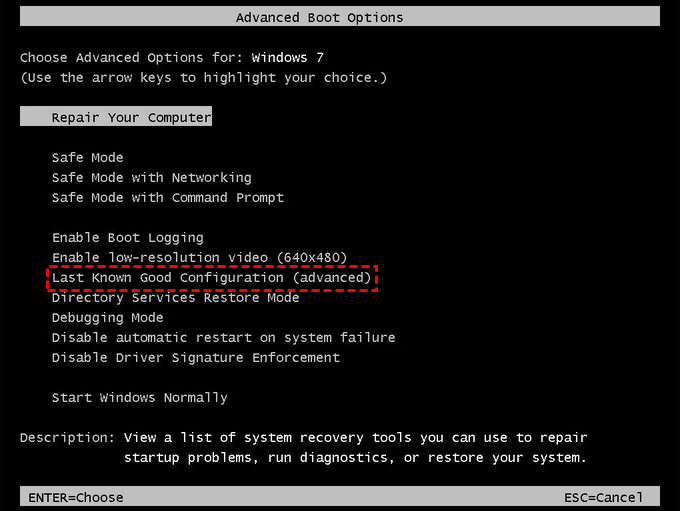
Step 1. Go to Advanced Boot Options.
Step 2. Select Last Known Good Configuration (advanced) and hit Enter to run the pending operation.
Method 6: Manually run startup repair
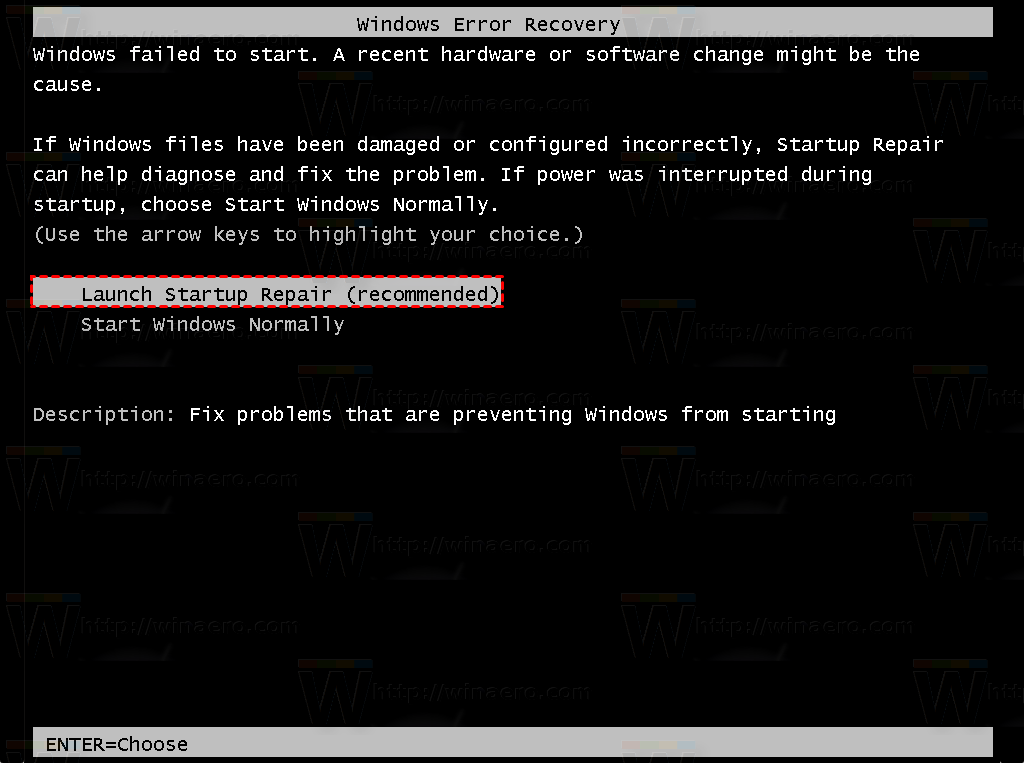
Step 1. Turn on your computer and press F8 key to see Windows Error Recovery menu.
Step 2. Select Launch Startup Repair (recommended) and hit Enter to run the recovery tool.
Step 3. Now, it will try to find the problems and fix it. If it cannot resolve it, you will see the following window and provide you some detailed information. You can do what is says. Or, you can click View advanced options for system recovery and supportand try other recovery tools.
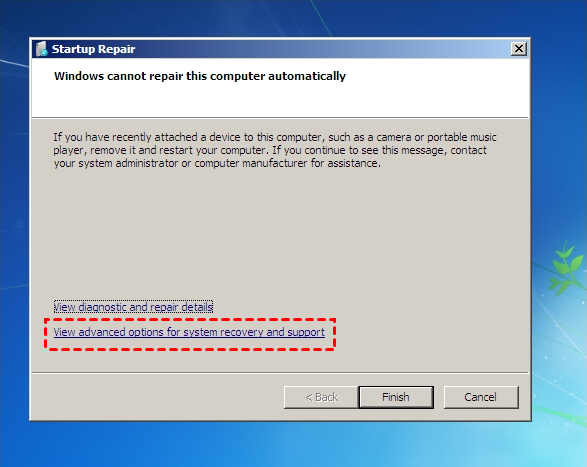
To run startup repair with Windows installation media, you can follow these steps: you can use the Windows installation media to boot your computer, then select the "Repair your computer" option, and finally choose the "Troubleshoot" option, followed by "Advanced options" and "Startup Repair". This process can help resolve issues with your computer's startup.
Method 7: Using System Restore in Safe Mode
If Windows 7 startup problems occur after an update, trying System Restore can resolve the issue.
Step 1. Restart your computer. Then, pressF8key repeatedly as soon as your computer boots, but before the Windows logo appears.
Step 2. In the Advanced Boot Options window, select Safe Mode and hit Enter.
Step 3. Type system restore in the search box and select it.
Step 4. Tick the Recommended restore option and click Next. This will restore your system to the most recent restore point, minimizing potential losses. If the recommended restore point is corrupted, you can choose a different one and follow the on-screen instructions to complete the restore process.

Step 5. Check the settings and click Finish to start the restore process.
How to protect your computer to avoid mess-up in startup issues
Creating a backup is essential for data security, as it ensures your files are safe in case of a computer crash. By saving your backup on an external storage device, such as a USB flash drive, you can easily transport it and have a safeguard against data loss. This simple step can provide peace of mind and protect your important files.
Qiling Disk Master Standard is a free backup and restore software that allows you to create various types of backups, including system, file, partition, and disk backups. You can schedule backups, compress and encrypt them, and manage disk space. This software is a comprehensive tool for backing up and restoring your data.
This software is very user-friendly, making it accessible to beginners. Simply open it and follow the straightforward steps provided.
Step 1. Plug your USB flash drive into your computer and make sure it's recognized by your computer.
Step 2. Download Qiling Disk Master Standard, install and launch it.
Step 3. Click Backup and System Backup in order.You can also click File Backup, Partition Backup, Disk Backup.

Step 4. Modify the Task Name, click where the arrow point and select your USB drive as destination.

Step 5. To set up settings for your backup, go to the bottom of the page and click on the three options: Backup Options, Schedule, and Scheme. This will allow you to customize your backup settings according to your needs.
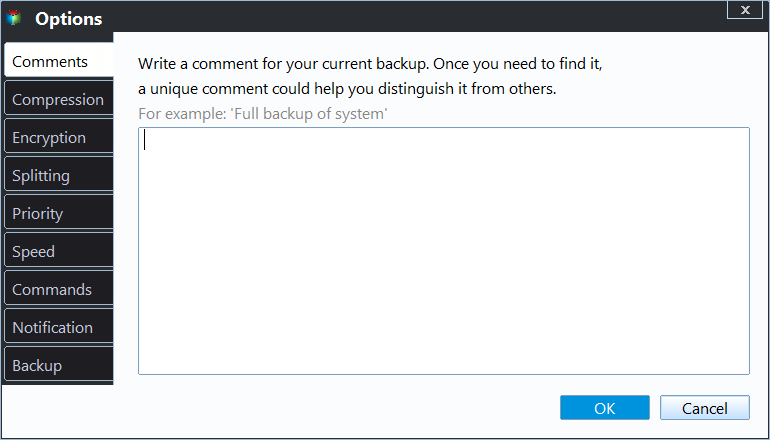
Notes:
1. Qiling Disk Master Professional is a paid version that offers encryption as a feature, requiring an upgrade for access to this functionality.
2. Backing up your data at a regular time ensures it's up-to-date. A new feature called USB plug-in allows you to back up data using a recognized USB drive, making the process more convenient.
3. Differential and incremental backups can help save disk space, and deleting old backups with a backup scheme can further optimize storage usage.
Step 6. Click Proceed to start the pending operation.
For beginners, troubleshooting Windows 7 startup issues with recovery tools can be challenging. However, using the free Qiling Disk Master can make the process much easier. By following the steps outlined, you can create a system backup and then restore a system image backup from a USB drive when needed.
Related Articles
- Quick Fix to Startup Repair in Windows 7 not Working
This guide explains Quick Fix to Startup Repair in Windows 7 not Working with clear steps, key checks, and practical tips. - Windows 7 Boot Repair via Command Prompt (5 Ways and 2 Tips included)
You can run Startup Repair or Command Prompt Windows 7 boot repair to fix Windows 7 boot problems easily. And the best way to prevent this is to create a system image. - 2 Free Ways to Schedule Hourly Backup in Windows 10/8/7
For particularly important data, you can schedule hourly backup to protect it tightly. Here's how you can set up it in Windows 10, 8, 7, and the related info you need to know. - Free USB Image Tool Bootable for Windows 10
To prevent boot files on USB from being lost, users usually back them up with a free USB image tool bootable. Qiling Disk Master can help you backup your USB easily. - How to Backup Office 365 Emails - Top 2 Methods of 2024
You can easily back up your Office 365 emails using two simple methods. This article will guide you through the process, allowing you to securely store your emails in a safe location. By following the steps outlined here, you'll be able to backup your Office 365 emails with ease. - [2 Easy Ways] How to Backup QuickBooks Automatically on Windows 11/10/8/7
If you're looking to automatically back up your QuickBooks data, you're in the right place. This article will outline two methods to help you achieve this. By the end of reading, you'll be able to choose the best approach to back up your QuickBooks, ensuring your financial data is safely secured.
Products
Articles & Tutorials
- Data Recovery
- Data Backup
- File Recovery
- File Backup
- File synchronize
- System Backup and Restore
- Disk and Partition Clone
- Technical articles
- Disk Master Help
- Windows Deleted File and Disk Recovery Tutorials
- Windows File and Data Recovery Tutorials
- More Windows Tutorials for Install, Security, Files, and PC Tips
- Windows Boot, Repair, and Recovery Environment Tutorials
- Windows Backup Tutorials
- Windows Restore Tutorials
- Windows Clone and Migration Tutorials
- Windows Server Backup, Recovery, and Management Tutorials
- Windows Disk, Partition, and Storage Management Tutorials