Startup Repair or Command Prompt Windows 7 Boot Repair
Content of this article:
- About Windows 7 boot repair
- How to Run Startup Repair from installation disc
- How to Boot Repair Windows 7 from Command Prompt
- Create a System Image After Boot Repair to Prevent Boot Failure
- Summary
About Windows 7 Boot Repair
If you're experiencing Windows 7 boot problems, it's possible that the boot sector or master boot record on your system partition is damaged, corrupted, or missing files, resulting in an error message before Windows loads.
- Error loading operating system
- Missing operating system
- Reboot and select proper boot device
- Invalid partition table
- Bootmgr is missing
- FATAL: No bootable medium found! System halted.
If you don't have a backup of your Master Boot Record (MBR), you can use the command prompt to repair your Windows 7 computer.
✎... What are the boot sector and master boot record exactly?
The boot sector is a small section at the beginning of a hard drive, created when you format the hard drive, containing code and data that assists BIOS in handing over the startup process to Windows.
The Master Boot Record (MBR) is a crucial part of a computer's hard drive, containing the disk signature, partition table, and master boot code.
✎... How do the boot sector and MBR boot a computer?
When a PC starts, the BIOS loads the master boot code into RAM, then scans the partition table to determine the active partition. It loads a copy of the boot sector into RAM and hands off the startup process to it, allowing the operating system to take over and complete the boot process.
How to Run Startup Repair from installation disc
If your boot sector or MBR becomes corrupted, you won't be able to start Windows normally and will need to use a Windows installation disc to boot your computer. If you don't have a disc, you can create a system repair disc or recovery disk on a working computer.
Step 1. Plug the installation disc or recovery disk into your computer.
Step 2. Start your computer and press the BISO key repeatedly to access it. Then, go to the Boot tab and set your USB drive as first boot option. Save changes and exit.
Step 3. Press any key on your keyboard when you see a black screen saying "Press any key to boot from CD or DVD..."
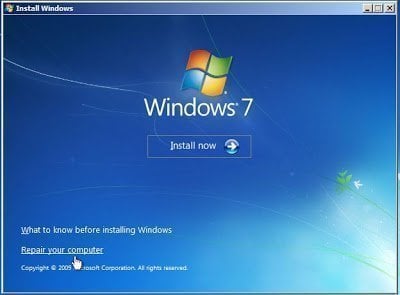
Step 6. After that, it will start to load files, wait patiently. In the Install Windows screen, click Repair your computer.
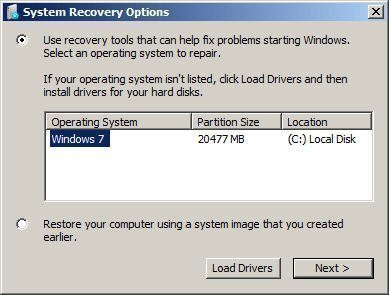
Step 7. In the System Recovery Options window, select Windows 7 and click Next, or click Load Drivers to install drivers for your disks if no operating system is listed.
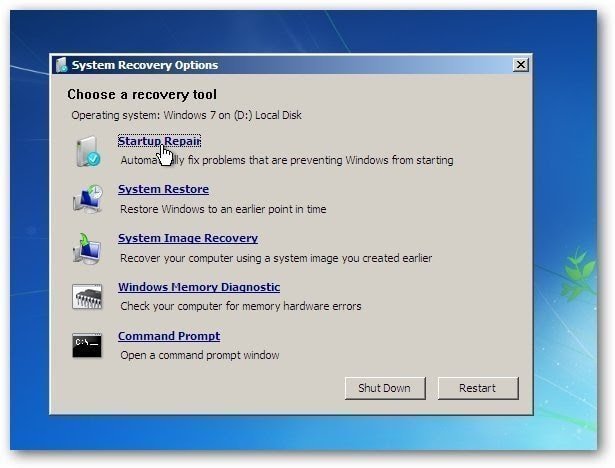
Step 8. In Windows 7, select Startup Repair in System Recovery Options, which will automatically repair the boot sector or MBR. Wait for the process to complete and click Finish.
How to Boot Repair Windows 7 from Command Prompt
In Windows 7, you can only boot to the command prompt and then attempt to repair Windows 7. To access the command prompt, you can try different methods, such as booting in safe mode, using the Windows 7 installation disc, or accessing the command prompt through System Recovery Options. Once you're in the command prompt, you can use various commands to troubleshoot and fix issues, such as bootrec and fixboot, to repair the boot process and get Windows 7 up and running again.
Part 1: Boot to Command Prompt in Windows 7
#1: From Startup Repair
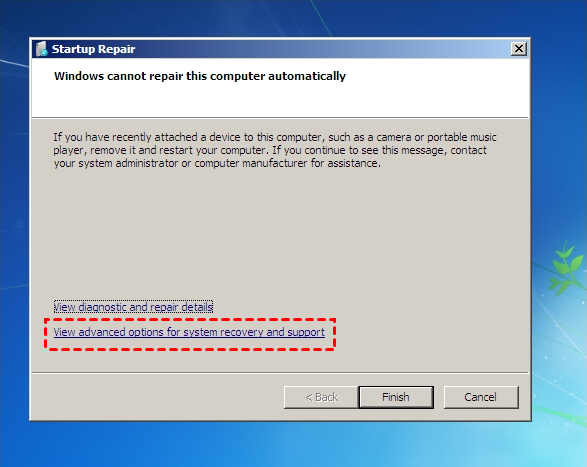
You may encounter the Startup Repair not working issue and be asked to restore your computer with System Restore. If you have a working restore point, click Restore. If not, click Cancel and then View advanced options for system recovery and support > Command Prompt to boot repair Windows 7.
#2: From Key combination
You can access the command prompt by pressing "Shift + F10" on the first Install Windows window, except for the System Recovery options window.
#3: From Advanced Boot options
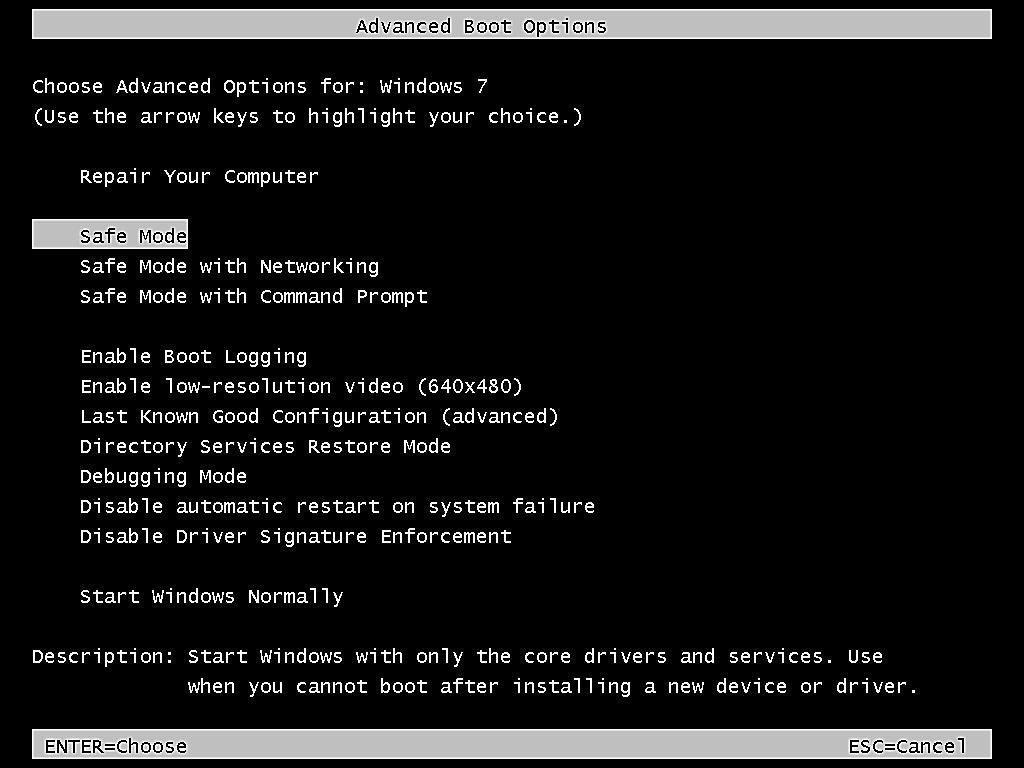
If you don't have a recovery disk, you can still access the command prompt by turning on your computer, pressing and holding the F8 key repeatedly until you see the Advanced Boot options window, and then selecting Safe Mode with Command Prompt.
Part 2: Use Command Prompt for Windows 7 Boot Repair
After accessing command prompt, try the following commands to boot repair Windows 7.
- Way 1: Windows 7 Startup Repair Command Prompt Chkdsk
- Way 2: Windows 7 Boot Repair Bootrec
- Way 3: Windows 7 Repair Boot Sector Command Prompt DiskPart
- Way 4: Rename and Rebuild BCD NotePad
- Way 5: Rename and Rebuild BCD Ren Command
Way 1: Windows 7 Startup Repair Command Prompt Chkdsk
To run a disk check on your C drive, open the command prompt window, type the command "chkdsk C: /f /r", and press Enter. This will initiate a scan of the file system and hard drive, identifying and fixing any corrupted files.
If your Windows 7 boot problem is caused by a physical issue, you can try troubleshooting it. To do this, you can refer to the article about Windows 7 startup repair command prompt chkdsk, which provides more information on how to resolve the issue.
Way 2: Windows 7 Boot Repair Bootrec
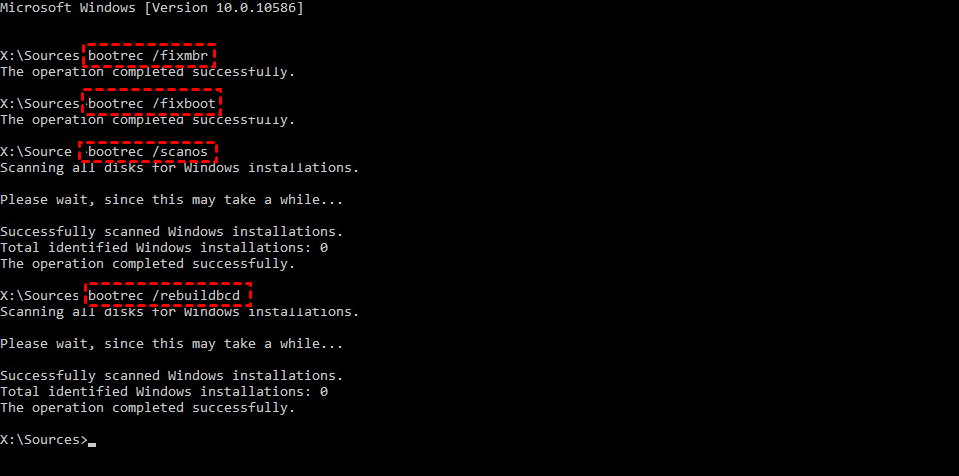
If your boot sector or MBR is damaged, you can use the Bootrec command prompt to fix it. You can also use it to fix issues where the 'bootmgr is missing' in Windows 7, build the BCD, and repair the boot sector for Windows. To do this, type the following commands in order and press Enter:
- bootrec /fixmbr
- bootrec /fixboot
- bootrec /scannos
- bootrec /rebuildbcd
- bootsect.exe /nt60 all /force
Notes:
❤ The /nt60 parameter allows the master boot code to be compatible with BOOTMGR.
❤ The /all argument updates the master boot code on all partitions.
❤ The /force parameter in the Bootsect.exe tool forcibly dismounts the volume(s) during the boot code update, preventing exclusive volume access by the tool.
Way 3: Windows 7 Repair Boot Sector Command Prompt DiskPart
If the bootrec /fixmbr and bootrec /fixboot commands don't work, you can try to restore the boot sector code of your Windows 7 with Diskpart. Type 'diskpart' and press Enter to access this Windows utility, then type the following commands and press Enter in order: 'list disk', 'select disk X' (where X is the disk number containing your Windows 7 installation), 'list partition', 'select partition Y' (where Y is the partition number containing your Windows 7 installation), 'active', 'exit'. This should restore the boot sector code and allow you to boot into Windows 7.
- diskpart
- select disk 0
- list volume
- d:
- cd boot
- dir
- bootsect /nt60 SYS /mbr
Notes:
❤ To find the drive letter of your installation disc, use the command line from diskpart to list volume, and check the "Type" column for the word "CD-ROM". For example, if D: is listed as the type, then D: is your installation disc drive letter.
❤ The command line `bootsect /nt60 SYS /mbr` is used to restore boot sector code using an installation disc.
Way 4: Rename and rebuild BCD via NotePad
If the above command prompt does not work for you, you can try to backup and rename the BCD first, and then rebuild it via CMD.
- bcdedit /export C:\BCD_Backup
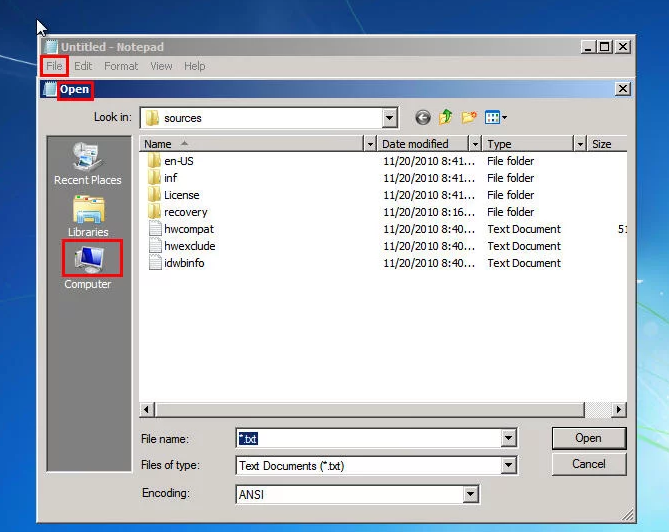
- notepad
You will see a pop-In the Notepad window, click File > Open > Computer, find the BCD file, rename it to BCD.old, save the change, and exit the window.
Now, you will go back to the command prompt window. Type `bootrec /rebuildbcd` and hit Enter, then confirm with `Yes`, and finally, type `bcdedit /enum all` and hit Enter.
Way 5: Rename and Rebuild BCD Ren command
The ren command can be used to rename the bcd file, and then rebuilt, except for Notepad. In the command prompt window, type the command line below and hit Enter after each one: ren c:\boot\BCD BCD.old, bootrec /fixmbr, bootrec /fixboot, and bootrec /scanos.
- bcdedit /export C:\BCD_Backup
- c:
- cd boot
- attrib bcd -s -h -r
- ren c:\boot\bcd bcd.old
- bootrec /RebuildBcd
Note: c: refers to the location of your Windows.
Create a System Image After Boot Repair to Prevent Boot Failure
It's always a good idea to backup your system with free backup software like Qiling Disk Master Standard, as your computer can crash or become unbootable at any moment.
- The system partition will contain the operating system, installed programs, personal data, and other system files.
- This software creates a full backup initially and then incremental backups of only changed files, with the option to schedule backups to run automatically.
- This software supports a schedule backup system that can be set to run daily, weekly, or monthly. Additionally, it allows you to enable the option to wake the computer to run scheduled tasks automatically.
Download Qiling Disk Master Standard, install and run it.
The free version only supports Windows 7, 8, 10, 11, XP, and Vista, while server users may want to try Qiling Disk Master Server.
Step 1. In the main interface, click "System Backup" under the "Backup" tab.

Step 2. Qiling Disk Master will automatically select the system partition and other system-related partitions, and all you need to do is choose a destination path to save your backup, which can be a local path, network or NAS devices, or cloud drive.

Step 3. In the Operation Summary window, set backup settings if necessary and click "Proceed" to backup your Windows 7 system.

Tips:
❤ Options: You can set compression level, image splitting, backup encryption, etc.
❤ Schedule Backup: The device can be triggered by Daily, Weekly, Monthly schedules, or by an Event, or even by a USB plug in, with the latter two options available on the professional version or higher.
❤ The backup scheme allows for a change from the default incremental backup to differential backup, and enables automatic deletion of old backups using one of four cleanup methods: by quantity, by time, by daily/weekly/monthly, or by space.
For an IT Technician, Qiling Disk Master Technician or TechPlus can be used to create bootable media, allowing them to backup multiple computers without re-installing the software.
You can easily restore a system to a new hard drive, even to a new computer with dissimilar hardware, when something unexpected happens, allowing you to boot from it.
The biggest advantage of this tool is its ability to restore systems to multiple computers simultaneously over a network. The Qiling Image Deploy feature allows you to boot multiple computers over the network and restore a system image from a server computer.
Summary
If your Windows 7 computer is experiencing boot issues, you can use the command prompt to perform a boot repair. This can be done manually by first running the Startup Repair, then attempting to run chkdsk, bootrec, diskpart, notepad, and ren commands to troubleshoot and resolve the problem.
To avoid Windows 7 boot problems, create a system image that includes the operating system, system files, drivers, and other essential components. This will enable you to restore your system quickly in case of a disaster. You can use Qiling Disk Master to create and manage the system image, and refer to the edition comparison page for more details.
Related Articles
- System Recovery Options Command Prompt - Troubleshoot Your Computer
- How to Run System Restore from Command Prompt Windows 7
- Fix Windows Automatic Repair Loop using Command Prompt
- How to Repair Windows 10 Using Command Prompt (5 Ways)
- What Is Windows File System: Definition & Comparison & Conversion
This guide explains What Is Windows File System: Definition & Comparison & Conversion and provides practical steps, tips, or recovery options to help you complete the task safely. - What Size Flash Drive Do I Need to Backup my Computer?
This guide explains What Size Flash Drive Do I Need to Backup my Computer with clear steps, key checks, and practical tips.
Products
Articles & Tutorials
- Data Recovery
- Data Backup
- File Recovery
- File Backup
- File synchronize
- System Backup and Restore
- Disk and Partition Clone
- Technical articles
- Disk Master Help
- Windows Deleted File and Disk Recovery Tutorials
- Windows File and Data Recovery Tutorials
- More Windows Tutorials for Install, Security, Files, and PC Tips
- Windows Boot, Repair, and Recovery Environment Tutorials
- Windows Backup Tutorials
- Windows Restore Tutorials
- Windows Clone and Migration Tutorials
- Windows Server Backup, Recovery, and Management Tutorials
- Windows Disk, Partition, and Storage Management Tutorials