System Recovery Options Command Prompt - Troubleshoot Your Computer
What is system recovery options?
System recovery options is a preinstall tool in Windows 7 that allows you to troubleshoot a troubled computer, diagnosing, repairing, and restoring backups.
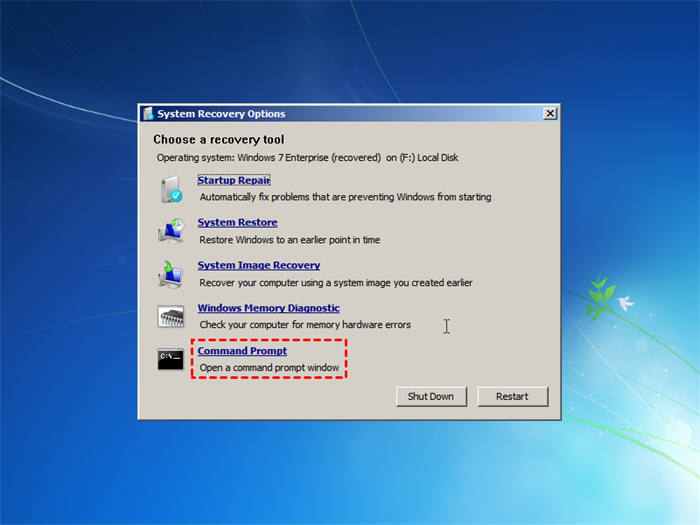
Today, we'll focus on system recovery options using Command Prompt. Various commands allow you to check file integrity, rebuild the Boot Configuration Data (BCD), restore system files and settings, perform boot repairs, and more.
Windows 7 and later versions of the command prompt allow running graphical programs like System Restore, Notepad, Regedit, and possibly some anti-malware software.
Troubleshoot your computer via system recovery options command prompt
System recovery options is a useful tool that helps recover your computer when it fails to boot or crashes, allowing you to restore it to an earlier date when it was working properly.
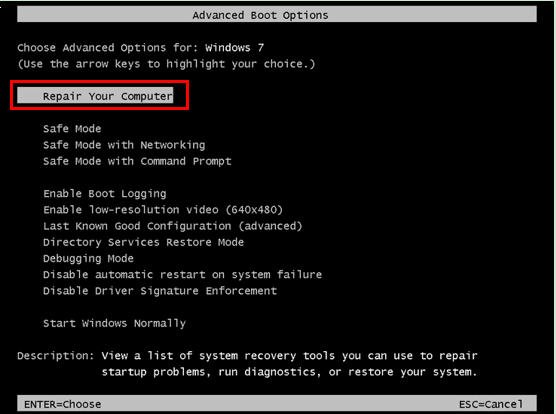
To access the System Recovery Options Command Prompt in Windows 7, restart your computer and immediately start tapping the F8 key. This will bring up the Advanced Boot Options menu.
Step 1. To access system recovery options in Windows 7, restart your computer and press F8 until the Windows 7 logo appears. Select "Repair your computer" and then choose language and other preferences, followed by clicking "Next". This will take a few seconds, after which you will be presented with the main page of system recovery options.
If your computer won't boot, try using the installation disc as a workaround. Insert the disc, restart your computer, and press any key to boot from the disc when prompted. On the Install Windows page, select preferences, click Next, and then choose Repair your computer. From there, select the operating system to access recovery options.
Startup Repair will automatically fix any problems it finds. If no issues are detected, you will be prompted to run System Restore. Alternatively, you can click Cancel and access advanced system recovery and support options, which will direct you to System Recovery Options.
Step 2. Click Command Prompt in the system recovery options.
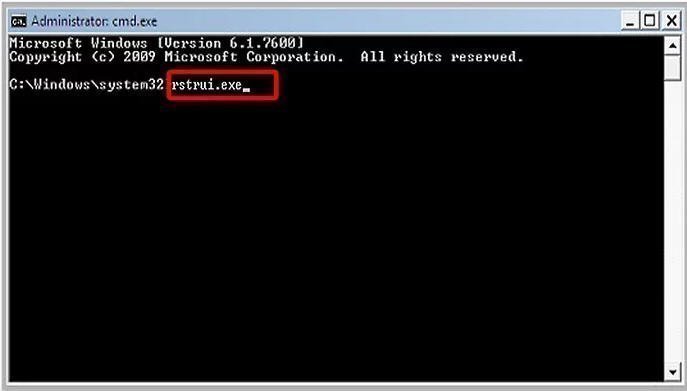
Step 3. Type rstrui.exe and press Enter to run it.
Step 4. Click Next in the Restore system files and settings window.
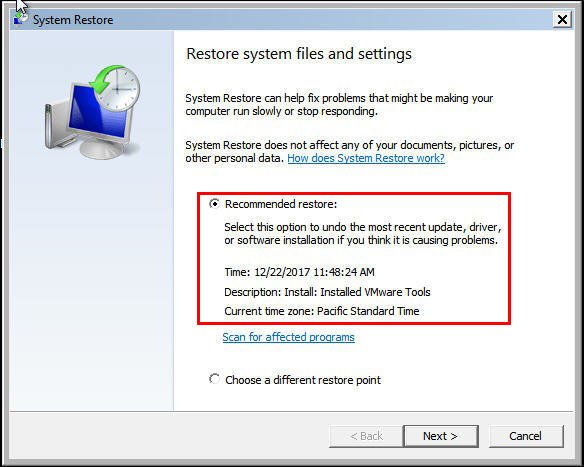
Step 5. Select an available restore point in the following list, and then click Next.
Step 6. Confirm the selected restore point and click Finish to start the pending operation.
Besides using the System Restore command prompt, there are many other commands that can help repair system issues.
• To check the disk for the system volume, type the command "chkdsk /f C:" in the command line. (Note: The system drive letter may vary depending on the environment, so ensure to use the correct drive letter.)
• To check system file, type command SFC /scannow /offbootdir=C:\ /offwindir=C:\windows.
• To restore health to a Windows system, run the command DISM /image:D:\ /cleanup-image /restorehealth in the Command Prompt, where D:\ is the path to the Windows image. This method is effective for Server 2012 and later versions.
What if system recovery options command prompt missing?
If you're unable to run System Restore from the command prompt due to system recovery options not allowing it, you can use System Restore or System Image Recovery instead as long as you have a restore point or system backup created by the built-in tool.
You can use free backup and restore software like Qiling Disk Master to create a system image backup ahead of time, which can help solve various system issues and has more features than Windows 7's built-in backup software.
You can compress backups using Normal or High compression levels for efficient storage. Alternatively, use incremental or differential backups to only save changed parts, reducing storage space. To create multiple backups, schedule them at daily, weekly, or monthly intervals, ensuring your data is safely backed up. Simply download and use the software, and you'll be impressed by its capabilities.
Repair your computer via system image backup
If you already have a system backup created by Qiling Disk Master Standard, you can continue with the process. If not, you'll need to create a system image backup on a computer with the same hardware as yours. If your computer is unbootable, you can create a bootable media or directly add a recovery environment entry of Qiling Disk Master.
Then, repair your computer with the following steps.
Step 1. Boot your computer using bootable media created by Qiling Disk Master Standard. Then connect the external device containing your backup your computer.
Step 2. Under the Restore tab, click Select Image File to find the image on your device and hit Next. If you set a scheduled full/incremental/differential backup task, there will be a few backup images listed in the next window.

Step 3. Select to restore the entire backup and click Next to continue.

Step 4. Select a destination partition to restore the image and click Next.

Step 5. Click Proceed to perform the restoration process.

Further reading: repair Windows 10 using command prompt
Like Windows 7, Windows 8 and 10 also have a recovery tool, but with a different interface and name. To access the command prompt, which is used to repair the computer, follow the same steps as before, as the process remains similar.
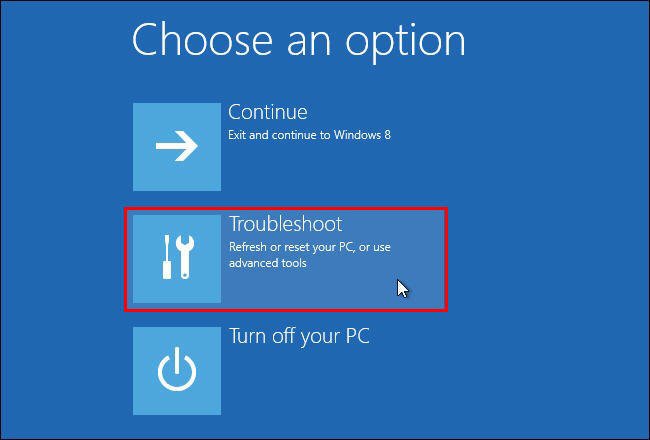
Using Choose an option feature:
To reset Windows 10, hold the Shift key while clicking Power and Restart to access the advanced options, then select Troubleshoot, Advanced Options, and Command Prompt, and follow the on-screen instructions to repair your Windows 10.
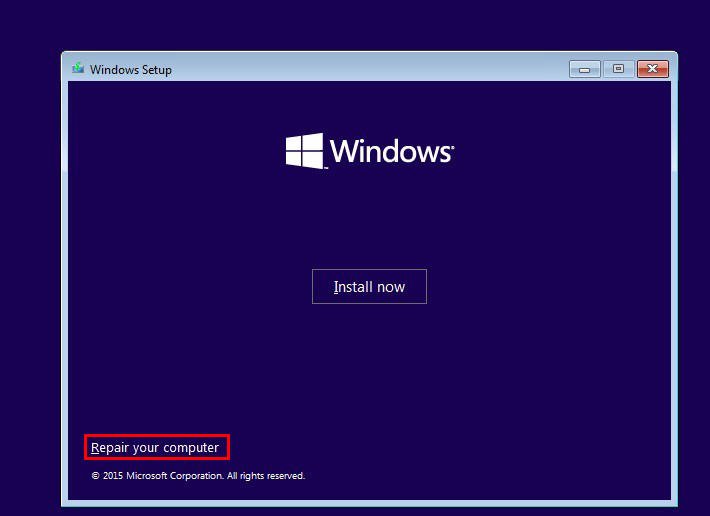
Using installation disk:
Connect your USB flash drive to your computer, access the BIOS settings, set the boot priority to the USB flash drive, restart your computer and press any key when prompted, then select your preferences and click Next, and finally click "Repair your computer" and navigate to Command Prompt.
Wrapping things up
System recovery options command prompt is a recovery solution that allows you to troubleshoot computer issues. It can be accessed through both the preinstalled recovery tool and an installation disk, enabling you to use command prompt to repair your computer when something goes wrong.
In some cases, you may not find a command prompt in system recovery options. As an alternative, you can consider system restore or use a tool like Qiling Disk Master Standard to create a system image and then restore it from an external hard drive when needed.
Related Articles
- Tested Solutions to No System Recovery Options in Windows 10/8/7
If you see no system recovery options available when you boot into Recovery Mode, you can find a solution to fix it. - How to Repair Windows 10 Using Command Prompt (5 Ways)
You can easily fix Windows 10/11 computer error like startup error or BSoD using command prompt with the help of SFC, DISM, System Restore, etc. - How to Repair Windows Server 2008 (R2)/2012 (R2)/2016 Using Command Prompt
You will learn x ways to repair Windows Server 2008 R2 using command prompt and get your computer back normally. Also works for server 2012 R2/2016 R2/2019/2022. - How to Move Files to External Hard Drive Without Copying - 2 Alternative Ways
Learn how to Move Files to External Hard Drive Without Copying - 2 Alternative Ways with clear steps, key checks, and practical tips. - How to Reset Windows 11 without Losing Data and Apps
Learn how to Reset Windows 11 without Losing Data and Apps with clear steps, key checks, and practical tips. - Backup and Restore Windows 11 Image to New Hard Drive Easily (3 Ways)
Backups are very important to protect your system and data just in case you need to restore Windows 11 image to new hard drive for a quick disaster recovery.
Products
Articles & Tutorials
- Data Recovery
- Data Backup
- File Recovery
- File Backup
- File synchronize
- System Backup and Restore
- Disk and Partition Clone
- Technical articles
- Disk Master Help
- Windows Deleted File and Disk Recovery Tutorials
- Windows File and Data Recovery Tutorials
- More Windows Tutorials for Install, Security, Files, and PC Tips
- Windows Boot, Repair, and Recovery Environment Tutorials
- Windows Backup Tutorials
- Windows Restore Tutorials
- Windows Clone and Migration Tutorials
- Windows Server Backup, Recovery, and Management Tutorials
- Windows Disk, Partition, and Storage Management Tutorials