Top 5 Ways | Repair Windows 10, 11 Using Command Prompt
- How do I repair Windows 10/11 with command prompt?
- 1. Repair Windows 10 startup problems using SFC
- 2. Repair Windows 10 using DISM Command
- 3. Reset Windows 10 with command line to start over
- 4. Run system restore with Command Prompt to fix Windows 10
- 5. How to restore Windows using Qiling.exe command
- Summary
How do I repair Windows 10/11 with command prompt?
When Windows experiences issues, you can resolve them through basic repair methods such as repairing the Windows directory and boot directory. If the problem persists, you can utilize advanced repair techniques like system restore. For Windows 10/11, the DISM command line utility can be used to repair the Windows image.
This article will guide you through repairing Windows 10 from the Command Prompt, offering five methods to do so. If Windows loads normally, you can easily access the cmd. However, if Windows is not loading properly, try the following methods to repair it.
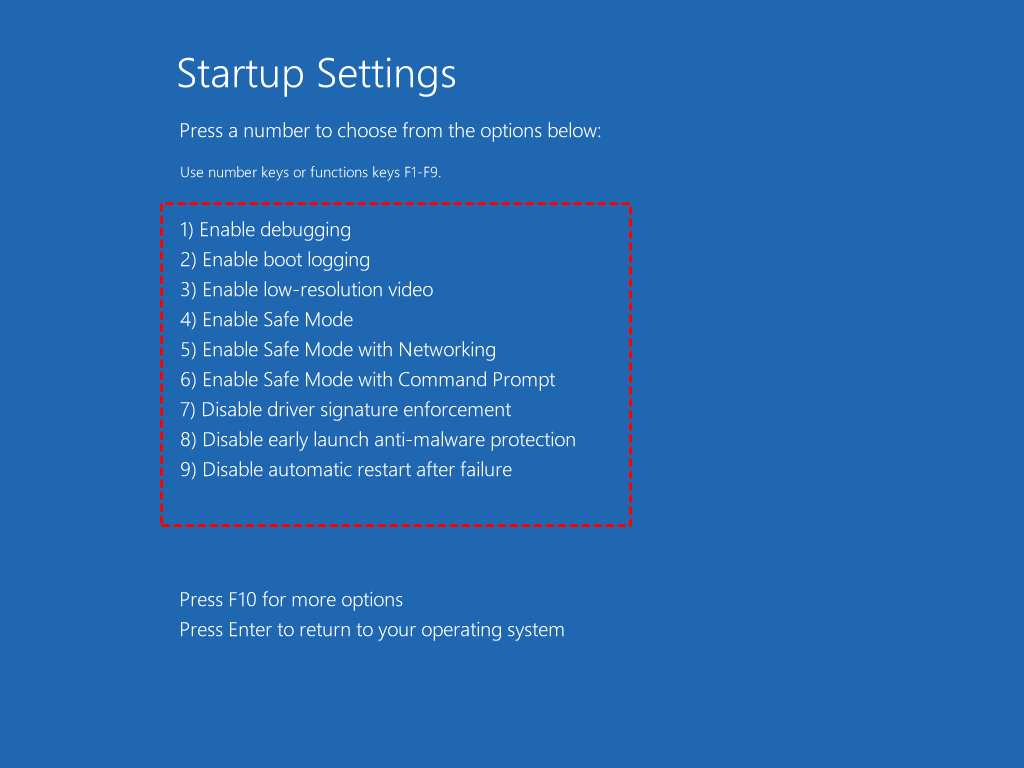
#1: Enable safe mode with command prompt. In Windows 10/11, you can enable the command prompt by holding the Shift button and clicking Restart, then selecting the option to enable it. Alternatively, shutdown your computer completely and restart, then hold the Power button when it starts to load Windows. Repeat this process 3-4 times and select the option to enable the command prompt.
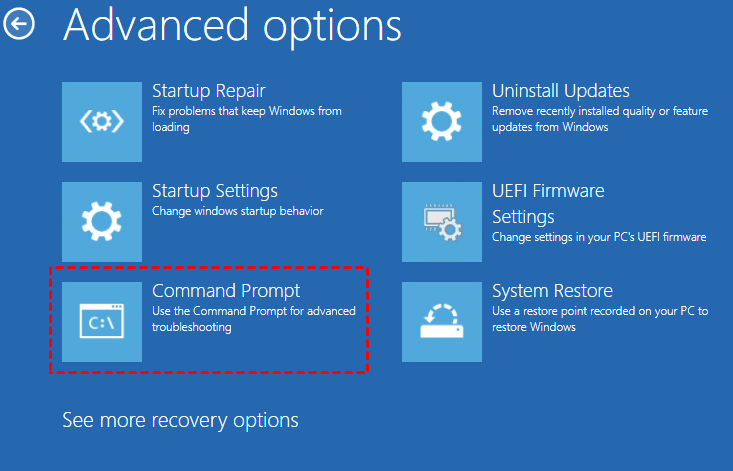
#2: Access command prompt from the recovery environment. In Windows 10/11, access the recovery environment by clicking Start > Settings > Update & Security > Recovery > Advanced startup and then restarting. From there, select Troubleshoot > Advanced options and choose Command Prompt or press Shift + F10 to open it.
If you can't access Windows 10/11, try inserting the installation media, setting the boot priority to it, and booting into the recovery environment. From there, select the Command Prompt in the Advanced options window.
Overview of the commands used on this page:
|
✅ SFC |
To fix Windows 10 startup problems, type "sfc /scannow". |
|
✅ DISM |
To fix Windows image, type "DISM /Online /Cleanup-Image /RestoreHealth". |
|
✅ Reset Windows 10 |
To reset Windows 10 PC, type "systemreset -cleanpc". |
|
✅ System restore |
To restore system to previous state, type "rstrui.exe". |
|
✅ Qiling.exe |
To restore Windows with Qiling Disk Master, type specific Qiling commands. |
1. Repair Windows 10 startup problems using SFC
SFC is a command-line utility that scans for corruption in Windows system files, replacing corrupted or missing protected system files with a known good version, helping to diagnose and fix Windows 10 startup problems.
To repair Windows 10/11 using SFC with detailed steps:
1. To open the Command Prompt as an administrator, follow these steps: Start, search for "Command Prompt", select it and run as administrator. This will open a command prompt with elevated privileges, allowing you to perform administrative tasks.
2. Then type the command: "sfc /scannow" and press "Enter".
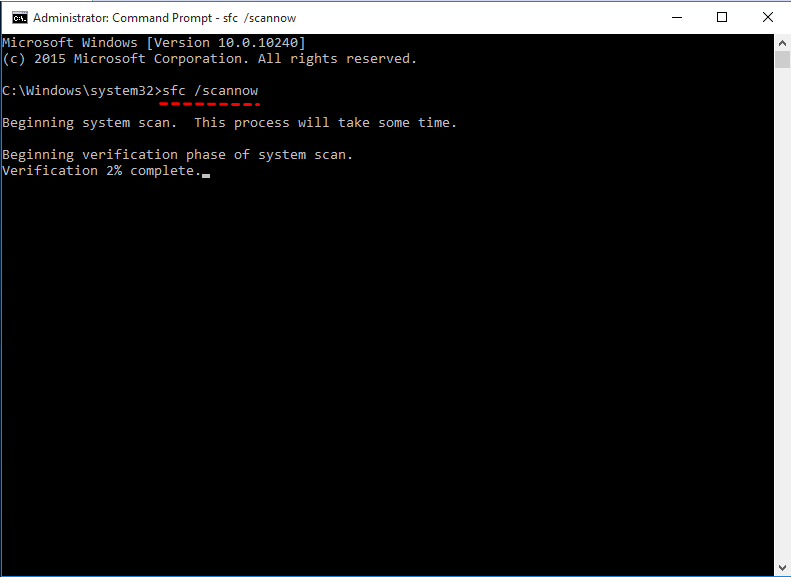
If SFC is unable to fix the problem, it's likely that the utility can't retrieve the necessary files from the Windows image, which may have become corrupted. In this case, you can try the next solution.
2. Repair Windows 10 using DISM Command
Windows 10/11 includes a command-line utility called DISM (Deployment Image Servicing and Management) that can be used to repair and prepare Windows images, including Windows Setup, Windows Recovery Environment, and Windows PE, as well as fix the recovery image within an installation of the operating system.
To repair Windows 10/11 using DISM commands:
- To check for corruption, run the command line as administrator, type the syntax, and press Enter.
DISM /Online /Cleanup-Image /CheckHealth
- You can scan the Windows image for corruption by running the command `sfc /scannow` and pressing Enter. This will check the integrity of the system files and replace any corrupted ones.
DISM /Online /Cleanup-Image /ScanHealth
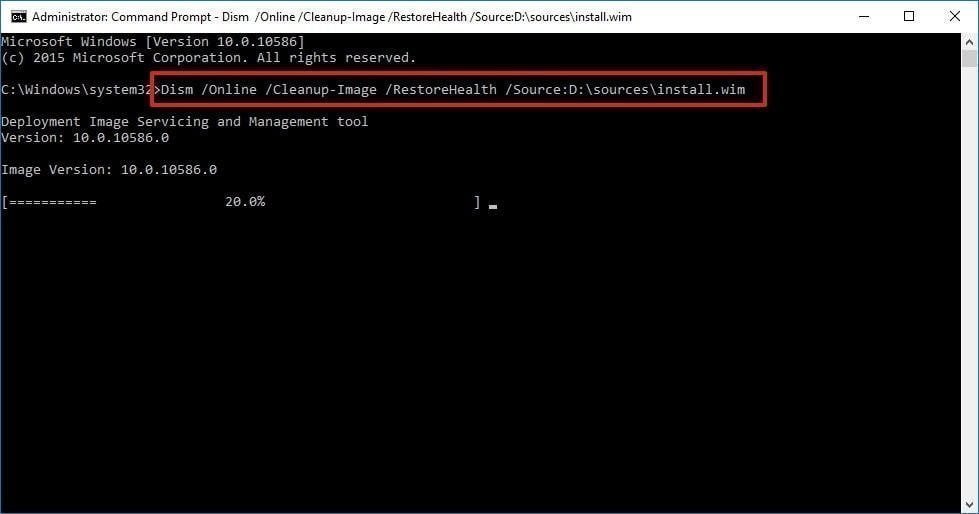
- To fix Windows image, type the following command and hit "Enter".
DISM /Online /Cleanup-Image /RestoreHealth /Source:repairSource\install.wim
3. Reset Windows 10 with command line to start over
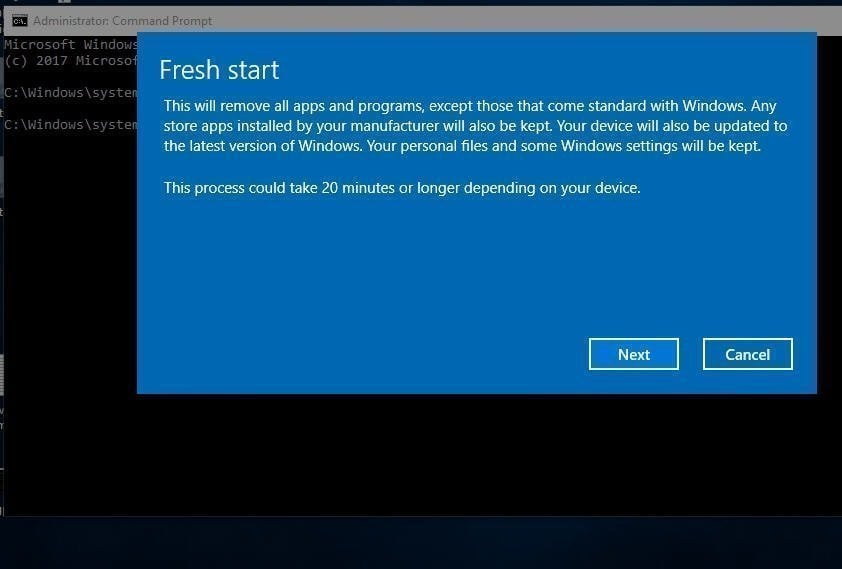
If your Windows 10 computer is experiencing issues, resetting it can be a good solution. This process will preserve your personal data and remove all installed apps and programs, except for those that come pre-installed with Windows. To learn more about the process, you can visit the link Reset Windows 10 PC and keep my files.
To troubleshoot Windows 10 using the command prompt, follow these steps: Open the Command Prompt as an administrator by typing "cmd" in the search bar and selecting "Run as administrator." Then, type "sfc /scannow" and press Enter to scan and replace corrupted system files.
Type "systemreset -To clean up your PC, open an elevated command prompt and run the command "cleanpc" and press Enter. If your computer can't boot, boot into recovery mode, select "Troubleshoot", and then choose "Reset this PC".
4. Run system restore with Command Prompt to fix Windows 10
If the problem is severe, you can try restoring Windows 10/11 to its previous state if System Restore was enabled. However, this will not restore personal files, so it's essential to back up your files to an external drive before doing so.
To run system restore in safe mode, follow these steps:
1. If your computer boots normally, start Command Prompt as usual. If not, start your computer in Safe Mode and enable Command Prompt via 6 or F6.
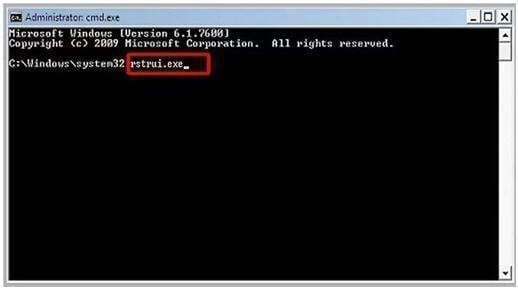
2. To restore Windows 10 to its original factory settings using the Command Prompt, sign in with an administrator account if necessary. Open the Command Prompt, type "rstrui.exe" and press Enter to proceed.
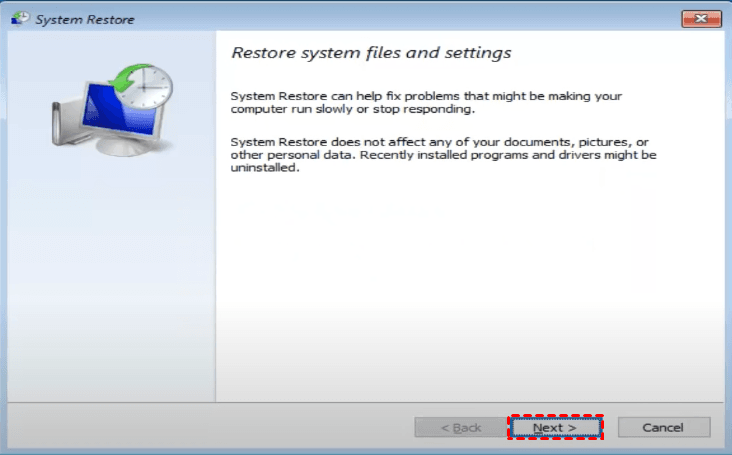
3. To access System Restore, go to the Start menu, type "System Restore," and click on the result. Then, click "Next" and choose to use the recommended restore point or a different one. Follow the instructions that appear.
To repair Windows 10 problems or issues, you can use the Command Prompt. Common methods include running the System File Checker (sfc /scannow), DISM (DISM /Online /Cleanup-Image /RestoreHealth), and Windows Update troubleshooter. These methods are also suitable for troubleshooting Windows 11 and Windows 7 errors.
To prevent problems, it's better to take proactive measures beforehand, which is why using specialized software to protect Windows 10 is highly recommended.
With Qiling Disk Master Professional, you can easily backup or restore Windows 10 in either Command Prompt or a user-friendly graphic interface. This allows for quick recovery in case of system crashes or disk errors, and also enables restoring Windows 10 to a different computer with dissimilar hardware.
5. How to restore Windows using Qiling.exe command
Download the 30-Get a day free trial of Qiling Disk Master right now! It supports Windows 11/10/8/7/XP/Visa.
Suppose you have created a system image backup with Qiling Disk Master. Before restoring the system, you can use the Check Image feature to verify if the system image backup is intact and error-free. To do this, you can type "DiskMasterUI /?" at the command prompt window to get the necessary parameters.
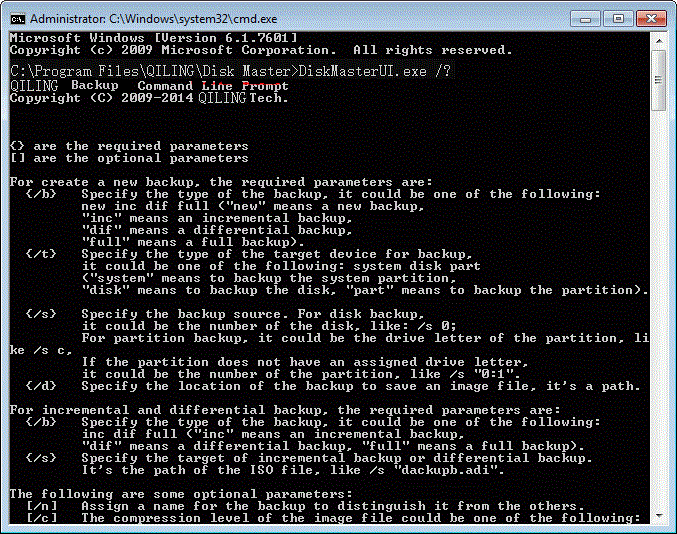
To restore Windows 10/11 using the command prompt, follow these steps: Open the Command Prompt as an administrator by searching for "cmd" in the Start menu, right-clicking on the result, and selecting "Run as administrator". Then, navigate to the installation media (such as a USB drive or CD/DVD) by typing "cd /d x:" (where "x" is the drive letter of the installation media), followed by pressing Enter. Next, type "dism /online /cleanup-image /restorehealth" and press Enter to run the DISM tool and restore the system files.
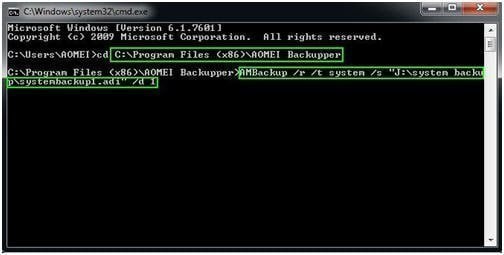
1. Navigate to the Qiling Disk Master installation directory by typing `cd C:\Program Files (x86)\Qiling Disk Master` in the command line and pressing Enter.
If you run this command under a Windows PE environment, the drive letters may change.
2. To restore a system backup, run the command "DiskMasterUI /r /t [backup type] /s "[backup location path]" /d [destination location]" in the command prompt, replacing [backup type] with the type of backup (e.g. system), [backup location path] with the path to the backup file (e.g. "J:\system backup\systembackup1.
✍ Tips:
- To restore a system image to another computer, use Qiling Disk Master's "Universal Restore" feature. For example, you can run system restore from the image "systembackup1.fvd" on partition 0 of disk 0 and perform a universal restore using the command: DiskMasterUI /r /t system /s "D:\system backup\systembackup1.fvd" /d 0:0 /x. This will restore the system image to the specified partition and disk.
- This software can be accessed quickly without booting the computer by its "Recovery Environment" utility.
You can use the computer's graphic user interface instead of the command line interface, making the process easier. To do this, you'll need a backup image that's intact. If you can't access your computer, you'll still need to create a bootable USB drive (at least 16GB) on a working computer.

Here are the detailed steps to repair and restore Windows 10 with Qiling Disk Master:
1. Launch the software, navigate to the Restore tab, and select the Select Task option.
2. In the Restore window, select the backup image you want to restore, which is typically a system backup, and click Next.
✍ Tip: If there is no system image, you can manually select a backup image by clicking Back and then choosing Select Image File to browse and select the desired image.
3. To restore a system backup, select "Restore this system backup" and "Restore system to other location" in the image information window, then click Next and choose the new hard drive in the next window.
4. Preview the operation summary and click Proceed.
✍ Tips:
- You can also perform a hard drive clone to upgrade your disk when you encounter a disk error.
- The Qiling Image Deploy feature saves time and effort by deploying images to multiple computers simultaneously, especially in a company setting.
Summary
You've learned five methods to repair Windows 10/11 using the command line. You can choose the one that suits you best. It's also recommended to have backup software Qiling Disk Master installed on your computer for continuous protection.
If you're an IT Technician or need to protect unlimited computers within your company, or want to deploy images to multiple computers effortlessly, you can choose Qiling Disk Master Technician or TechPlus edition.
You can copy the installation directory to create a portable version, allowing you to use it anywhere and anytime.
Related Articles
- A Simple Way to Move Windows 10 Hard Drive to New Computer
- Restore Windows 10 from Recovery USB (4 Ways included)
- How to Run System Restore via Command Prompt in Windows 10
- Startup Repair or Boot Repair Windows 7 using Command Prompt
- Top 2 Easy Ways to Install Windows 10 on SSD
- How to Build Windows 8 Bootable USB with Win To Go Creator?
Building a Windows 8 bootable USB with Windows To Go Creator allows you to run a Windows 8 environment on any computer.
Products
Articles & Tutorials
- Data Recovery
- Data Backup
- File Recovery
- File Backup
- File synchronize
- System Backup and Restore
- Disk and Partition Clone
- Technical articles
- Disk Master Help
- Windows Deleted File and Disk Recovery Tutorials
- Windows File and Data Recovery Tutorials
- More Windows Tutorials for Install, Security, Files, and PC Tips
- Windows Boot, Repair, and Recovery Environment Tutorials
- Windows Backup Tutorials
- Windows Restore Tutorials
- Windows Clone and Migration Tutorials
- Windows Server Backup, Recovery, and Management Tutorials
- Windows Disk, Partition, and Storage Management Tutorials