How to Build Windows 8 Bootable USB with Win To Go Creator?
Content
- What is Windows To Go?
- How to build Windows 8 bootable USB with Windows To Go?
- How to build Windows 8 bootable USB without Enterprise?
- How to boot computer from the Windows 8 USB drive?
- Conclusion
What is Windows To Go?
Microsoft's "Windows To Go" feature allows you to install Windows on a certified USB drive, enabling you to boot and run Windows on any other computer. This feature was available in Windows 8, 8.1 Enterprise, Windows 10 Education, and Windows 10 Enterprise editions.
Windows To Go is a useful feature for business and personal Windows 8 users. It allows you to quickly set up a familiar Windows 8 environment on a USB drive, making it easy to work from home or on a business trip. Additionally, it can help resolve compatibility issues with programs or games that only run well on a specific OS, making it a handy tool for those who need to run such applications.
To create a Windows 8 bootable USB with Windows To Go, follow these steps: First, download the Windows To Go Creator tool from Microsoft's website. Then, insert a USB drive with at least 3GB of free space and run the tool.
How to build Windows 8 bootable USB with Windows To Go?
For Windows 8, 8.1 Enterprise users, you can create a Windows 8 Enterprise USB, but if you're running a different OS or don't have a certified USB drive, you can skip to the next part to create a bootable Windows 8 USB without the Enterprise limit.
Prepare a WTG certified USB with at least 32GB, and backup the drive as it will be formatted.
✍ List of WTG certified USB:
● WD My Passport Enterprise
● Kingston DataTraveler Workspace
● Super Talent RC4/ RC8
● Imation IronKey™ Workspace W300 / W500 / W700
● Spyrus WorkSafe
● Spyrus Portable Workplace
● Spyrus Secure Portable Workplace
Step 1. Insert the USB drive, and go "Control Panel" and find "Windows To Go"
Step 2. In the "Windows To Go" window, the USB drive is recognized and listed on the window. And click "Next".
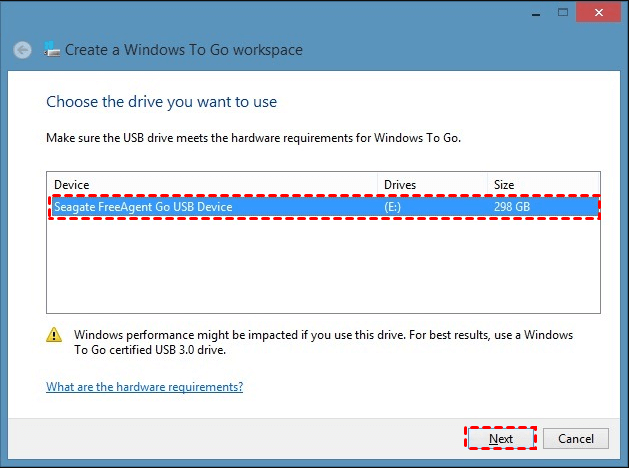
Step 3. And choose a Windows 8 image file.
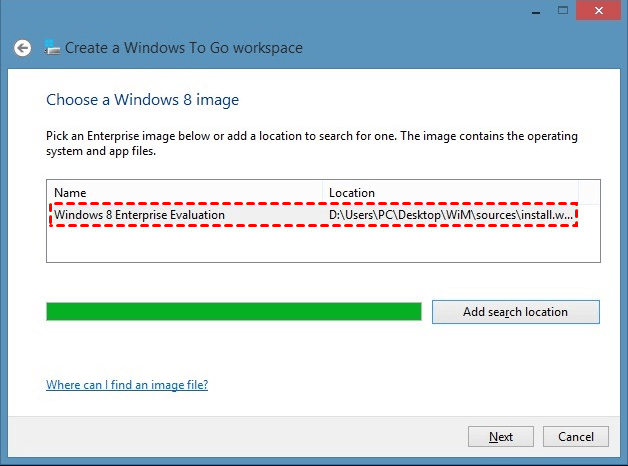
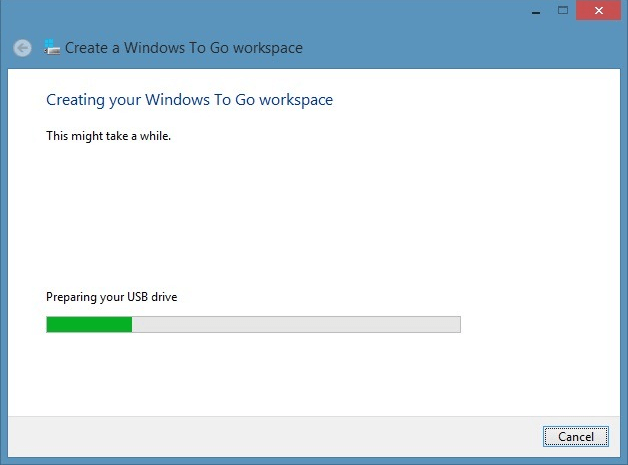
Step 4. To create a Windows To Go workspace, you need to set a password for the Windows 8 USB, click "Create", and it will start making a Windows To Go workspace.
How to build Windows 8 USB without Windows 8 Enterprise?
You can use a tool like Rufus to create a portable Windows 8 OS on a normal USB drive, without the need for the Windows To Go feature or an Enterprise version of Windows. Rufus is a free, open-source utility that allows you to create a bootable USB drive with a Windows installation, and it doesn't have the same limitations as the Windows To Go feature. This way, you can create a portable Windows 8 OS on a normal USB drive, without breaking the bank on a certified USB drive.
Qiling Disk Master Professional is a powerful Windows To Go creator that surpasses the built-in Windows To Go tool in several ways, offering numerous advantages.
✌ It supports non-certified USB drive.
✌ Qiling Disk Master allows you to create a Windows 8 bootable USB drive using the current system on your PC, eliminating the need for an ISO file if you're running Windows 8.
✌ It supports Windows on MacYou can run Windows on an Apple Mac using a virtualization software such as Parallels Desktop or VMware Fusion. These programs create a virtual machine that allows you to install and run Windows on your Mac, and they support Windows 11, 10, 8, and 7.
✌ The software has a user-friendly interface that makes it easy to operate.
You can start by downloading the demo version, which will allow you to see how the software operates and understand its functionality. Once you have the demo version installed, you can follow the steps to get familiar with its features and how to use it effectively.
How to boot computer from Windows 8 USB drive?
When you insert the Windows 8 USB drive into a computer, you'll typically need to enter the BIOS settings to set it as the boot drive. This allows the computer to recognize the USB drive as the primary boot device, enabling you to install Windows 8 from it. To do this, you usually need to restart the computer, then press a specific key (such as F2, F12, or Del) to access the BIOS settings.
To start, turn on the computer and immediately tap the BIOS key when the logo appears on the screen. This key is usually F2, F12, or Del, and its function varies by computer model. The BIOS key is used to enter the system's Basic Input/Output System settings, which allows you to configure various settings for the computer.
Step 2. When the BIOS window is launched, choose the "Boot" tab, and choose "Change boot order".
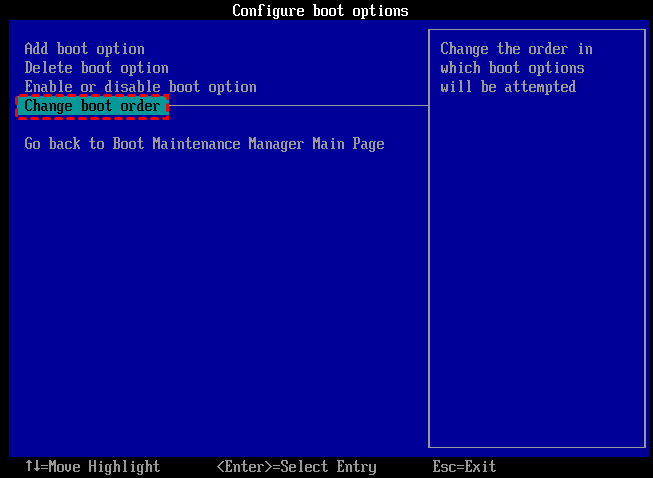
Step 3. Select the USB drive at the top of the list of devices and save the change. This will cause the PC to boot from the USB drive.
Conclusion
Qiling Disk Master is a better option for creating a Windows 8 USB compared to other alternatives. It not only allows you to build a Windows 8 USB but also enables you to create a bootable USB for repairing purposes. If your PC experiences boot issues, you can use this USB to boot and repair your PC. Additionally, Qiling Disk Master offers an Unlimited edition that includes all Server version features and provides unlimited usage, making it a cost-effective option for companies.
Related Articles
- How to Unboot USB Drive to Normal in Windows 10/8/7(3 methods)?
Learn how to Unboot USB Drive to Normal in Windows 10/8/7(3 methods) with clear steps, key checks, and practical tips. - How to Wipe Hard Drive in Windows 8 Permanently?
You can wipe hard drive in Windows 8 from Command Prompt. If the hard drive is with OS installed, you can employ a third-party partition tool, Qiling Disk Master Professional. - Stepwise Guide: How to Install Windows 11 ISO on VirtualBox
You can learn to install a Windows 11 ISO on VirtualBox and also discover a free method to backup VirtualBox to a safe place to prevent it from being corrupted. - Windows 11 Move Documents Folder to Another Drive
This post will show that in Windows 11 move Documents folder to another drive to reclaim more free space on the C drive. - How to Solve C drive full on Dell Computer Problem?
When the C drive on a Dell computer is full and the Low Disk Space alert appears, this guide shows how to free up space and increase C drive capacity. - Top 3 Ways to Fix Invalid Partition Table in Windows 7/8/10 Dell PC
This guide explains Top 3 Ways to Fix Invalid Partition Table in Windows 7/8/10 Dell PC with clear steps, key checks, and practical tips.
Products
Articles & Tutorials
- Data Recovery
- Data Backup
- File Recovery
- File Backup
- File synchronize
- System Backup and Restore
- Disk and Partition Clone
- Technical articles
- Disk Master Help
- Windows Deleted File and Disk Recovery Tutorials
- Windows File and Data Recovery Tutorials
- More Windows Tutorials for Install, Security, Files, and PC Tips
- Windows Boot, Repair, and Recovery Environment Tutorials
- Windows Backup Tutorials
- Windows Restore Tutorials
- Windows Clone and Migration Tutorials
- Windows Server Backup, Recovery, and Management Tutorials
- Windows Disk, Partition, and Storage Management Tutorials