How to Wipe Hard Drive in Windows 8 Permanently?
Does reformatting a hard drive in Windows 8 erase all data totally?
Deleting files or formatting a hard drive in Windows 8 does not always erase data permanently. The file system may only remove file records, while the original data can still be recovered with recovery software until it is overwritten.
To securely wipe a hard drive, you need to overwrite the sectors with zeros, random data, or another wiping method. This is especially important before selling, donating, or reusing a disk that contains private information.
Two ways to wipe hard drive in Windows 8 easily
Here are two ways to erase data from a disk completely. Choose one based on whether you prefer Command Prompt or a graphical tool.
Note: Back up important data to the cloud or an external drive first, because all files on the selected hard drive will be erased.
Wipe disk in Windows 8 from Command Prompt
Here are the steps to wipe a partition by writing zeros with Command Prompt:
1. To access the Command Prompt, click Start, type "cmd", right-click the program, and select "Run as administrator".
2. To write zeros to every sector of the selected partition, input "format f:/fs:NTFS/p:1" in the Command Prompt window and press Enter. This overwrites the partition with zeros.
Notices:
● “f” is the drive letter of the partition on the hard drive that you want to wipe, you can change it based on your own situation.
● A single pass of zeros to a hard drive can prevent all software-based file recovery applications from extracting information from the drive. To be safer, you can replace p:1 with p:2 to do two passes of zeros. If you want to format or wipe the drive that holds running Windows 8, you can insert Windows installation CD/DVD to your computer, enter BIOS to boot machine from the CD/DVD and then go to System Recovery Options window and choose Command Prompt to do steps that mentioned above.
● These steps are suitable for wiping hard drive in Windows 10/8.1 or Windows 7.
Wipe hard drive in Windows 8 with an easy-to-use GUI tool
Wiping a disk in Windows 8 from the Command Prompt can be a bit complicated, especially for beginners, and may result in accidentally wiping the wrong drive and losing data. If the hard drive has multiple partitions, the process will need to be repeated for each partition, making it a more involved process than expected.
Qiling Disk Master Professional is a tool with a simple graphic user interface that allows you to wipe an entire hard drive with one click, regardless of the number of partitions on the hard drive.
The software has a feature to create bootable media, allowing you to boot from a created device and wipe the hard drive containing the OS, which is useful for erasing all data on the system hard drive when a Windows installation disc is not available.
Install the software on your computer, run it, and take a look at how it works.
You can download the demo version of the software to try it out first.
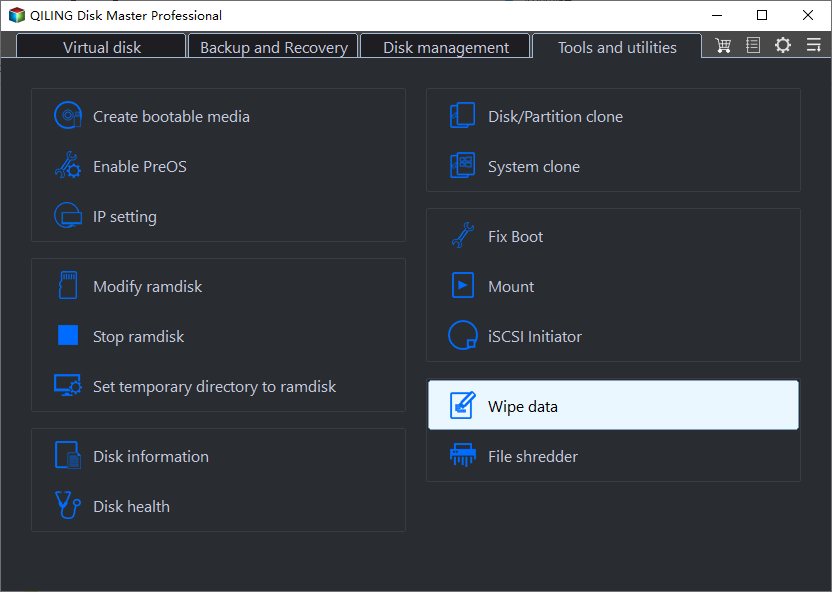
Step 1. Go to the Tools page and choose Wipe Data.
Step 2. To erase a target hard drive, select a wiping method and choose the hard drive to be erased.
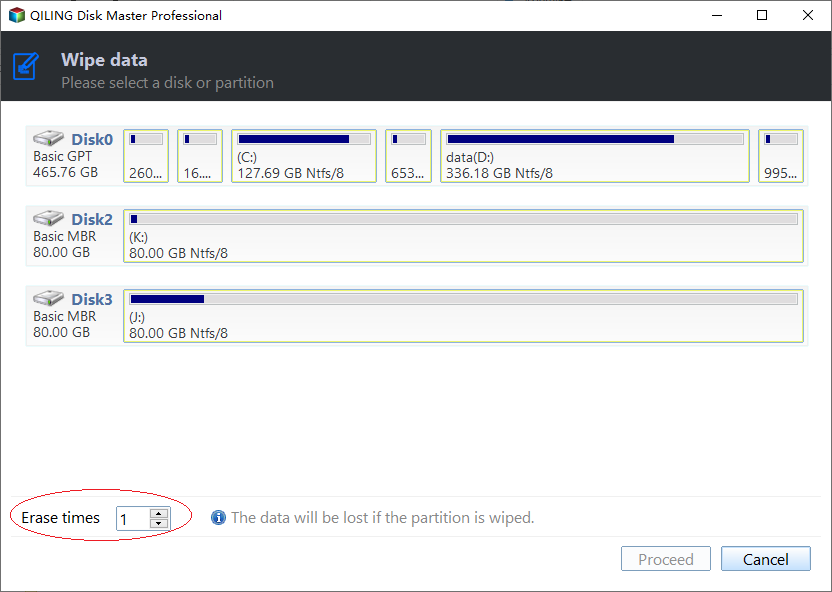
Four wiping methods:
☞Fill sectors with Zero: writes zeros to sectors on the selected disk or partition.
☞Fill sectors with random data: overwrites sectors with random data for stronger protection.
☞DoD 5220.22-M: a software-based wiping method that helps prevent software-based recovery tools from restoring data.
☞Gutmann's method: uses more overwrite passes and takes longer, but offers stronger data wiping.
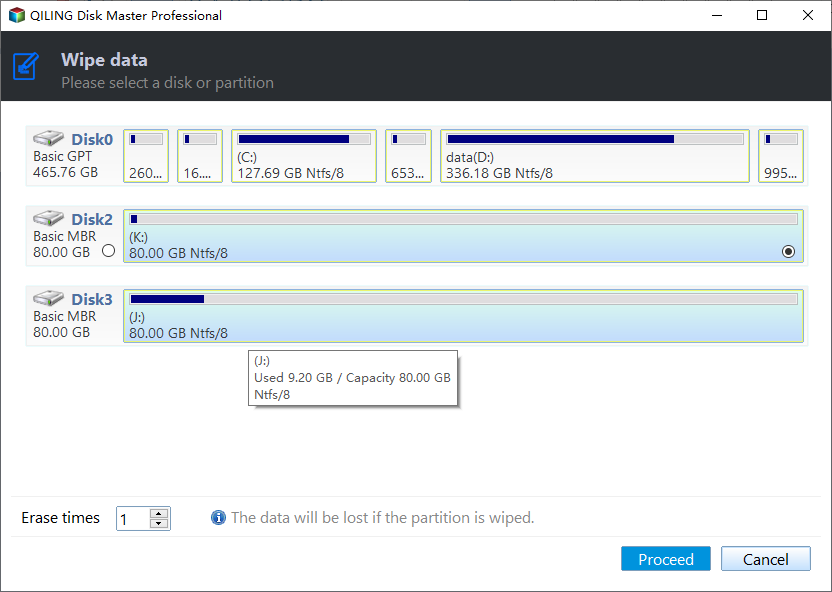
Step 3. Click Proceed to commit the operation.
Notes:
● Qiling Disk Master Professional supports Windows 10/8.1/8/7, while Qiling Disk Master Server is required to wipe a hard drive in Windows Server.
● You can use Qiling Disk Master to clone system hard drives, such as migrating Windows to an SSD.
Can you wipe SSD as wipe HDD?
You can wipe an HDD with overwrite methods, but SSDs work differently. Repeated overwriting is not the best choice for SSDs and may affect performance or lifespan. Use an SSD secure erase feature instead.
Qiling Disk Master Professional can help with wiping data from an SSD using its SSD Secure Erase function, which thoroughly erases data and restores the SSD's performance. To do this, run the program, right-click the SSD to be wiped, select SSD Secure Erase, and follow the prompts to complete the operation.
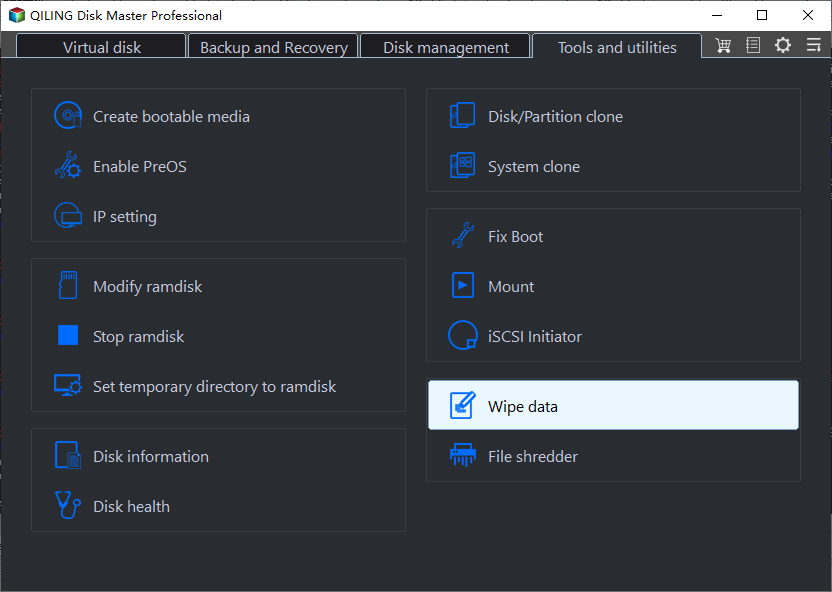
Note: To securely erase an SSD in Windows 7, you must perform the operation on a computer other than the one that boots from the SSD, and the SSD itself should not be the boot drive. This means you'll need to remove the SSD from the original computer and connect it to a working Windows 7 system to initiate the SSD secure erase process.
Further reading
If you only want to return a Windows 8 laptop or desktop to factory settings, you can use the manufacturer's recovery option. However, factory reset is not the same as secure data wiping. If privacy is the goal, use a disk wiping method before selling or disposing of the drive.
Lenovo laptops often come with the OneKey recovery function, allowing you to easily restore your machine to its original status. To reset your Lenovo computer and start over, you can follow the steps to utilize this feature.
Step 1. Shut off your computer. Press Novo button for a few seconds. Choose System Recovery when the Novo Button Menu appears.
Step 2. In this window, choose "Restore from initial backup".
Step 3. Start the process, wait for it to finish, and then follow the prompts to configure the settings.
Note: You can reset your computer using the Windows installation disc.
Related Articles
- How Do I Completely Erase USB Drive in Windows 11/10
This guide explains How Do I Completely Erase USB Drive in Windows 11/10 with clear steps, key checks, and practical tips. - How to Factory Reset Windows 7 in 2022
Learn how to restore a Windows 7 PC to factory settings with manufacturer recovery media or a recovery partition when built-in reset options are unavailable. - How to Factory Reset Windows XP in 2022
If your system doesn't work well, or you want to reconfigure it, here are your options for factory resetting your PC running Windows XP. - HDD Secure Erase: How to Securely Erase HDD to Its Original State
This guide explains HDD Secure Erase: How to Securely Erase HDD to Its Original State with clear steps, key checks, and practical tips. - How to Wipe a Hard Drive on a Dead Computer [Windows & Mac]
Learn how to Wipe a Hard Drive on a Dead Computer with clear steps, key checks, and practical tips. - How to Wipe a PC (With or Without OS)? 2022 Full Guide
Learn how to wipe a PC without deleting any of your personal files, reset it to its original condition, or restore it to an earlier point in time.
Products
Articles & Tutorials
- Data Recovery
- Data Backup
- File Recovery
- File Backup
- File synchronize
- System Backup and Restore
- Disk and Partition Clone
- Technical articles
- Disk Master Help
- Windows Deleted File and Disk Recovery Tutorials
- Windows File and Data Recovery Tutorials
- More Windows Tutorials for Install, Security, Files, and PC Tips
- Windows Boot, Repair, and Recovery Environment Tutorials
- Windows Backup Tutorials
- Windows Restore Tutorials
- Windows Clone and Migration Tutorials
- Windows Server Backup, Recovery, and Management Tutorials
- Windows Disk, Partition, and Storage Management Tutorials