Windows 11 Move Documents Folder to Another Drive
- Can you move Documents folder in Windows 11?
- How to move Documents folder to another drive in Windows 11
- Way 1. Use File Explorer to move Documents Folder
- Way 2. Use Windows Settings to relocate the Documents folder
- Way 3. Use a professional tool to move the Documents folder
- Way 4. Use Registry Editor to move the Documents folder
- Wrap up
The Documents folder in Windows 11 is a pre-existing folder where users can store files related to installed programs, including registry information, database files, and subfolders, to ensure the programs run smoothly.
This folder is primarily stored on the C drive for easy access. However, if the C drive lacks sufficient capacity, it may be necessary to relocate it to another drive in Windows 11, as the Documents folder can be quite large and impact system speed.
Can you move Documents folder in Windows 11?
Some users may encounter issues when trying to move the Documents folder and its subfolders to another drive, receiving a "can't move documents folder access denied" notice. Despite the potential risks, it is possible to relocate the Documents folder to another drive, and some users have successfully done so.
To change the location of the Documents folder in Windows 11, you can follow these steps: right-click on the Start button, select "File Explorer Options," and then click on the "Location" tab. From there, you can select a new location for your Documents folder and click "Apply" to save the changes.
How to move Documents folder to another drive in Windows 11
Way 1. Use File Explorer to move Documents Folder
Step 1. Open File Explorer > This PC > Device and drivers, and select the new drive location.
Step 2. Go to the location where you wish to move the Documents folder.
Step 3. Tap on the New folder button and name the new folder.
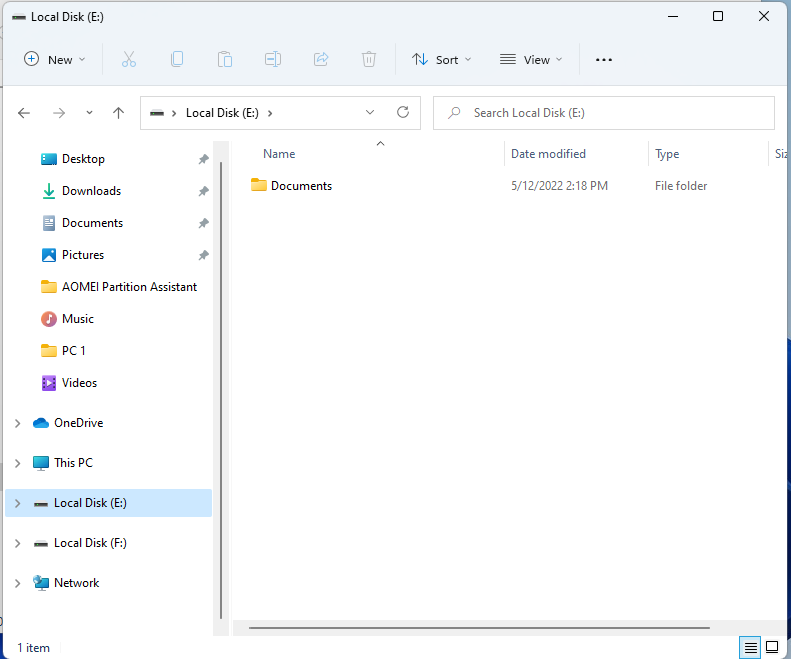
Step 4. Repeat the steps if you want to transfer multiple folders to another drive.
Step 5. Press the "Windows" + "R" keys together to open the Run dialogue.
Step 6. Type the path to open the location with the user account default folders: %HOMEPATH%.

Step 7. Right-click on the folder and choose the "Properties" option.
Step 8. Click on the Location tab > Move button > Select the folder in the new location.
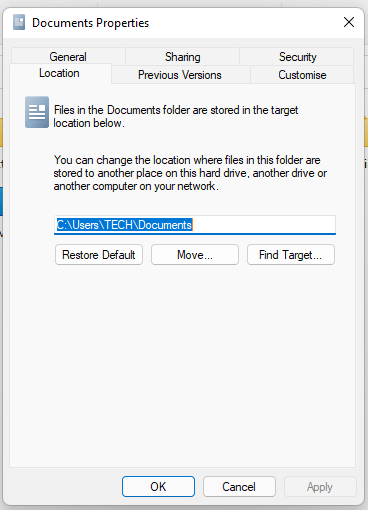
Step 9. To move your default user folder, click on the Select Folder button, then Apply, and finally Yes to confirm the action, which will relocate your default user folder to the chosen location.

Way 2. Use Windows Settings to relocate the Documents folder
Step 1. Go to Windows Settings > Systems > Storage > Where new content is saved.
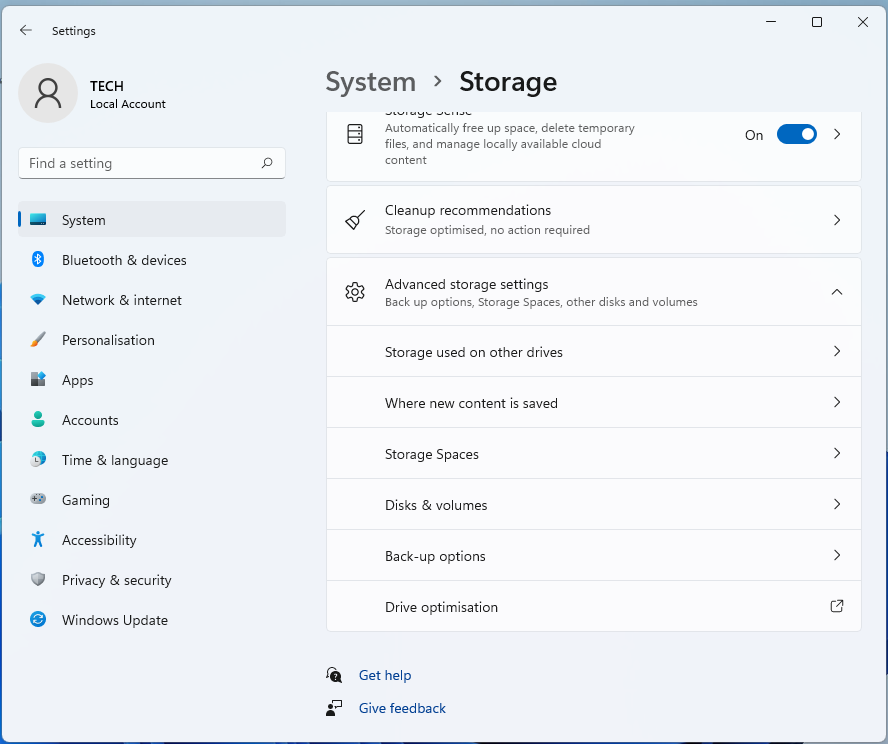
Step 2. Select the new save location.
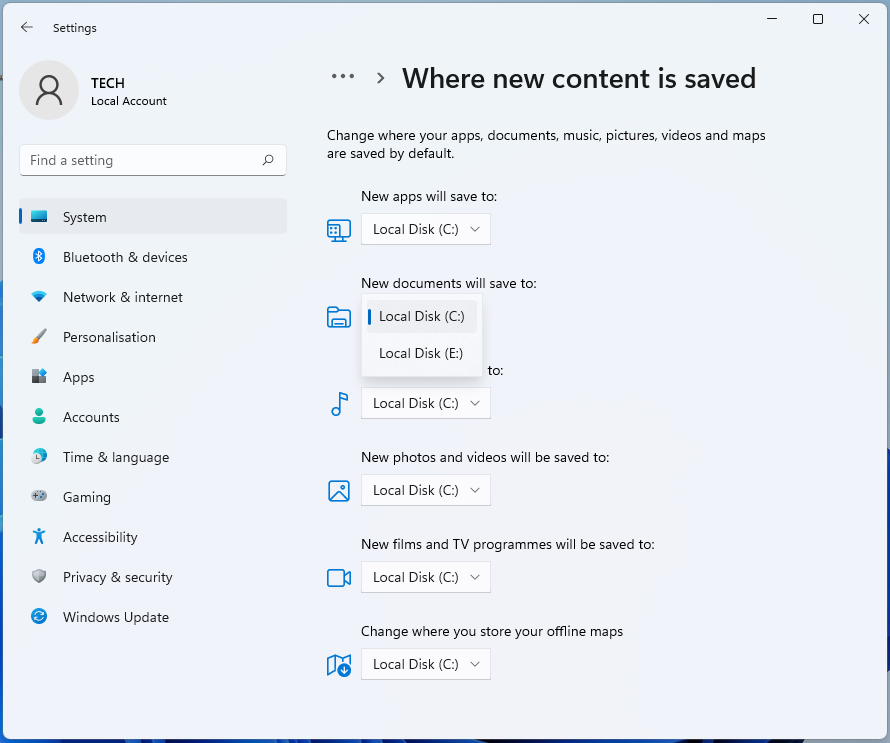
The folder itself won't be relocated, but any new documents you create will be saved in the new location instead.
Way 3. Use a professional tool to move the Documents folder
To move the Documents folder, you can use a third-party tool, which can automatically set all directory information and move multiple folders at once. Qiling Disk Master Professional is a useful tool that can help you achieve this with ease, featuring a user-friendly interface and simple operation, allowing you to quickly move folders with this practical Windows disk/partition manager.
1. Before moving files, please ensure the target drive has sufficient free space to save all the files you plan to move. If you receive a notice indicating insufficient space, you'll need to either free up space on the target drive or consider moving some files to a different location.extend drive space at first.
2. Please do not move or delete any files in the source and target directories, as all settings will be modified by the tool.
3. This feature only runs between NTFS drives, if you want to move folders from or to a FAT32 drive, please use the standard move feature instead.convert to NTFS at first.
Way 4. Use Registry Editor to move the Documents folder
Step 1. Create a new folder on the drive you want to save Documents.
Step 2. Press Windows + R to launch the Run box and then type "regedit" in the box. Follow this path:
HKEY_CURRENT_USER\SOFTWARE\Microsoft\Windows\CurrentVersion\Explorer\User Shell Folder
Step 3. Find the "Personal" option in the right panel, and double-click it.

Step 4. Change the "Value data" to the new location.
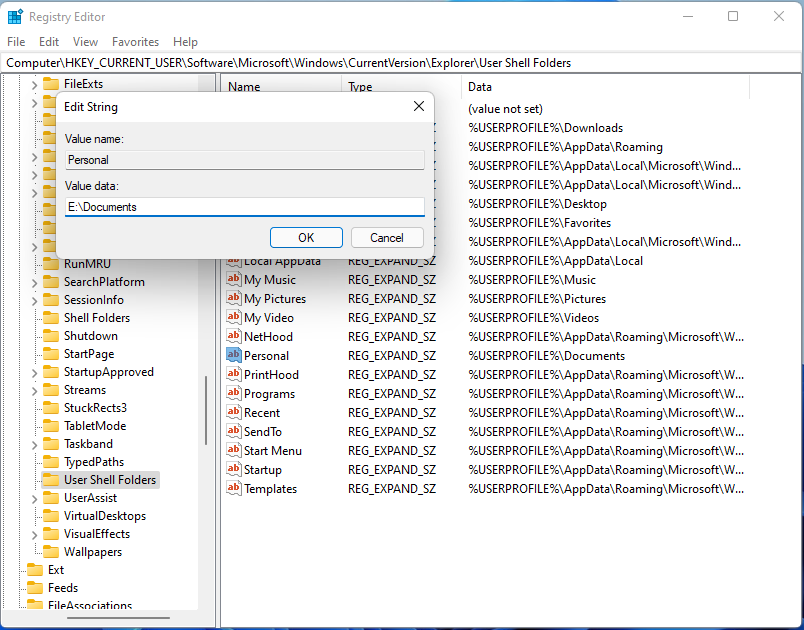
Step 5. Reboot the PC.
Wrap up
In Windows 11, you can easily move the Documents folder to another drive using Qiling Disk Master, and if needed, you can also relocate installed programs from the C drive to another drive using the "App Mover" utility.
Qiling Disk Master Pro allows users to clone disks, migrate OS, and convert file systems without formatting, catering to various needs, including cloning disks, migrating OS, and converting file systems. It also offers Server and Unlimited editions for server users and enterprises, providing comprehensive services. This tool is reliable for efficiently managing Windows devices.
Related Articles
- Can I Move the Program Files Folder to Another Drive
This guide explains Can I Move the Program Files Folder to Another Drive with clear steps, key checks, and practical tips. - Full Guide: Clone C Drive Server 2022 and Boot from Destination Disk Successfully
This guide explains Full Guide: Clone C Drive Server 2022 and Boot from Destination Disk Successfully with clear steps, key checks, and practical tips. - Fixed: 100% Disk Usage on Windows 10 Task Manager (2019)
To fix 100% disk usage on Windows 10 Task Manager, you can refer to 9 effective and easy methods in this post and try one or more. - What to Do after Accidentally Marked Drive C Active in Windows 10
This guide explains What to Do after Accidentally Marked Drive C Active in Windows 10 with clear steps, key checks, and practical tips. - Windows 7 Backup Only Changed Files through Incremental Backup
Qiling Disk Master can be the ideal freeware to help your Windows 7 backup only changed files as well as in Windows 8/10/XP/Vista through incremental backup. - Windows 7 Enterprise End of Life: How to Upgrade to Windows 10
You will get clear ideas about Windows 7 enterprise end of life and how to prepare for the extended support end. Please scroll down to learn more.
Products
Articles & Tutorials
- Data Recovery
- Data Backup
- File Recovery
- File Backup
- File synchronize
- System Backup and Restore
- Disk and Partition Clone
- Technical articles
- Disk Master Help
- Windows Deleted File and Disk Recovery Tutorials
- Windows File and Data Recovery Tutorials
- More Windows Tutorials for Install, Security, Files, and PC Tips
- Windows Boot, Repair, and Recovery Environment Tutorials
- Windows Backup Tutorials
- Windows Restore Tutorials
- Windows Clone and Migration Tutorials
- Windows Server Backup, Recovery, and Management Tutorials
- Windows Disk, Partition, and Storage Management Tutorials