Windows 7 Enterprise End of Life: How to Prepare for It?
Content of this article:
- Windows 7 (Enterprise ) end of life on January 14, 2020
- Windows 7 end of life extended: can you still use Windows 7 Enterprise after 2020?
- Windows 7 Enterprise end of life: how to prepare for it?
- Windows 7 end of life free upgrade to Windows 10
- Backup files to external hard drive to protect data safely
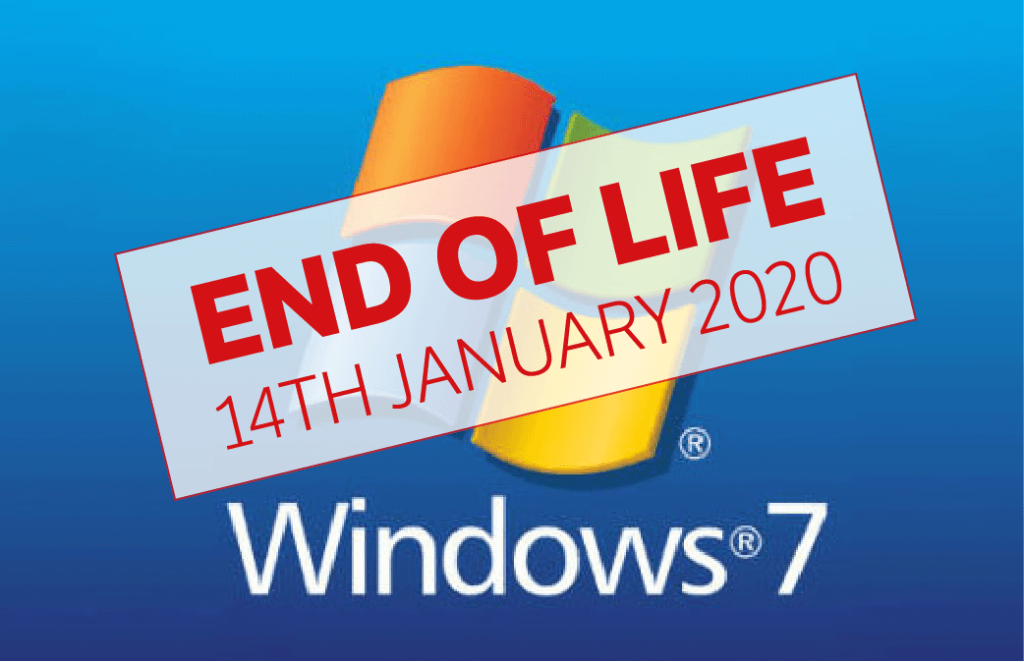
Windows 7 (Enterprise ) end of life on January 14, 2020
Microsoft has ended the 10-year life cycle of Windows 7, including all versions, and will no longer support or patch it with security updates.
Using an unpatched Windows 7 Enterprise can make your PC more vulnerable to security risks, as it lacks security updates and new vulnerabilities are discovered, making it a soft target for cybercriminals. The FBI has warned about this, and recent examples like the EternalBlue and BlueKeep vulnerabilities have shown how cybercriminals frequently exploit such weaknesses, putting users at risk.
Windows 7 end of life extended: can you still use Windows 7 Enterprise after 2020?
Many users are wondering if they can still use Windows 7 Enterprise after 2020, given that the end of life for Windows 7 has been extended. With a significant number of very small businesses (40%) and small and medium-sized businesses (48%) still relying on it, there is a clear need for clarification on this matter.
Microsoft will no longer provide technical support, software updates, or security updates for Windows 7, making users more susceptible to malware attacks, but it is still possible to use the operating system.
If you're still using Windows 7, you can pay for extended support until 2023. The cost starts at $50 for Windows 7 Pro and $25 for Windows 7 Enterprise, and will double each year thereafter. If you have a Windows volume license agreement, you'll also need to add an "Add-on" for Windows 7 Enterprise extended support.
Windows 7 Enterprise end of life: how to prepare for it?
For most users, Windows 7 end of life will be a chance to upgrade to Windows 10 for free, using the media creation tool or downloading the operating system as an ISO file. This option is only available for PCs running a genuine Windows 7 OS, and users will still need to enter a valid Windows 10 product key or purchase a full version.
But if you insist on using Windows 7 after outdate, you need to be sure the data is safely protected. The best way is to backup files to external hard drive in Windows 7, so you still have an intact copy of your important files. Then, I'll show both ways in details.
Windows 7 end of life free upgrade to Windows 10
Before upgrading to Windows 10 Enterprise, you need to have a license that allows you to install it, and also ensure your computer meets the minimum hardware requirements for Windows 10.
- 1 GHz or faster processor or System on a Chip (SoC) is required for this system.
- RAM: 1 GB for 32-bit or 2 GB for 64-bit
- Hard disk space: 16 GB for 32-bit OS or 32 GB for 64-bit OS
- Graphics Card: DirectX 9 or later with WDDM 1.0 driver
- Display: 800×600
Upgrading Windows 7 Enterprise to Windows 10 Enterprise can be done by following these steps. The process starts with preparing the system for the upgrade, which includes backing up data and ensuring the system meets the minimum hardware requirements for Windows 10.
1. To create a Windows 10 installation media, download the Media Creation Tool from Microsoft, click the "Download tool now" button to save the installer, and then right-click the downloaded "MediaCreationTool.exe" file and select "Run as administrator".
2. On the License terms page, select Accept.
3. On the "What do you want to do?" page, select "Upgrade this PC now" and click "Next".
4. To complete the installation process, follow the on-screen instructions, and then click "Install" on the "Ready to install" page to start the process, where you will see a summary of your chosen settings.
Backup files to external hard drive to protect data safely
To backup files, you can rely on free backup software like Qiling Disk Master Standard. This software offers a "File Backup" feature that allows you to easily backup files to an external hard drive, either manually or automatically, with options for daily, weekly, or monthly scheduled backups. Additionally, it supports incremental and differential backup, enabling you to backup only changed files since the last full backup.
Download and install Qiling Disk Master Standard on your computer, and prepare an external hard drive that can be detected by Windows.
1. Launch Qiling Disk Master Standard, then you will enter its main page. Click Backup > File Backup to proceed.

2. To start the backup process, click on the "Files" or "Folder" option to select the files or folders you want to backup.

3. Select the external hard drive as the backup destination by clicking on it in the list of available drives.
4. To schedule backup files, click Schedule, then select daily, weekly, or monthly, and click Proceed. Alternatively, you can use the USB Plug in feature, which automatically copies files to a USB drive when it's detected.

Once the backup task is finished, you can opt to restore files from the backup if your file gets damaged or lost.
Conclusion
Windows 7 Enterprise has reached its end-of-life, and the recommended upgrade path is to Windows 10, either through a free upgrade or by purchasing a Windows 10 Enterprise license if needed.
Some users still use Windows 7 after its expiration date, so it's essential to ensure your data is safe. You can use a free backup software like Qiling Disk Master Standard to continuously backup and restore files.
Now, it's your turn to take action: either upgrade to Windows 10 for a more secure and feature-rich experience, or take the precautionary step of backing up your data to ensure its protection.
Related Articles
- Windows Server 2008 (R2) Closes to End of Life| What Can You Do?
Microsoft announces Windows Server 2008 (R2) end of life date once again, your computer are more vulnerable to security risk. What to do to protect your server, get it now! - How to Backup Windows 7 for Windows 10 Upgrade?
Learn how to Backup Windows 7 for Windows 10 Upgrade with clear steps, key checks, and practical tips. - Quick Fix to Computer Won't Start after Windows Update
- Failed to Create a New Partition on the Selected Unused Space
Learn how to fix the error 0x8004240f: failed to create a new partition on the selected unused space when installing Windows 10/8/7. - Easily Solved: Can't Convert to Dynamic Disk (5 Methods)
To fix the issue of being unable to convert a basic disk to a dynamic disk, you can follow these steps. First, check if the disk is being used by any operating system or programs. - Best Carbon Copy Cloner Alternative for Windows 11, 10, 8, 7
This article is written for users who need Carbon Copy Cloner Windows alternative to backup or clone your computer. Keep reading to learn more.
Products
Articles & Tutorials
- Data Recovery
- Data Backup
- File Recovery
- File Backup
- File synchronize
- System Backup and Restore
- Disk and Partition Clone
- Technical articles
- Disk Master Help
- Windows Deleted File and Disk Recovery Tutorials
- Windows File and Data Recovery Tutorials
- More Windows Tutorials for Install, Security, Files, and PC Tips
- Windows Boot, Repair, and Recovery Environment Tutorials
- Windows Backup Tutorials
- Windows Restore Tutorials
- Windows Clone and Migration Tutorials
- Windows Server Backup, Recovery, and Management Tutorials
- Windows Disk, Partition, and Storage Management Tutorials