Computer Won't Start after Windows Update
Content of this article:
- Windows Update and Arising Issues
- Method 1: Perform System Restore in Safe Mode
- Method 2: Run System File Checker Command Line
- Method 3: Delete cleanup.xml and pending.xml
- Method 4: Use System Image to Fix Computer won’t Boot after Windows Update
- Method 5: Clean install Windows on different computer
- Conclusion
Windows Update and Arising Issues
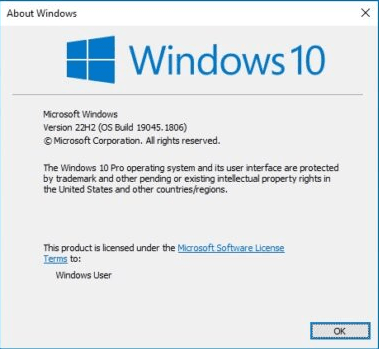
Windows Update is a free service that provides updates for Windows and other Microsoft software, including service packs, patches, and driver updates, to enhance features and security, and protect against malware and other problems.
Microsoft is releasing a major update called "Sun Valley 2" or version 22H2 for Windows, which brings minor changes to Windows 10 and improvements to Windows 11, including restoring drag-and-drop functionality and enhancing Start menu customization.
You may encounter issues with your computer not starting after a Windows update, such as the October 2020 update, which caused problems like the Blue Screen of Death (BSoD) error message and driver compatibility issues. To prevent data loss and protect your system, it's highly recommended that you back up your computer before updating.
The following is a typical user case from the forum.
"Hi, Since I updated Windows 10 a few days ago my computer won't boot. It displays the Lenovo logo screen, but doesn't go any further. It doesn't load any Windows screen for me to attempt recovery environment. I don't know how to recover it. Can you help? Thanks"
To fix Windows 10/8/7 that cannot boot after an update, restart your computer first. If that doesn't work, try the following methods: power off your computer, press the power button to turn it on, and immediately press the F8 key to access the Safe Mode. If that doesn't work, you can try booting in Safe Mode with Networking or Safe Mode with Command Prompt. If none of these methods work, you can try System Restore or boot from a Windows installation media to repair or reinstall Windows. If you're still having trouble, you may need to seek further assistance from a professional.
Method 1: Perform System Restore in Safe Mode
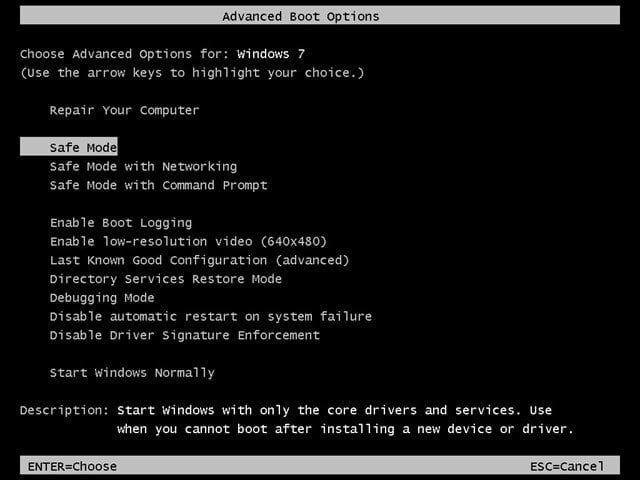
Step 1. To access the Advanced Boot Options, start your computer and press F8 repeatedly before the Windows logo appears. This will lead you to a menu where you can select Safe Mode.
Step 2. Search System Restore in the search box and select it from the list.
Step 3. Select one of the available restore points and restore your computer.
System Restore will automatically select the recommended restore point, but if it's not working properly, you can manually choose a different restore point to try and resolve the issue.
Step 4. Confirm all your settings and click Finish the run the pending operation.
Step 5. Restart your computer and check if this problem is solved.
Method 2: Run System File Checker Command Line
Step 1. To access the Advanced Boot Options, restart your computer and immediately start tapping the F8 key. This will bring up the Advanced Boot Options menu. From there, select the "Repair" option to Repair your computer.
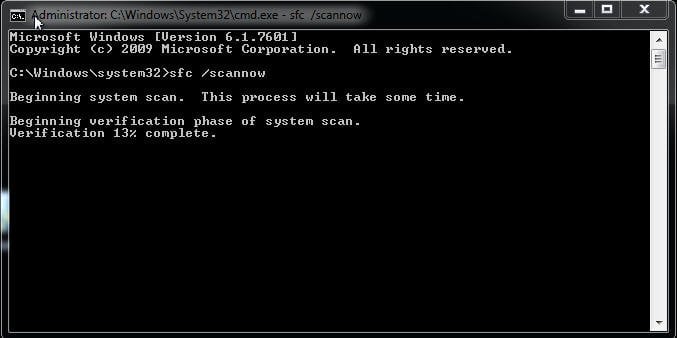
Step 2. Type the following command in the command prompt and press Enter.
sfc/scannow
Note: c:\ refers to the system drive of your computer.
Step 3. The command prompt will scan and replace the integrity of all protected system files, then you can restart your computer and check if the issue is resolved.
Method 3: Delete cleanup.xml and pending.xml
Step 1. Go to the command prompt via System Recovery Options.
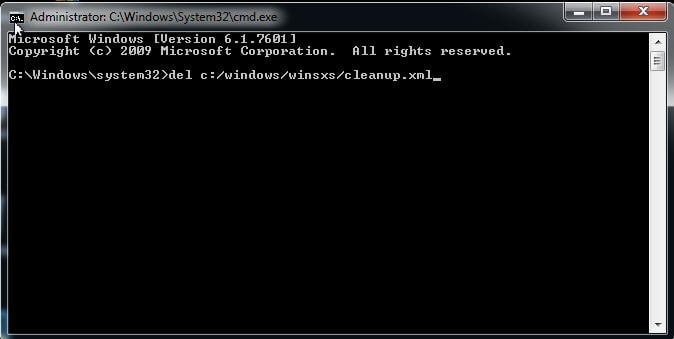
Step 2. Delete the cleanup.xml folder in the command prompt. You can type the following commands and press Enter.
del c: \windows\winsxs\cleanup.xml
Step 3. Delete the pending.xml folder in the command prompt with following command.
del c: \windows\winsxs\pending.xml
Step 4. Type exit to quit this window.
Step 5. Restart your computer and check if your computer can start normally.
Method 4: Use System Image to Fix Computer won’t Boot after Windows Update
If your problem still can't be fixed, you can try System Restore under a Windows PE bootable environment. This will take your computer back to a working state, including system files and installed programs, using a system image backup you made in advance, even if your computer is unbootable.
To complete the entire process, you'll need a free backup and restore software like Qiling Disk Master Standard. This will allow you to create a system image backup, which can then be used to repair a boot USB. In the event of something unexpected happening, you can restore the system image to quickly get your computer back up and running.
Step 1. Set your bootable media (eg: CD, DVD, USB drive) as the first boot device, save the changes, exit the window, and Qiling Disk Master will start automatically.
Step 2. To restore your system, click "Restore" and then "Select Task". If your backup is stored on an external hard drive, you can choose "Select Image File" instead. This will allow you to restore your system image from the external hard drive.

Step 3. Select the system backup image and then click Next.

Step 4. Select "Restore this system backup" and click Next. If you created a differential or incremental backup, choose a backup point.

To restore the system to a different location, select the "Restore system to other location" option and choose a partition from the list. This will allow you to restore the system to a different location, such as a different drive or partition, rather than the default location.
Step 5. Review the operating summary and confirm the restore location. Click Proceed to start the operation.

Notes:
❤ Boot the computer from the restored disk and verify if it boots successfully.
❤ If a system image is created on a different computer, you can still perform a dissimilar hardware restore using the "Universal Restore" feature, which is available on Qiling Disk Master Professional.
❤ This software is also applied to laptops that won't boot after Windows 10/8/7 updates.
Method 5: Clean install Windows on different computer
If your computer can't access the recovery environment, try reinstalling Windows on a different computer using the same version as your current operating system, or you may encounter reactivation issues.
Step 1. To create a Windows installation disc, take out your hard drive and install it on a different computer. Then, download the media creation tool and use it to create an installation disc.
Step 2. Restart that computer three times in a row, then you will enter the recovery environment. Select language and other preferences and click Next.
Step 3. Click Install now and Next.
Step 4. Click I don't have a product key and Next. It will activate itself when you boot the troublesome computer from the fresh Windows.
Step 5. Select the operating system and click Next.
Step 6. Accept the license terms and click Next.
Step 7. Select Windows 10 installation type: Custom.
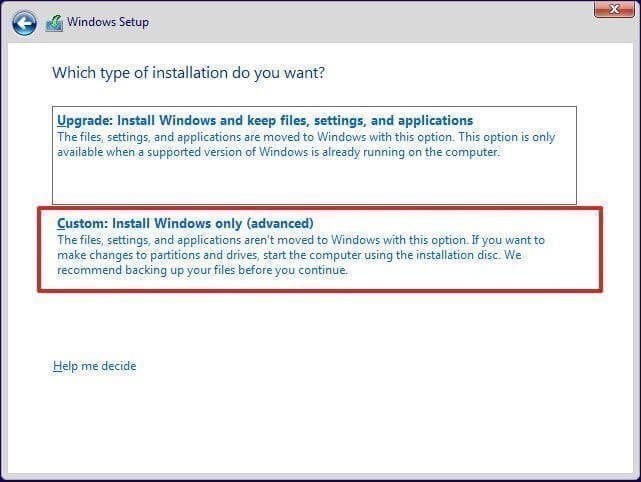
Step 8. To install Windows, go to the "Drive Options" section, where you can delete the system partition and other related operating system partitions. Then, select the unallocated space to install Windows.
Step 9. Wait until the process is complete, then set up your preference by on-screen instructions.
Step 10. Put the hard drive back to the computer having problem and check if it's bootable.
Conclusion
If your computer encounters a problem, there are usually multiple solutions to resolve the issue. For instance, if it won't start after a Windows Update, you can try troubleshooting the problem in various ways.
Finding solutions to these issues can be time-consuming, and there's no guarantee that a particular approach will work for every user. Moreover, there's a risk of losing data due to errors in operation.
The prevention measure is crucial, so it's best to create a system backup or disk backup when your computer is in a good state, allowing you to recover it at any time. If you don't have one, consider downloading Qiling Disk Master to protect your computer immediately.
Related Articles
- How to Back Up Windows 11 to USB [How-to] Step by Step Guide
In this article, we will introduce the process of a computer backup and how to backup your data on Windows 11. When backing up data, you should store the backup files on another device such as an external hard drive. - How to Backup A Hard Drive Windows 7 [Ultimate Guide for Windows 7 Users]
Learn how to back up a hard drive in Windows 7 using backup tools or disk imaging to protect files before failure or upgrade. - How to Backup Steam Games to External Hard Disk?
Learn how to Backup Steam Games to External Hard Disk with clear steps, key checks, and practical tips. - How to Make a Byte-for-Byte Copy of a Drive?
If you want to know how to make a byte-for-byte copy of a drive, you may check the information in this answer. - How to Create Acer eRecovery Management USB or Similar Disk
This article will show you how to create Acer eRecovery Management USB or similar disk in simple steps. - How to use Acer eRecovery Management in Windows 7
Acer eRecovery Management in Windows 7 is to help to backup operating system in case of accidents and restore system back after accident happens.
Products
Articles & Tutorials
- Data Recovery
- Data Backup
- File Recovery
- File Backup
- File synchronize
- System Backup and Restore
- Disk and Partition Clone
- Technical articles
- Disk Master Help
- Windows Deleted File and Disk Recovery Tutorials
- Windows File and Data Recovery Tutorials
- More Windows Tutorials for Install, Security, Files, and PC Tips
- Windows Boot, Repair, and Recovery Environment Tutorials
- Windows Backup Tutorials
- Windows Restore Tutorials
- Windows Clone and Migration Tutorials
- Windows Server Backup, Recovery, and Management Tutorials
- Windows Disk, Partition, and Storage Management Tutorials