How to use Acer eRecovery Management in Windows 7
What Is Acer eRecovery Management in Windows 7?
Acer eRecovery Management is a software in Windows 7 that allows you to restore your Acer computer to its default settings, helping to resolve issues when it malfunctions or behaves abnormally.
The software was carried over to later Windows systems, including Windows 8, 8.1, 10, and 11, with its version also being updated. Although the interface may have some minor variations across different systems, it remains user-friendly.
How to use Acer eRecovery Management in Windows 7
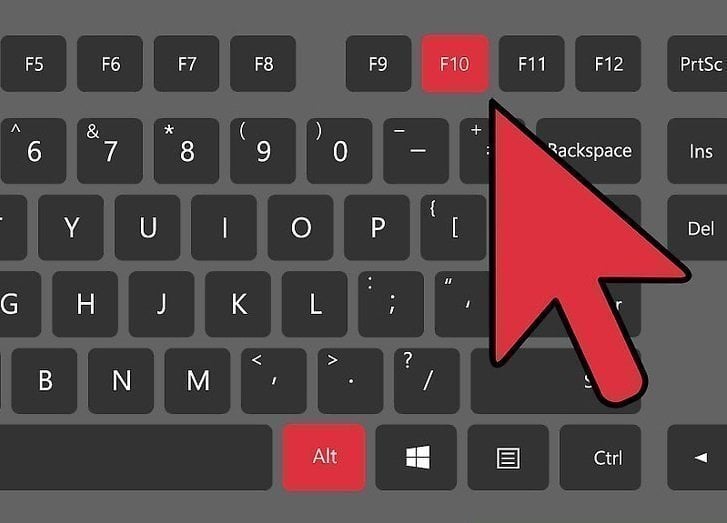
To start Acer eRecovery Management in Windows 7, you can either click on the Acer icon in the system tray, select "Start" -> "All Programs" -> "Acer eRecovery Management", or press the Alt+F10 keys. Once started, you can use the software to create a backup of your Acer computer, which can be used to restore your system in case of a problem.
- If you can boot into Windows, you can access Acer eRecovery Management Windows7 by going to "Start" > "All Apps" > "Acer" folder > "Acer Recovery Management".
- If you can get into Windows, type "acer recovery" in the search box and click "Acer Recovery Management" to open Acer Recovery Management Win7.
- If your system stops working, turn on your computer. As soon as the Acer logo appears, press and hold the ALT key while repeatedly pressing the F10 key, releasing them when a message indicates that Windows is loading files.
Then, after starting Acer eRecovery Management in windows 7, follow the steps below.
1. To create a factory default disc in Acer eRecovery Management, click on the "Backup" tab and select the option to "Create Factory Default Disc".
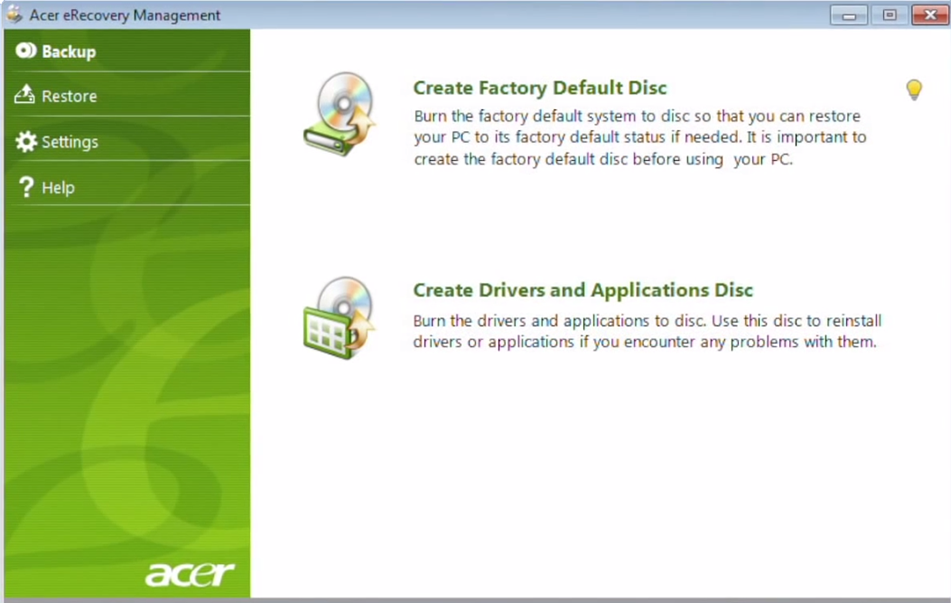
2. Please have the required number of blank discs ready and click Start to create a backup recovery disk.
3. After a few while, you are asked to label the first disc as Recovery 1 and insert the next disc. Click OK.
How to fix Acer eRecovery Management Windows 7 Problems
Occasionally, users may encounter errors with Acer eRecovery Management on Windows 7, preventing it from functioning properly.
Error One: Restoration takes a very long time, maybe over 24 hours.
Solution: If your computer or laptop is taking too long to start up, here's a possible solution: Wait patiently until it finishes, and if it seems like it will never finish, cancel and retry. If the issue persists, consider searching online for troubleshooting guides or taking your device to a repair shop for professional assistance.
Error Two: The keyboard on some Acer laptops doesn't function properly, preventing users from accessing Acer eRecovery Management in Windows 7 by using the "ALT + F10" key combination, which typically requires the "fn" and "ctrl" keys to work.
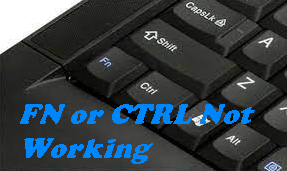
Solution 1. If you're using a notebook, you can try connecting an external keyboard to the USB port and see if that resolves the issue.
Solution 2. Re-install Acer Launch Manager (download from here) and try again.
Solution 3. To resolve the issue, disable or enable the Human Interface Device Access service, which can be accessed by typing "services.msc" in the search box and pressing Enter, and then try using the keyboard again.
Solution 4. If you're using Google Chrome, it may hijack your keys with its Global Keyboard Shortcut control. To resolve this, release the keys in the Extensions.
To change the media key options for Google Play Music, go to the Chrome app menu, click on "Tools", then "Extensions", and select the "Keyboard Shortcuts" link. From there, navigate to the Google Play Music section and change all the specified media key options from "Global" to "In Chrome". Alternatively, you can uncheck the "Enabled" box to disable Google Play Music or click the trash can to remove it completely.
Error Three: The "ALT + F10" combination key is not working, preventing access to Acer eRecovery Management in Windows 7. This issue is hindering the ability to use Acer eRecovery Management, which is a crucial tool for system recovery and maintenance.
Solution 1. The error may be caused by the D2D function being disabled in the BIOS. To fix this, press F2 during the boot process to access the BIOS menu and change the setting.
Solution 2. The error may be caused by a damaged or replaced Acer Master Boot Record (MBR), which can be fixed by reinstalling the Acer MBR if the partition PQservice is present or if access to necessary files is available.
Solution 3. The error may occur if the OEM recovery partition is damaged or deleted, possibly due to hard disk replacement, formation, or repartition. If you have recovery discs, you can use them to replace the recovery partition and recover your system using Acer eRecovery Management Windows 7. However, without these discs, the tool is unusable.
Other problems may cause Acer eRecovery Management not working:
- Acer eRecovery hard drive configuration is not set.
- Acer eRecovery Management cannot install bootable file.
Try Acer eRecovery Management Alternative in Windows 7
Due to the numerous problems with Acer eRecovery Management Windows 7, it's often not working, making it unreliable for system backup and recovery. A more reliable alternative is Qiling Disk Master, which is more stable, safe, compatible, and feature-rich, making it a great choice for these tasks.
Acer Backup and Recovery allows you to backup your Acer computer, as well as other computer brands like Lenovo, Dell, HP, Sony, Toshiba, Samsung, and Asus. The backup image is saved to a hidden recovery partition, making it difficult to delete. This tool also supports automatic system backups using a daily, weekly, or monthly scheduler.

It's worth trying a software that can protect your system and data, so download it and create a key recovery image to prevent data loss in any situation.
Summary
Acer eRecovery Management in Windows 7 allows you to backup and restore your system to its default settings, but be aware that you may encounter issues during the process.
If you don't want to solve problems during the backup process or need a more powerful one-key recovery software, Qiling Disk Master is a good option. It supports all Windows systems and computer brands, and allows you to schedule backups to keep your computer up-to-date and minimize data loss after recovery. For advanced users, Qiling Disk Master Technician or Customization might be a better choice.
Related Articles
- Acer eRecovery Management Missing Fixed [2 Ways]
This guide explains Acer eRecovery Management Missing Fixed with clear steps, key checks, and practical tips. - Acer eRecovery Management Not Working – How to Solve It Easily
If you encounter the problem of Acer eRecovery Management not working, read this article carefully to get effective solutions. - Backup and Restore with Acer Recovery Management in Windows 10
This article will show you how to backup and restore with Acer Recovery Management in Windows 10. With a backup in hand, you can restore Acer to a good state. - Best Qiling Disk Master Free Alternative for File, App, and Account Setting Transfer in 2022
This guide explains Best Qiling Disk Master Free Alternative for File, App, and Account Setting Transfer in 2022 with clear steps, key checks, and practical tips. - How to Backup Dell Laptops in Windows 10 [Ultimate Guide]
Back up Dell laptops in Windows 10 with file, system, and external drive options to protect data before recovery or reset. - How to Backup External Drive to OneDrive with Every Possible Way
Back up an external drive to OneDrive with practical sync and cloud backup options for keeping important files protected.
Products
Articles & Tutorials
- Data Recovery
- Data Backup
- File Recovery
- File Backup
- File synchronize
- System Backup and Restore
- Disk and Partition Clone
- Technical articles
- Disk Master Help
- Windows Deleted File and Disk Recovery Tutorials
- Windows File and Data Recovery Tutorials
- More Windows Tutorials for Install, Security, Files, and PC Tips
- Windows Boot, Repair, and Recovery Environment Tutorials
- Windows Backup Tutorials
- Windows Restore Tutorials
- Windows Clone and Migration Tutorials
- Windows Server Backup, Recovery, and Management Tutorials
- Windows Disk, Partition, and Storage Management Tutorials