Acer Recovery Management in Windows 10 - All About It
About Acer Recovery Management Windows 10
Acer eRecovery Management Windows 10 is a tool that allows you to recover your system to its factory settings, restore your system to a previous point in time, or create a system image. It provides an interface to manage and run the recovery process, and can also be used to create a backup of your system.
Acer eRecovery Management is a tool pre-installed in Acer computers that allows for system backup and restore to factory default settings or the last known good configuration. Its functions are similar across different operating systems, but the interface varies.
How to Get to Acer Recovery Management in Windows 10
Method 1. Using the search box
If you can log into Windows, type "acer recovery" in the search box and click "Acer Recovery Management" to open Acer Recovery Management Win10.
Method 2. Using the Start menu
To access Acer eRecovery Management in Windows, click "Start", then "All Apps", followed by the "Acer" folder, and finally "Acer Recovery Management" to access Acer eRecovery Management in Acer Care Center.
Method 3. Using the hot key
If your operating system has crashed and you can't boot into your computer, you can try pressing "Alt + F10" after powering on the machine, holding it until the logo appears, and see if it responds to your action. This might allow you to access your computer's settings or even boot into a different operating system.
Method 4. Using the Acer Care Center
Since the Recovery Management is snapped in and based on Acer Care Center program, you can install Acer Care Center on your computer and access Acer Recovery Management.
How to Use Acer Recovery Management Win10
Acer eRecovery Management can help you create a recovery drive to protect against system failure. To do this, you can follow the steps below to create a recovery drive and protect your system.
Acer Recovery Management Windows 10 Backup
To prepare for Acer Recovery Management, insert a USB drive of 16 GB or larger into your machine and download the Acer Recovery Management software in Windows 10. Once downloaded, install and launch the software to proceed.
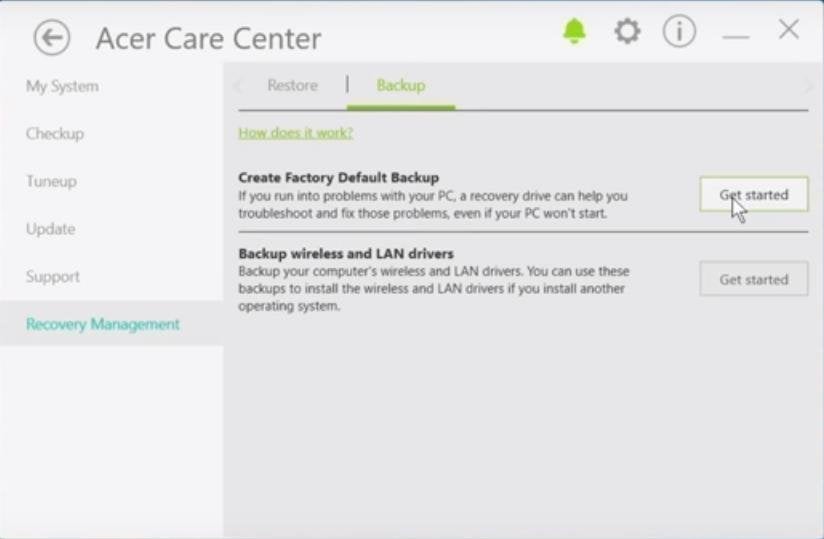
Step 1. Get to Acer Recovery Management in Acer Care Center.
Step 2. Choose "Backup" on the top.
Step 3. Click "Get Started" in Create Factory Default Backup column.
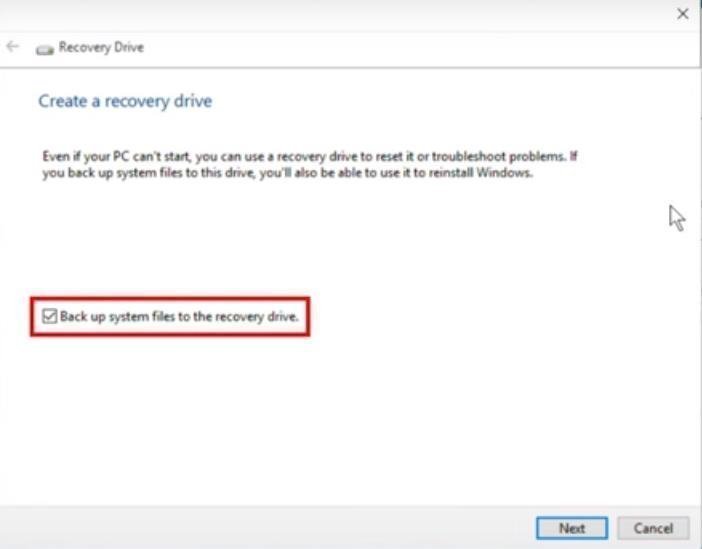
Step 4. Ensure that the "Back up system files to the recovery drive" message is selected and click "Next".
Step 5. Select the USB drive you inserted before as destination.

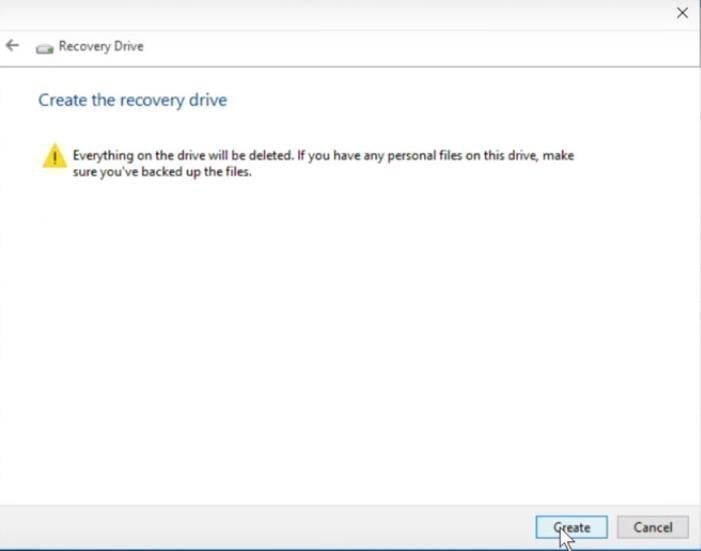
Step 6. To start the process, click the "Create" button, and once it's complete, click the "Finish" button to exit.
Acer eRecovery Management Windows 10 Restore
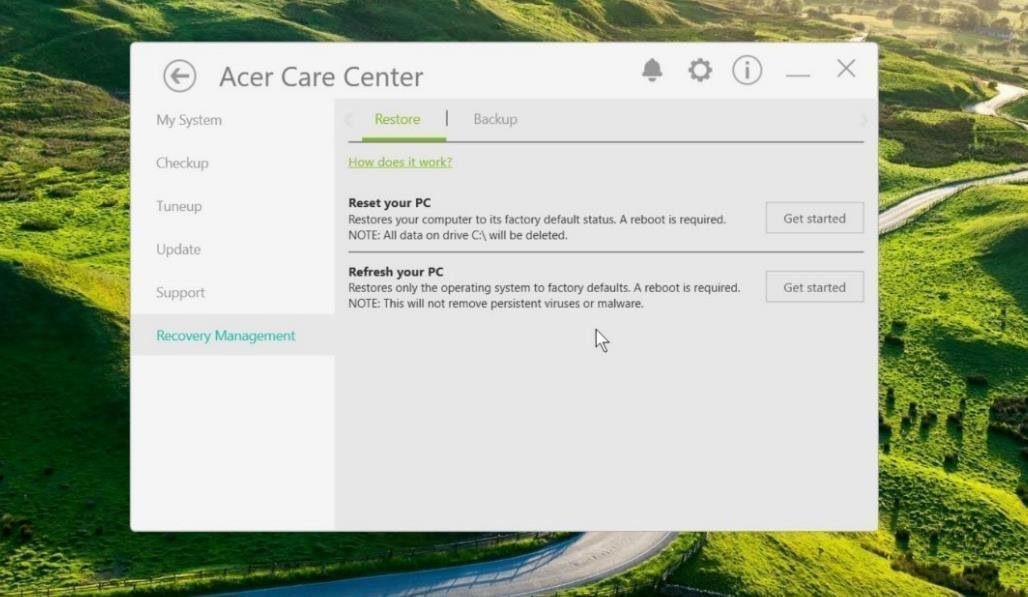
To restore your Windows 10 PC, you have two main options: resetting or refreshing. Resetting your PC will remove all installed applications, return to a default state, and keep your personal files.
- To reset your PC, a reboot is required, and all data on the system C drive will be deleted, so it's a good idea to move or back up any important data beforehand.
- Refreshing your PC will restore the operating system to its factory settings, keeping your personal data and settings intact, but it won't remove any viruses or malware present on the system disk.
Possible Problems to Acer Recovery Management Windows 10
Acer Recovery Management in Windows 10 may stop working due to various reasons. Some common causes include software conflicts, corrupted system files, or issues with the recovery partition.
- Acer Recovery Management not working
- Acer eRecovery hard drive configuration is not set
- Acer eRecovery Management cannot install bootable file
Alternative to Acer eRecovery Management in Windows 10
If Acer eRecovery Management is unavailable due to various issues, I recommend using Qiling Disk Master as an alternative utility. This third-party program allows for operating system backup and restore, protecting your computer from system failure or other issues. You can download it to try it out.
- To create a recovery partition, click OneKey System Backup, select a backup method, confirm and click Proceed.

- To restore your computer to a previous backup state, you can choose System Recovery, select a way to restore the created image files, confirm and click Proceed.

Qiling Disk Master is a more advanced alternative to Acer eRecovery Management that can be used on various computer brands, including Lenovo, Dell, HP, Sony, Toshiba, Samsung, ASUS, and others, offering features such as ASUS onekey system recovery.
Related Articles
- Acer eRecovery Management Missing Solutions
Restore missing Acer eRecovery Management or use an alternative recovery method to protect and restore your Acer PC. - Acer Erecovery Management Stuck Solutions
You will learn how to fix Acer eRecovery Management stuck problem in common situations and easily factory reset Acer without losing data. - How to Perform Acer Aspire Recovery in Windows 10, 8, 7
Perform Acer Aspire recovery in Windows 10/8/7 with built-in recovery options or backup-based restore methods. - Qiling Disk Master VS Zinstall: What Difference Between Them and Which Is Better
When it comes to data migration tools, you may wonder which software to choose. The hit data transfer software is Qiling Disk Master and Zinstall. This article will focus on the Qiling Disk Master vs. Zinstall. Go on to learn the main features, cost, specifications of both software. - How to Backup Files to OneDrive with OneDrive Backup Software
Here is a step-by-step guide about how to backup files to OneDrive with Qiling file backup software. You can also use it to backup files to Google drive or Dropbox. - How To Backup Files on Computer/Laptop? Here Is The Guide
If you're looking for a reliable way to backup files on Windows 10/8/7, this page offers several options. Whether you're seeking a complete guide to backing up your computer files, you can select one suitable method and follow the steps to protect your files now.
Products
Articles & Tutorials
- Data Recovery
- Data Backup
- File Recovery
- File Backup
- File synchronize
- System Backup and Restore
- Disk and Partition Clone
- Technical articles
- Disk Master Help
- Windows Deleted File and Disk Recovery Tutorials
- Windows File and Data Recovery Tutorials
- More Windows Tutorials for Install, Security, Files, and PC Tips
- Windows Boot, Repair, and Recovery Environment Tutorials
- Windows Backup Tutorials
- Windows Restore Tutorials
- Windows Clone and Migration Tutorials
- Windows Server Backup, Recovery, and Management Tutorials
- Windows Disk, Partition, and Storage Management Tutorials