Windows 7 Backup Only Changed Files through Incremental Backup
Windows 7 backup only changed files via incremental backup
In Windows 7/8/10, if you want to backup only changed files, you'll need to use incremental backup. This method creates copies of data based on the differences since the last backup, preserving data while minimizing time and space. However, if you delete the previous backup images, all subsequent images will be useless.
Backup only modified files by Windows 7 built-in tool
To protect computer data, Windows 7 has a built-in tool that can perform incremental backups. This feature allows you to back up only modified files, making it a convenient and efficient way to keep your data safe. To use this feature, you can follow the instructions to backup only modified files in Windows 7.
Step 1. Open Control Panel from start menu.
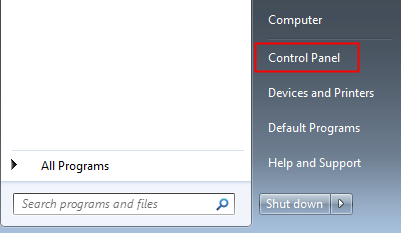
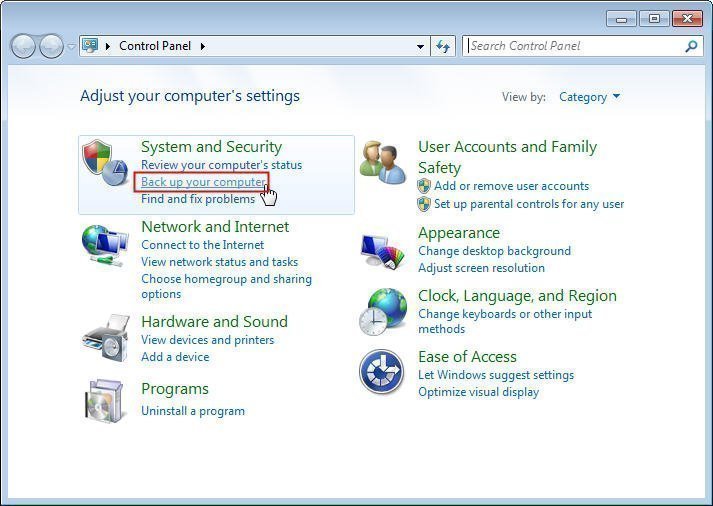
Step 2. Click Back up your computer.
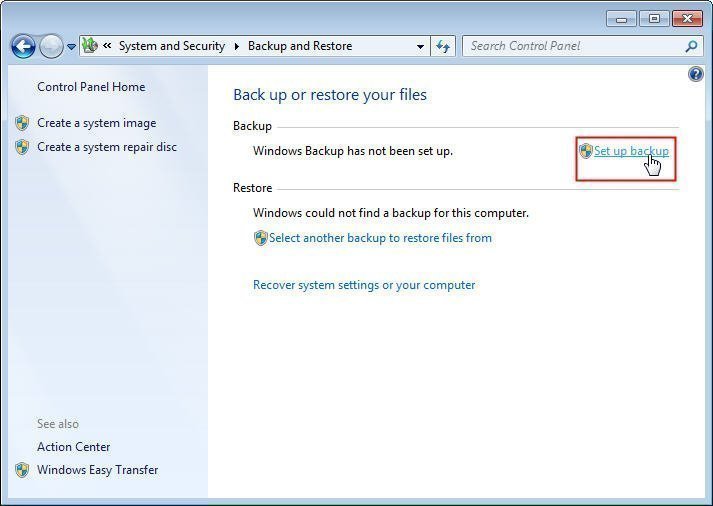
Step 3. Then click Set up backup.
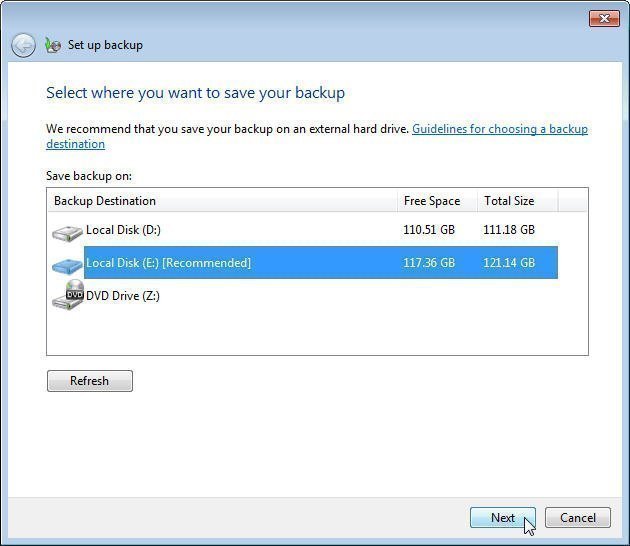
Step 4. Select a destination path for the backup. It's highly recommended to backup to an external drive for safety.
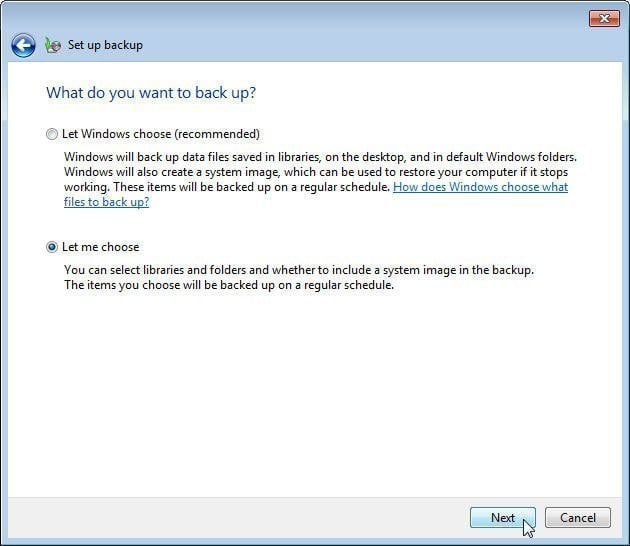
Step 5. Let Windows choose what to back up or decide by yourself.
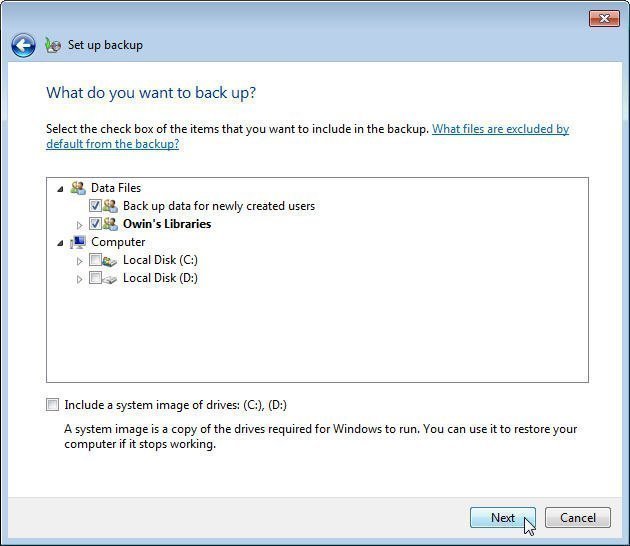
Step 6. Select data you need to back up.
Step 7. To modify the schedule, simply make the necessary changes and then run the backup.
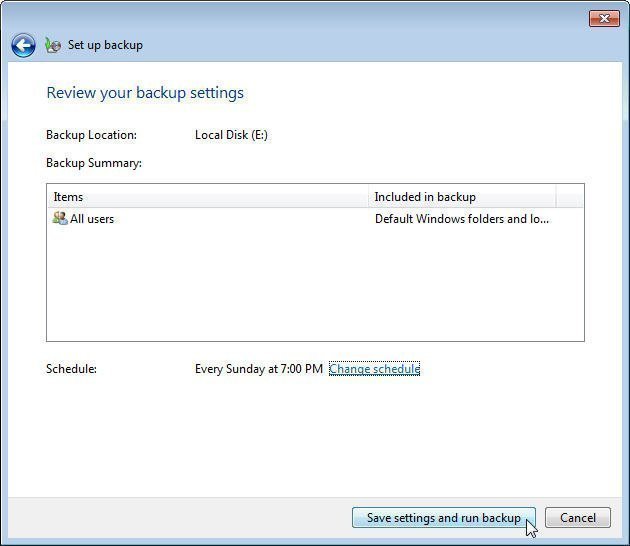
Windows 7's built-in backup program will now default to only backing up changed files. However, it can't compress image files, potentially wasting storage space, making it necessary to seek alternative software for better backup management.
Backup only changed files on Windows 7 with Qiling Disk Master
Qiling Disk Master Ais a free but professional all-in-one backup and recovery software that allows you to backup system, disk, partition or files as you like, and also offers cloud backup with 1TB of free cloud storage for 15 days.
Thanks to its concise operation procedure, even a computer novice can easily backup only changed files in Windows 7 (or 8/10/11/XP/Vista) with Qiling. The steps are simple and apply to all versions, and for server users, Qiling Disk Master Server is also available.
Step 1. Download, install and launch Qiling Disk Master.
Step 2. Select one backup type you need. Here is System Backup.

Step 3. The system will automatically select all system files. You'll need to choose a destination path and decide whether to backup only files that have changed.

There are 2 ways to back up only changed files:
▶ Schedule backup
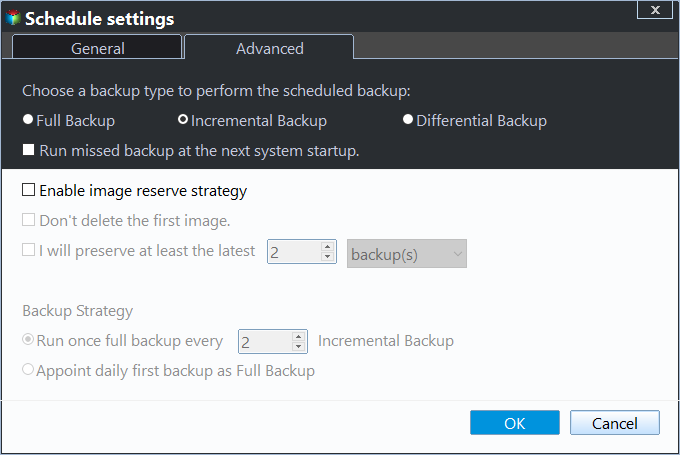
You can set the specific time to run backup from Schedule Backup, and it shows incremental backup is already the default option. Click Proceed to execute.
▶ Manually backup
Click on "Proceed" to complete the task and view the image under the "Home" tab. Then, go to "Backup" and select "Incremental Backup".
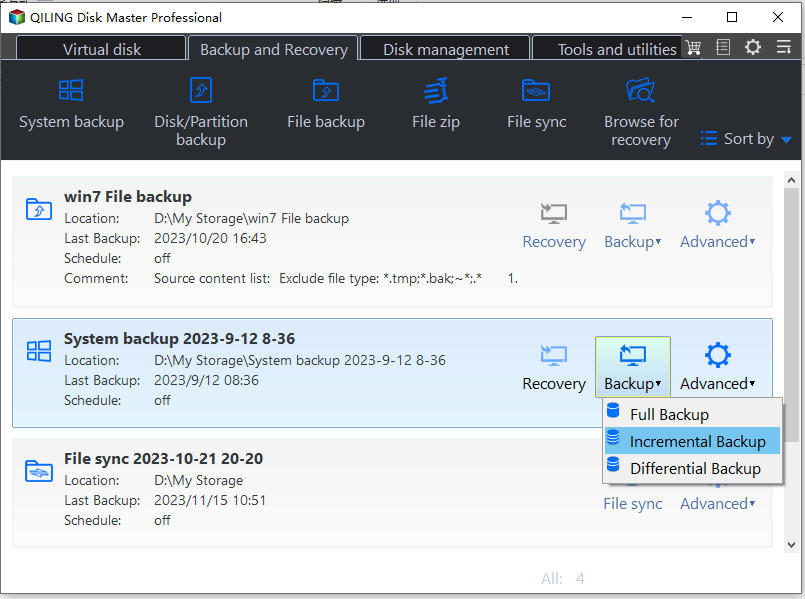
Tip✍: When backing up data, you can customize the global parameters individually, including compression and encryption options, which can be found under the "Options" section.
You can also use differential backup in this software, apart from incremental backup. To learn more about the differences between incremental and differential backup, click here. Additionally, in the Professional edition, you can enable automatic backup cleanup to delete old image files automatically, saving disk space for you.
This software ensures data safety and uninterrupted processing, even if files are in use. It also helps manage disk space effectively, especially when the target disk is relatively small.
Conclusion
After reading this article, you'll know how to perform incremental backup in Windows 7 to backup only changed files. You can also find free software on this page to help your Windows 7 backup only changed files, with Qiling Disk Master Standard being a better choice than Windows built-in tool, also capable of backing up only new files to an external hard drive.
Related Articles
- How to Only Backup Changed Files Per Day Automatically
This article tells you how to only backup changed files per day automatically with a free backup tool. It helps you create incremental/differential backup instead of full backup. - Copy Only Newer Files: XCopy or Robocopy vs Easier Ways
You can use Xcopy or Robocopy copy only newer files without problems by learning its syntax, options, and commonly used examples. In addition, you still can use GUI-based file sync or backup software. - The Best Free Backup Software That Only Copies Changes
This guide explains The Best Free Backup Software That Only Copies Changes with clear steps, key checks, and practical tips. - How to Create and Use Windows 7 Repair Disk with ISO
Learn how to Create and Use Windows 7 Repair Disk with ISO with clear steps, key checks, and practical tips. - How to Fix C Drive is Full Easily (6 Ways)
Fix C drive is full in Windows with six practical methods, including cleanup, moving files, extending partitions, and managing disk space safely. - Can I Move the Program Files Folder to Another Drive
This guide explains Can I Move the Program Files Folder to Another Drive with clear steps, key checks, and practical tips.
Products
Articles & Tutorials
- Data Recovery
- Data Backup
- File Recovery
- File Backup
- File synchronize
- System Backup and Restore
- Disk and Partition Clone
- Technical articles
- Disk Master Help
- Windows Deleted File and Disk Recovery Tutorials
- Windows File and Data Recovery Tutorials
- More Windows Tutorials for Install, Security, Files, and PC Tips
- Windows Boot, Repair, and Recovery Environment Tutorials
- Windows Backup Tutorials
- Windows Restore Tutorials
- Windows Clone and Migration Tutorials
- Windows Server Backup, Recovery, and Management Tutorials
- Windows Disk, Partition, and Storage Management Tutorials