What to Do after Accidentally Marked Drive C Active in Windows 10
About system partition & boot partition
Some people may be puzzled by the entire problem before we reveal how to repair it. What's different between system partition and boot partition? How do they work on PC?
We'll cover the basics of system partitions and boot partitions in the first section.
▶ System partition
The system partition contains:
• Windows boot manager (BOOTMGR) is part of the volume boot record that helps your operating system start by executing winload.exe.
• The boot configuration database (BCD) replaces the original boot.ini.
• The Windows recovery environment, also known as WinRE, is often labeled as "System" in Disk Management, which can sometimes cause confusion with the actual Windows operating system partition. To avoid this, it's recommended to label the WinRE partition as "WinRE" or "Recovery" in Disk Management to clearly distinguish it from the main Windows partition.
▶ Boot partition
The boot partition, typically the C drive on a PC, contains the Windows operating system files.
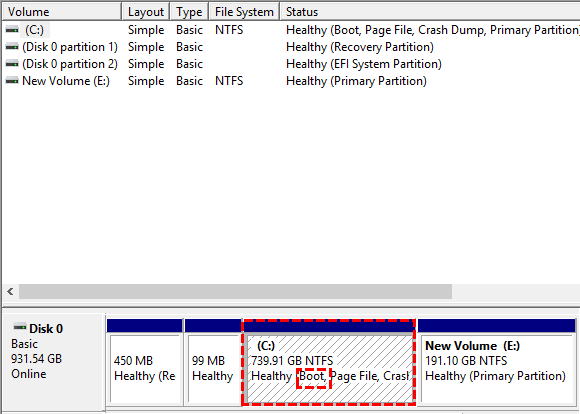
In previous Windows OS versions, the system and boot partitions were combined into a single drive, usually C. If multiple OS are installed, multiple system or boot partitions might exist, such as Windows 10 on C and Windows 11 on D, both being referred to as boot or system partitions.
When Windows 7 was released, users had the option to keep the system and boot partitions separate or merge them. If a fresh hard drive was installed without prior partitioning, these two partitions would be distinct. The system partition was defined as the system reserved partition (500 MB for Windows 10) in Disk Management, whereas the C drive was simply a boot partition.
That is to say, when the system reserved partition is built, no matter how many operating systems are installed, there can only be one system partition on this disk. The correct answer is: C:\ (or C drive) is the partition where all boot programs for installed Windows operating systems are automatically saved.
▶ Which should be set active?
As we mentioned above, the answer is the system partition.
When we open our machine, the Master Boot Record (MBR) searches the master partition table for the primary partition that is active and reads its partition boot record to locate the BOOTMGR.
BOOTMGR will create the bootbcd file The menu entries provide PC options to boot Windows by running winload.exe, resume Windows from hibernation by invoking winresume.exe, and other similar functionalities.
If the system partition is set to active, not the C drive, your PC will boot successfully. If the boot programs cannot be found, the Windows OS won't launch, and an error like BOOTMGR Is Missing may appear.
2 solutions when accidentally marked drive C "Active" in Windows 10
After setting the wrong partition active, your PC won't boot normally, so you'll need to create a bootable tool to help your computer start, and then you can fix the issue.
You have two options to create a bootable USB drive: use a third-party tool to automate the process and avoid manual command typing, or use an OS installation media to create the bootable drive. We'll demonstrate both methods, allowing you to choose the one that suits you best.
No.1 Set system partition active with professional partition manager
Qiling Disk Master Standard is a free Windows disk and partition manager that can help a PC that can't boot normally to fix the problem. With this tool, you can create a bootable media, boot your computer into the software, and set the system partition active with just a few clicks, following the step-by-step guide, eliminating the need to type commands.
Step 1. On a normal running PC, install and launch Qiling Disk Master. Click "Tools" > "Make Bootable Media", confirm the operation and then click "Next" to proceed.

Step 2. There are three ways to create bootable media based on Windows PE. Choose "USB Boot Device" and click "Proceed".
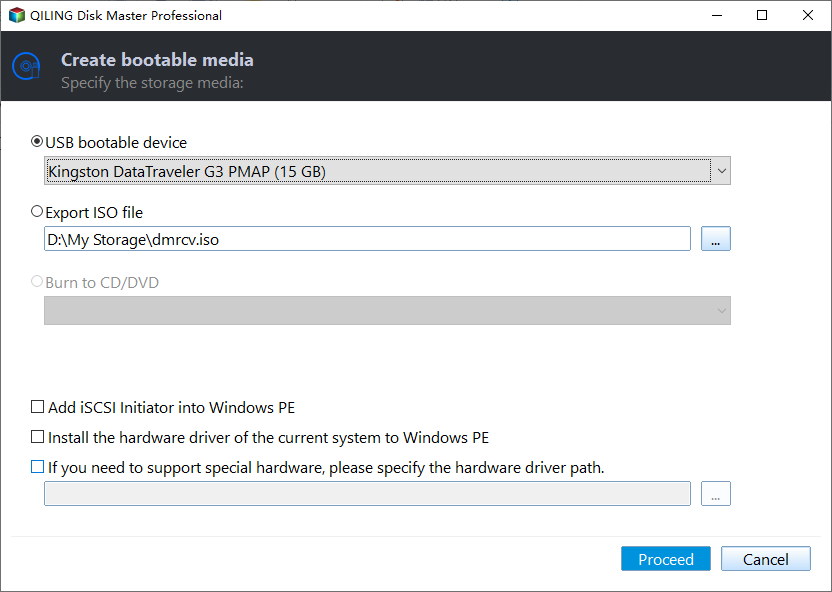
Now, plug that USB into your computer, and boot your computer from this USB. When it boots, you'll enter the software, and you can proceed with the installation process.
Step 1. Right-click on the partition you want to mark as active and select "Advanced" -> "Set Active Partition".
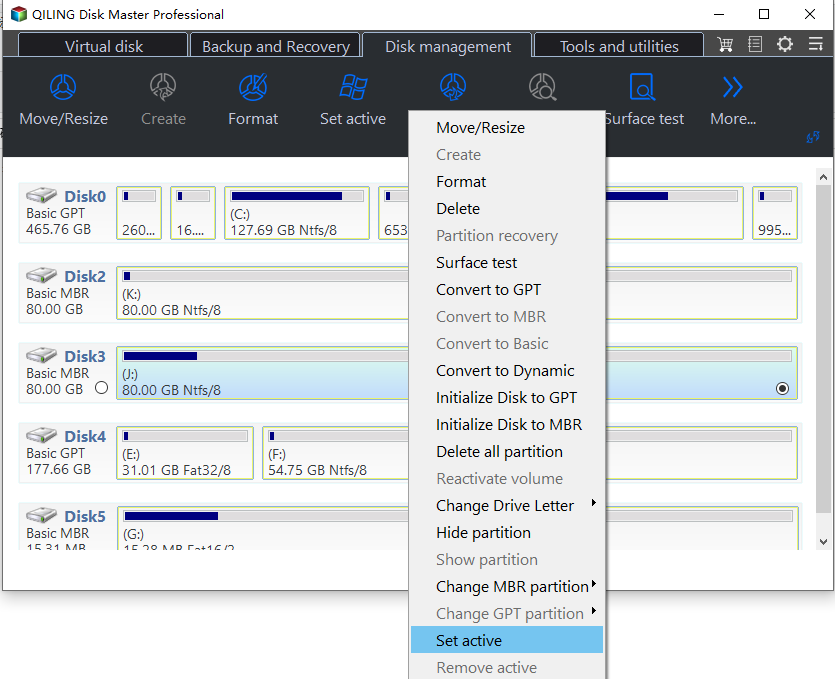
Step 2. Then the partition will be actived.
Now, you can close your computer, remove the USB and boot your computer.
No 2. Set active via Windows installation media
If you have a Windows installation media, USB, or DVD, you can boot your computer from it and use the Command Prompt (CMD) to troubleshoot the problem.
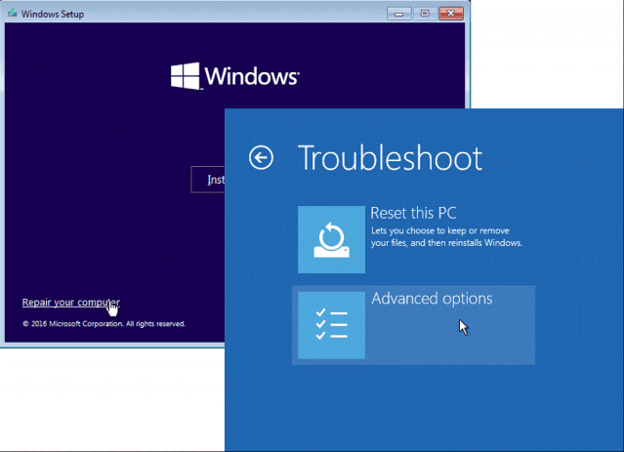
Step 1. To fix the issue, boot your computer and press "F2" or "DEL" to enter the BIOS settings. From there, select the Windows installation media to boot your computer again. Once the installation Setup loads, set your language and time, and then click "Repair your computer" to proceed.
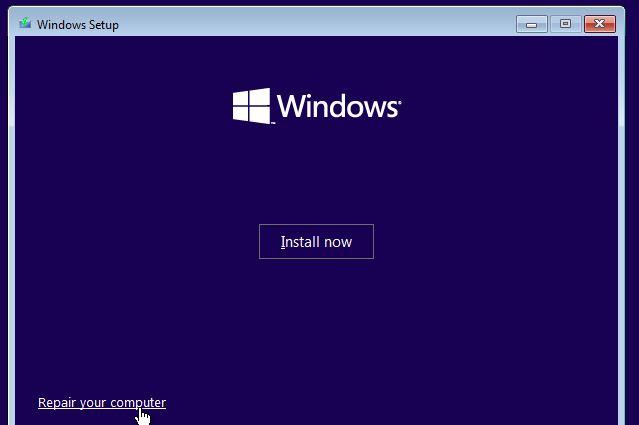
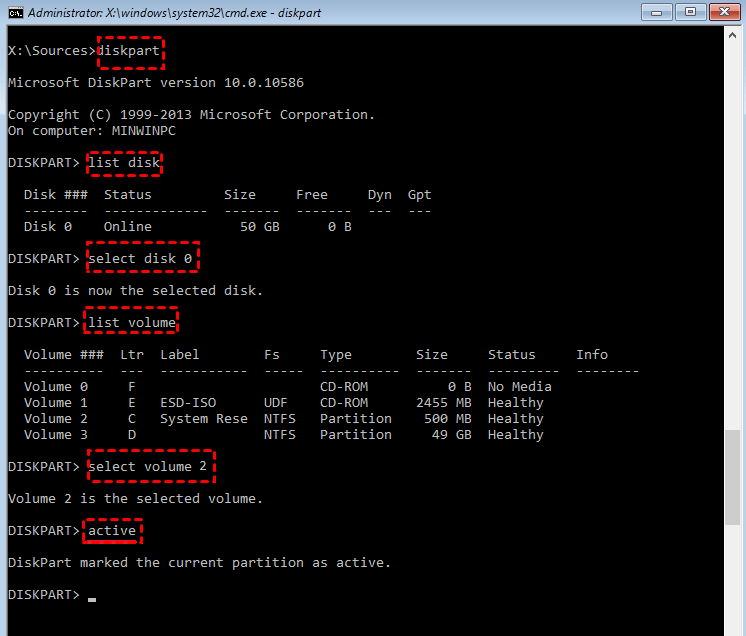
Step 2. Then you go: Troubleshoot -> Advanced options -> Command Prompt. Then please type the following commands and hit "Enter" after each.
• list disk
• select disk n (n is the number of the disk you will operate)
• list volume
• select volume n (n is the number of the correct system partition)
• active
To do this, you will need to enter the BIOS settings by pressing F2, F12, or Del, depending on your computer. Once you are in the BIOS settings, look for the boot order option and change it to prioritize your USB drive.
Ending
Accidentally marking drive C active in Windows 10 may occur due to user error, but it's just one of several potential issues that can make Windows unbootable. Other issues can be caused by a faulty MBR or loss of the boot and system partitions. Qiling Disk Master has features like Partition Recovery Wizard and Rebuild MBR to help resolve these problems. It can also convert a disk from MBR to GPT with or without an operating system.
Related Articles
- [Fixed] Bootmgr Is Missing after Marking a Partition as Active
This guide explains Bootmgr Is Missing after Marking a Partition as Active with clear steps, key checks, and practical tips. - How to Perform Google Drive File Stream Local Backup (2 Ways)
You will learn 2 useful ways to perform Google Drive file stream local backup, including the Google Drive desktop app and the free third-party software. Please read on. - How to Solve "GPT-Formatted Disk. Legacy Boot Not Suppor"
Fixing the 'GPT formatted disk. Legacy boot not supported' issue can be resolved with some professional suggestions. - Best Handy Backup Free Alternative for Windows
In this post, you will get the best Handy Backup free alternative and learn how to create disk backup automatically with it in simple clicks. - How to Initialize SSD on Windows 10/8/7?
Here, you can learn how to initialize SSD on Windows 10, 8, 7 computer. If you cannot initialized SSD drive as expected, this article also provides effective methods to help you out. - Install a Second Hard Drive in Windows 10 (One-Stop Wizard)
This is a one-stop wizard for installing a second hard drive in Windows 10, whether it's external or internal, and migrating system or data afterward.
Products
Articles & Tutorials
- Data Recovery
- Data Backup
- File Recovery
- File Backup
- File synchronize
- System Backup and Restore
- Disk and Partition Clone
- Technical articles
- Disk Master Help
- Windows Deleted File and Disk Recovery Tutorials
- Windows File and Data Recovery Tutorials
- More Windows Tutorials for Install, Security, Files, and PC Tips
- Windows Boot, Repair, and Recovery Environment Tutorials
- Windows Backup Tutorials
- Windows Restore Tutorials
- Windows Clone and Migration Tutorials
- Windows Server Backup, Recovery, and Management Tutorials
- Windows Disk, Partition, and Storage Management Tutorials