Top 4 Solutions to Repair Windows 10 BCD Errors Easily
What is BCD in Windows 10?
In Windows 10, BCD stands for Boot Configuration Data, which is crucial information that tells the Windows boot loader where to find boot information, making it essential for loading and running the operating system successfully.
The BCD file in Windows 10 is stored in the "\Boot" folder, with the full path being "[active partition]\Boot\BCD". For UEFI boot, it's located at /EFI/Microsoft/Boot/BCD on the EFI System Partition, and for traditional BIOS boot, it's at /boot/BCD on the active partition.
When Boot BCD error occurs in Windows 10?
Here are some situations that might damage the BCD file:
- Extend the System Active Partition;
- An unexpected shutdown;
- Blue screen or other errors that require a restart;
- Hard drive failure;
- Virus attack.
When the Boot Configuration Data (BCD) becomes corrupted or damaged, it can lead to unbootable situations in Windows 10/8/7, resulting in various BCD errors. These errors can manifest in different ways, but they all point to the same underlying issue - a compromised BCD that prevents the operating system from booting properly.
- Your PC/Device needs to be repaired. The Boot Configuration Data for your PC is missing or contains errors, specifically error code xc000000f, which is stored in the file BCD located at Boot\BCD. This error typically occurs when the boot configuration data is corrupted or missing, preventing the system from booting properly. To resolve this issue, you can try running the built-in System File Checker (SFC) tool to scan and replace any corrupted system files, or use the Command Prompt to run the Bootrec /Rebuildbcd command to rebuild the BCD.
- Windows failed to start. A recent hardware or software change may be the cause of the issue, and an error occurred while trying to read the boot configuration data.
- There was a problem with a device connected to your PC. An unexpected I/O error has occurred. Error code: 0xc00000e9
- Your PC needs to be repaired. The Boot Configuration Data file doesn't contain valid information for an operating system, specifically error code xc0000098, which is typically caused by a corrupted or missing Boot Configuration Data (BCD) file. This file is essential for the operating system to boot properly. The error code xc0000098 suggests that the BCD file is either corrupted or missing, which prevents the operating system from booting.
- File: \Boot\BCD Status: 0xc0000034 Info. The Windows Boot Configuration Data file is missing required information.
If Windows 10 is unbootable, repairing the BCD files can be easily done using the top 4 methods. To start, you can use the built-in Command Prompt to run the Bootrec command, which can help restore the BCD. Alternatively, you can use the Windows 10 Installation Media to run the Command Prompt and execute the Bootrec command.
4 effective methods for Windows 10 BCD repair
Many users are seeking a solution to manually rebuild the Boot Configuration Data (BCD) in Windows 10. To address this, we'll outline the top 4 ways to repair Windows 10 BCD, providing step-by-step instructions for each method. This will enable users to troubleshoot and resolve BCD-related issues, ensuring a smooth booting experience for their Windows 10 system.
If you don't have a Windows installation disc, you can skip to method 4 to rebuild BCD using a professional Windows 10 BCD repair tool. Otherwise, you can try the first three methods to manually repair BCD using the command prompt, which involves using a Windows installation disc. Alternatively, you can use a professional Windows 10 BCD repair tool to rebuild BCD.
Method 1: Repair BCD store with Startup Repair
If you're experiencing issues with your Windows system, the Startup Repair option in the Windows Recovery Environment can help repair the BCD store. To fix the problem, follow these steps:
1. Insert the Windows 10 installation disc into the computer, then turn it on to boot from the disc.
2. To access the BIOS/UEFI, press a specific function key on your computer, which varies depending on the manufacturer, such as F1, F2, F12, or DEL.
3. To change the boot order, you'll need to enter the BIOS settings. The steps to do this vary depending on the computer model, but generally, you'll need to press a specific key (such as F2, F12, or Del) as soon as the computer is powered on.
4. Select a language, a time, a currency, and a keyboard or another input method, and then click "Next".
5. Click "Repair your computer".
6. When the "Choose an option" menu opens, select "Troubleshoot".
7. Select "Advanced options" in the "Troubleshoot" window.
8. Select "Startup Repair" then.
9. To access your account, select your account and type in the password, then click the "Continue" button.
Once you complete the steps, the Startup Repair will automatically scan, detect, and fix any problems that might be preventing your Windows 10 from loading correctly.
To resolve the issue, you could try booting your computer in safe mode. If the problem persists, you could try uninstalling the latest Windows updates. If that doesn't work, you could try running a System File Checker (SFC) scan to check for corrupted system files.
Method 2: Rebuild BCD in Windows 10 with Bootrec.exe tool
If the startup repair method doesn't work, you can try rebuilding the BCD store using the Bootrec.exe tool in the Windows Recovery Environment. This involves locating the BCD store on the active partition with the "System" info using DiskPart, then removing and recreating it in Command Prompt.
1. Access the Command Prompt from the Windows installation disc by selecting "Command Prompt" in the "Advanced options" screen.
2. In the command prompt window, type the following commands:
- Bcdedit /export C:\BCD_Backup
- ren c:\boot\bcd bcd.old
- Bootrec /rebuildbcd
Partition C: might not be the correct volume letter in your case, you have to locate the volume letter using DiskPart for the system partition where the BCD store is located. Replace the right volume letter in these commands.
Method 3: Windows 10 BCD repair with Command Prompt
If the above ways don't work, you can try other commands to repair BCD in Windows 10. For example, you can use the command "bootrec /fixmbr" to repair the master boot record, or "bootrec /fixboot" to repair the boot sector, or "bcdboot C:\Windows /s C:" to rebuild the BCD.
Run the following commands in turn:
- Bootrec /fixmbr
- Bootrec /fixboot
- Bootrec /rebuildbcd
Method 4: Windows 10 BCD repair via Qiling Disk Master
If you don't have a Windows 10 installation disc, you can create a bootable media first then repair BCD using a tool like Qiling Disk Master Standard, which is a comprehensive and reliable partition tool for managing hard disk and partitions in Windows 11/10/8/7 and Windows XP/Vista.
The software allows you to create bootable media and repair Windows 10 BCD file (Rebuild MBR) automatically, making it a useful tool for various tasks.
Before proceeding, ensure you have an empty USB flash drive (at least 16GB) and a working Windows 10 computer with the same operating system (32 bit or 64 bit) as yours. Additionally, download Qiling Disk Master for free on this computer.
1. Insert the USB drive into a working Windows 10 PC, then run Qiling Disk Master. Select "Make Bootable Media" under "Tools" and click "Next".

2. Select the USB drive, click on the "Next" button, and then click on the "Proceed" button to create a Windows 10 bootable USB drive.
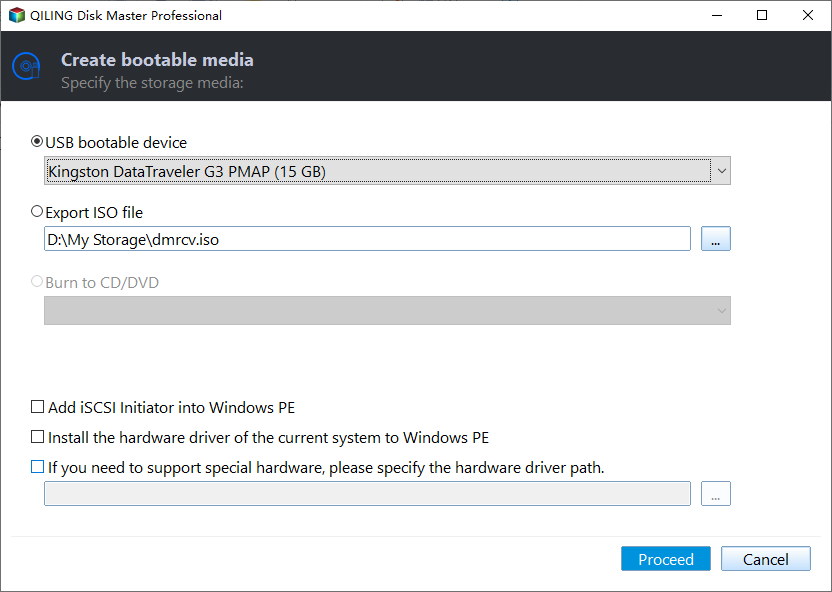
3. To fix a corrupted Windows 10 PC, create a bootable media with the Qiling Disk Master, which can be downloaded from the official website. Then, boot your PC from this media, and the Qiling Disk Master will run, allowing you to access and repair your system.
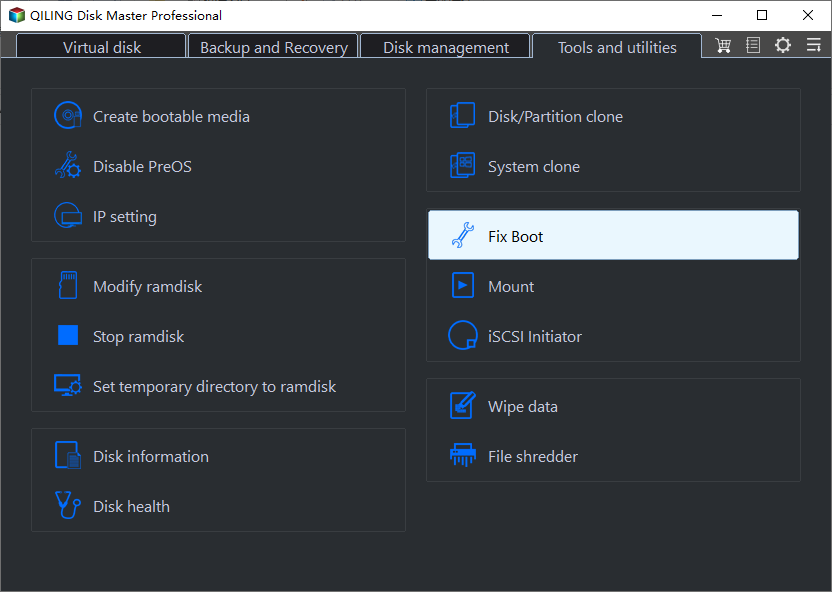
4. Select the system hard disk and choose Fix Boot from the drop down menu.
5. Choose partition for Windows 10.
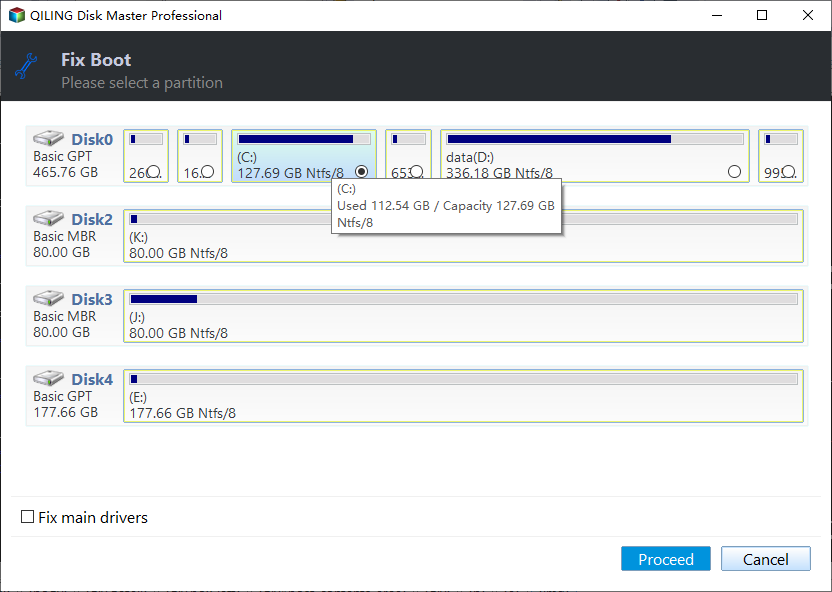
6. Click Proceed button to repair Windows10 BCD file.
After running the Windows 10 BCD repair, the problem should be resolved, and you won't encounter it again. If data loss occurs during the process, you can use the "Recover Data" function to retrieve the lost data.
Summary
You can choose the best method to repair Windows 10 BCD based on your situation, but if you want the easiest way, consider using Qiling Disk Master Standard, which can also fix issues like NTLDR is missing, BOOTMGR is missing, and other unbootable problems.
You can extend, split, move, format, resize, copy, and delete partitions if needed, or upgrade to the Professional edition for advanced features like upgrading to Windows 11. Server users can look into the Server or Unlimited edition.
Related Articles
- Fix MBR on SSD to Repair Boot Issue with Free Software
Learn how to fix MBR on SSD to solve boot issues like invalid partition table, missing operating system, and so on. - BOOTMGR Is Missing? Fix It Easily in Windows 7/8/10
Fix the 'BOOTMGR is missing' error in Windows 11/10/8/7 with practical methods, including startup repair, BCD rebuild, active partition checks, and bootable media recovery. - Fixed: Disk 1 Unknown Not Initialized in Windows 11/10/8/7
Fix 'Disk 1 unknown, not initialized' in Windows 11/10/8/7 with checks for disk status, connections, drivers, file system errors, and partition recovery options. - MBR Repair Tool: Repair Damaged MBR in Windows 11, 10, 8, 7
Here, you can download the best MBR repair tool so that you can repair your damaged Master Boot Record easily and effectively, allowing you to restore your computer to its normal functioning state. - Fix Operating System Not Found Or Missing Windows 10/8/7
If you're experiencing an 'Operating system not found' or 'Missing operating system' error in Windows XP, Vista, 7, 8, 8.1, or Windows 10, there are 7 potential solutions to try.
Products
Articles & Tutorials
- Data Recovery
- Data Backup
- File Recovery
- File Backup
- File synchronize
- System Backup and Restore
- Disk and Partition Clone
- Technical articles
- Disk Master Help
- Windows Deleted File and Disk Recovery Tutorials
- Windows File and Data Recovery Tutorials
- More Windows Tutorials for Install, Security, Files, and PC Tips
- Windows Boot, Repair, and Recovery Environment Tutorials
- Windows Backup Tutorials
- Windows Restore Tutorials
- Windows Clone and Migration Tutorials
- Windows Server Backup, Recovery, and Management Tutorials
- Windows Disk, Partition, and Storage Management Tutorials