Create Windows Server 2012 Bootable USB for Repairing
Content
☞ Failed to boot Windows Server 2012
☞ A great bootable USB maker
☞ Create a bootable USB for Windows Server 2012
☞ Perform Windows Server 2012 repair with bootable USB
Failed to boot Windows Server 2012
Windows Server 2012 may not boot due to issues like bad boot sectors or a corrupted Master Boot Record (MBR). If you have a Windows Server installation disc or recovery disk, you can repair the system from Command Prompt by fixing the MBR, repairing the boot sector, and more. However, if you don't have the installation disc or recovery disk, you'll need to use alternative methods to troubleshoot and resolve the issue.
A great bootable USB maker
If you're having trouble booting Windows Server 2012 without an installation disc or recovery disk, you can use a third-party tool like Qiling Disk Master Server to create a bootable USB drive that can help you repair the boot issue by rebuilding the Master Boot Record (MBR) or checking and fixing errors. This can help you get your server up and running again.
This software allows you to create a bootable USB for various Windows Server operating systems, including Windows Server 2022, 2019, 2016, 2012 (R2), and 2008 (R2), and also enables you to create a bootable CD or DVD if you have one available.
Create a bootable USB for Windows Server 2012
To create a Windows Server 2012 bootable USB drive using Qiling Disk Master Server, follow these steps: First, download the Qiling Disk Master Server software from the official website. Next, insert a USB drive into your computer and ensure it has enough free space to accommodate the Windows Server 2012 installation files.
Step 1. Connect a USB drive to a Windows Server based machine, install and run Qiling Disk Master Server on it, and then click on "Make Bootable Media" in the top toolbar.

Step 2. In the pop-up window, select USB Boot Device and click Proceed.
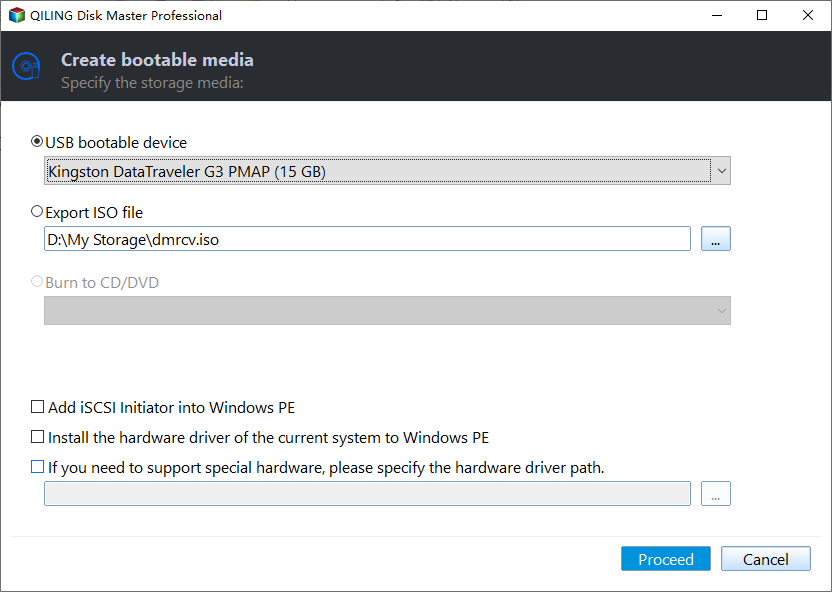
Step 3. When the operation is completed, you'll see "All have finished successfully! Succeed in creating this USB bootable device." Click "Finish".
Now, you have created Windows bootable USB drive successfully.
Perform Windows Server 2012 repair with bootable USB
After using Qiling Disk Master Server to create a bootable USB drive from Windows Server 2012, you can insert the USB into the unbootable machine, enter its BIOS settings, and set it to boot from the USB. Once logged in, Qiling Disk Master Server will launch, allowing you to repair the machine's MBR and partition issues.
✔ Fix corrupted MBR on system hard drive
If the Master Boot Record (MBR) is damaged, the operating system may become unbootable, displaying error messages such as "Invalid partition table," "BOOTMGR is missing," or others. Fortunately, you can fix MBR by following a series of steps.
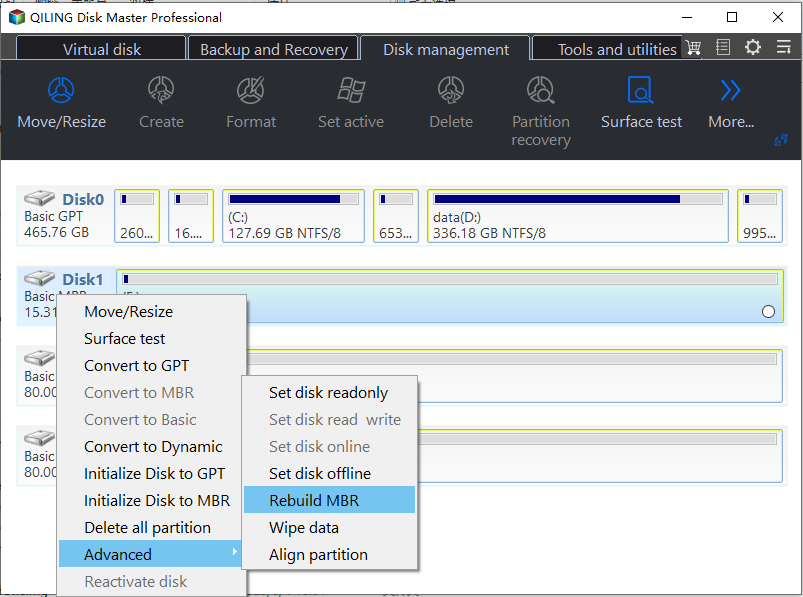
Step 1. In the main console, right-click the disk that you need to fix (here is system disk) and choose Rebuild MBR.
Step 2. In the pop-up screen, select the type of MBR for Windows Server 2012.
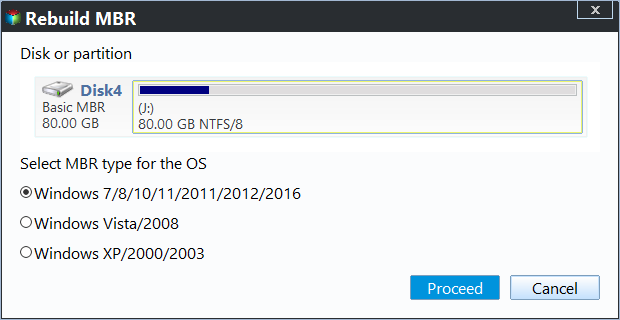
Step 3. In the main interface, click Proceed to commit operation.
✔ Check and fix errors for system drive
To address issues with rebuilding the Master Boot Record (MBR), you can attempt to identify and correct errors. This process involves checking the integrity of the MBR and its components. Here's a step-by-step guide:
Step 1. Right-click the system partition (usually C drive), go to Advanced, and select Check Partition.
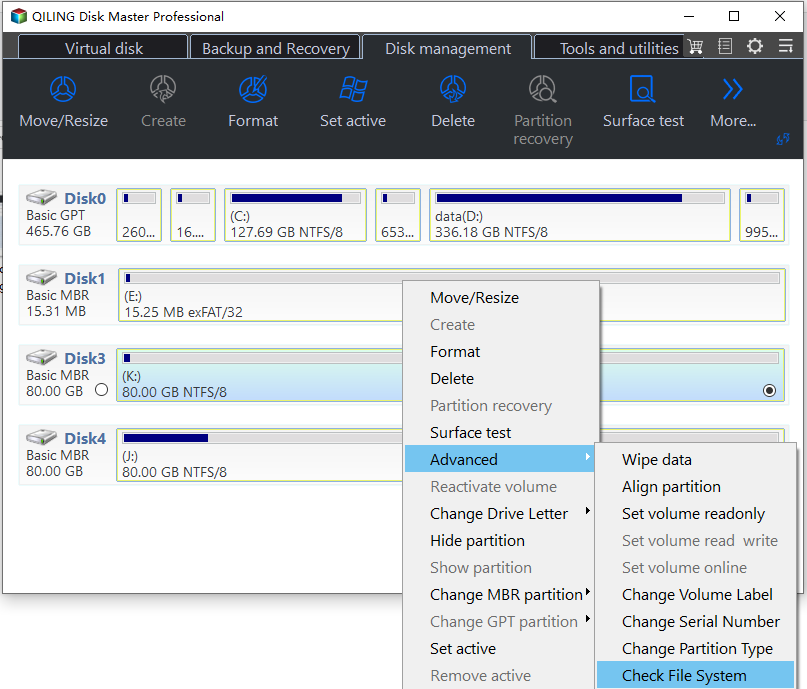
Step 2. Choose the option to check the partition and fix errors using chkdsk.exe, and then click Proceed.
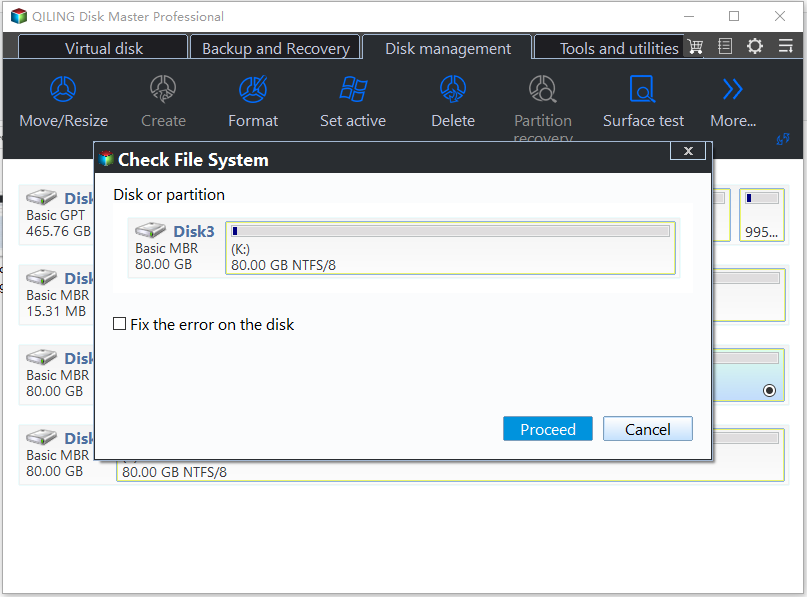
Step 3. Wait patiently for the operation to finish.
Conclusion
Qiling Disk Master Server allows for easy and quick creation of Windows Server 2022/2019/2016/2012/2008/2003 bootable USB or CD/DVD drives. This bootable USB is not only useful for repairing the OS but also for tasks such as formatting the system hard drive, copying partitions, cloning disks, and more, in case of a failed OS boot.
Related Articles
- How to Repair Server 2012 R2 Using SFC Scannow
In this article, we will introduce how to use the SF/Scannow command to repair Windows server 2012 R2 boot failure issues step by step. Besides, an easier tool will also be shared to repair Windows Server. - How to Create Windows 7 Bootable USB Easily and Quickly?
Learn how to Create Windows 7 Bootable USB Easily and Quickly with clear steps, key checks, and practical tips. - How to Install Windows Server 2008 on USB Flash Drive?
No matter you want to install Windows Server 2008 on USB for a portable Server, install OS or repair the boot issues, you can find the stepwise guide in this article. - Backup Laptop to External Hard Drive in Windows 10/8/7 for Free
To protect your laptop from data loss, you can backup laptop to external hard drive with Windows Backup tool or freeware. - Tricks to Free Space on System Partition on Your PC
If you're running low on space on your system partition in Windows 10, 8, or 7, There are some tricks to help you effectively free up space on your system partition. - How to Do Gateway System Recovery in Windows 7/8/Vista?
Learn how to Do Gateway System Recovery in Windows 7/8/Vista with clear steps, key checks, and practical tips.
Products
Articles & Tutorials
- Data Recovery
- Data Backup
- File Recovery
- File Backup
- File synchronize
- System Backup and Restore
- Disk and Partition Clone
- Technical articles
- Disk Master Help
- Windows Deleted File and Disk Recovery Tutorials
- Windows File and Data Recovery Tutorials
- More Windows Tutorials for Install, Security, Files, and PC Tips
- Windows Boot, Repair, and Recovery Environment Tutorials
- Windows Backup Tutorials
- Windows Restore Tutorials
- Windows Clone and Migration Tutorials
- Windows Server Backup, Recovery, and Management Tutorials
- Windows Disk, Partition, and Storage Management Tutorials