Stepwise Guide: How to Install Windows 11 ISO on VirtualBox
Quick Navigation:
- Overview of VirtualBox
- Why need to install Windows 11 on VirtualBox
- Step-by-step guide to installing Windows 11 on VirtualBox
- Protect VirtualBox Windows 11 from losing data with Qiling Disk Master
- In the end
Overview of VirtualBox
VirtualBox is an open-VirtualBox is a source virtual machine developed by Innotek and later produced by Sun Microsystems, which was renamed Oracle VM VirtualBox after Sun's acquisition by Oracle. It is an easy-to-use virtualization platform suitable for both enterprise and home use, supporting hosts running Windows, Linux, and Mac systems. VirtualBox can virtualize a wide range of systems, including all Windows versions, Mac OSX (32bit and 64bit), Linux (2.4 and 2.6), OpenBSD, Solaris, and IBMOS2.
With VirtualBox, you can transform your physical PC into a virtual machine, allowing you to install and run different operating systems and software on a simulated computer. This is particularly useful for learning and mastering unfamiliar operating systems, as you can test them on a virtual environment without affecting your real PC. The best part is that you don't need to allocate a separate partition on your hard drive, making it a safe and space-efficient way to experiment with different systems.
By now, you may wonder "if I want to install Windows 11 on VirtualBox, how do I set it up and how do I get the Windows 11ISO file?" Don't worry, the following content will answer your questions one by one.
Why need to install Windows 11 on VirtualBox
Before we perform the exact steps to install VirtualBox for Windows 11 and other OS, it is necessary to figure out why we need to do that. The reasons for this may be attributed to the following points.
1. Security, to prevent computer from viruses
Many people install cracked software, which can be a breeding ground for viruses, despite antivirus warnings. To maintain computer security, it's recommended to install software from unknown sources on a virtual machine like VirtualBox instead.
2. Experience different systems
To experience different operating systems like Windows, Linux, and Mac, installing virtual machines is the most convenient option.
3. Work Needs
Software developers often face the challenge of testing software compatibility on older systems, which requires installing various older system versions in a virtual machine to facilitate testing.
Now that you know the importance of installing VirtualBox, let's dive into installing Windows 11 on VirtualBox together. To do this, you'll need to download the VirtualBox software and the Windows 11 ISO file, then create a new virtual machine in VirtualBox and configure its settings to support Windows 11.
Step-by-step guide to installing Windows 11 on VirtualBox
Follow these steps to set up VirtualBox running Windows 11: Download the Windows 11 system image file from Microsoft's official website. Create a new virtual machine in VirtualBox and select the Windows 11 system image file as the installation media. Allocate sufficient RAM and storage to the virtual machine. Start the virtual machine and follow the on-screen instructions to complete the installation process. Once installed, you can access the Windows 11 operating system within the virtual machine.
1. To download the Windows 11 ISO file for VirtualBox, first get the latest version of the file from the official Microsoft website, which is approximately 5GB in size.
Tip: ISO is a storage format for CD-ROM images, commonly referred to as a CD Mirror, that is stored on a computer as a file with the suffix .iso, following the ISO-9660 standard for CD-ROM file systems. This is often referred to as an ISO image file.
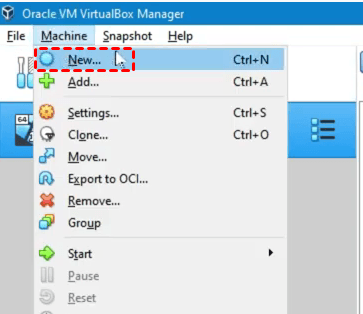
2. We can continue with installing VirtualBox and creating the virtual machine. To install Windows 11, we will need to create a new virtual machine in VirtualBox. Just open VirtualBox Manager and click on "New".
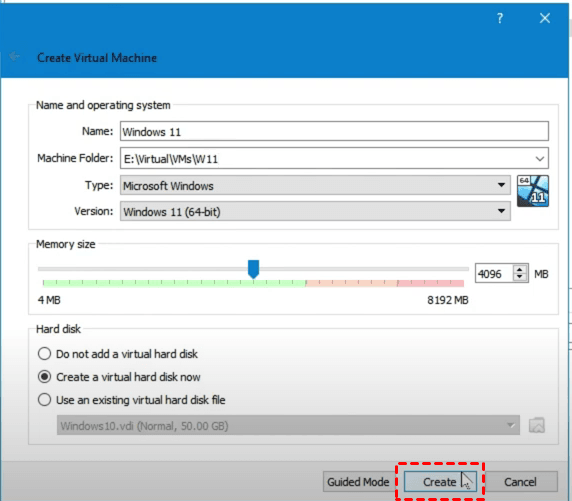
3. Give your VM a name, select a location to store the VM, set the type to Microsoft Windows, version to Windows 11 (64-bit), and allocate at least 4096MB Memory. Click on "Create" to proceed.
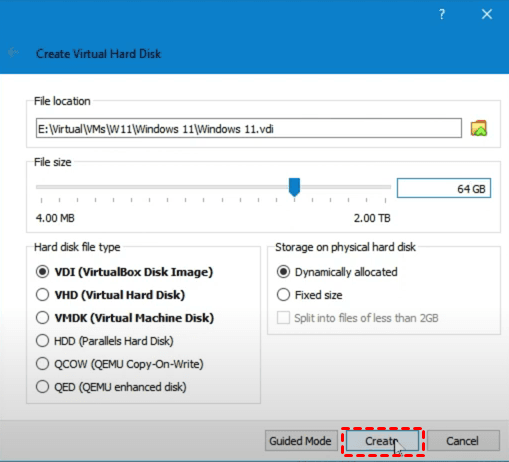
4. To create the Virtual Hard Disk for Windows 11, click on the "Create" button, ensuring the disk space requirement of 64 GB is met.
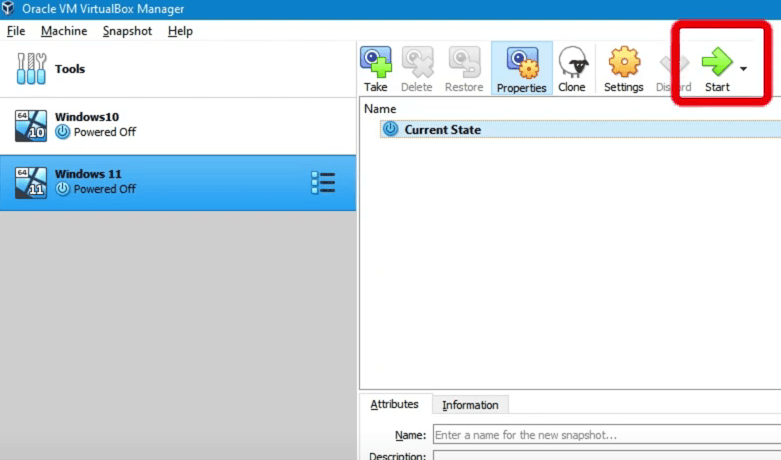
5. The virtual machine is now created. We are now ready to start our new virtual machine and install Windows 11. To do this, in VirtualBox, click on the "Start" button to start your new VM, where VirtualBox will prompt you for a start-up disk.
6. Select the Windows 11 ISO file by clicking on "Add" and then "Choose", and then click on "Start" to begin the VM with the Win 11 ISO disk.
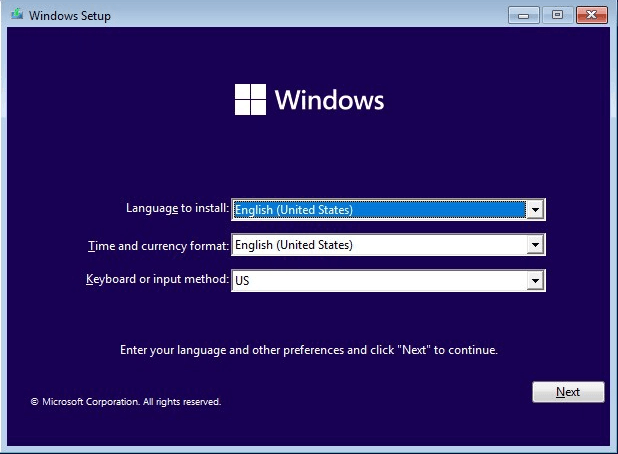
7. When you see the blue Windows Setup screen, press Shift + F10 to open a command prompt.
8. To enable the Windows Subsystem for Linux (WSL) in the Command Prompt, type `regedit` and press Enter. Navigate to HKEY_LOCAL_MACHINE\SYSTEM\Setup, right-click and create a new key called LabConfig, then create DWORD 32-bit values below it and set their data to 1.
- BypassTPMCheck
- BypassRAMCheck
- BypassSecureBootCheck
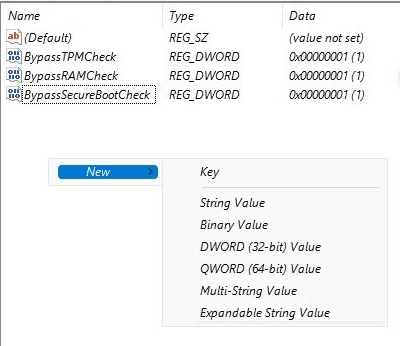
Close the registry editor and exit the command prompt.
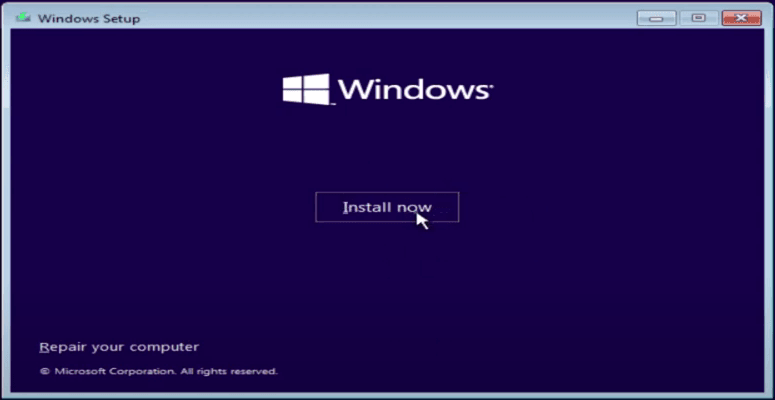
9. Select the desired language and click Next, then click Install now on the next screen.
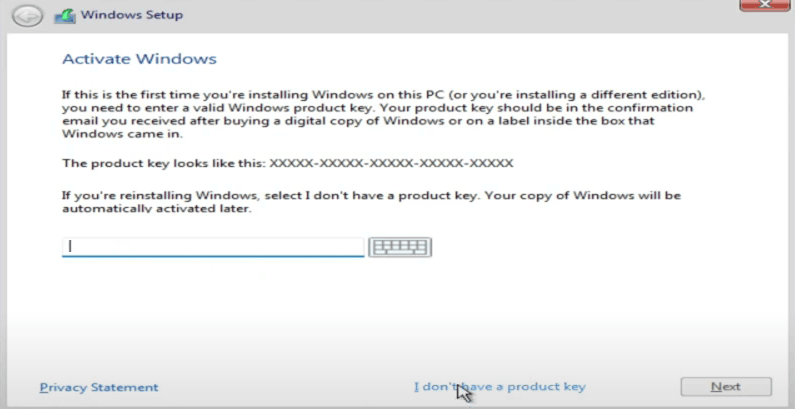
10. Simply click I don't have a product key. Choose which version of Windows 11 you want to install. Just pick Windows 11 Pro and click Next. Accept the user agreement and click Custom: Install Windows only on the next screen.
11. To complete the installation, select the disk where you want to install Windows 11, and Windows 11 will be installed in your VirtualBox.
12. After installing Windows 11 on the VM, it will reboot. During the setup process, you'll have the option to sign in with your Microsoft account, after which you can use VirtualBox to run Windows 11.
Protect VirtualBox Windows 11 from losing data with Qiling Disk Master
As the number of virtualized servers has grown, backing up virtual machines has become a crucial action, driven by three key factors. The increasing complexity of IT environments, the growing importance of data availability, and the need for disaster recovery and business continuity have all contributed to the importance of virtual machine backup. By protecting virtual machines, organizations can ensure that their data and applications remain safe and available, even in the event of hardware failures, cyber attacks, or other disruptions.
- Before making significant changes to your virtual machine, it's a good practice to create a backup, in case the changes don't work out as expected or issues arise, allowing you to restore the original state.
- To avoid losing critical data, it's essential to regularly back up virtual machines, especially when managing hundreds of them. Failing to do so can result in significant losses in the event of a system crash, virus attack, disk failure, or hardware failure, making it crucial to have a backup plan in place.
- Reduce re-A fast and reliable disaster recovery solution is critical to your business, as a prolonged unavailability of virtual machines can result in significant labor and time costs due to re-downloads.
To protect your VirtualBox data, you need a reliable backup software. Qiling Disk Master Standard, a top-rated free backup software, can help you create a complete backup of your system on the virtual machine, safeguarding your data from loss. Its significant advantages include.
✉ To backup Windows 11 or other Windows OS on VirtualBox, you can use a feature that allows you to save backups to various paths, including local drives, NAS devices, USB drives, and external hard drives. This provides a convenient and flexible way to protect your virtual machine data.
✉ It offers various types of backups, such as system, disk/partition, and file backups.
✉ You can schedule the backup task to run automatically on a daily, weekly, or monthly basis, allowing you to set the backup date, time, and intervals as needed.
✉ Qiling Disk Master supports all Windows PC operating systems, including Windows 11, 10, 8.1, 8, 7, Vista, and XP, both 32-bit and 64-bit versions. For Windows Server users, Qiling Disk Master Server is available.
To backup VirtualBox running Windows 11 to an external hard drive, follow these steps: download and install Qiling Disk Master Standard on your VirtualBox, then use it to backup your VirtualBox to an external hard drive. This will allow you to have a try.
Step 1Connect the target hard drive to your computer and set it up in VM (Virtual Machine) to make it connected to your VirtualBox. Then, launch the freeware, and click on the necessary options to initiate the process.System Backup under the Backup tab.

Step 2. The software will automatically select the system partition for you. You can select the hard drive where you want to store your backup files.

☎ To access more features, you can click on Options, Schedule Backup, and Backup Scheme.
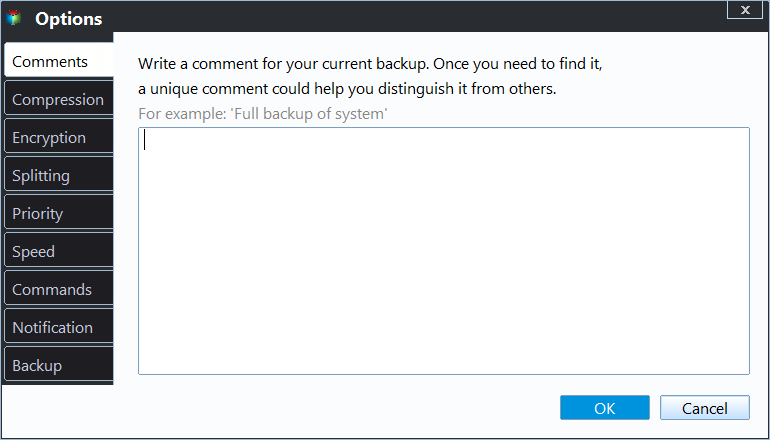
▶ Options: To customize system image backups, you can add comments to distinguish them from other backup tasks. Additionally, you can compress, encrypt (available in the Professional version), and split image files to optimize storage and security.
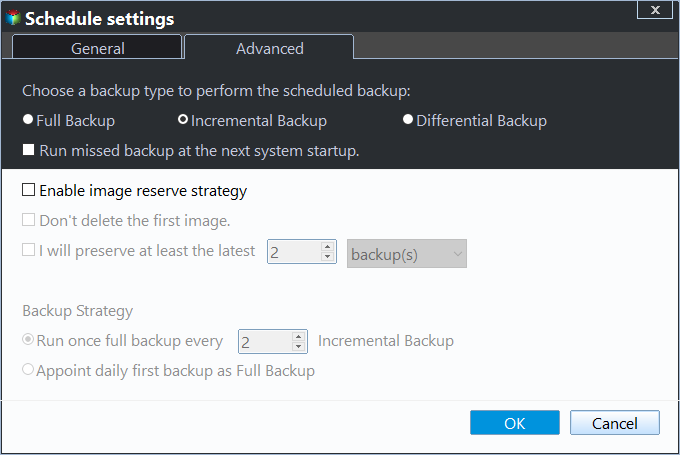
▶ Schedule Backup: You can enable the backup feature to set up automatic backups on Windows 11, with options for daily, weekly, or monthly backups. Additionally, you can upgrade to the advanced edition to enjoy more features, such as event triggers or USB plug-in options.

▶ Backup Scheme (paid edition): To automatically delete old backups and save backup disk space, you can set a retention period for your backups. This means that backups older than the specified time period will be automatically deleted, freeing up disk space and improving backup efficiency.
Step 3. Confirm the settings, and then click Proceed to easily backup VirtualBox Windows 11 to the external hard drive you specified.
Now you have a system backup image, which can be used to restore your system on any computer without having to download and set up again if something goes wrong.
✌ How to restore the system image backup once needed:✌
Click Restore > Select Task or Select Image File. Then, follow the wizard to complete the system recovery process.

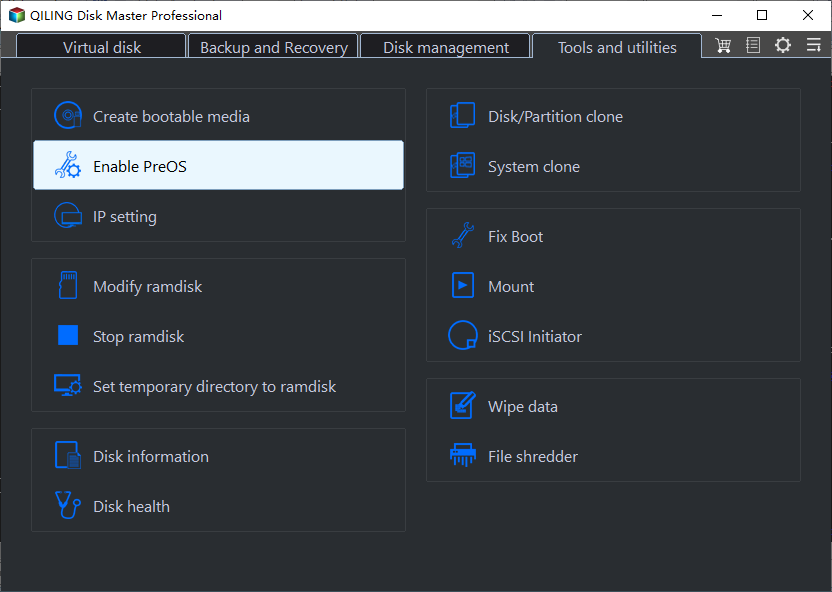
You can create a bootable USB or Recovery Environment to access the software in case your computer fails, without needing a USB or CD/DVD.
In the end
You can install Windows 11 ISO on VirtualBox and protect it from data loss by using Qiling Disk Master Standard, which allows you to backup your virtual machine in simple steps, customize the backup interval, and backup to any storage device.
Qiling Disk Master has more practical features, including scheduled incremental or differential backup, creating bootable media, PXE boot tool, and universal restore, making it easier to handle issues like the blue screen on Windows 11. It's recommended to create a backup of your virtual machines now to avoid potential regrets.
Related Articles
- How to Create an ISO Image from Your Operating System
You can learn how to create Windows ISO here. It helps you get a custom ISO image with Windows installation and all your personal data included. - How to Resize C drive in Windows Server 2019/2016/2012/2008/2003 Effortlessly?
When you can't extend or shrink C drive in Windows Server 2019, refer to the article and you can realize detailed steps about how to resize C drive in Windows Server 2022/2019/2016/2012/2008/2003. - Copy/Install Windows Server 2019 ISO to USB in Simple Steps
This article covers how to copy Windows Server 2019 ISO to USB for installing Windows Server 2019, 2016 2008, and so on. And it also helps you to create Windows Server 2019 bootable USB from ISO so that you can run a Windows 2019 wherever you go. - How to Create Windows Server 2019 Windows To Go
If you want to create a Windows Server 2019 Windows To Go but don't know how to do it, this article will provide a professional tool to help you create a Windows Server 2019 bootable USB. - Use Windows 7 Backup Command Line to Securely Back Up
This guide explains Use Windows 7 Backup Command Line to Securely Back Up with clear steps, key checks, and practical tips. - Windows 7 Backup Disk Full - Manage Space Correctly
You will get the reasons and solutions to Windows 7 backup disks full issue. In fact, the best way is to preset rules for deleting backups at the beginning.
Products
Articles & Tutorials
- Data Recovery
- Data Backup
- File Recovery
- File Backup
- File synchronize
- System Backup and Restore
- Disk and Partition Clone
- Technical articles
- Disk Master Help
- Windows Deleted File and Disk Recovery Tutorials
- Windows File and Data Recovery Tutorials
- More Windows Tutorials for Install, Security, Files, and PC Tips
- Windows Boot, Repair, and Recovery Environment Tutorials
- Windows Backup Tutorials
- Windows Restore Tutorials
- Windows Clone and Migration Tutorials
- Windows Server Backup, Recovery, and Management Tutorials
- Windows Disk, Partition, and Storage Management Tutorials