How to Create Windows Server 2019 Windows To Go?
- Why create Windows Server 2019 Windows To Go?
- The differences between Windows To Go and standard Windows installation
- Use third-party utility to create Windows Server 2019 bootable USB
- How to create Windows Server 2019 Windows To Go step by step?
- Further reading: Install Windows server 2019 on USB
- How to boot Windows Server 2019 from USB?
Why create Windows Server 2019 Windows To Go?
As people's expectations for "bring your own device" (BYOD) policies continue to evolve, the demand for increased job efficiency is driving the need for more stringent expectations. This means that employees can use a familiar operating system or their own private operating system on multiple computers, leading to improved productivity and job satisfaction.
The differences between Windows To Go and standard Windows installation
Windows To Go is a feature in Windows 8 and later versions that allows users to create a portable version of Windows that can be booted from a USB drive, CD/DVD, or other external storage devices. This portable version of Windows is essentially the same as a standard Windows installation, with the same features and functionality, but with some key differences.
☞ Internal disks are offline: When Windows To Go starts, the host's hard disk is temporarily disabled to prevent unauthorized access to the host's data.
☞ Trusted Platform Module (TPM) is not used: When BitLocker drive encryption is used, the pre-operating system startup password is used to ensure security.
☞ Hibernate is disabled by default: Windows To Go disables hibernation by default, but users can restart it to enable hibernation, allowing the operating system to move freely between computers.
☞ Windows Recovery Environment is not available: You can re-image using a new image of Windows.
☞ Refreshing or resetting a Windows To Go workspace is not supported: The manufacturer's standard resetting to the computer is disabled.
☞ Upgrading a Windows To Go workspace is not supported: Windows To Go cannot perform system updates.
After understanding the difference between the two, now I will tell you what is the most suitable Windows to go tool to create a Windows Server 2019 bootable USB.
Use third-party utility to create Windows Server 2019 bootable USB
Microsoft released Windows To Go, a feature that allows users to boot Windows 10/8/8.1 from USB flash drives and external hard drives certified by Microsoft, targeting Windows 8/8.1 Enterprise Edition, Windows 10 Enterprise Edition and Education Edition.
Microsoft has discontinued Windows To Go and it is no longer available in Windows 10 after the May 2020 update, requiring a certified USB flash drive or external hard drive for use.
Using a third-party tool to create a Windows Server 2019 bootable USB is a cost-effective and versatile option, eliminating the need for Microsoft-certified storage devices, making it suitable for various Windows systems.
Qiling Disk Master Server is a powerful disk partition management software that is compatible with Windows 10/8.1/8/7, XP, and Vista. It allows users to create Windows To Go Windows Server 2019 with ease, requiring only a few clicks, making it accessible even to non-technical users.
PS.: Please download and try it first.
How to create Windows Server 2019 Windows To Go step by step?
To create a Windows Server 2019 bootable USB drive, follow these steps: First, download the Windows Server 2019 ISO file from Microsoft's official website. Next, insert a USB drive with at least 4GB of free space into your computer.
Things You Need to Prepare:
1. A USB drive that is at least 13 GB in size, preferably a USB 3.0 drive for faster performance. Back up important files on the USB drive in advance, as it will be formatted.
2. The Windows Server 2019 ISO file, if you plan to create a brand-new system.
This is how to use third-party software can be used to create a Windows Server 2019 Windows To Go, which is also applicable to Windows Server 2008, 2012, 2016 and other Windows systems.
Further reading: Install Windows server 2019 on USB
To create a portable Windows Server 2019 USB, you can use the Media Creation Tool to download the installation media and then create a bootable USB drive. Alternatively, you can use Rufus to create a bootable USB drive from a Windows Server 2019 ISO file, which can be used to install Windows Server 2019 on a computer. Additionally, you can use the Windows Server 2019 installation media to install Windows Server 2019 on a computer, which can be used to create a portable Windows Server 2019 installation.
To prepare for the installation of Windows Server 2019, you'll need to have a USB flash drive with a capacity of over 8GB to back up important files in advance, and also have the Windows Server 2019 ISO file ready.
Step 1. Insert the USB into the USB port of the computer to ensure that the computer can detect it.
Step 2. To open Command Prompt, click on the start bar on the desktop and enter "CMD", then right-click and select "Run as administrator".
Step 3. Type "diskpart" and press Enter. Then type the following instructions.
●list disk
●select disk X. (X is your USB drive letter)
●clean
●create partition primary
●select partition 1
●format fs=ntfs quick(if you want to create UEFI bootable USB, type "format fs=fat32 quick").
●active
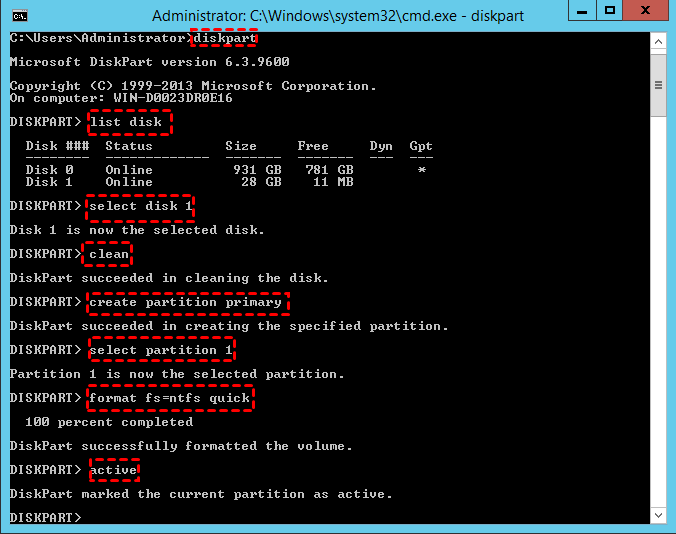
Step 4. Finally type "exit" and hit enter to close diskpart.
Step 5. Open the Command Prompt, type "xcopy X1:\*.* X2: /s/e/f", and press Enter, where X1 is the drive where the ISO file is located and X2 is the drive letter of the USB.
Step 6. To write the boot loader to your USB drive, type `X1:\Boot\Bootsect /NT60 X2: /force /mbr` in the command prompt.
After following the above steps, you will have created a Windows Server 2019 installation media that can be used to install the operating system on different computers via USB, a method also suitable for installing other Windows systems.
How to boot Windows Server 2019 from USB?
To boot from the created Windows Server 2019 USB, you'll need to enter your computer's BIOS settings, which vary slightly depending on your computer model. Generally, you'll need to press a specific key, such as F2, F12, or Del, as soon as your computer starts up. Look for the key in your computer's manual or online documentation if you're unsure.
Step 1. Insert the USB into the computer and start it. As the computer is loading, follow the on-screen prompts to start the shortcut and enter the BIOS.
Step 2. To change the boot order in the BIOS settings, select the "Boot" option and then choose "Change boot order".
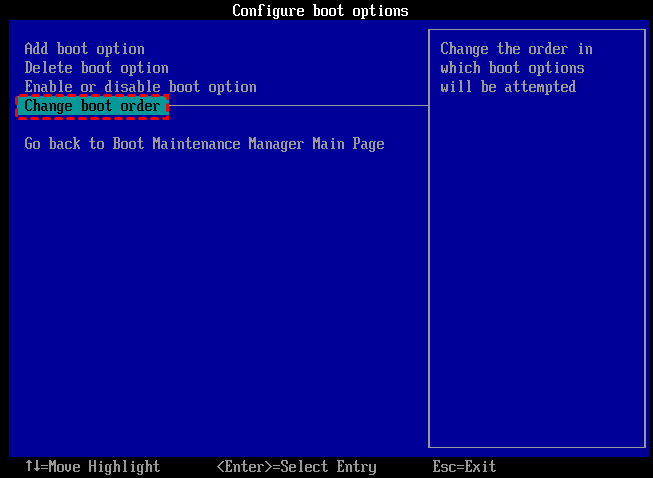
Step 3. To exit the boot sequence, select your USB drive, save and exit the BIOS, and then your computer will boot normally.
This article introduces Windows To Go and how to use the Windows To Go tool to create a Windows Server 2019 bootable USB, making it easy to install Windows Server on a USB drive, a solution that can help resolve issues related to creating a Windows bootable USB.
Related Articles
- Free Method: Create Windows To Go USB Drive Successfully
If you need to create Windows to go USB drive and take your own OS everywhere, you can turn to Qiling Disk Master Standard. This freeware allows you to create Windows 10, Windows 8 and Windows 7 portable USB stick in simple steps. - 2 Free Ways to Burn or Copy ISO to USB in Windows 10/8/7
On this page, we aim to tell how to burn ISO to USB in Windows 11, 10, 8, 7 via 2 free methods. And then you can get a bootable USB drive. - Copy Windows Server 2019 ISO to USB for Installation or Portable OS
This article covers how to copy Windows Server 2019 ISO to USB for installing Windows Server 2019, 2016 2008, and so on. And it also helps you to create Windows Server 2019 bootable USB from ISO so that you can run a Windows 2019 wherever you go. - 4 Easy Ways to Change Program Files to D Drive Quickly
This guide explains 4 Easy Ways to Change Program Files to D Drive Quickly with clear steps, key checks, and practical tips. - How to Backup D Drive in Windows 7/10 (Free and Easy)
Learn how to Backup D Drive in Windows 7/10 (Free and Easy) with clear steps, key checks, and practical tips. - How to Backup PS4 Game Save Data to the Cloud?
Learn how to backup PS4 Game Save Data to the PlayStation Plus Online Storage as well as to mainstream Cloud Storage like Google Drive and OneDrive step by step.
Products
Articles & Tutorials
- Data Recovery
- Data Backup
- File Recovery
- File Backup
- File synchronize
- System Backup and Restore
- Disk and Partition Clone
- Technical articles
- Disk Master Help
- Windows Deleted File and Disk Recovery Tutorials
- Windows File and Data Recovery Tutorials
- More Windows Tutorials for Install, Security, Files, and PC Tips
- Windows Boot, Repair, and Recovery Environment Tutorials
- Windows Backup Tutorials
- Windows Restore Tutorials
- Windows Clone and Migration Tutorials
- Windows Server Backup, Recovery, and Management Tutorials
- Windows Disk, Partition, and Storage Management Tutorials