How to Create ISO Image from Current Windows 10/11 OS [2 Ways]
How to create an ISO image from my operating system
You want to create a backup of your current Windows installation by making an ISO file from it, so you can restore your computer to its current state if needed. You can achieve this by creating a System Image backup, which will allow you to create a bootable ISO file that can be used to restore your system to its current state. This can be done using the built-in Windows feature called Backup and Restore (Windows 10) or by using a third-party tool like Qiling Disk Master.
What can an ISO image do for you
A system backup allows you to quickly roll back to a previous state in case of a system crash, while an ISO image created from your operating system provides additional benefits compared to other backup formats, offering a more reliable and efficient way to restore your system.
- An ISO image is bootable, allowing you to use it to restore your PC if you experience boot issues.
- It is very convenient to deploy it to other devices.
- It can be standalone from backup tools or cloud services.
- You can view the content of a file by mounting it as a virtual drive.
- You can run the ISO image on a virtual machine.
You can create an ISO of your computer using different methods. One way is to create a system image in Windows 11/10, which can be done by going to Settings > Update & Security > Backup > Add a drive, selecting the drive you want to back up, and then clicking "System image" under Back up options. Alternatively, you can use a third-party tool like Rufus to create a bootable USB drive and then use it to create an ISO file. For system recovery, you can also use the built-in Windows feature called "Recovery Drive" to create a bootable USB drive that can be used to recover your system in case of a problem.
How to create ISO file from current Windows 10/11
Windows 10/11 has built-in DISM feature that allows capturing a Windows image under a recovery environment is available, and it can be used by creating a Windows 10/11 recovery media or installation disk.
To capture a Windows 10 or Windows 11 recovery image, you can follow the steps below. First, ensure that your Windows installation is up-to-date and that you have enough space on your hard drive. Next, go to the Settings app, then to Update & Security, and finally to Recovery.
Steps to create ISO image from existing Windows 10 installation:
1. Boot your PC from the recovery media or installation media.
2. If you boot from the installation disc or recovery media, you can access the command prompt by pressing Shift + F10 at the Windows Setup screen or by selecting Troubleshoot > Advanced options > Command Prompt.
3. Type the following command and press Enter.
dism /Capture-Image /ImageFile:D:\windows10\install.wim /CaptureDir:C:\ /Name:windows10
Note: The drive letter may change in recovery mode, so the Windows installation drive may not be C:. To adjust, replace "C" with the actual drive letter where Windows is installed, and update "D:\windows10" in the ImageFile switch to the desired location for the custom image.
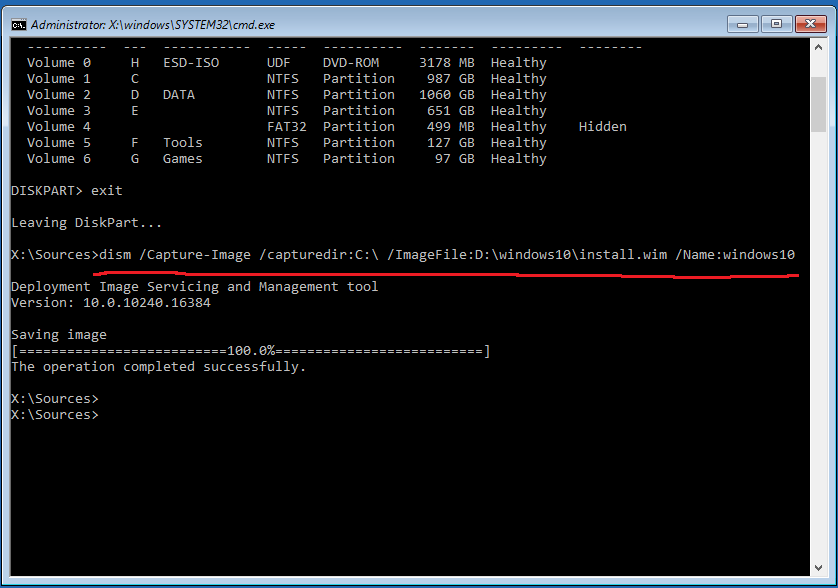
This process may take some time and you should not turn off your PC during this time. Please wait patiently until it is finished.
Note: To use this image on another computer, you need to remove the SID (System Identifier) using sysprep before capturing the image.
How to make the ISO image file bootable
To make a Windows 10/11 bootable ISO image, you can use the created image file. Follow these steps:
1. To prepare the Windows 10 installation disc, open File Explorer, copy the contents of the disc to a folder on your internal or external hard drive, such as "iso-files" on the D: drive, or mount a Windows 10 ISO and copy its content.
2. Copy the custom image install.wim created before to the Source folder and replace the original one.
3. Download and install the latest Windows Assessment and Deployment Kit (ADK) for Windows 10, selecting only the Deployment Tools to install.
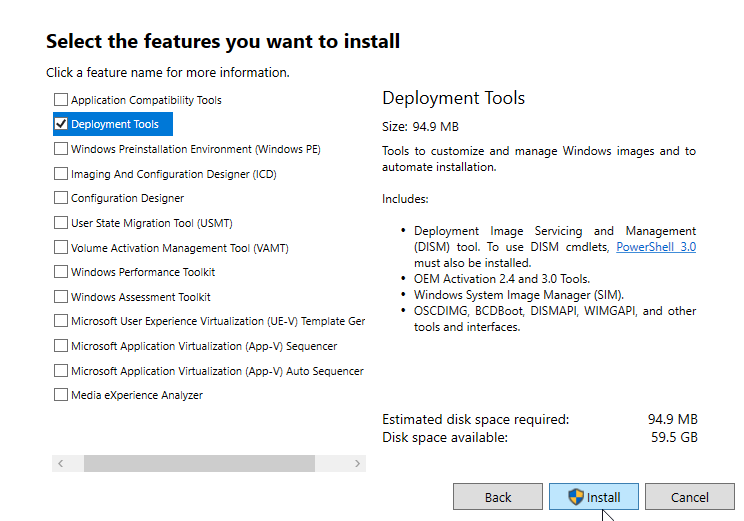
4. Run the following command on an elevated command prompt.
oscdimg.exe -The command `
To simplify the process, you can use a free tool called Folder2ISO to create an ISO file from the Windows 10 folder you created in step 1, making the command less complicated.
Easier way to prepare system image and bootable WinPE disk
To create a system image backup and a WinPE bootable media, you can use the built-in Windows feature, "Backup and Restore (Windows Backup)" to create a system image backup, and the Windows Assessment and Deployment Kit (Windows ADK) to create a WinPE bootable media. This approach can simplify the process and reduce the risk of errors. The system image backup can be used for recovery purposes, while the WinPE bootable media can be used for system deployment and other tasks.
Both operations can be done using the free backup tool Qiling Disk Master Standard.
✔ The software supports all Windows editions, from 7 to 11, and can work with various storage devices, including internal or external disks, USB drives, NAS, and cloud storage.
✔ Qiling Disk Master contains powerful backup and restore features for system, file, partition, and disk, allowing users to create a system backup image with just a few clicks.
✔ You can create a bootable media (USB or CD/DVD) using this tool, and use it on both the local computer and another computer running Windows.
✔ It can create and manage multiple automatic backup tasks with different schedules.
✔ In the Professional edition, you can use the system image on another computer with the dissimilar hardware restore option.
With the system image, you can easily restore the computer to a previous state without losing data, making it useful for reverting to Windows 10 from Windows 11 or recovering from severe issues that prevent Windows from booting.
Download the free backup software from the Download Center or the button below, then install and launch it.
How to create ISO image from current Windows 10/11
1. To create a system image from your current operating system and save it to an external device, connect the external device to your computer and launch Qiling Disk Master's main interface.
2. To access the system backup feature, go to the Backup tab and select System Backup. Alternatively, you can also choose other options as needed in your daily use.
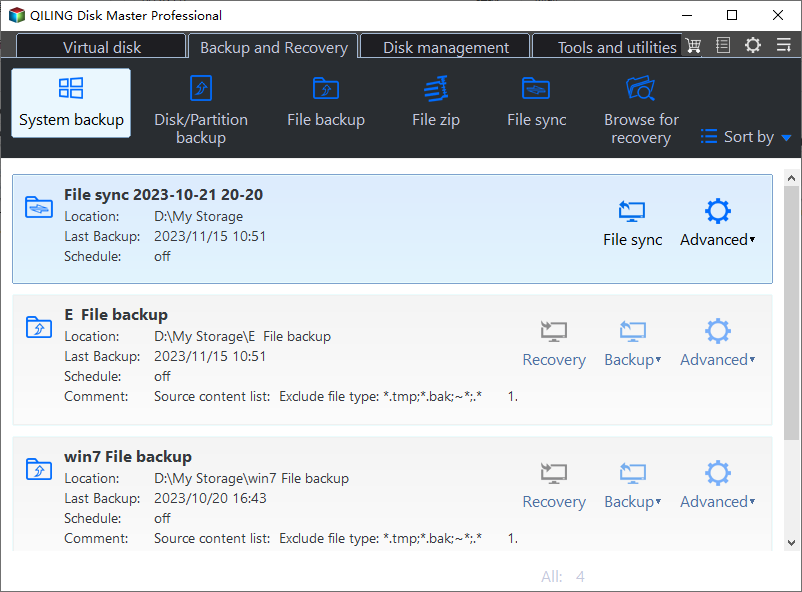
3. The program will automatically include required partitions for a full system restore, and all you need to do is specify a destination location to store the backup image.

4. You can set up a backup schedule to automate the task, or perform incremental or differential backup in the backup scheme to backup only changed files each time, then click proceed to execute it.
Auto deletion: You can enable automatic backup cleanup in Backup Scheme to auto delete backup images older than a certain number of days, which is available in the Professional edition. This can help save storage space.

The system backup task will appear on the Home page, where you can either manage it directly or access the Restore tab for system recovery.
How to create a bootable media
1. Go to Tools tab and choose Create Bootable Media.

2. To create a bootable media, select the desired type (USB, CD/DVD, or export ISO file), and then click Proceed to initiate the process.

With the created bootable media and system image, you can easily restore Windows to an earlier normal state by booting from the media and following the on-screen instructions to select the system image and complete the restoration process. This allows you to revert to a previous working state in case of any issues or errors.
✍ Tips:
✡ If your computer fails without any preparation, you can create a system image and bootable media on another working computer, and then use them to restore your system and access your files. This way, you can recover your system and data even if your primary computer is no longer functional.Universal Restore on the faulty PC.
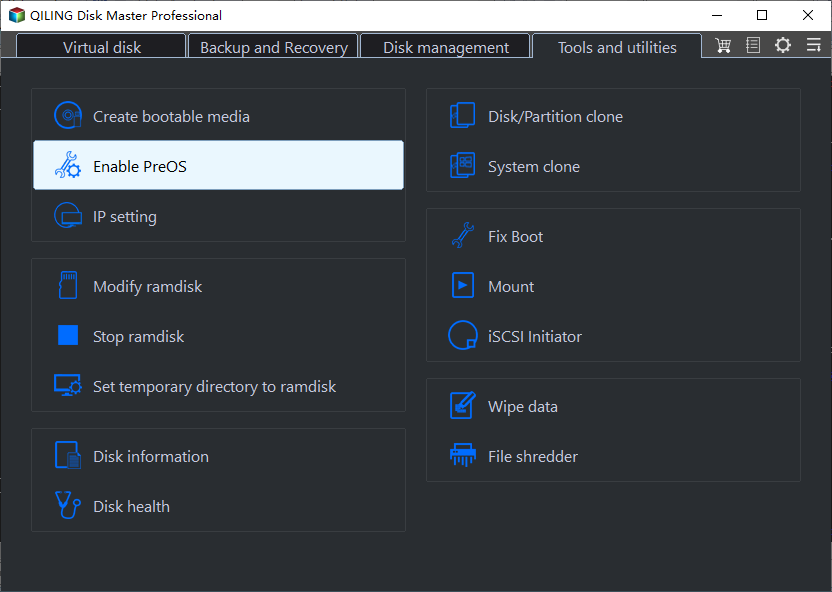
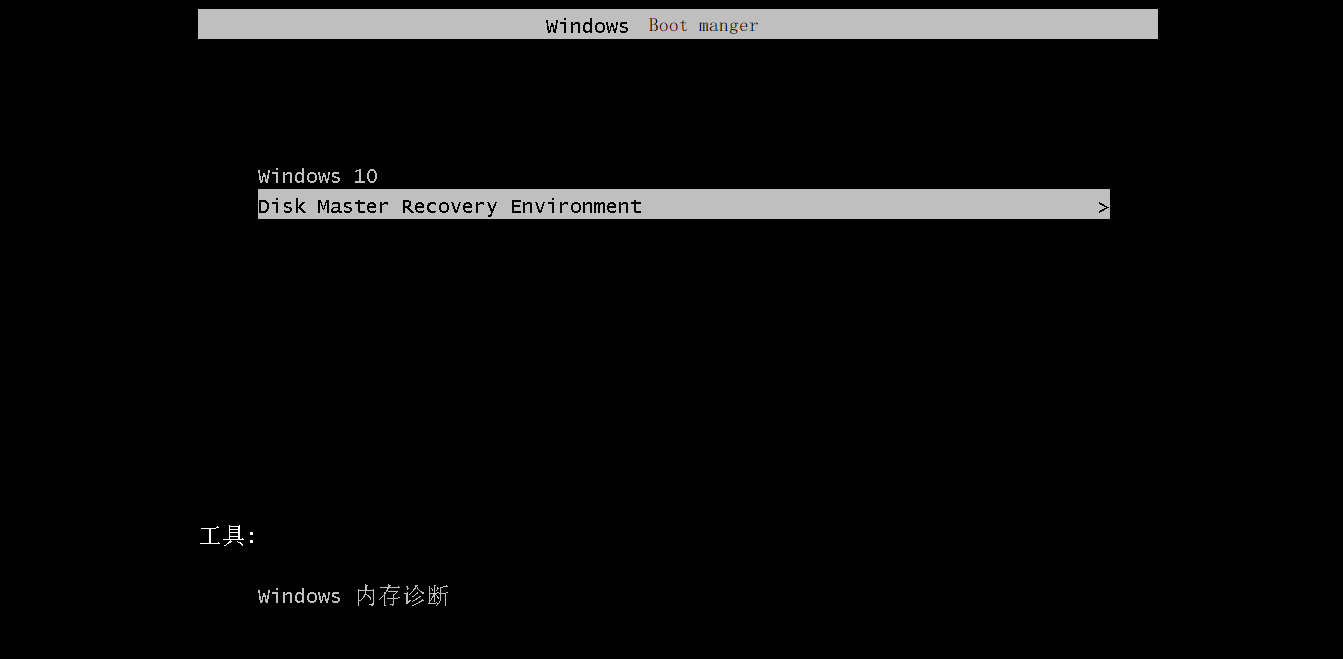
✡ You can also create a recovery environment In Qiling Disk Master Professional, a recovery environment is created and enabled, adding the "Qiling Disk Master Recovery Environment" option to the system boot menu page. This allows users to select and start the system from the recovery environment, enabling the restoration of a Windows ISO image to a new hard drive.
Alterantive: Onekey system backup and system recovery solution
You can use Onekey System Backup with Qiling Disk Master to save system image on a custom recovery partition that's accessible from Windows PE, eliminating the need to create a system image backup and bootable media separately.
Final words
You can create a custom system image and bootable drive using Qiling Disk Master in addition to making an ISO image with DISM. This tool allows you to set up a scheduled backup to keep your system image up to date, and choose between incremental or differential mode to save only changed files each time.
If you want to protect unlimited computers within a company, you can choose Qiling Disk Master Technician, which allows you to deploy or restore system image files to multiple clients over a network and perform portable USB backups without installing the software on different computers.
Related Articles
- How to Create an ISO Image of My Hard Drive
- How to Use DISM Offline Repair Windows 10
- How to Create and Use Windows 7 Repair Disk with ISO
- Solved | Can't Backup System to Removable USB Drive in Windows 10/8/7
- Restoring MBR System Image to GPT/UEFI (Safe Boot)
MBR cannot satisfy users' storage demand with the development of internet. Restoring MBR system image to GPT/UEFI is necessary to rescue MBR disk. - How to Restore Multiple Databases in SQL Server (3 Methods)
To restore multiple databases in SQL Server at once, you can use a T-SQL script that utilizes a loop to apply the restore process to each database, or opt for a software solution that can handle the task with fewer restrictions.
Products
Articles & Tutorials
- Data Recovery
- Data Backup
- File Recovery
- File Backup
- File synchronize
- System Backup and Restore
- Disk and Partition Clone
- Technical articles
- Disk Master Help
- Windows Deleted File and Disk Recovery Tutorials
- Windows File and Data Recovery Tutorials
- More Windows Tutorials for Install, Security, Files, and PC Tips
- Windows Boot, Repair, and Recovery Environment Tutorials
- Windows Backup Tutorials
- Windows Restore Tutorials
- Windows Clone and Migration Tutorials
- Windows Server Backup, Recovery, and Management Tutorials
- Windows Disk, Partition, and Storage Management Tutorials