How to System Restore Windows 10/11 from Command Prompt
- How Do I Run System Restore from Command Prompt
- Method 1. Run System Restore in Safe Mode with Command Prompt
- Method 2. System Restore Windows 10/11 from CMD in WinRE
- Easier Alternative to Restore System in Windows 10/11
- How to perform system restore from command prompt via Qiling Disk Master
- Easier way to restore system with Qiling Disk Master GUI
- Conclusion
How Do I Run System Restore from Command Prompt
System Restore is a tool that helps you restore your operating system to a previous state if errors occur, but when the problem is severe, you can't access it. In such cases, you need to run System Restore from the Command Prompt in Windows 10/11.
To start your computer in Safe Mode with Command Prompt, you can press the Windows key + X and select the Power option, then hold the Shift key while clicking Restart. This will take you to the Windows Recovery Environment.
You can system restore Windows 10/11 from the Command Prompt using two methods, or take an easier alternative that allows for flexible backup and restoration of your operating system.
Content of this article:
- Method 1. Run System Restore in Safe Mode with Command Prompt
- Method 2. System Restore Windows 10/11 from CMD in WinRE
- Easier Alternative to Restore System in Windows 10/11
Method 1. Run System Restore in Safe Mode with Command Prompt
If you can't access your Windows system normally due to an error or virus, you can try to restore your system settings to an earlier date to resolve the issue.
Please note that the restore operation cannot be undone if you perform system restore in safe mode. If you want to undo changes made by this operation, you could choose to use the installation disc that comes along with your computer.
If you don't have a Windows 10/11 installation disc or recovery drive, it's a good idea to create one on another computer with the same hardware.
You will learn how to launch the System Restore tool from Safe Mode with Command Prompt in Windows 10/11, which also works in Windows 7/8/8.1 and the latest Windows 11.
1. To restart Windows 10, press and hold the Shift key while selecting Power > Restart from the Start menu.
2. After your PC restarts, select Troubleshoot, then Advanced options, followed by Startup Settings, and finally Restart.
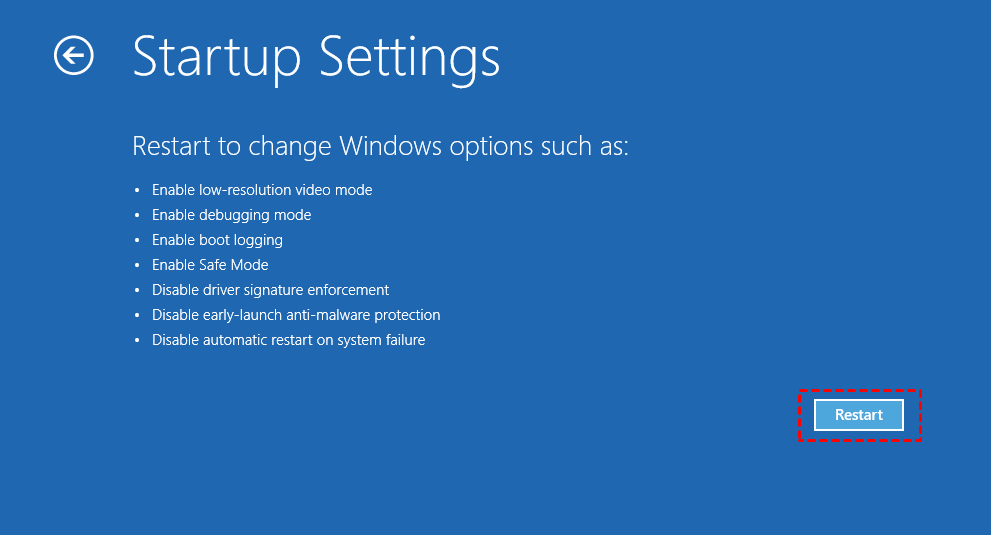
Note: If your computer can boot normally, press the Windows key + R to open the Run dialog box, and type "cmd" in the box. This will open the Command Prompt.
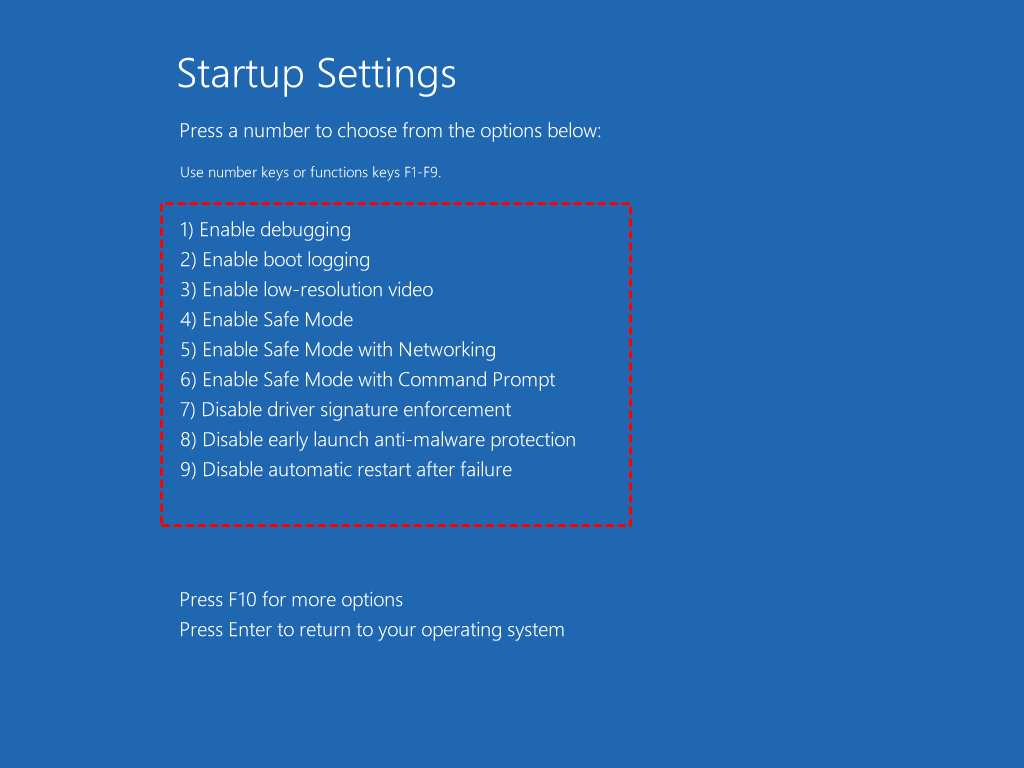
3. To access the Safe Mode with Command Prompt option, press the number key 6 or the function key F6, which will enable this feature.
3. Once the command prompt is showing, type the command: rstrui.exe, then press Enter.
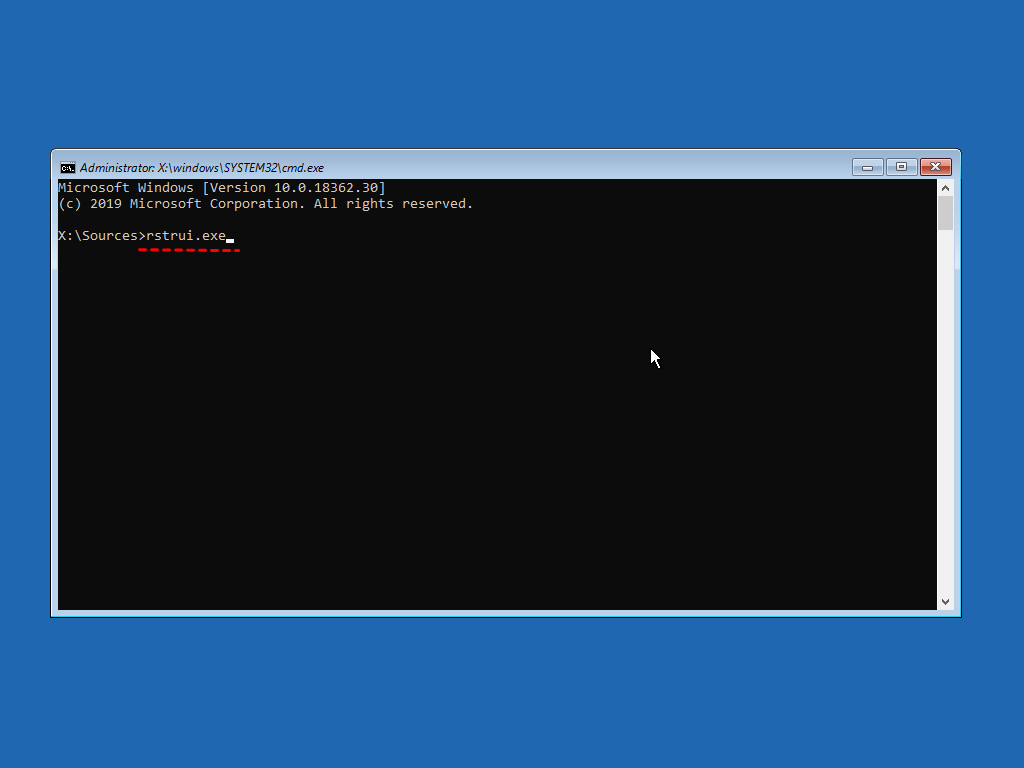
Note: The rstrui.exe file, typically located in the C:\Windows\System32 folder, may be found in multiple versions or with variations in name, such as rstrul.exe, restrui.exe, or rstri.exe, on a computer infected with a virus.
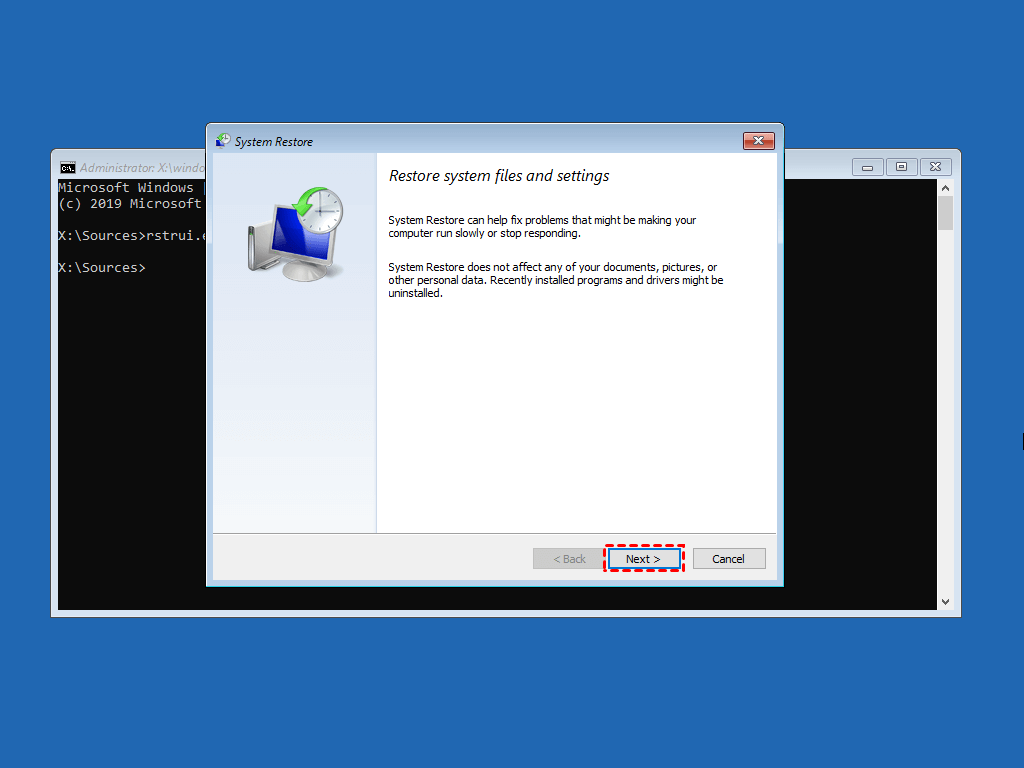
4. Here, you will come to System Restore wizard. You can either use the recommended restore point or choose a restore point, then click Next and follow the instructions to complete system restore.
Method 2. System Restore Windows 10/11 from CMD in WinRE
1. If you don't have a Windows 10/11 installation disc or CD/DVD, you can create one using the Media Creation Tool. Alternatively, you can create a recovery disk using the built-in Recovery Drive tool in Windows 10/11. This will allow you to boot from a USB drive or CD/DVD if needed.
2. Insert the installation disc into your computer, start it, and access the BIOS by pressing a specific key (e.g. ESC, F2).
3. To access the Command Prompt in Windows 10, follow these steps: click on "Next" on the Startup Settings screen, select "Repair your computer" from the menu, navigate to "Troubleshoot", then select "Advanced options", and finally choose "Command Prompt".
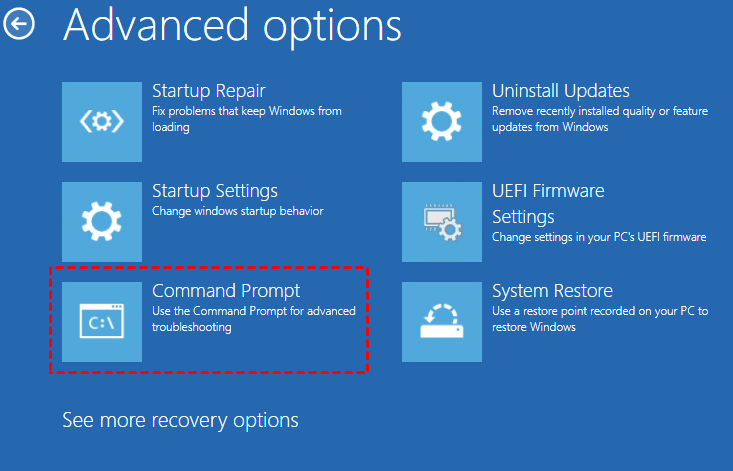
To start the System Restore Wizard, type rstrui.exe and hit Enter, then follow the on-screen instructions to restore your computer to a previous date.
Due to the potential issues with the built-in System Restore feature, it's often recommended to use a third-party software to restore your system, as it can provide a more reliable and guaranteed solution.
Easier Alternative to Restore System in Windows 10/11
If system restore is not working in safe mode or using an installation disc, or if the restoration simply failed, there is another way to help you restore Windows system simply and securely, which is to try using a Windows recovery environment or a third-party recovery software.
Qiling Disk Master Professional is a top-notch backup and restore software that allows users to restore their system, partition, or hard drive to a previous date, and even restore their system to a different hardware configuration using its Universal Restore feature.
🔹It's a complete and powerful backup software supporting Windows 11/10/8.1/8/7/XP/Vista.
🔹 This software can not only be used to install and manage an operating system, but also to restore entire partitions, disks, or individual files and folders.
🔹You can operate it either from the Command Prompt or in a user-friendly graphical interface.
🔹In case the computer won't boot, you can create a bootable media to restore the system in WinPE.
To run Windows 10 system restore, download Qiling Disk Master Professional and follow the guide to use it via command prompt or a user-friendly GUI, which also supports Windows 11 and previous systems.
Before running system restore using command prompt in Windows 10/11, you need to do some preparations.
◾ Before attempting to restore your system, it's essential to have a system backup created using Qiling Disk Master. This backup is the foundation for the restore operation, and without it, the process won't be successful. If you don't have a backup yet, you can create one now using Qiling Disk Master on a working machine, which will serve as the basis for the restore operation.
◾ If you can't boot your computer, create a bootable media using Qiling Disk Master to troubleshoot and resolve the issue.
◾ To ensure a seamless restore process, you can utilize Check Image utilities to verify that your system image backup is intact and error-free.
How to perform system restore from command prompt via Qiling Disk Master
1. Boot your machine from the bootable media provided, which will take you to the main interface of Qiling Disk Master. Insert the drive containing the image into your computer and ensure it is recognized by the system.
2. To access the Open command line, go to the Tools tab and type the command to navigate to the Qiling Disk Master installation directory, for example, "cd C:\Program Files (x86)\Qiling Disk Master".
Notes:
❤ The path cd C:\Program Files (x86)\Qiling Disk Master is an example installation directory, replace it with your actual software installation directory.
❤ If you run this command under a Windows PE environment, the drive letters may change.
3. To restore an image on the current computer, you can run the command to restore the image. This command will initiate the process of restoring the image from the backup, which will overwrite any existing data on the computer.
To restore a system backup saved in a specific location to a specific disk, you can type the command `DISKPART> DETACH`, followed by the disk number, and then `DISKPART> ATTACH`, followed by the path to the backup file, such as `J:\systembackup1`. For example: `DISKPART> DETACH DISK 1`, `DISKPART> ATTACH DISK 1 J:\systembackup1`.
If you need to restore to another computer, Qiling Disk Master's Universal Restore feature makes it easy. For example, you can run system restore from an image named "systembackup1.fvd" to partition 0 on disk 0 and perform a universal restore.
Note: there are some required parameters in Qiling Disk Master.
{/r}: restore the backup of system, disk, partition or dynamic volume.
{/t} {system | disk | part}: specify restore type.
{/s}{D:\system backup\systembackup1.fvd}: specify the path of the image file.
[/x]: specify universal restore to restore system to dissimilar hardware. The "/t system" and "/t disk" commands are used to manage and optimize the performance of the "/t" system, which is a high-performance file system. The "/t system" command is used to configure and manage the "/t" system, while the "/t disk" command is used to manage the disk space and performance of the "/t" system.
Easier way to restore system with Qiling Disk Master GUI
If you're not a fan of using the Windows 10/11 system restore command line, you can also easily restore from Qiling GUI in the main interface of Qiling Disk Master. This process is straightforward and only requires 4 simple steps.
1. Connect the device containing the system image backup to your computer and start it via bootable media.
2. In the main interface of Qiling Disk Master, click "Restore" and "Select Image File" to choose a system image backup from the connected device.

3. Tick Restore this system backup and click Next.

4. If you choose to restore the system to a different location, select a destination disk and click Next. Confirm the operation summary and click Proceed if everything looks good.

Note: If you're restoring a computer with different hardware, don't forget to check the "Universal Restore" box. This feature helps ensure that the system boots securely after the restoration process.
Qiling Disk Master is a versatile tool that not only provides backup and restore capabilities but also serves as an excellent disk clone software. It allows users to make an exact copy of their hard drive, making it ideal for cloning an operating system (OS) to a solid-state drive (SSD). This software is compatible with Windows 10, Windows 11, and previous versions, including Windows 7, 8, 8.1, XP, and Vista.
Conclusion
System restore can be helpful to revert Windows 10/11 to a good state, but it has limitations, such as not restoring personal files.
If you have a system backup created by Qiling Disk Master, you can restore your system in Windows 10/11 using the Command Prompt, or choose to restore from the Qiling GUI. Additionally, the software offers capabilities such as creating disk images and backing up files to an external hard drive, as well as backing up the EFI system partition.
To protect unlimited computers within your company, you can use Qiling Disk Master Technician. This tool allows you to deploy/restore system image files on server-side computers to multiple client-side computers over a network, making it easy to manage and maintain your company's IT infrastructure.
Related Articles
- How to Fix Backup and Restore Windows 7 Not Working
- System Restore Did Not Complete Successfully - Fixed
- How to Repair Windows Server 2008 R2 Using Command Prompt
- How to Make Lenovo Boot from USB in Windows 10
Create bootable USB drive with the best free Windows 10 media creation tool - Qiling Disk Master and then let Lenovo boot from USB in Windows 10 to troubleshoot problems. - How to Change Drive Letter on Windows 10/8/7 without Effort?
Learn how to Change Drive Letter on Windows 10/8/7 without Effort with clear steps, key checks, and practical tips. - How to Change My Documents Location Windows 10 Registry?
Learn how to Change My Documents Location Windows 10 Registry with clear steps, key checks, and practical tips.
Products
Articles & Tutorials
- Data Recovery
- Data Backup
- File Recovery
- File Backup
- File synchronize
- System Backup and Restore
- Disk and Partition Clone
- Technical articles
- Disk Master Help
- Windows Deleted File and Disk Recovery Tutorials
- Windows File and Data Recovery Tutorials
- More Windows Tutorials for Install, Security, Files, and PC Tips
- Windows Boot, Repair, and Recovery Environment Tutorials
- Windows Backup Tutorials
- Windows Restore Tutorials
- Windows Clone and Migration Tutorials
- Windows Server Backup, Recovery, and Management Tutorials
- Windows Disk, Partition, and Storage Management Tutorials