How to Change Drive Letter on Windows 10/8/7 without Effort?
Why do you want to change drive letter?
Windows typically assigns the drive letter "C" to the system partition during installation. After installation, Windows also assigns a drive letter to any other partitions on the hard drive, flash drive, optical drive, USB drive, or card reader, in addition to the system partition.
You can give the partitions a drive letter or change the original drive letter by using the Disk Management tool in Windows. This tool allows you to assign a drive letter to a partition or change the existing drive letter to a new one. To do this, go to the Disk Management tool, select the partition you want to modify, and then right-click on it to choose the option to change the drive letter. You can then select a new drive letter from the available options.
Matters need attention to change drive letter
1. The hard drive, which contains the operating system and boot files, is set as the C: drive by default. All software is saved on it by default, and attempting to change it may result in the inability to boot the computer.
2. Your computer may assign a different drive letter to your card reader than expected, possibly skipping one drive letter in the process. This can be especially true if your card reader has multiple slots, resulting in multiple drive letters being assigned.
3. The answer is A: drive letter or B: have historically been reserved for floppy drives.
4. If you change the drive letter of a partition or disk using software, it may stop working and its path cannot be found, which is more likely to occur with older programs or operating systems like Windows XP or Windows Vista.
5. The various removable drives will have different hard drive letters.
How to assign a drive letter on Windows 10/8/7 with Disk Management?
When you encounter partition or disk problems, Windows built-in tool, such as disk management, diskpart will your first choice. Below, I will show you how to assign a drive letter on Windows 10/8/7 with Disk Management.
Step 1. To open the Disk Management tool, press the Windows key + R to open the Run window, then type diskmgmt.msc in the box and press Enter.
Step 2. Right-click the drive you want to change and select "Change Drive Letter and Paths" in the pop-up window.
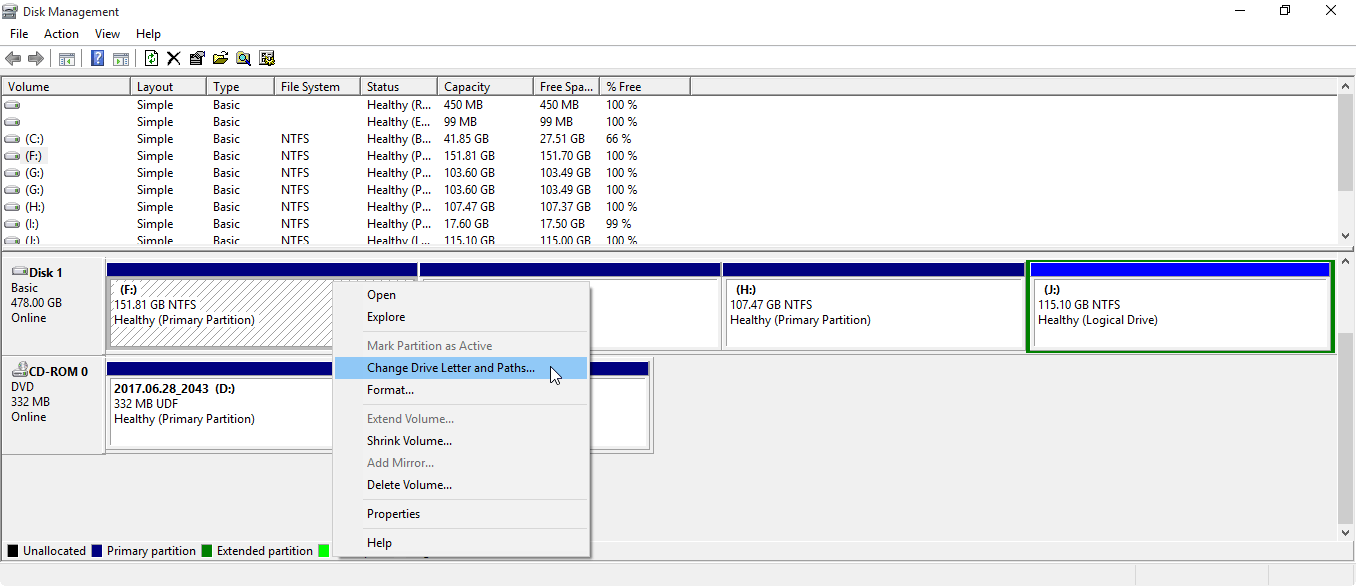
Step 3. Click Change to summon the next window.
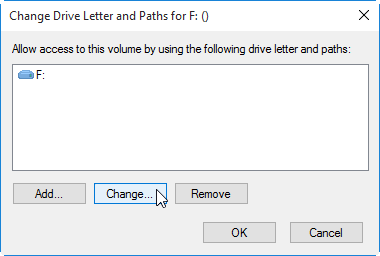
Notice: To remove the drive letter of your partition, select "Remove" and follow the instructions step by step.
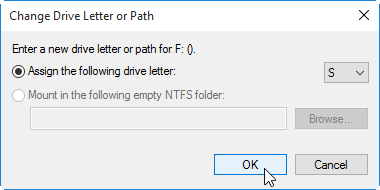
Step 4. Select a drive letter from the drop-down list and click OK, making sure to choose a letter that is still available on your system.
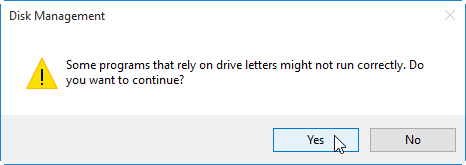
Step 5. Confirm the pending operation and click Yes.
Changing a drive letter using Disk Management can be unreliable, as it may not work consistently. For instance, if you connect a hard drive to another PC, the disk may not display its drive letter, and attempting to add a drive letter through Disk Management may not be successful.
How to change drive letter on Windows 11/10/8/7 effortlessly?
Windows built-To change drive letters in Windows, you can use the built-in tool called Disk Management. However, it's not always reliable and may not work as expected, especially if you're trying to change the drive letter of a system drive or a drive with a lot of files.
If you want a simpler way or more advanced features, you can use Qiling Disk Master for free. This tool contains all the basic features, such as creating, deleting, shrinking, and moving partitions, as well as merging and converting partitions. It also offers more advanced functions like creating a Windows to go creator. This makes it a convenient and powerful tool for managing your disk partitions.
Now, coming to our point: how to change drive letter
Step 1. Download Qiling Disk Master, install and launch it.
Step 2. Right-click the partition, then select Advanced > Change Drive Letter on the main page.
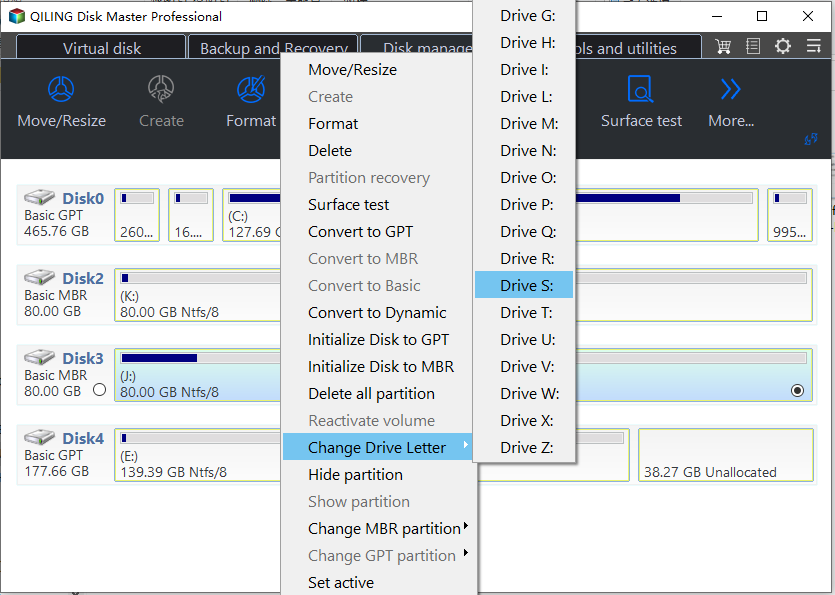
Step 3. Confirm the this operations and waiting it operating for a moment.
This article is also applicable to changing drive letter on Windows XP, external hard drive, card reader, etc. The steps to change drive letter are the same for these devices.
Summary
Windows built-In Windows 10/8/7, you can change drive letters using built-in tool disk management, but it may not work consistently. For a more reliable solution, consider using a third-party tool like Qiling Disk Master.
With Qiling Disk Master, all operations become easy, even for beginners, and it offers advanced features like moving and resizing partitions, converting GPT to MBR for Windows 11 upgrades, and more. It can also resolve issues caused by Disk Management or Diskpart, such as oversized volumes, greyed-out active partitions, and disabled extend volumes.
Related Articles
- Can I Transfer Game Saves to Another Computer? Yes, Sure!
Follow practical steps to transfer Game Saves to Another Computer while keeping files, partitions, and boot settings safe. - How to Unlock SD Card Without Switch [6 Methods]
Use this guide to understand How to Unlock SD Card Without Switch, including recovery options, precautions, and ways to avoid unnecessary data loss. - How to Successfully Zero Fill Hard Drive from Bootable USB for Free?
Learn how to Successfully Zero Fill Hard Drive from Bootable USB for Free with clear steps, key checks, and practical tips. - Solved| Windows 10 Update Missing Files 2018 (Version 1809)
This guide explains Solved| Windows 10 Update Missing Files 2018 (Version 1809) with clear steps, key checks, and practical tips. - Transfer Windows 7/8/10 OS (Operating System) to SSD
In order to get faster Windows boot time, you can migrate only OS to SSD drive from HDD. This article brings you a reliable software-Qiling Disk Master, allowing you to transfer only Windows 10, 8, 7 from HDD to SSD without boot. - Best Free Mirror Backup Software for Windows 11, 10, 8, 7
This page offers you the best free mirror backup software in Windows 11, 10, 8, 7, shows mirror backup vs. mirror image backup and presents how to perform a mirror backup step by step.
Products
Articles & Tutorials
- Data Recovery
- Data Backup
- File Recovery
- File Backup
- File synchronize
- System Backup and Restore
- Disk and Partition Clone
- Technical articles
- Disk Master Help
- Windows Deleted File and Disk Recovery Tutorials
- Windows File and Data Recovery Tutorials
- More Windows Tutorials for Install, Security, Files, and PC Tips
- Windows Boot, Repair, and Recovery Environment Tutorials
- Windows Backup Tutorials
- Windows Restore Tutorials
- Windows Clone and Migration Tutorials
- Windows Server Backup, Recovery, and Management Tutorials
- Windows Disk, Partition, and Storage Management Tutorials