Fix Windows 10 Update Missing Files (Worry-Free)
- Files Missing after Windows 10 Update
- 5 Solutions: Recover Files after Windows 10 Update
- Way 1. Restart Your PC (Not Shut Down)
- Way 2. Show Hidden Files or Folders
- Way 3. Enable Windows 7 or 8 User Account
- Way 4. Restore Files from Windows.old Folder
- Way 5. Recover Files with Reliable Data Recovery Software-Deep Data Recovery
- Prevention Measure to Against Lost Files after Windows 10 Update
- Brief Summary
Files Missing after Windows 10 Update
Some Windows 10 users have reported issues where files went missing after updates in various years, including 2018, 2019, 2020, 2021, and 2022. A user case example illustrates this problem.
"My photo files were empty after a windows update. have tried to restore them from recycle bin and from an earlier date which hasn't been resolved. Does anyone know how to 1/ get these folders back and 2/ ideas for a contact person for support? Thanks in adavance."
Windows 10 update issues, such as missing files, often occur after installing a new update or upgrading from Windows 7/8 to Windows 10. While it can be concerning, it's not a major cause for alarm. Instead, learning about the common causes and solutions can help resolve the issue.
5 Solutions: Recover Files after Windows 10 Update
The Windows 10 update deleting files issue may be caused by a temporary user profile or disabled administrator account after upgrading from Windows 7 or 8, etc. To resolve this issue, users can try the following 5 solutions: [insert solutions here].
- Restart your computer and log into your user account under normal conditions.
- Show hidden files or folders.
- Enable user account in Windows 7 or 8.
- Restore from Windows.old folder.
- Recover files with data recovery software - Deep Data Recovery.
If you're unable to find your files or folders, try searching for them in the search solution. If that doesn't work, try the next approach until you locate your data.
Way 1. Restart Your PC (Not Shut Down)
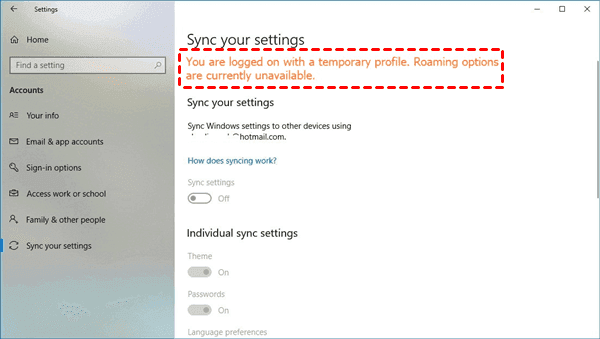
1. Check if you're using a temporary user profile. Go to Start > Settings > Accounts > Sync your settings to see if this is the issue.
If you see the message "You are logged on with a temporary profile. Roaming options are currently unavailable", it indicates that you're currently in a temporary profile.
We're unable to sign into your account, which can usually be resolved by signing out of your account and then signing back in.
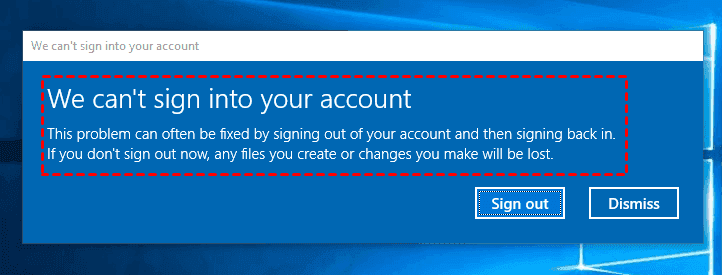
◈Tip: If you've created files or installed programs in a temporary user profile, make sure to back up those files to an external hard drive, as any changes made will be deleted after a restart.
2. To resolve the issue, restart your computer 4-5 times, allowing it to complete the Windows 10 update and restore the original user accounts and files. Each restart should take you to the desktop, and subsequent restarts will continue to restore the system. This process should make the files and user accounts visible on the desktop.
3. To check if your lost files or deleted files are available, you can log into your user account. This will allow you to see if any of your files have been recovered or if they are still accessible.
Way 2. Show Hidden Files or Folders
To ensure all files and folders are visible, follow these steps: Ensure you are not logged into a temporary user account. Some files and folders might be hidden, so let them be visible.
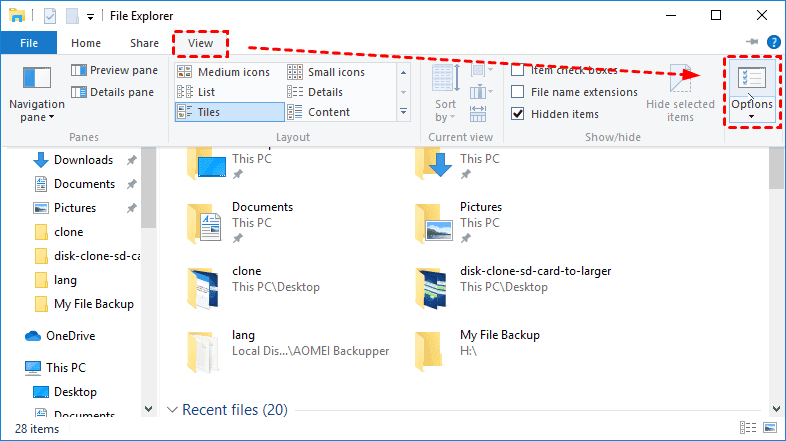
1. To open Windows File Explorer, press the Windows + E key combination.
2. Click View on the toolbar, then tap Options to open Folder Options.
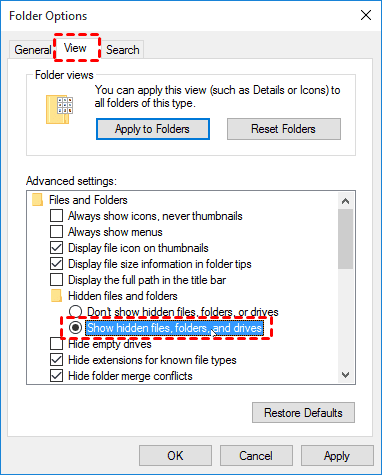
3. To show hidden files, folders, and drives in Windows, go to the View tab, select the checkbox next to Show hidden files, folders, and drives in the Advanced settings, click Apply and then OK.
Way 3. Enable Windows 7 or 8 User Account
If you upgraded from Windows 7/8 and created a new user account, you may need to enable the Windows 7/8 user account to access your files, as a disabled administrator account will not display them. To do this, follow these steps:
1. To open the Computer Management console in Windows 10, type "compmgmt.msc" in the Search box and press Enter. This will open the Computer Management console, where you can manage various aspects of your computer, including disk management, device management, and system tools.
2. To access the Local Users and Groups console, navigate to the Start menu, then click on Computer, followed by System Properties, then click on the "Advanced" tab, then click on the "Environment Variables" button, then click on the "System Variables" button, then scroll down and find the "Path" variable, then click on the "Edit" button, then click on the "New" button, then enter the path to the "cmdkey.exe" file, then click on the "OK" button.
3. If the Administrator owns a down arrow icon, it's been disabled. To enable Windows 7/8 account, right click the Administrator account -> choose Properties.
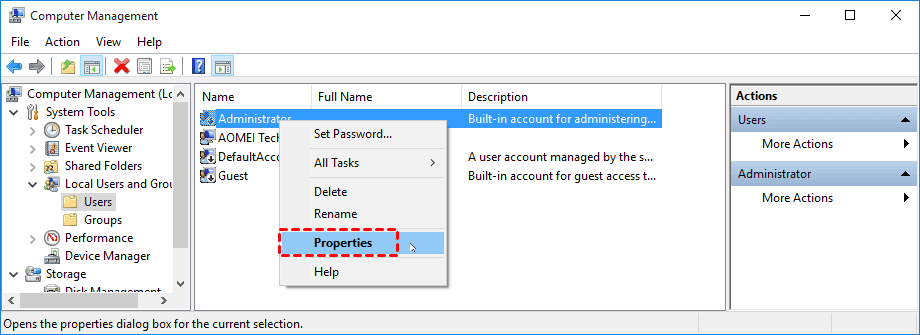
4. To enable an administrator account, go to the Administrator Properties window, uncheck the "Account is disabled" option, and click "Apply" and "OK".
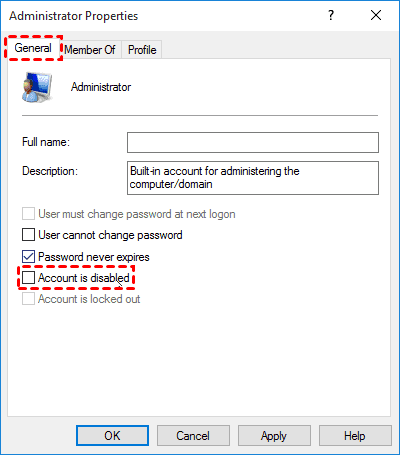
Way 4. Restore Files from Windows.old Folder
The Windows.old folder contains all the files and data from your previous Windows installation, allowing you to roll back to the previous system within 10 days, or restore specific files that were lost during the update process. This folder can be used to restore files that were missing after a Windows 10 update, making it a useful resource if you need to recover lost data. To access the Windows.old folder and restore files, follow the steps outlined below. (Note: I removed the link as it is not relevant to the rewritten text)
1. Go to the Windows.old folder, usually located at C:\Windows.old\Users\YourUserName\, and find the files or folder you want to recover.
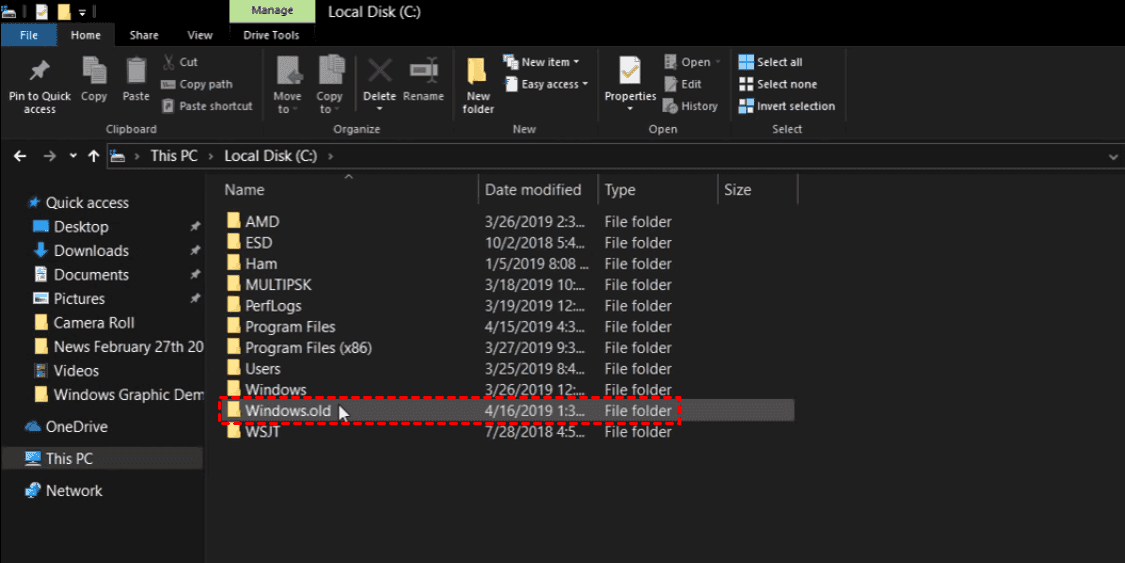
2. To copy files, select the files you want to copy by holding down the Ctrl key while clicking on them. Then, right-click on the selected files and choose "Copy" from the context menu.
Way 5. Recover Files with Reliable Data Recovery Software-Deep Data Recovery
Deep Data Recovery is a reliable software that brings a high data recovery rate and can recover all deleted files, including photos, videos, documents, and more. It can help repair Windows 10 update missing files error by following these steps.
To recover your missing files, first download the Deep Data Recovery software on your Windows 10. Then, use the software to recover the files with just 3 simple steps.
Step 1. Launch Deep Data Recovery on your computer, select the partition where you saved deleted files before, and click "Start Scan".

Step 2. Deep Data Recovery scans the partition quickly and deeply, allowing users to search for file names or filter files by type, size, and date modified to locate desired data.

Step 3. Select the files and then click "Recover" to save them.

Enjoy Windows 10 November 2021 Update:
Windows Update can sometimes cause problems, but it provides users with security updates and critical fixes, including the new Windows 10 21H2 feature update, which focuses on productivity, management, and security, offering various new features.
- Adding WPA3 H2E standards support for enhanced Wi-Fi security.
- Windows Hello for Business introduces a new deployment method called cloud trust, enabling simplified passwordless deployments and achieving a deploy-to-run state within a few minutes.
- GPU compute support has been added to the Windows Subsystem for Linux (WSL) and Azure IoT Edge for Linux on Windows (EFLOW) for deployments of machine learning and other compute-intensive workflows.
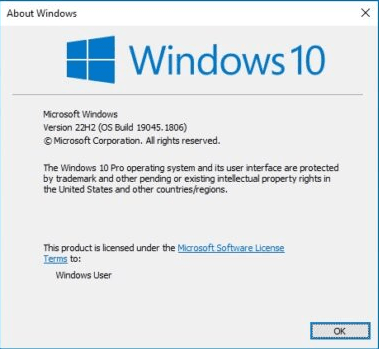
Microsoft will release the Windows 10 22H2 update this year, which will continue to refine existing features rather than introducing new ones.
Prevention Measure to Against Lost Files after Windows 10 Update
Users may experience issues with Windows 10 updates, such as the deletion of all pictures, which can occur unexpectedly. Additionally, other problems like the CVE-2022-41128 issue, which affects the JScript9 scripting language, or startup errors with a blue screen (0xc000021a) after installing specific updates like KB5021233, may also occur.
To ensure your system and data are protected, it's recommended to create regular file backups or system backups. This can be achieved using free backup software like Qiling Disk Master Standard, which offers multiple backup features during the process.
- Schedule Backup: You can schedule backups of files, system, partition, or disk on a daily, weekly, or monthly basis, ensuring your important data is safely stored and easily recoverable in case of any issues.
- Incremental Backup: This software uses incremental backup by default, which involves a full backup and then only backing up changed files since the last backup, minimizing the need to worry about backup time and disk space.
- A bootable USB is an emergency disc for system startup, providing 3 options: using a USB drive, a CD/DVD, or an ISO file.
This software is compatible with Windows 11/10/8/7/XP/Vista. For server users, you may want to consider Qiling Disk Master Server instead.
To backup important files automatically in Windows 10, use Qiling Disk Master Standard. This software allows you to set up automatic backups of your files, ensuring that your important data is always safe and secure.
1. Perform Qiling Disk Master, select Backup -> File Backup in turn.

2. Click on + Folder or + Files to select the files or folders you want to backup, then choose a destination to save them.

Tips:
◈ You can backup files and folders to various storage options, including local disk, external hard drives, USB drives, network-attached storage (NAS), CDs, DVDs, and cloud services like Google Drive, Dropbox, and OneDrive.
◈ You can also backup files to Qiling Cloud if you have an Qiling account, which offers 1TB free storage for 15 days after signing up.
3. To schedule automatic backups, click on "Schedule Backup" and then select the desired backup interval, such as daily, weekly, or monthly.

5. Confirm the backup settings and click Proceed. You can choose to Add the schedule and Proceed now or Only add the schedule.

◈Tips:
✍Options: You can customize the file backup process by modifying the image file, adding comments, splitting the backup file, compressing it, enabling email notifications, and utilizing Volume Shadow Copy Service (VSS) for more efficient backups.
✍ Backup Scheme: The professional version of Qiling Disk Master offers advanced backup methods, including differential backup, which can be used to create more efficient backup images. Additionally, it provides automatic cleanup methods to delete old backup images, helping to maintain a tidy and organized backup system.
If the Windows 10 update missing files error occurs again, you can restore your files and folders from a previous backup, making it easier to recover from data loss.
To restore a file or folder, go to the Restore tab, select File backup, choose the files or folders you want to restore, select a restore destination, and click Proceed.
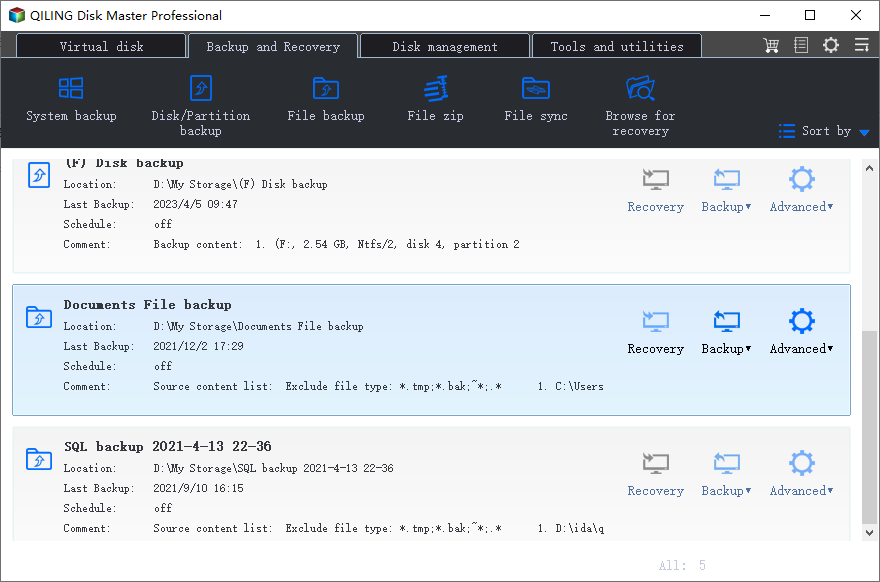
You could also consider using the sync feature, which allows for real-time file syncing, creating an exact copy of files without compressing them into an image file, making it easier to modify or use.
For systems, disks, or partitions, try the clone feature, which can clone system files and ensure secure boot when migrating from an HDD to an SSD or cloning a hard drive to an SSD.
Brief Summary
After a Windows 10 update in 2019/2020/2021/2022, you can easily fix a file missing issue using the methods mentioned above. To avoid data loss, don't forget to create a file backup. If needed, you can then restore lost or deleted files at any time.
Taking backups is the ultimate savior of your computer life. No matter what problems arise, you can always revert your computer back to a working state, avoiding data loss and the stress that comes with it. So, take backups and enjoy your life free from the worry of losing your precious data.
Related Articles
- How to Recover Lost Files in Windows 10 Efficiently
Learn how to Recover Lost Files in Windows 10 Efficiently with clear steps, key checks, and practical tips. - How to Solve System Restore Points Gone in Windows 10
You will learn how to fix Windows 10 system restore points gone error with 5 given solutions in this article. For better protect, it's wise to backup system to external hard drive. - How to Recover Deleted Windows.old Folder in Windows 10/8/7
Learn how to Recover Deleted Windows.old Folder in Windows 10/8/7 with clear steps, key checks, and practical tips. - How to Recover Files after Reinstalling Windows 10 Easily
Learn how to Recover Files after Reinstalling Windows 10 Easily with clear steps, key checks, and practical tips. - What is MBR2GPT Tool in Windows 10 and How to Use it?
Find practical guidance for What is MBR2GPT Tool in Windows 10 and How to Use it?, including disk, partition, file system, or Windows troubleshooting steps. - Migrate Windows 10 from MBR HDD to GPT SSD | Secure Boot
You will learn how to migrate Windows 10 from MBR HDD to GPT SSD without converting partition manually and ensure it's bootable.
Products
Articles & Tutorials
- Data Recovery
- Data Backup
- File Recovery
- File Backup
- File synchronize
- System Backup and Restore
- Disk and Partition Clone
- Technical articles
- Disk Master Help
- Windows Deleted File and Disk Recovery Tutorials
- Windows File and Data Recovery Tutorials
- More Windows Tutorials for Install, Security, Files, and PC Tips
- Windows Boot, Repair, and Recovery Environment Tutorials
- Windows Backup Tutorials
- Windows Restore Tutorials
- Windows Clone and Migration Tutorials
- Windows Server Backup, Recovery, and Management Tutorials
- Windows Disk, Partition, and Storage Management Tutorials