Migrate Windows 10 from MBR HDD to GPT SSD Safely (Secure Boot)
Why Migrate OS from MBR HDD to GPT SSD?
Users who want to migrate their OS from a traditional MBR-formatted Hard Disk Drive (HDD) to a newer GPT-formatted Solid-State Drive (SSD) may encounter various issues. The possible causes include differences in partition styles, boot loader compatibility, and operating system support, among others. These differences can lead to problems during the migration process, such as boot failures, data corruption, or inability to access the OS on the new SSD.
Gain better performance: The biggest advantages of SSDs are their performance, particularly their faster read and write speeds compared to HDDs. NVMe SSDs have the fastest transfer speeds, resulting in significantly reduced boot times after migrating the OS from an HDD to an SSD.
Expand disk capacity: The GPT disk has a higher capacity and partition limit compared to the MBR disk. Specifically, GPT supports up to 16TB and 128 primary partitions, whereas MBR is limited to 2TB and 4 primary partitions, or 3 primary and 1 logical partition.
System Clone does not Support Cloning MBR Disk to GPT
Users who migrate Windows 10 from MBR HDD to GPT SSD may encounter issues with system cloning, as the cloning process does not support migrating from MBR to GPT, resulting in a non-bootable system due to the difference in boot modes between MBR and GPT disks.
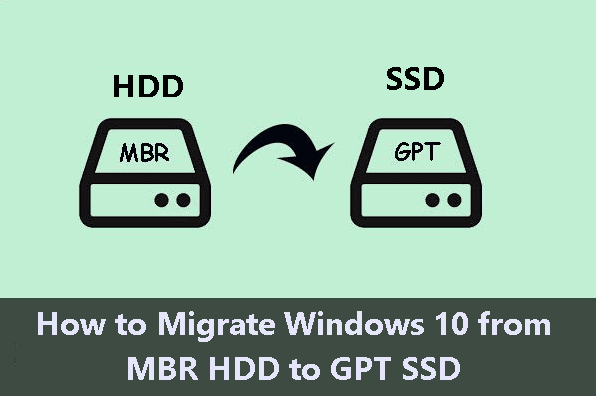
To clone an MBR disk to a GPT disk, you don't need to convert the GPT disk to MBR first. Instead, you can use a professional disk cloning software, such as Qiling Disk Master, to simplify the process. This software can handle the conversion and cloning for you, making it a convenient option.
Professional disk cloning software to clone MBR to GPT
Qiling Disk Master Professional is a professional disk cloning software that enables you to clone an operating system between different types of storage devices, such as HDDs and SSDs, or between MBR and GPT disks, and successfully boot from the cloned disk. This software offers numerous benefits, including the ability to clone OS between different types of disks, clone MBR and GPT disks, and boot from the cloned disk successfully.
- Clone HDD to SSD and convert partition style automatically: You can easily clone a hard drive to an SSD with secure boot, and even if the partition types of the source and destination disks are different, you can automatically convert the destination disk from MBR to GPT or vice versa.
- Clone HDD or MBR disk with different size: This software uses Intelligent Clone feature, which clones only used sectors on a disk, allowing for easy cloning of a large HDD to a smaller SSD, and also enables cloning to a larger disk.
- Support cloning all brands of HDDs/SSDs or MBR/GPT disk: You can clone a disk from various brands such as Samsung, WD, SanDisk, and Seagate, among others. Additionally, if the disk is an SSD, you can also accelerate its read and write speed through cloning.
To prepare for potential computer failures, consider creating a bootable USB or CD/DVD in advance, which can boot your computer if it becomes unbootable. Once prepared, download and install Qiling Disk Master Professional on your computer.
This software is compatible with Windows Vista, XP, 7, 8, 8.1, 10, 11, and all their 32-bit and 64-bit editions. For server users, Qiling Disk Master Server is available.
How to Migrate Windows 10 from MBR HDD to GPT SSD
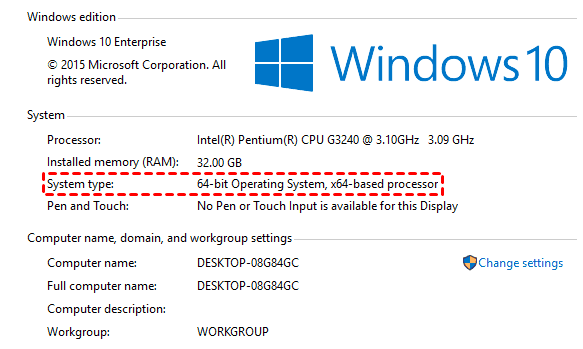
Before migrating your Windows system from a Master Boot Record (MBR) disk to a GUID Partition Table (GPT) disk, ensure that your system is running a 64-bit version of Windows and that your computer supports UEFI boot mode. You can check this by verifying that your system is Windows 10, 8, 7, Vista, or XP and that your computer is capable of booting in UEFI mode. This is necessary because only 64-bit Windows systems can be installed on UEFI-based disks.
To check if your Windows 10 system is 64-bit, go to Start > Settings > System > About, where you'll see the system type; if it shows 64-bit operating system, x64-based processor, or similar, it's a 64-bit Windows 10.
#2. Check BIOS mode and Secure Boot option.
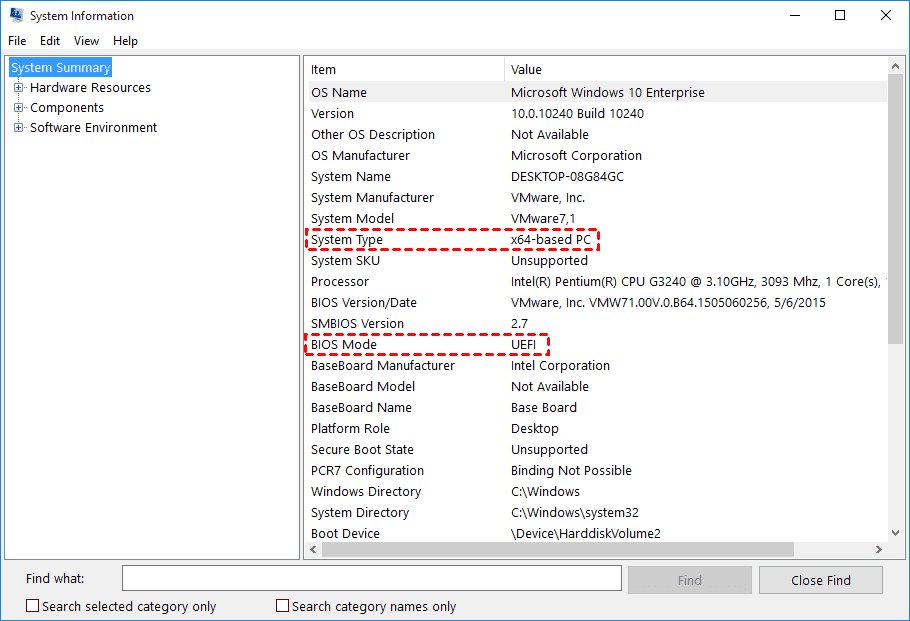
To view your system information, including whether your computer supports UEFI, type "msinfo32" in the search box and press Enter. This will open System Information, where you can see details such as System Type and BIOS Mode. A "UEFI" listing in the BIOS Mode indicates that your computer supports GPT disk.
To resolve the issue, restart your computer to its BIOS settings, navigate to the Boot tab, and verify if the Secure Boot option is enabled. If not, your computer may only support MBR disks with Legacy mode.
After confirming your computer supports 64-bit system and UEFI boot mode, you can proceed to migrate Windows 10 from an MBR HDD to a GPT SSD using Qiling Disk Master Professional. During the cloning process, there are two possible situations to consider.
In situations where the destination disk is unallocated space and initialized as a GPT disk, the software will automatically convert it to an MBR disk, or you can choose to keep it as a GPT disk.
When cloning to a destination disk that is already partitioned with GPT, the software will keep the GPT partition style and work with it.
Now, follow the steps below and migrate Windows 10 from MBR HDD to GPT SSD.
Step 1. Launch Qiling Disk Master professional. Select System Clone under Clone tab.

Step 2. The program will automatically select the Windows 10 OS, and please select the GPT SSD as the destination location, then click Next to continue.

✍If the SSD is initialized as a GPT disk, the program will alert you that all data on the destination will be deleted, so please backup important files or folders on it before migrating to Windows 10.
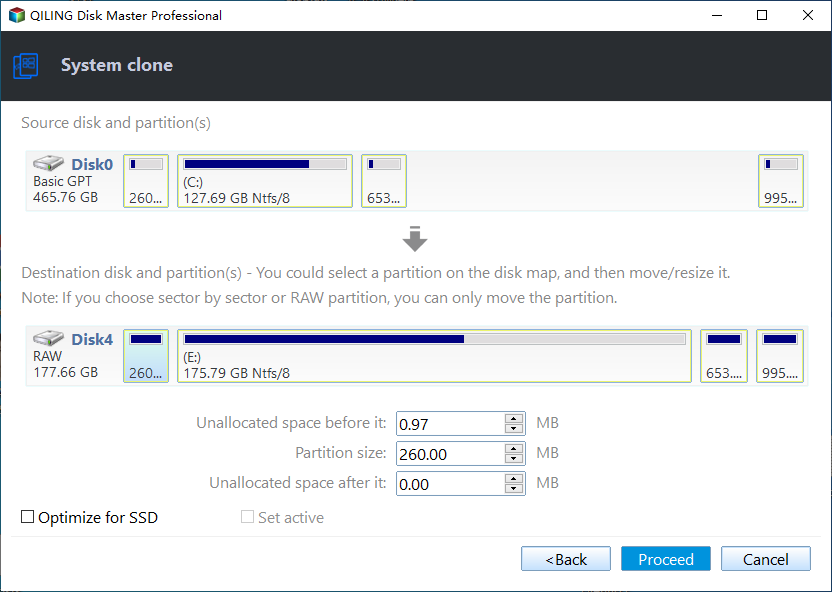
Step 3. Check SSD Alignment to accelerate GPT SSD's writing and reading speed and its lifespan. Then, click Proceed to migrate Windows 10 from MBR HDD to GPT SSD safely.
Tips:
✍ Sector by sector cloneCloning the system partition with checked option will clone all sectors, used or not, and is optional. This process requires a GPT SSD larger than an MBR HDD and can be time-consuming.
✍ Make full use of disk spaceThe system partition size can be expanded by default to include adjacent unallocated space next to it, which is useful when a GPT SSD is larger.
After clicking Proceed, you may be asked to upgrade now, as the System Clone features in the trial version can only be demonstrated.
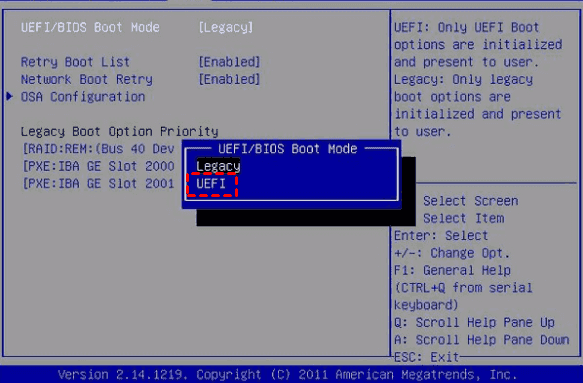
To ensure a successful upgrade, complete the cloning process, then enter your BIOS settings by pressing a key during startup (usually F2, F10, F12, ESC, or DEL, depending on your manufacturer). Change the Boot Mode to UEFI, connect your GPT SSD, and boot from it. If booting fails, adjust the boot order in BIOS settings.
Other features you may be interested in this software:
Disk Clone: This tool helps to clone the entire Windows system, including the operating system, settings, installed programs, and personal files, to a GPT SSD, allowing for a seamless transition without the need to reinstall Windows 10 or any programs. It also supports cloning the Master Boot Record (MBR) to a GPT disk.
System Backup: System Clone creates an exact copy of your system partition at a certain time point, allowing you to keep all changes made later.
Create bootable media: Qiling Disk Master can be ported to a removable device, allowing you to use it on any target computer without reinstalling, and is available on the technician or TechPlus edition.
Summary
You can easily migrate Windows 10 from a Master Boot Record (MBR) hard disk drive (HDD) to a GUID Partition Table (GPT) solid state drive (SSD) with the help of a professional disk cloning software like Qiling Disk Master. This software allows you to clone HDD/SSD and MBR/GPT disks with secure boot, and will automatically convert the destination disk from MBR to GPT or vice versa if the partition styles are different. Additionally, it can further improve the performance of the SSD.
Related Articles
- How to Clone MBR to GPT Disk in Windows 10/8/7 Directly
- How to Clone GPT HDD to SSD in Windows 10/8/7
- The Easiest Way to Clone GPT Disk to Smaller SSD
- How to Clone GPT to MBR SSD (Worry-Free Tutorial)
- Reliable & Powerful Data Wipe Software
You can wipe disk or wipe partition to completely erase all data on the disk or partition and prevent data recovery via Qiling Disk Master. - Backup Cleanup in Qiling Backup
In this article, we will introduce a very import feature Backup Cleanup in Qiling Backup. Backup Clean helps you automatically clear history backup versions based on rule to save storage space.
Products
Articles & Tutorials
- Data Recovery
- Data Backup
- File Recovery
- File Backup
- File synchronize
- System Backup and Restore
- Disk and Partition Clone
- Technical articles
- Disk Master Help
- Windows Deleted File and Disk Recovery Tutorials
- Windows File and Data Recovery Tutorials
- More Windows Tutorials for Install, Security, Files, and PC Tips
- Windows Boot, Repair, and Recovery Environment Tutorials
- Windows Backup Tutorials
- Windows Restore Tutorials
- Windows Clone and Migration Tutorials
- Windows Server Backup, Recovery, and Management Tutorials
- Windows Disk, Partition, and Storage Management Tutorials