How to Clone GPT HDD to SSD in Windows 11/10 [Full Guide]
Quick Navigation:
- Can you clone GPT HDD to SSD
- Main concerns of cloning GPT HDD to SSD
- Best software to clone GPT disk to SSD
- How to clone GPT disk to SSD with Qiling Disk Master
- How to boot from the cloned SSD
- Conclusion
Can you clone GPT HDD to SSD
GPT and MBR are two different methods for storing partition information on a drive, with GPT being the newer standard. GPT disks can be cloned using qualified software, and it's also a good idea to clone a GPT HDD to an SSD for improved performance.
Cloning a GPT HDD to a GPT SSD is relatively straightforward, but cloning to an MBR SSD requires attention to partition style and boot mode to ensure proper system access.
In this article, I will introduce what to do in both cases.
Main concerns of cloning GPT HDD to SSD
If your target SSD is also a GPT disk and smaller than the source HDD, you can resolve the issue by deleting unnecessary files, resizing partitions, or using a cloning software that supports disks of different sizes.
If your target disk is a MBR SSD, you'll need to check your motherboard's boot mode compatibility. MBR works with Legacy BIOS, while GPT works with UEFI. If your computer only supports UEFI, you may need to convert the MBR disk to GPT for compatibility.
If your computer supports both MBR and GPT, you can choose whether the target disk should remain MBR after cloning or be converted to GPT as well.
📑Differences between GPT and MBR
1. Modern hard drives typically use the GUID Partition Table (GPT) for booting, which is compatible with UEFI mode, while older drives often use the Master Boot Record (MBR) that works with Legacy BIOS.
2. MBR disks have a 2TB maximum size limit, whereas GPT disks can have much larger partitions, with no size limit.
3. A hard drive can be divided into 4 primary partitions or 3 primary partitions and 1 extended partition using MBR, while a disk can be divided into 128 primary partitions using GPT.
4. The GPT disk is limited to supporting 64-bit computers, whereas MBR (Master Boot Record) disks can support both 32-bit and 64-bit computers.
If you decide to use MBR instead of GPT, you can use a tool that supports cloning GPT to MBR without conversion, and then switch the boot mode from UEFI to Legacy BIOS after cloning. This approach allows for a direct transfer of the existing GPT partition scheme to MBR without modifying the actual data, making it a convenient option for those who prefer MBR.
A disk cloning software can help you create an exact copy of your hard drive, including the operating system, settings, and all installed programs, onto a new hard drive or SSD, making it easy to transfer everything to a new device. This can be especially useful when upgrading to a faster drive or replacing a failed one.
Best software to clone GPT disk to SSD
While there are many clone tools on the market, I will use Qiling Disk Master Professional here for its compatibility.
▪ Cloning options are available, allowing you to clone your entire hard drive, selected partitions, or just the operating system (Windows 11, 10, 8, 7, etc.), giving you flexibility to choose what data to migrate based on your needs.
▪Aionix Disk size - Its intelligent mode copies only used sectors, allowing migration to a smaller SSD. If the target disk is larger, you can choose sector-by-sector clone to copy all sectors indiscriminately, or edit partition size to allocate unused space.
▪ Partition style - It supports cloning both MBR and GPT disks. If you want to keep the SSD as MBR to support both 32-bit and 64-bit system, you can directly clone GPT to MBR without prior conversion. If your GPT disk has more than 4 primary partitions, don't worry, the excess ones will be converted to logical partitions to fit in the MBR SSD' s partition limit.
The software allows you to clone a source disk to a target SSD of the same or different partition style, including converting the target SSD to a GPT disk if desired, allowing for the option to change the partition style from GPT to MBR or MBR to GPT during the cloning process.
To get started, you could download and install the free trial of the software.
How to clone GPT disk to SSD with Qiling Disk Master
Qiling Disk Master offers an intuitive interface that's easy to understand, even for novices. To clone a disk, simply connect the target SSD and ensure it's detected by Windows. Then, launch the software to access its cloning features.
📢Please note:
- If you're cloning Windows 11 to an MBR SSD, it's a good idea to convert the SSD to GPT beforehand or during the cloning process for better compatibility and support.
- Cloning will erase everything on the target drive, so make a backup before proceeding.
Step by step to clone GPT HDD to SSD:
1. Navigate to the Clone tab and select Disk Clone to clone the GPT disk, or System Clone to transfer only the OS to the SSD.

2. To clone a disk, click on the source disk that you want to clone, and click Next.

3. Click on the destination disk and Next to continue.

4. Check the option "SSD Alignment" to accelerate the target SSD, then click "Proceed" to execute this operation.

✍Related tips:
💬Sector By Sector Clone: When cloning a disk, selecting this option ensures that all sectors, including unused or logically bad sectors, are cloned to the target disk if it is larger or equally sized. This is done to prevent any potential data loss or corruption.
💬Edit Partitions: It allows you to resize the partition size on the destination disk and convert disk type if it's different from the source disk.
- Copy without resizing partitions: It will not resize the partition size.
- Add unused space to all partitions: The command will redistribute the unallocated space on the target disk to each partition, taking into account the disk's size.
- Manually adjust partition size: It allows you to extend unallocated space to any partition on the destination disk you want.
- Convert the destination disk from MBR to GPT: If the partition style of the destination disk is different from the source disk, it helps to convert it.
💬If you are not sure whether the disk is partitioned with GPT or MBR, please check disk properties in Disk Management, try the following steps:
- To open the Run window, press the Windows key + R. Then, type "diskmgmt.msc" and click OK to open the Disk Management window.
- Then, right-To clone a disk, click on the disk you want to clone and select "Properties" in the pop-up window.
- The Properties window should be used to select the Volume tab and confirm the partition style, which can be either MBR (Master Boot Record) or GPT (GUID Partition Table).

You can use these steps to clone a disk to a different type of storage device, such as cloning an MBR HDD to an SSD, cloning Windows 10 to an NVMe SSD, cloning a UEFI disk, or cloning an SSD to a larger SSD.
How to boot from the cloned SSD
Once cloning is complete, shut down your computer, replace the original GPT with the cloned SSD, and restart to verify its functionality.
If your computer has multiple slots, you can keep the old HDD as a secondary storage and keep the cloned SSD as the primary boot device. To do this, press a specific key (usually F2, F10, Esc, or Del) during startup to enter the BIOS settings, then select the cloned SSD as the first boot option.

If an SSD is partitioned with MBR and hasn't been converted to GPT, switching the boot mode from UEFI to legacy BIOS is necessary.
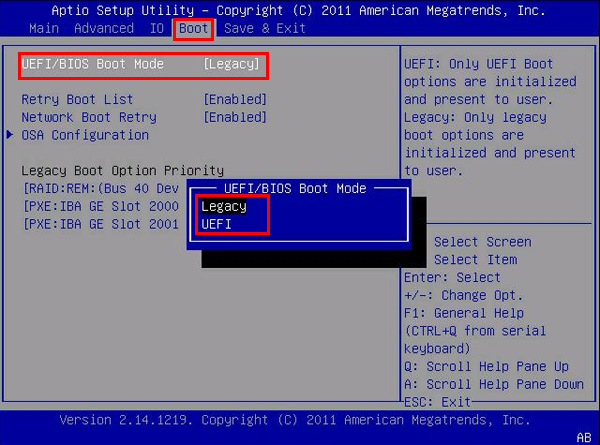
For more boot problems after cloning, please refer to the article "How to Make Cloned Drive Bootable" for assistance.
Conclusion
To clone a GPT HDD to an SSD, especially an MBR SSD, it's essential to understand the differences between GPT and MBR to avoid boot issues. A reliable software like Qiling Disk Master Professional can be used to convert MBR to GPT during the cloning process or clone GPT to MBR directly, making the transition seamless.
The software can clone all types of HDDs and SSDs, including migrating Windows 10 to an M.2 SSD, cloning an SSD to a larger one, transferring data from a hard drive to a WD SSD, replacing a laptop's HDD with an SSD, and cloning an NVMe SSD, among other uses.
Besides disk cloning, it can also be used to back up system, synchronize files, and many more. It can also be used for server-based computers with Qiling Disk Master Server.
Related Articles
- The Easiest Way to Clone GPT Disk to Smaller SSD
- How to Clone GPT to MBR SSD? (Worry-Free Tutorial)
- Cloned SSD Won’t Boot in Windows 10/8/7 - How to Solve?
- 7 Days to Die File Disappeared? Find Causes & Solutions Here
Learn the key steps, checks, and practical tips for this related guide. - How to Solve Hard Disk Error 301 Efficiently? (4+1 Fixes)
Manage solve Hard Disk Error 301 Efficiently with safer disk and partition steps to avoid data loss or boot problems. - Reliable HDD to SSD Cloning Freeware for Windows 10/8/7
You may need HDD to SSD cloning freeware to migrate data when upgrading the disk. Luckily, Qiling Disk Master Standard can clone HDD to SSD on Windows 11, 10, 8, and 7 without losing data.
Products
Articles & Tutorials
- Data Recovery
- Data Backup
- File Recovery
- File Backup
- File synchronize
- System Backup and Restore
- Disk and Partition Clone
- Technical articles
- Disk Master Help
- Windows Deleted File and Disk Recovery Tutorials
- Windows File and Data Recovery Tutorials
- More Windows Tutorials for Install, Security, Files, and PC Tips
- Windows Boot, Repair, and Recovery Environment Tutorials
- Windows Backup Tutorials
- Windows Restore Tutorials
- Windows Clone and Migration Tutorials
- Windows Server Backup, Recovery, and Management Tutorials
- Windows Disk, Partition, and Storage Management Tutorials