Best Way to Clone GPT(UEFI) Disk to Smaller SSD (Bootable)
Quick Navigation:
- User Case: Can I Clone GPT Disk to Smaller SSD?
- GPT Disk Knowledge
- Why Clone GPT Disk to Smaller SSD?
- Best GPT Cloning Software to Clone UEFI Disk to SSD
- How to Clone GPT(UEFI) Disk to Smaller SSD in 5 Steps
- Stepwise Guide to Clone GPT HDD to Smaller SSD
- Write in the End
User Case: Can I Clone GPT Disk to Smaller SSD?
To clone a GPT disk to a smaller SSD, you can use a tool like Qiling Disk Master to create an image of your current disk, and then restore it to the new SSD. Since your new SSD is smaller than the original disk, you'll need to resize the partitions to fit on the new drive. You can also use the built-in disk management tools in Windows to resize the partitions, but this method can be more complex and may require some technical expertise. Alternatively, you can use a tool like Disk Management or Qiling Partition Master to clone the disk and then resize the partitions to fit on the new SSD. It's also a good idea to back up your data to the external hard drive before attempting to clone the disk, just in case something goes wrong.
To clone a GPT disk to a smaller SSD, ensure the used space on the GPT disk is equal to or less than the SSD's size. If not, transfer files from the SSD to a HDD, freeing up space on the GPT disk. Then, use powerful and safe GPT disk cloning software to complete the process.
GPT Disk Knowledge
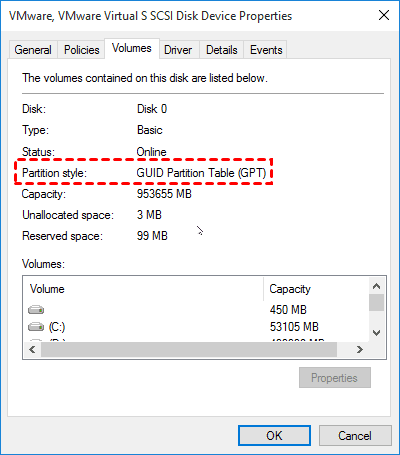
Before diving into cloning a GPT disk to a smaller SSD, it's helpful to have a basic understanding of the GPT partition style. GPT stands for GUID Partition Table, a type of disk partitioning scheme that allows for larger disk sizes and more flexible partitioning. Knowing this background information will make the following contents easier to understand.
GPT (Globally Unique Identifier Partition Table) is a new standard for the layout of a physical hard disk's partition table, gradually replacing the older MBR (Master Boot Record) standard. Unlike MBR, which has limitations such as only supporting up to four primary partitions and 2TB in size, GPT allows for more flexibility and scalability.
- GPT supports hard drive lager than 2TB.
- GPT can only boot from UEFI-based computers.
- GPT disks allow you to create up to 128 primary partitions, unlike MBR which has a limit.
- GPT disk supports 64-MBR disks support both 32-bit and 64-bit Windows systems, while GPT disks only support 64-bit Windows systems.
- Most computers today support GPT and are MBR compatible, with GPT being a more modern and flexible partitioning scheme.
Why Clone GPT Disk to Smaller SSD?
Understanding GPT disk basics is a good starting point, but there's more to explore. Cloning a GPT disk to a smaller SSD has its benefits, which we'll delve into further.
- A Solid-State Drive (SSD) has faster reading and writing speeds, enabling quick file transfers between SSDs.
- SSDs (Solid-State Drives) are quieter than traditional Hard Disk Drives (HDDs) because they don't have mechanical parts like spinning disks and moving read/write heads, which are the primary sources of noise in HDDs. This makes SSDs a great option for users who value a quiet computing experience.
- SSDs consume less power because they don't have moving parts like traditional hard drives, which means they don't need to spin the platter, resulting in reduced power consumption.
- Unlike HDD, SSDs are more durable and resistant to high temperatures.
Considering the price, many people might prefer to get a smaller SSD (such as 500GB or 250GB) and use it for the operating system, while using a hard drive for storage, thus achieving both high performance and large capacity.
The cloning method will include everything on the GPT disk, such as the operating system, system settings, and drivers, programs, data, etc., saving you time and effort without having to reinstall them.
Best GPT Cloning Software to Clone UEFI Disk to SSD
To enjoy the benefits of GPT and SSD disks, you need a powerful cloning software like Qiling Disk Master Professional, which can handle the cloning process efficiently with its features.
- Disk Clone: This software allows you to clone an entire GPT/MBR disk or HDD/SSD drive, including all data and files, and ensures the cloned SSD is bootable.
- Intelligent Clone: It clones only used sectors from one hard drive to another, making it easy to clone a UEFI disk to a smaller SSD without boot issues.
- SSD Alignment: The technology can further enhance the reading and writing speed of SSDs, as well as extend their lifespan.
- Convert MBR to GPT disk: If your SSD has a Master Boot Record (MBR), you can convert it to a GUID Partition Table (GPT) using the Edit Partitions feature to take advantage of the latter's benefits.
If you're unable to free up more space, consider using the System Clone feature to clone your Windows 10 OS to a smaller SSD, which might be a helpful solution.
How to Clone GPT(UEFI) Disk to Smaller SSD in 5 Steps
Before cloning a GPT disk to a smaller SSD, prepare by ensuring the new SSD is the same type (AHCI or RAID) as the original disk, and that the new SSD has enough free space to accommodate the cloned data. Additionally, it's a good idea to back up any important data on the original disk, as cloning can be a destructive process if not done correctly.
- Make sure what kind of SSD you can use on your computer. Consult with your manufacturer to find a compatible SSD, which can be any brand, and Qiling Disk Master can clone your HDD to a compatible Samsung, WD, SanDisk, or any other SSD.
- To successfully clone the GPT disk to the smaller SSD, ensure the smaller SSD can hold all the data on the GPT disk. Otherwise, the cloning process will fail.
- Prepare some extracting tools, like screwdrivers, etc.
- Please download Qiling Disk Master Professional, install, and launch it. The Clone feature can only be demonstrated in the trial version, so you'll need to upgrade to fully experience its capabilities..
- If your smaller SSD has important data, back up the files to an external hard drive first, then clone the data. If not, you can clone the data directly, but be aware that it will be deleted after the process.
Stepwise Guide to Clone GPT HDD to Smaller SSD
Step 1. Connect the smaller SSD to your computer. On the main page of Qiling Disk Master Professional, select "Clone" > "Disk Clone" in turn.

Step 2. Choose your GPT disk as the source disk to clone, and press "Next".

Step 3. Select the smaller SSD drive as the destination disk to save data from GPT HDD, then click Next.

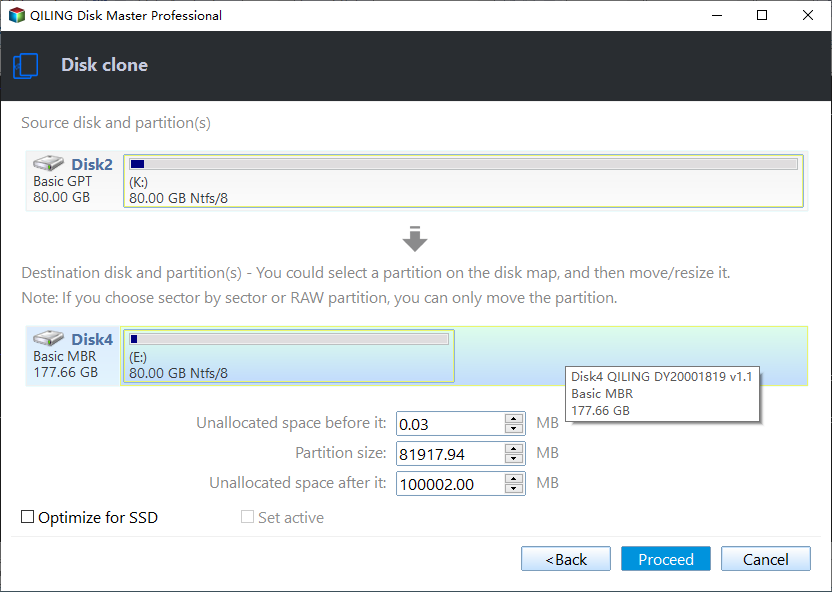
Step 4. To accelerate the reading and writing speed of a smaller SSD, check the box next to "SSD Alignment" and then click "Proceed" to clone the GPT (UEFI) HDD to the smaller SSD.
✌ Helpful Tips:
Edit Partitions: Cloning a GPT disk to a smaller SSD with an MBR disk type requires converting the MBR disk to GPT, ensuring the target disk is fully utilized. This also applies when cloning to a larger disk, allowing for adjustments to partition size and location to maximize target disk space.
SSD Alignment: It only works for solid-state disks (SSD) and is used for cloning an SSD to a larger SSD.
Sector by sector clone: The cloning process will clone every sector on the GPT hard disk, including used, blank, and bad sectors, which can cause system failure when cloning Windows 10 to a smaller SSD if left unchecked.
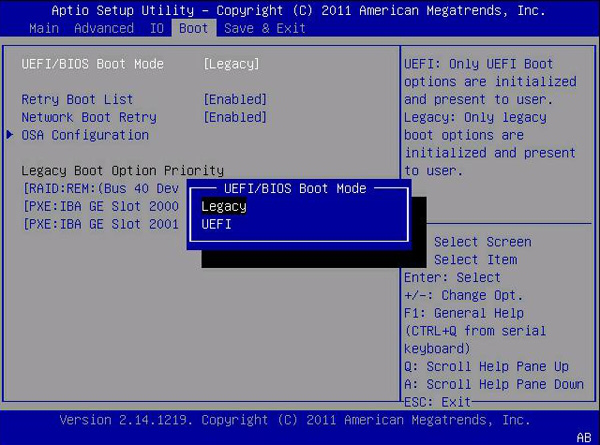
Step 5. When the cloning process is complete, replace the original SSD with the cloned one, or set the system to boot from the new SSD by changing the boot order in the BIOS settings, ensuring the system is in UEFI boot mode to avoid booting issues. If your system is currently in Legacy mode, you may need to know how to switch to UEFI mode.
The time it takes to clone a hard drive will depend on the size of the data on the GPT hard drive. Additionally, this software allows for seamless cloning of MBR to GPT disk or GPT to MBR disk without any issues.
★ The way to clone GPT disk to SSD free
Qiling Disk Master allows for a free transfer of data from a GPT disk to a smaller SSD using an intelligent sector backup feature, which only backs up used sectors of the file system, similar to the cloning method.
If the GPT disk usage is equal to or smaller than the smaller SSD, you can backup the GPT disk to an external hard drive and perform a UEFI restore to the smaller SSD. If your computer is not bootable, you can create bootable media or a recovery environment to boot it.

Write in the End
Cloning a GPT UEFI disk to a smaller SSD is straightforward as long as the SSD can hold all the data. Qiling Disk Master Professional, a powerful disk clone software, can efficiently handle the cloning process, regardless of whether the smaller SSD is GPT or MBR.
Qiling Disk Master is a disk clone software that only clones used sectors from one hard drive to another, supporting 4k technology to boost SSD disk performance. For IT technicians, the TechPlus edition or Technician version is available, and it can even be used to create a portable version for GPT disk cloning on any PC without installation.
Related Articles
- Samsung Data Migration MBR to GPT Cloning (2 Ways Included)
- How to Clone GPT to MBR SSD? (Worry-Free Tutorial)
- Clone Hard Drive with Different Size Easily
- How to Clone Large HDD to Smaller SSD Successfully
- Step-by-Step Guide for Dell XPS 8910 SSD Upgrade
This tutorial presents how to perform Dell XPS 8910 SSD upgrade step by step and provides the best disk cloning software to help you. - How to Free up Space on PlayStation 4 [Four methods]?
Learn how to free up space on PS4 in this post if it says there is not enough storage to download or install games.
Products
Articles & Tutorials
- Data Recovery
- Data Backup
- File Recovery
- File Backup
- File synchronize
- System Backup and Restore
- Disk and Partition Clone
- Technical articles
- Disk Master Help
- Windows Deleted File and Disk Recovery Tutorials
- Windows File and Data Recovery Tutorials
- More Windows Tutorials for Install, Security, Files, and PC Tips
- Windows Boot, Repair, and Recovery Environment Tutorials
- Windows Backup Tutorials
- Windows Restore Tutorials
- Windows Clone and Migration Tutorials
- Windows Server Backup, Recovery, and Management Tutorials
- Windows Disk, Partition, and Storage Management Tutorials