How to Recover Files after Reinstalling Windows 10 Easily
Quick Navigation:
- The issue: files lost after reinstalling Windows 10
- 2 easy ways to recover files after reinstalling Windows 10
- All-around data protection for Windows 11/10/8/7
- Verdict
The issue: files lost after reinstalling Windows 10
Can I recover files after reinstalling OS?
You were experiencing a blue screen issue with your laptop that kept restarting in an endless loop, and after trying various solutions, you ultimately had to reinstall Windows 10 Home using the Media creation Tool.
If you're concerned about losing your old files, it's possible to recover them. When you install a new version of Windows, it usually saves the old files in a folder called "Windows.old" or "Windows.old.000" (if you've installed multiple versions).
- Question from Microsoft Community
Reinstalling Windows 10 can be necessary in certain situations, such as when system files or boot files are deleted or corrupted, or when the system is attacked by stubborn malware. However, this process will reinitialize the system partition and delete all personal files under the "Users" folder, which can be a problem if you haven't moved your user profile to another drive before reinstallation. Fortunately, it's possible to recover lost files after reinstalling Windows, and learning how to do so is the next step.
2 easy ways to recover files after reinstalling Windows 10
To recover lost files after reinstalling Windows 10, look for the Windows.old folder on your C drive. If it exists, your personal files are located in C:\Windows.old\Users\Username, and you can copy them into the correct folders on your PC.
If you're unable to access the Windows.old folder, you can try two methods to retrieve it. If you made a backup before, you can use method 1. If not, method 2 is an alternative option.
Method 1: recover files with a backup
If you've made a backup with File History before reinstalling Windows 10 and know what files to recover, you can follow the guidance below to restore lost files.
1. To access File History, tap the Search button on the taskbar and type "file history" in the search box, then select "Restore your files with File History" from the search results.
2. Select what you want to restore by clicking through the libraries, folders, and files until you spot the item or items you'd like to restore.
3. To restore a previous version of a document, you can use the "Revisions" feature in Google Docs. This allows you to move forward or backward in time to find the version you'd like to restore.
4. Click the Restore button to restore your desired version.
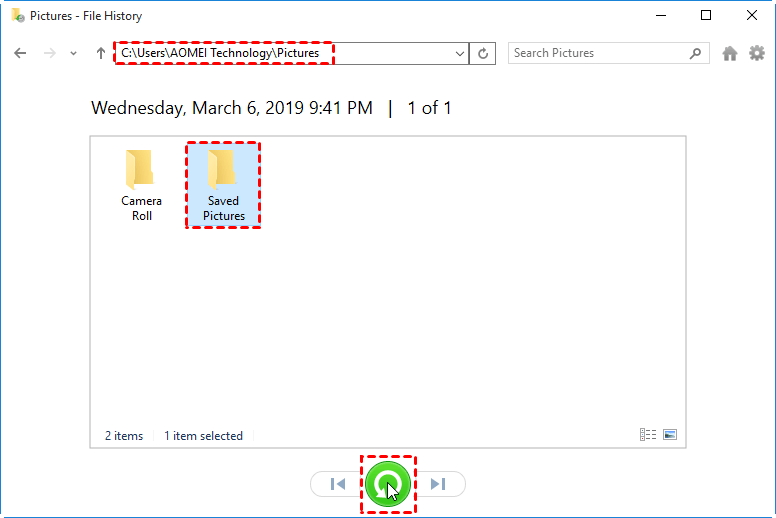
Note: If Windows detects a naming conflict with the item you're trying to restore, you'll need to decide how to handle the conflict. You can either replace the file in the destination folder, skip the file, or compare information for both files.
5. Close File History.
Method 2: recover data without a backup
If you haven't made a backup before reinstalling Windows, you can use a specialized data recovery tool like Deep Data Recovery to recover lost files, including videos, pictures, documents, audio files, emails, and more.
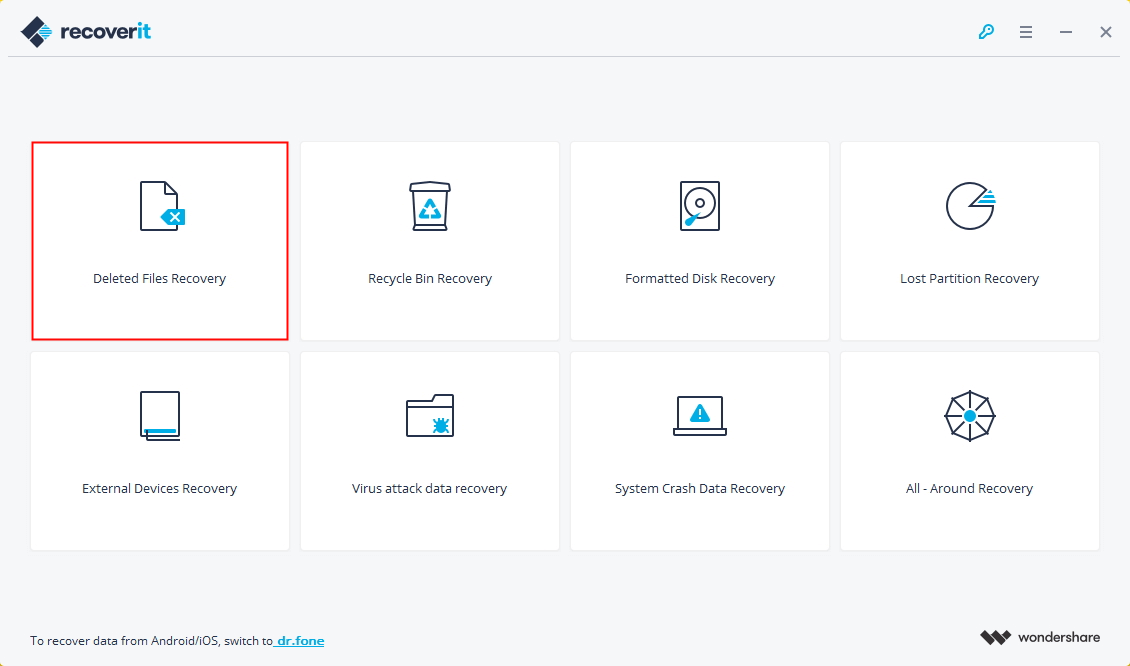
1. To recover deleted files, install and run Recoverit, then select the "Deleted Files Recovery" mode to begin the process.
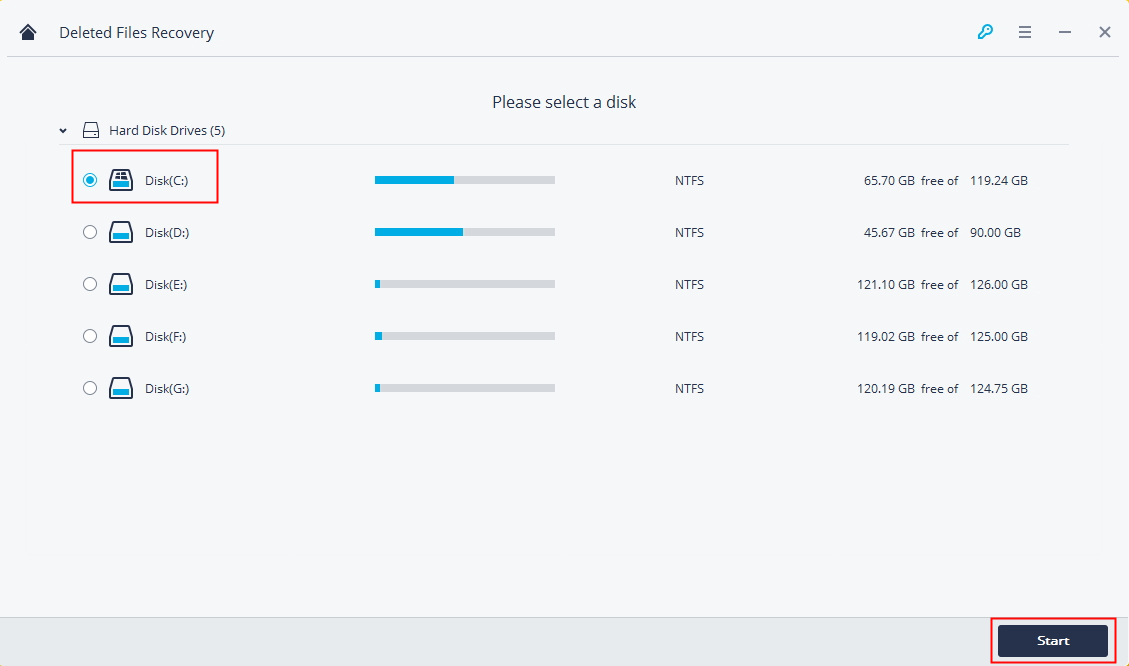
2. To recover lost data, select the location where the data was lost, click on "Start" and then select the type of data you want to recover. The software will then scan the location for the lost data and display the results.
3. Wait for the scanning process to be done. Select the files you want to retrieve and click "Recover". Avoid saving the files into the hard drive where you lost your data.

Tips: If you can't find your lost files, you can click on "All-Around Recovery" at the bottom left of the screen to initiate a deep scan, which will take up some extra time.
All-around data protection for Windows 11/10/8/7
Having a backup makes data recovery a breeze. With a backup at hand, you can easily retrieve lost files without having to search for them. I recommend using Qiling Disk Master Standard, a reliable and free backup software, to ensure your data is safe and easily recoverable.
- The software offers four types of backup options: System/Disk/Partition/Files Backup, catering to various needs.
- With the Schedule feature, you can set your backup tasks to run at regular intervals, such as daily, weekly, or monthly, ensuring your data is consistently backed up and easily recoverable in case of any issues.
- You can do incremental and differential backups to boost backup efficiency. (self-contained)
- All Windows PC operating systems like Windows 11/10/8.1/8/7/Vista/XP are supported.
To try this freeware, simply download it and follow the backup process. After clicking "Backup" on the left-hand panel, select a backup type that suits your needs and follow the wizard to complete the backup. It's a straightforward process that requires just a few clicks.

Creating a backup image allows you to easily recover your data in a short time, such as restoring files, in case of data loss. There are two ways to achieve this.
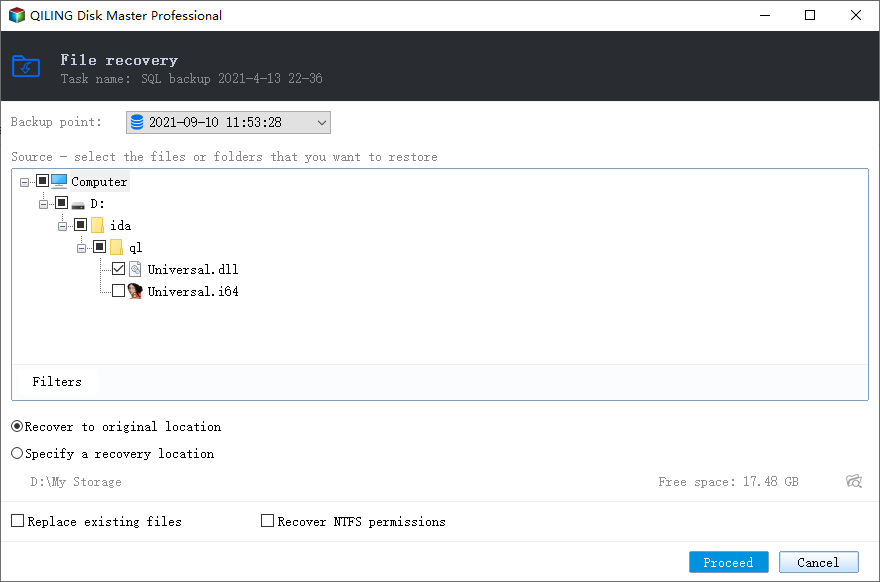
#1: Restore files from file backup. To create a file backup, you'll need to save a copy of your files before making any changes. This way, you can restore files to their original location or move them to a new location if something goes wrong.
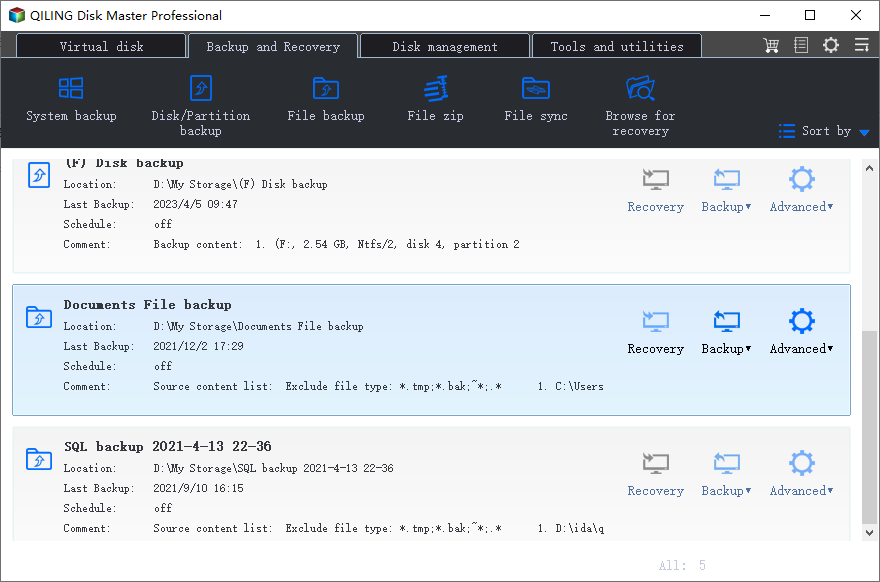
#2: Restore files using Explore Image. This software saves all backed up files to their original location by default, maintaining their original structure.
Verdict
Now you know how to recover files after reinstalling Windows 10 with or without a backup. You can also recover files after a factory reset on Windows 8 using the same methods. To ensure all-around data protection for Windows 11/10/8/7, you can use Qiling Disk Master, which provides comprehensive backup options, such as backing up Windows 10 to QNAP NAS and resolving issues like Windows backup freezing at 97%. Try it out now!
Related Articles
- How to Recover Deleted Windows.old Folder in Windows 10/8/7?
Learn how to Recover Deleted Windows.old Folder in Windows 10/8/7 with clear steps, key checks, and practical tips. - How to Reinstall Windows 10 without Losing Data (3 Ways)?
Sometimes, you may need to reinstall Windows 10/11 to solve system issues. This guide will show you how to reinstall Windows 10/11 without losing data step by step. - How to Backup Programs before Reinstalling Windows 10/8/7?
This article will introduce you how to backup programs before reinstalling Windows 10/8/7 with best free backup software - Qiling Disk Master. - Backup Data before Replacing Hard Drive in Windows 10 (2 Ways)
This article tells you how to backup data before replacing hard drive to ensure data security. - How to Sync Changes Only with Robocopy in Windows 10/8/7?
Whether you want to sync changes only with robocopy or an easy way, you can get them. Hurry up and learn more below. - Quick Start Guide to Robocopy in Windows 10
Windows Robocopy is a handy tool for transferring files. Learn the simple guide to using Robocopy in Windows 10. Additionally, you can download free software that makes file transfers even easier.
Products
Articles & Tutorials
- Data Recovery
- Data Backup
- File Recovery
- File Backup
- File synchronize
- System Backup and Restore
- Disk and Partition Clone
- Technical articles
- Disk Master Help
- Windows Deleted File and Disk Recovery Tutorials
- Windows File and Data Recovery Tutorials
- More Windows Tutorials for Install, Security, Files, and PC Tips
- Windows Boot, Repair, and Recovery Environment Tutorials
- Windows Backup Tutorials
- Windows Restore Tutorials
- Windows Clone and Migration Tutorials
- Windows Server Backup, Recovery, and Management Tutorials
- Windows Disk, Partition, and Storage Management Tutorials