System Restore Points Gone in Windows 10 | 5 Fixes
Fix system restore points gone or directly use backup:
- Overview of system restore points
- Why system restore points missing in Windows 10?
- How to fix no system restore points in Windows 10 (5 Fixes)
- Use a better way to protect your computer
- FAQs: no system restore point has been created in Windows 10
- The way forward
Overview of system restore points
System restore points allow you to restore your computer to an earlier date and can be used to fix issues causing slow or unresponsive performance. You can also perform a system restore in safe mode if your computer is unbootable.
If you're trying to restore your system to a previous state using system restore points in Windows 10, but find that none have been created, you're not alone. This can be frustrating, especially when you need to fix certain problems. To understand why system restore points are missing, it's essential to explore the possible reasons and causes behind this issue.
Why system restore points missing in Windows 10?
For Windows 10 users experiencing missing system restore points, there are several possible reasons. Different users may have different causes, but some common explanations include [insert possible reasons, e.g.
- The system restore points on previous Windows versions are automatically deleted when upgrading or reinstalling the OS, as they're not applicable to the current system.
- System Restore is a feature in Windows 10 that allows you to revert your computer to a previous state in case something goes wrong. It is disabled by default, but can be enabled manually.
- The System Restore will clean up older restore points to free up disk space if the maximum disk space used to save restore points is low.
- The Windows 10 system restore retention time is less than 90 days.
- Any kind of USB turbo-Boosters like ASRock XFast USB can impact the Volume Shadow Service, which is necessary for creating system restore points.
- If you restart your computer and find that no system restore points have been created in Windows 10, it indicates that the page file has been defragmented.
- System Restore points may be deleted if System Restore has corrupt files, which can be checked using the command sfc/scannow to verify the presence of any corrupt files.
How to fix no system restore points in Windows 10
To resolve the issue of no system restore point in Windows 10, first verify that system restore is enabled. Also, ensure that there is no USB turbo-booster installed, as it can interfere with system restore. If these checks do not resolve the issue, consider trying other solutions provided.
Fix 1: Enable System Restore
Step 1. To access System Protection, you can type "System" in the search box, and then select "System protection" from the results. This will open the System Protection settings page, where you can manage and configure system restore points, disk space usage, and other related settings.
Step 2. Select a drive and click Configure to enable system protection.
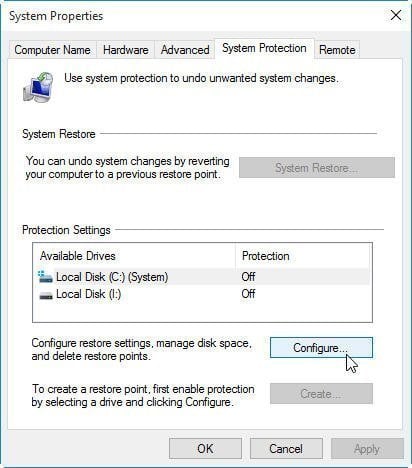
Step 3. In the Restore Settings tab, tick Turn on system protection and click OK to exit this window.
Fix 2: Increase the disk space usage
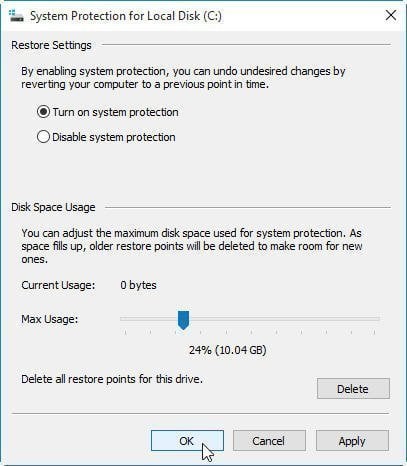
Step 1. Go the System Proetction for Local Disk (C:) and scroll down to Disk Space Usagae.
Step 2. Drag the Max Usage slider to the right side and make sure there are enough space to store restore points. Then, click Apply and OK to exit.
Fix 3: Start Volume Shadow Service
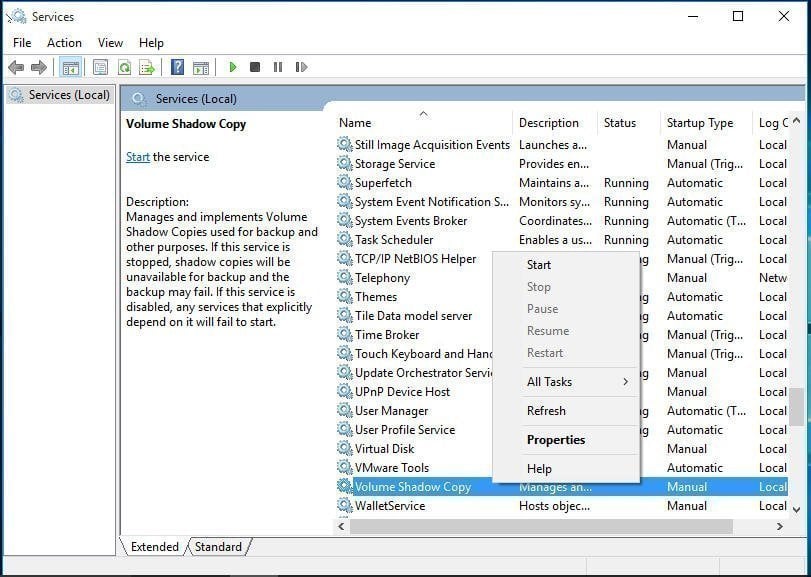
Step 1. Press Win + R to summon the Run window
Step 2. Type services.msc to open the Service utility
Step 3. Start the Volume Shadow Service if it's not running. You can find it in the list, right-click it, and select "Start".
Fix 4: Change triggers in SR properties
Step 1. To access the Task Scheduler in Windows, type "Task Scheduler" in the search box and select it from the context menu. This will open the Task Scheduler window, allowing you to view, create, and manage tasks, which are essentially automated tasks that can be run at specific times or intervals.
Step 2. To access the System Restore task in the Task Scheduler, follow these steps: Expand the Task Scheduler Library, then navigate to the folder that contains the System Restore task, which is located at Microsoft > Windows > SystemRestore.
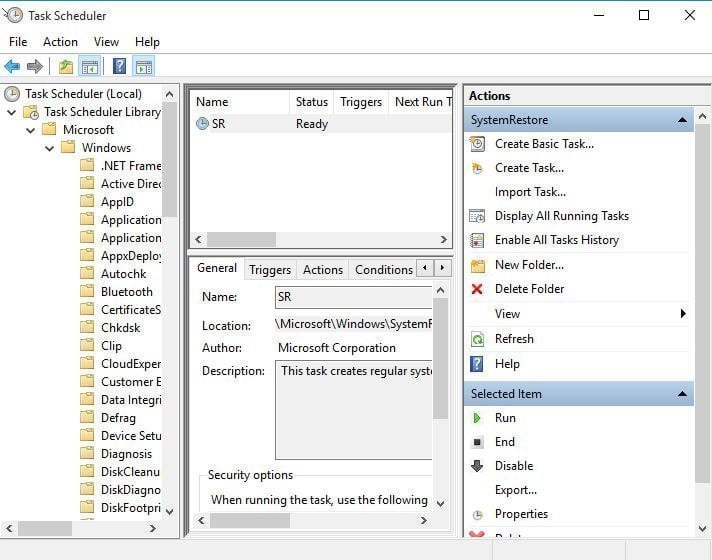
Step 3. Click the entry named SR in the top pane.
Step 4. Click the History tab in the bottom pane, where you can view system restore tasks, warnings, and errors that have been recorded.
Step 5. Double-click the SR file, then click on Triggers and Edit to modify the Triggers.
Step 6. To change the conditions for running a task, click on "Conditions" within the Task Scheduler. Uncheck the box next to "Start the task only if the computer is idle for" and also uncheck the box next to "Start the task only if the computer is on AC power". This allows the task to run under different circumstances, making it more flexible and adaptable to varying system states.
Fix 5: Run system file checker
Step 1. To open Command Prompt as an administrator, you can type "cmd" in the search box and select "Run as administrator".
Step 2. To run the System File Checker (SFC) tool, open Command Prompt as Administrator, type `sfc /scannow`, and press Enter. This command will scan and replace corrupted system files.

After trying other methods, you may be able to fix the issue of lost or deleted system restore points. You can create a system restore point manually and then use it to restore your system when it's not working properly. However, be aware that system restore points are saved on the partition where they were created, so if that partition is damaged, the restore points may be lost as well. (Note: I rewrote the text, while trying to preserve the original meaning and tone)
The system restore point will be automatically deleted due to various reasons, including low disk space usage, disabled system restore, and Windows updates. Additionally, certain items cannot be restored, such as.
1. Personal data. The restore points created by System Restore do not impact personal data, but rather remove recently installed programs and drivers.
2. Entire system or disk. Restore points are a snapshot of your computer status, excluding the operating system and necessary system files, and boot partitions required to start Windows.
To avoid the "system restore points gone" error, it's recommended to create a system image in Windows 10 and save it to an external drive, USB, network drive, or NAS device. This provides a more powerful backup than a system restore point, allowing you to recover from any computer failure, including system crashes.
Use a better way to protect your computer
Microsoft's built-in backup and restore software has limitations, including not being able to backup Windows 10 to a network drive with the Home version, and potential errors like failing to read from volume shadow copy, making it unreliable for some users.
To make effortless backups, consider using a reliable third-party software like Qiling Disk Master Standard, which features an intuitive interface and allows you to backup your system, disk, partition, and files according to your needs. Additionally, it supports scheduling backups on a daily, weekly, or monthly basis, ensuring you always have the latest backup of your computer.
You can easily restore the system to a new hard drive, even if it's smaller, since this software backup only uses sectors on the system partition by default.
Step 1. Download Qiling Disk Master Standard, install and launch it.
Step 2. Click System Backup under the Backup tab.

Step 3. Specify the Task Name and select the destination path for your backup. Qiling Disk Master will automatically select the system partition and other partition related to boot your computer.

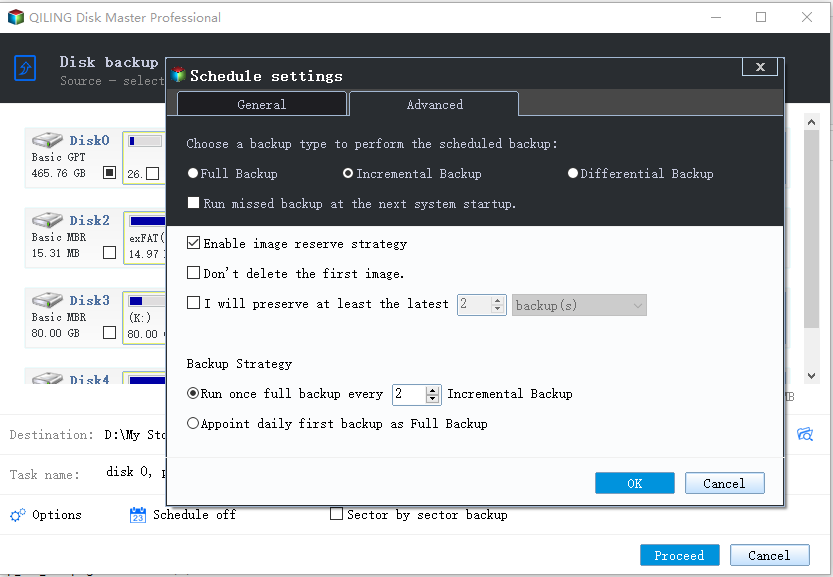
Step 4. To set up backup settings, go to Options, then select Schedule Backup or Backup Scheme, and finally click Proceed.
Options: You can comment on this task for clearly distinguish, enable email notification to get final result timely, set pre/post-command, etc.
Schedule: To schedule system backups, you can set a regular backup time, such as daily, weekly, or monthly, depending on how frequently your files change. If you prefer to run backups during off-peak hours, be sure to select the option to wake the computer to run scheduled tasks. This ensures that the backup process occurs without interfering with your regular activities.

Scheme: You can set incremental or differential backup methods to save space by only backing up changed files. Additionally, the software can manage backup disk space by deleting old backup images using one of three cleanup methods: by quantity, by time, or by daily/weekly/monthly schedule. This feature is available on the professional version.
★ More efficient way to perform Windows OS backup
Qiling Disk Master is a key system backup and restore solution for your PC, allowing you to create a factory recovery partition that can be used to recover a corrupted computer from boot.

FAQs: no system restore point has been created in Windows 10
Q1: Why did my system restore points disappear?
The system restore feature was likely disabled manually, possibly due to Windows updates or the accidental deletion of the Disk Cleanup utility, resulting in the deletion of system restore points.
Q 2: Does Windows 10 create automatic restore points?
Enabling system restore in Windows 10 allows your computer to automatically create restore points before installing new drivers, applications, or Windows updates. You can also manually create a restore point whenever you feel it's necessary.
Q3: How long does Windows 10 keep restore points?
The system automatically deletes older restore points that exceed a 90-day retention period, making room for new ones.
Q4: Will System Restore bring back deleted files?
System Restore can only restore system files and programs, but will not recover deleted personal data.
Q5: Where are my restore points stored in Windows 10?
To view system restore points, you need to make the "System Volume Information" folder visible on the C: drive. This can be done by going to Folder Options > View, unchecking "Hide protected operating system files", and checking "Show hidden files, folders, and drives".
The way forward
If you're trying to restore your computer to a previous date but find that all Windows 10 system restore points are gone, you can try the above solutions to solve the issue and manually create a new one.
Creating a complete system image for Windows 10 is a good idea, as it can be easily damaged due to computer failure. Using free backup software like Qiling Disk Master can help you create a replacement, which can be saved to an external storage device for added protection. This way, you can recover your computer in any situation, even if it crashes.
You can move Windows 10 to a new computer, even with different hardware, by enabling the "Universal Restore" feature, which will install necessary drivers to start Windows.
Related Articles
- Solved: Can’t Create Restore Point in Windows 10 | 4 Ways
- System Restore Not Working in Windows 10 | 9 Fixes Are Here!
- 3 Ways to Fix The Restore Point Could Not Be Created
- Solved: No System Restore Points in Windows 7
- How to Auto Backup Windows 11/10/8/7 on System Shutdown
To ensure your newest data is always safe, you can schedule Windows 10, 11, or other versions to automatically back up on system shutdown. This efficient method keeps your data secure by running a backup process whenever you shut down your computer, guaranteeing that your most recent files and - Best Freeware to Backup Windows 10 Operating System (OS)
Backup Windows 10 operating system (OS) with Windows free backup and restore software - Qiling Disk Master Standard, which can create a system image backup on Windows 10/8/8.1/7XP/Vista.
Products
Articles & Tutorials
- Data Recovery
- Data Backup
- File Recovery
- File Backup
- File synchronize
- System Backup and Restore
- Disk and Partition Clone
- Technical articles
- Disk Master Help
- Windows Deleted File and Disk Recovery Tutorials
- Windows File and Data Recovery Tutorials
- More Windows Tutorials for Install, Security, Files, and PC Tips
- Windows Boot, Repair, and Recovery Environment Tutorials
- Windows Backup Tutorials
- Windows Restore Tutorials
- Windows Clone and Migration Tutorials
- Windows Server Backup, Recovery, and Management Tutorials
- Windows Disk, Partition, and Storage Management Tutorials