Create Complete System Backup in Windows 10 [Best Free Way]
Complete system backup is necessary for data integrity
If you don't create a complete system backup, you may regret it when your computer has issues. A backup includes the operating system, system files, drivers, programs, and data on the system partition. This way, if your computer has problems, you can restore everything without downtime. If not, you'll have to reinstall Windows, which can take time.
To make a copy of everything on your computer, use a free backup software to regularly backup both system and data. Both built-in Backup and Restore (Windows 7) and third-party backup software are suitable options.
Backup Windows 10 to USB with Backup and Restore (Windows 7)
Backup and Restore (Windows 7) is a free backup software first released in Windows 7 and later inherited in Windows 8/10/11. It offers two ways to protect data: backing up files with the "Set up backup" option, or creating a system image directly with the "Create a system image" option.
You can choose to backup data files saved in libraries, on the desktop, and in default Windows folders, and optionally include a system image and other drives, with the option to schedule backups daily or monthly at 7:00 PM every Sunday. Alternatively, you can choose to backup system and data files on the system partition only, which will be performed once.
Step 1. Connect your USB drive and make sure it can be detected.
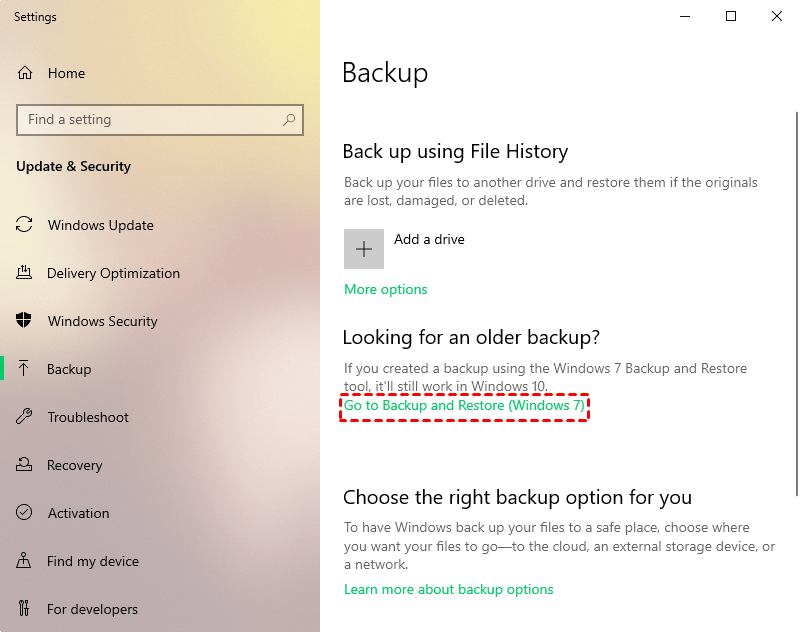
Step 2. Type "backup settings" in the search box and select it from the list of results, then click "Go to Backup and Restore (Windows 7)".
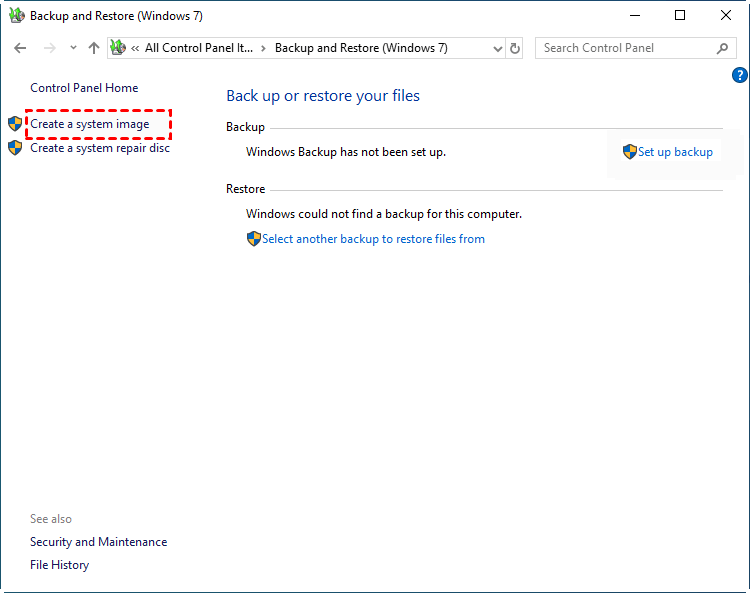
Step 3. To create a system image, click on the "Create a system image" option at the left panel. This will initiate a scan of your storage device, which will then list all available storage devices.
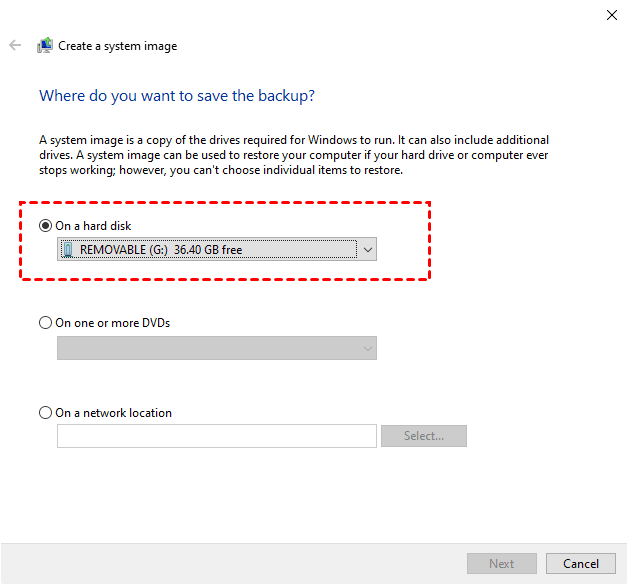
Step 4. Tick "On a hard disk" and select the USB drive from drop-down menu. Then, click "Next".
Step 5. Confirm your backup settings and click "Proceed" to create system image on USB in Windows 10.
- ★To create a complete system backup in Windows 11, open the Settings app, go to Update & Security, and then select Backup. Choose the drive where you want to save the backup, and select the types of data you want to include (such as files, system files, and settings).
- The steps to backup Windows 10 to USB are the same as in Windows 7, but the entrance is hidden deeper in Windows 11, accessible through Settings -> System -> Storage -> Advanced Storage options > Backup options.
In certain situations, you may need to use alternative software due to specific requirements or limitations. For example, if you're working on a project that requires a specific type of file format, you might need to use a different software that can handle that format.
- It does not support schedule backup system unless you use Set up backup option and include system image manually.
- The backup process will now operate on a partition level, rather than individual files or folders, which will require a larger storage capacity.
- It requires human intervention to delete backup files.
- The software has limitations in backing up certain types of files, including program files, files stored on FAT-formatted partitions, the Recycle Bin, and temporary files on smaller drives (less than 1GB).
- Unexpected backup and restore errors, such as Windows backup not completing successfully, backup failing, insufficient disk space, system image restore failing, Windows unable to find a system image on the computer, and more.
Create Windows 10 system image on USB with third-party software
Beside built-in tool, you can still use a third-party backup software - Qiling Disk Master Standard to backup Windows 10 to USB. And it provides 4 ways to protect your data and all of them supports schedule backup system. And you can enjoy some advantages in the following:
- All-in-one backup solutions: 4 backup solutions are supported, including System Backup, Disk Backup, Partition Backup and File Backup.
- Keep system up-to-date: You can back up your system with different frequency options, such as daily, weekly, or monthly, depending on how often your system partition changes.
- Save disk space: It can compress backup images, backup only used sectors of file systems, and only changed files, utilizing incremental backup.
- This program allows users to back up their system to a variety of storage devices, including external hard drives, USB drives, SSDs, network drives, cloud storage services like Google Drive, SD cards, and more.
You can create a bootable media to boot your computer in trouble, aside from backup solutions and settings. This allows you to easily restore your computer to a previous good state without downtime, protecting your system and data. Download it now to safeguard your system and data!
To create a system image for Windows 10 and save it to a USB drive, follow these steps: 1. Connect the USB drive to your computer.
Step 1. Click Backup and System Backup subsequently. To backup important files only, click File Backup.

Step 2. To proceed, click the folder-shaped button to select the prepared USB and click Next. The software will automatically select the system partition and boot-related partitions for you.

Step 3. To schedule a backup in Windows 10, click Schedule Backup, then Enable Schedule Backup, and choose a backup frequency such as daily, weekly, or monthly. Finally, click Start Backup to create a complete system backup.

- ★To always keep enough space in the backup disk, you can set up an automatic backup schedule to regularly remove old backups and free up space. This can be done by setting up a retention policy in the backup software, which will automatically delete backups that are older than a certain number of days or months.
- Creating a complete system backup in Windows 10 with scheduled backups is a great way to keep your data safe, but it's inevitable that your backup disk will eventually run out of space.The most effective way is to delete old backups regularly with Backup Scheme (supported by professional version) feature to free up space for new backup.
Summary
In Windows 10, you can create a complete system backup using the built-in Backup and Restore (Windows 7) tool or third-party software, but the backup image will only include items that are backed up at the time, requiring manual backup of all system items, which can be time-consuming and disk space-consuming.
To automatically backup system and changes since the last backup, using third-party software like Qiling Disk Master Server is recommended. This allows for incremental backups of only changed files, or optimized backup sizes with features such as compression levels and sector backup.
Clone system, disk, or partition with this software, and the cloned disk can be used to boot your computer directly.
Related Articles
- How to Create Windows 10 System Image Backup and Restore it
- 2 Ways to Restore Windows 10 System Image to New Hard Drive
- 5 Methods to Fix System Image Backup Failed in Windows 10/8/7
- Quick Guide to Windows Complete PC Restore in Windows Vista
If you want to know what Windows Complete PC Restore is and how to restore Windows after creating a Windows backup, this article will guide you with detailed steps. - How to Backup Steam Games to External Hard Disk?
Learn how to Backup Steam Games to External Hard Disk with clear steps, key checks, and practical tips. - How to Backup Windows 10 to DVD [Windows 10 Backup]
Back up Windows 10 to DVD with suitable backup tools and media planning so important files or system images stay recoverable.
Products
Articles & Tutorials
- Data Recovery
- Data Backup
- File Recovery
- File Backup
- File synchronize
- System Backup and Restore
- Disk and Partition Clone
- Technical articles
- Disk Master Help
- Windows Deleted File and Disk Recovery Tutorials
- Windows File and Data Recovery Tutorials
- More Windows Tutorials for Install, Security, Files, and PC Tips
- Windows Boot, Repair, and Recovery Environment Tutorials
- Windows Backup Tutorials
- Windows Restore Tutorials
- Windows Clone and Migration Tutorials
- Windows Server Backup, Recovery, and Management Tutorials
- Windows Disk, Partition, and Storage Management Tutorials