Quick Guide to Windows Complete PC Restore in Windows Vista
Quick Navigation:
- What is Windows Complete PC Restore
- How to restore Windows Vista with Windows Complete PC Restore
- Recover Windows system in an easier way
What is Windows Complete PC Restore
Windows Complete PC Restore is a feature of Windows Vista and Server 2008 that allows for disaster recovery, but can only be run by booting from a recovery disc or recovery hard disk partition.
To restore your entire Windows computer, you must have created a Windows Complete PC Backup and Restore image beforehand. This recovery option is not recommended for casual use, as it will remove all programs and files added after the backup point. It's only suitable as a last resort when other methods fail.
The function to create and restore from a complete computer backup has been removed from Windows after Vista, making it unavailable in Windows 11/10/8/7. As a result, users must find an alternative to achieve this functionality.
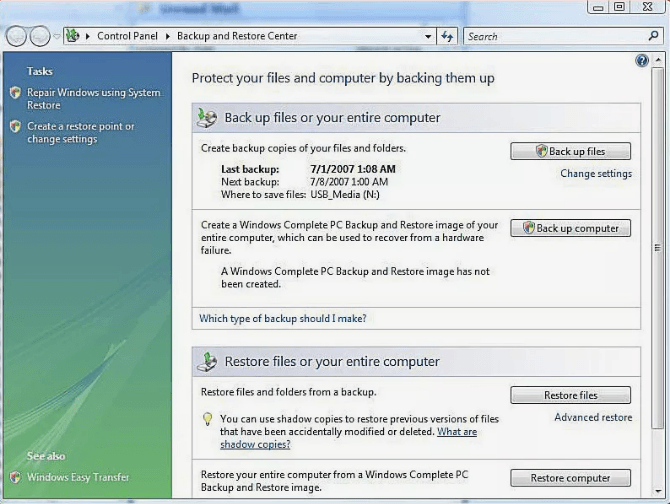
How to restore Windows Vista with Windows Complete PC Restore
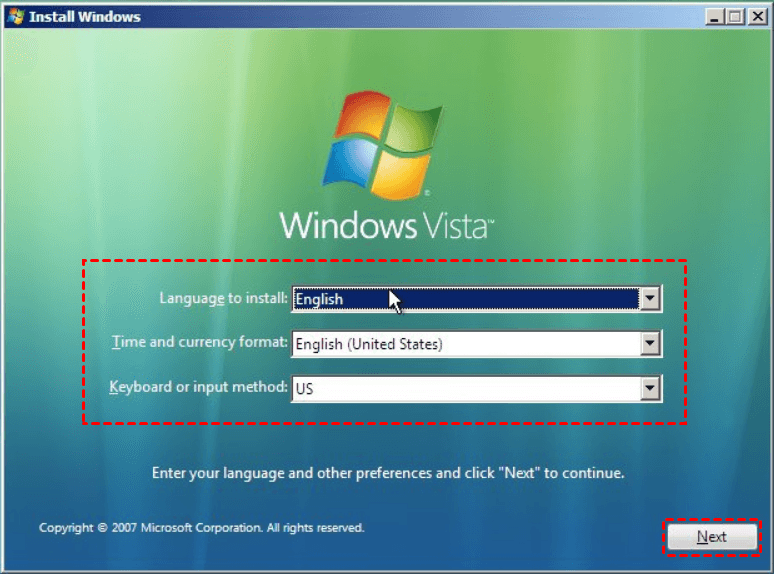
To restore your entire computer with Windows Complete PC Restore, follow these steps: Insert the Windows CD, restart your computer, and press any key to boot from the CD. Once the Windows Setup screen appears, click on "R" to start the repair process.
Step 1. Boot the computer from the CD or DVD and configure language and location options in Vista Setup.
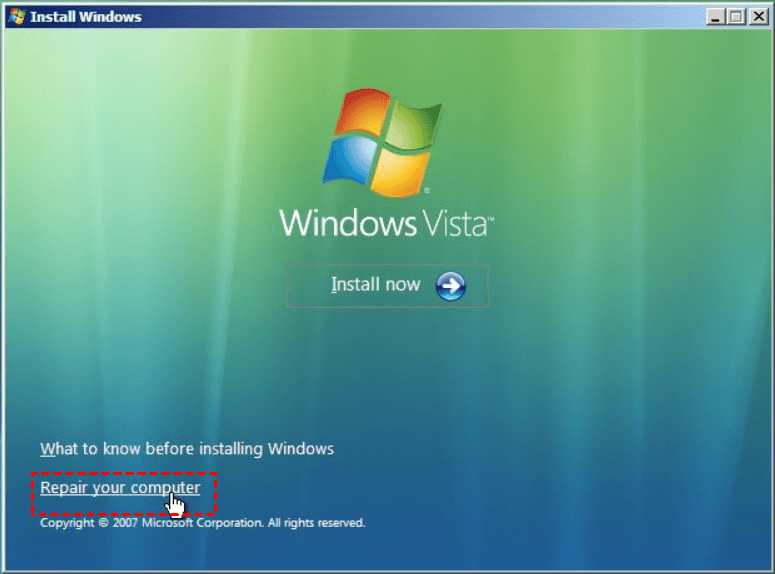
Step 2. Click on the Repair your computer option.
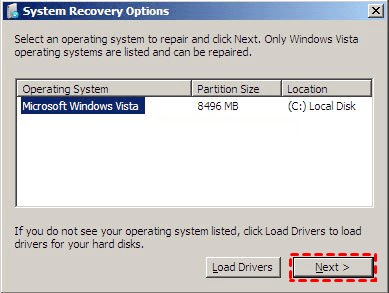
Step 3. To proceed with repairing a Vista installation, select the desired installation from the list and press the Next button when ready.
Step 4. Click on the Windows Complete PC Restore option.
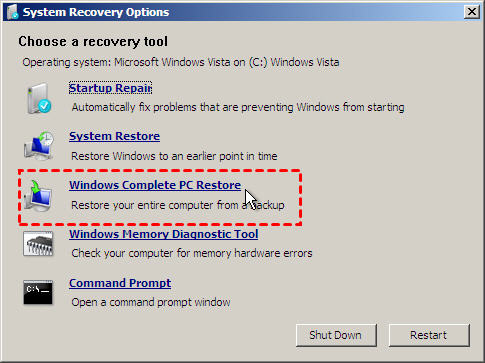
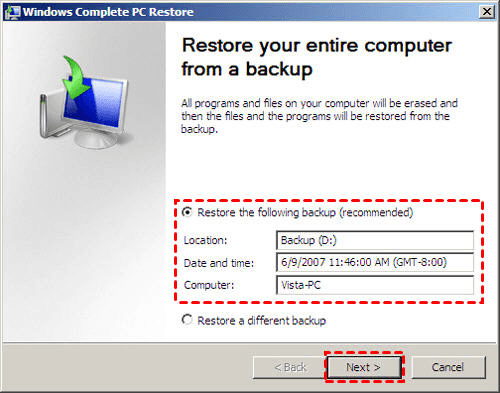
Step 5. Complete PC Restore will select the latest backup to restore by default, but you can choose a different backup version by checking the "Restore a different backup" option.
Step 6. When you're done, click the Finish button.
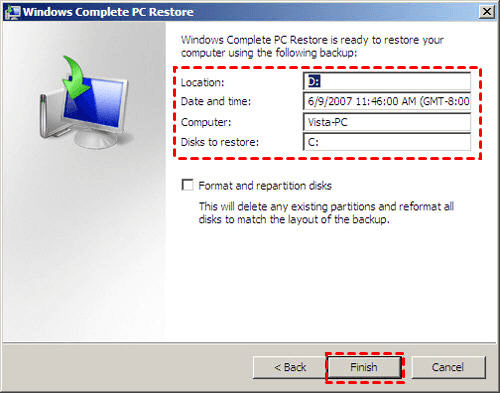
When the above operation is completed, your Windows system has been recovered, but there are some issues that need attention.
- If the image backup is too large, it may take a long time to restore, which can be frustrating and may cause delays in getting back to work or other activities.
- The recovery of a server's hard disk may fail if it's less than 160GB or due to other issues.
Therefore, we'd better choose convenient and safe software to help us recover Windows Vista, such as Qiling Disk Master Standard.
Alternative | Perform complete PC restore in all Windows OS easily
Qiling Disk Master Standard is a high-quality backup and restore software that allows you to back up your system, disk, and files in advance, and then restore them as needed, with the option to enable Universal Restore for system images from different hardware.
All editions of Windows, from Windows 11 to Windows XP, are supported. You can download this complete PC backup and restore software to try it out.
1) A backup of your system and data, and 2) a bootable external drive with a system image or a recovery drive. This ensures that you can restore your system to a previous state in case of a crash, minimizing data loss and getting your computer up and running quickly.
▶ To create a system image, go to Backup > System Backup.
▶ To create a WinPE bootable disk, go to Tools > Create Bootable Media. This allows you to boot your computer in case of boot failure, enabling you to troubleshoot and potentially recover your system.
Step 1. Go to the Backup and recovery tab, then click Select Task or Browse for recovery to locate an image file.

Step 2. Select the system backup task from the list and click Next.

Step 3. The backup can be restored entirely or partially, and the program will restore the computer system to its original location by default, unless a different location is chosen.

Step 4. All the operations will be listed. Just confirm the operations, and then click Proceed if there isn't any mistake.

Summary
Windows Complete PC Restore can be a reliable method for restoring a system, but it may not always succeed due to certain issues. A safer and more efficient alternative is the third-party software Qiling Disk Master Standard, which can provide a more effective solution for restoring a system.
Qiling Disk Master is a great software that not only provides backup and restore functions but also allows for free disk cloning. However, if you only need to clone the system, you may want to consider upgrading to a paid version like Qiling Disk Master Professional.
Related Articles
- How to Do System Restore, System Reinstallation
If your system has some issues, you can perform system restore with Qiling Disk Master to restore computer to an earlier date in Windows 10, 8, 7. - 2 Easy Ways to Create Windows 10 System Image
You will learn how to create system image backup for Windows 10 and use it step by step. Choose one among 3 methods below! - What Is Windows Complete PC Restore Server 2008 and How to Use it
You will learn how to use Windows Complete PC Restore in server 2008 step by step. Also, you could use server backup software - Qiling Disk Master to achieve this goal, it's even easier. - 5 Best Snapshot Backup Software Examples
This guide explains 5 Best Snapshot Backup Software Examples with clear steps, key checks, and practical tips. - Windows 7 End of Life Extended What to Do?
This guide explains Windows 7 End of Life Extended What to Do with clear steps, key checks, and practical tips. - Windows 7 Recovery Partition Is Missing or Lost? Fixed!
Restore a missing Windows 7 recovery partition or use recovery alternatives to get the system back.
Products
Articles & Tutorials
- Data Recovery
- Data Backup
- File Recovery
- File Backup
- File synchronize
- System Backup and Restore
- Disk and Partition Clone
- Technical articles
- Disk Master Help
- Windows Deleted File and Disk Recovery Tutorials
- Windows File and Data Recovery Tutorials
- More Windows Tutorials for Install, Security, Files, and PC Tips
- Windows Boot, Repair, and Recovery Environment Tutorials
- Windows Backup Tutorials
- Windows Restore Tutorials
- Windows Clone and Migration Tutorials
- Windows Server Backup, Recovery, and Management Tutorials
- Windows Disk, Partition, and Storage Management Tutorials