[5 Ways] Fix System Image Backup Failed in Windows 11/10/8/7
System image backup failed due to many reasons
A Windows System Image backup contains all system and personal files at a point in time, allowing for a full system restore without reinstalling Windows or programs.
Many users create system image backups to protect against unexpected system issues or data loss. However, system image backups can fail due to various reasons, primarily falling into three situations: * * * * * * * * * * * * * * * * * * * * * * * * * * * * * * * * * * * * * * * * * * * * * * * * * * * * * * * * * * * * * * * * * * * * * * * * * * * * * * * * * * * * * * * * * * * * * * * * * * * * * * * * * * * * * * * * * * * * * * * * * * * * * * * * * * * * * * * * * * * * * * * * * * * * * * * * * * * * * * * * * * * * * * * * * * * * * * * * * * * * * * * * * * * * * * * * * * * * * * * * * * * * * * * * * * * * * * * * * * * * * * * * * * * * * * * * * * * * * * * * * * * * * * * * * * * * * * * * * * * * * * * * * * * * * * * * * * * * * * * * * * * * * * * * * * * * * * * * * * * * * * * * * * * * * * * * * * * * * * * * * * * * * * * * * * * * * * * * * * * * * * * * * * * * * * * * * * * * * * * * * * * * * * * * * * * * * * * * * * * * * * * * * * * * * * * * * * * * * * * * * * * * * * * * * * * * * * * * * * * * * * * * * * * * * * * * * * * * * * * * * * * * * * * * * * * * * *
1. The backup failed because the specified backup storage location has the shadow copy storage on another volume, resulting in error code 0x80780038.
2. The error "There is not enough disk space to create the volume shadow copy of the storage location (0x80780119)" occurs when the system fails to create a volume shadow copy due to insufficient disk space. This can be caused by a lack of free space on the disk where the shadow copy is being created, or by a problem with the disk space management.
3. The backup failed due to a volume size limitation, specifically volumes larger than 2088958 megabytes cannot be protected. (0x807800B4).
Based on your own situation, you can find the corresponding solution to your problem.
- Situation 1: Has the shadow copy on another volume
- Situation 2: Not enough disk space to create the volume shadow copy
- Situation 3: Volumes larger than 2088958 megabytes cannot be protected
- Easier way to create system image backup without having these issues
Situation 1: Has the shadow copy on another volume
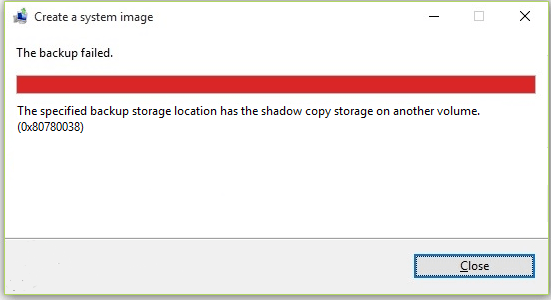
The Windows backup is unable to save the image backup due to issues with the target backup location. To troubleshoot and resolve this issue, you can try the following steps.
Run SFC scan
To resolve the issue of being unable to create a system image backup due to errors, follow these steps: Press the Windows + X key combination to open the command prompt, then type "SFC /SCANNOW" and press Enter. This command will scan and fix corrupted system files, which may resolve the issue or provide more information about the problem. Once the scan is complete, you should be able to create a system image backup without encountering errors.
Configure system protection
If the system image backup still fails in Windows 7/8/10/11, enabling System protection and creating system restore points can provide another layer of protection to your system and files, creating shadow copies in the process.
After a system restore point is created, you can try system image backup again.
Situation 2: Not enough disk space to create the volume shadow copy
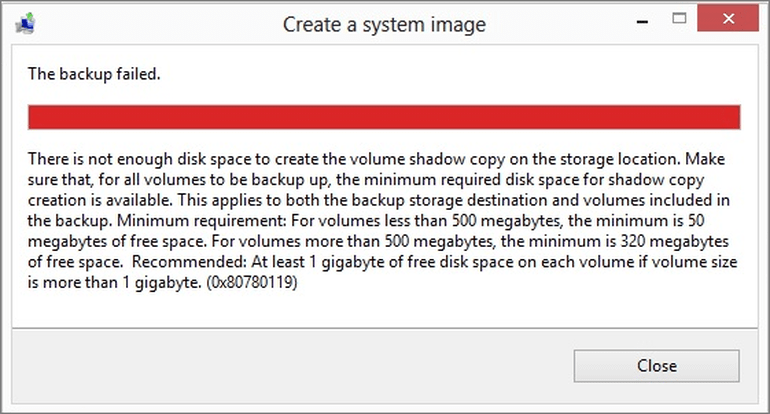
The Windows 10 system image backup fails due to insufficient free space on the source partition, which can be resolved by freeing up more space on the system drive or extending the system partition.
For volumes under 500MB, 50MB of free space is required, while for volumes over 500MB, at least 320MB of free space is needed.
Situation 3: Volumes larger than 2088958 megabytes cannot be protected
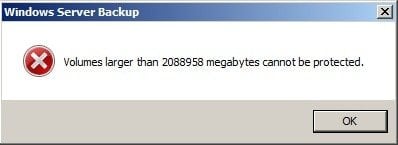
In Windows 7, the Windows backup creates a virtual hard disk (.vhd) to store the image file, but it cannot be larger than 2040GB, resulting in the error when trying to backup volumes larger than 2TB.
Windows 7 has a limitation that prevents backing up volumes larger than 2,088,958 MB. To overcome this, you can either shrink your volume or upgrade to Windows 8 or Windows 10/11.
In later versions of Windows, system image backups are saved in an advanced virtual disk format called .vhdx, which does not have size limitations.
Easier way to create system image backup without having these issues
If Windows 7/8/10/11 backup fails after trying all the troubleshooting steps, consider using the best free backup software, Qiling Disk Master Standard.
- This freeware supports backup using Microsoft VSS or its own technology, ensuring that backups are created without encountering the volume shadow copy error.
- The program allows you to choose from 3 image compression levels, which helps prevent running out of space.
- It has full support for both GPT and MBR disk, allowing it to successfully backup disks larger than 2TB.
Learn how to create a system image of Windows 11/10/8/7 with Qiling Disk Master. This tool allows you to create a system image of your Windows operating system, which can be used to restore your computer to its current state in case of a system failure or other issues.
Step 1. Free download this backup and restore tool. Then install and open Qiling Disk Master.
Step 2. Click the Backup tab and then select System Backup.
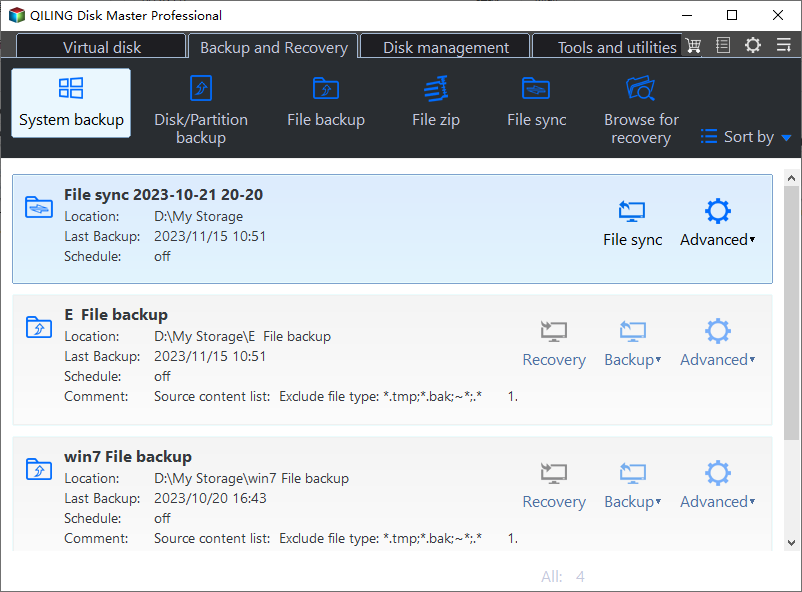
Step 3. The program will automatically select all system and boot related partitions, so you just need to choose the destination path.

Tip: It's generally not recommended to save system backup images to the system disk itself, but rather to an external hard drive, NAS, or other offsite locations for safekeeping.
Step 4. Click Proceed.

>> Options: You can enable email notification, choose the compression level for the backup image file, and select either intelligent sector backup or sector-by-sector backup.
>> Schedule Backup: To protect your newly added files and programs, you can set up a schedule to automatically create system image backups, ensuring that your important data is safely preserved.
>> Backup Scheme: The backup can be set to run as a Full, Incremental, or Differential backup, and a scheme can be set to automatically delete old backups to free up space for the next backup, preventing the backup drive from running low on disk space. This feature is available in the Professional edition or higher.
Once the backup is complete, you can create a bootable media, allowing you to restore the backup even if your system becomes unbootable.
If you want to restore a system image backup to a computer with different hardware in the future, it's recommended to use the Universal Restore feature, available in advanced editions.
Instead of troubleshooting system image backup failed issues, you can use Qiling Disk Master to directly create a system image backup, which can be easily restored whenever needed.
Related Articles
- Windows Backup Did Not Complete Successfully-Explained
- Quick Fixes for Windows 10 Backup Failed Error
- Top 3 Ways to Fix Windows Backup Keeps Failing
- Fix Windows Server Backup Failed Not Enough Space on the Disk
- Solved: Windows Backup Failed to Read from the Shadow Copy
- How to Clean Install Windows 11 without TPM and Secure Boot Easily
Fix Windows Backup keeps failing with three practical methods, and learn how Qiling Disk Master can create reliable system image backups when built-in backup tools fail.
Products
Articles & Tutorials
- Data Recovery
- Data Backup
- File Recovery
- File Backup
- File synchronize
- System Backup and Restore
- Disk and Partition Clone
- Technical articles
- Disk Master Help
- Windows Deleted File and Disk Recovery Tutorials
- Windows File and Data Recovery Tutorials
- More Windows Tutorials for Install, Security, Files, and PC Tips
- Windows Boot, Repair, and Recovery Environment Tutorials
- Windows Backup Tutorials
- Windows Restore Tutorials
- Windows Clone and Migration Tutorials
- Windows Server Backup, Recovery, and Management Tutorials
- Windows Disk, Partition, and Storage Management Tutorials