Top 3 Ways to Fix Windows Backup Keeps Failing
Scenario: Windows Backup failed
"I am trying to run Windows Backup to my external USB 3.0 Toshiba drive, but the backup keeps failing when almost complete. I have never had this problem before with this drive. The drive appears to be fine; I ran check disk and no errors were found. I just keep getting an error from the backup program stating there is either a problem with the source or destination. Thoughts?"
Having a system backup is always useful, especially if your system gets corrupted or damaged. Windows has built-in backup and restore tools, such as Backup and Restore (Windows 7) and File History, which allow you to make a full system image backup and restore the system to its previous state in case of a system crash.
Windows Backup often fails and displays error messages such as "The backup failed" or "Windows Backup did not complete successfully". Users have tried clicking the provided buttons on the screen, but the backup process keeps failing on Windows 10 or Windows 7.
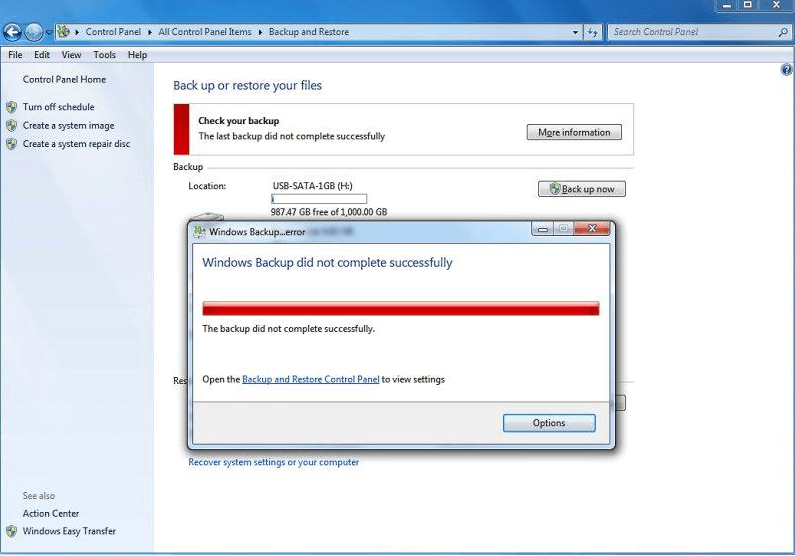
Why Windows Backup keeps failing?
Here are three possible reasons that explained why Windows Backup keeps failing.
- Forget to enable System Protection: System Protection is a Windows feature that helps protect system and personal files, and must be enabled to create a system image.
- WindowsImageBackup folder hinders system backup: The WindowsImageBackup folder is a system folder that stores system images created by Windows Backup, which may prevent you from creating system backups.
- Corrupted files caused Windows Backup failure: If you have corrupted files on your hard drive, you may not be able to backup your system, making it difficult to recover your data.
How to fix that Windows Backup keeps failing
If you're experiencing issues with Windows 7 or Windows 10 Backup not working, there are several solutions you can try. Three efficient methods are available, and you can attempt them one by one to resolve the problem.
I believe there is definitely a solution that could help you. You can read on to learn the detailed information.
Fix 1. Turn on System Protection
To turn on System Protection, follow these steps:
Step 1. To access the Control Panel on your PC, start by clicking the Start tab in the lower left corner. From there, type "Control Panel" in the search box and then open it. This will allow you to access various settings and options for your computer.
Step 2. Select System and Security from the list. Then click System.
Step 3. Click System protection on the left pane.
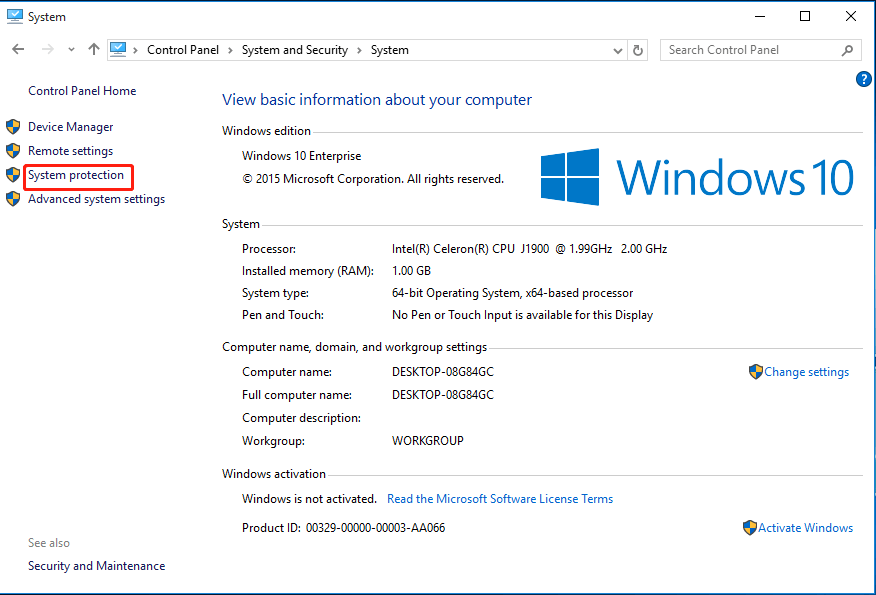
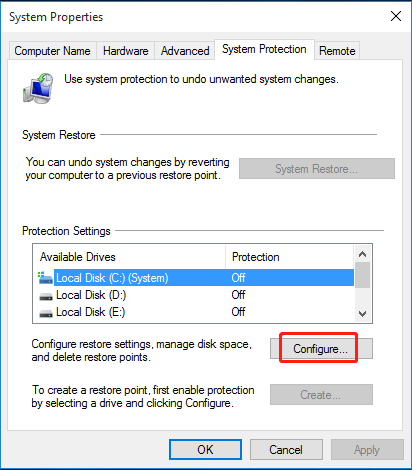
Step 4. Click the drive where your system is stored. Then click Configure.
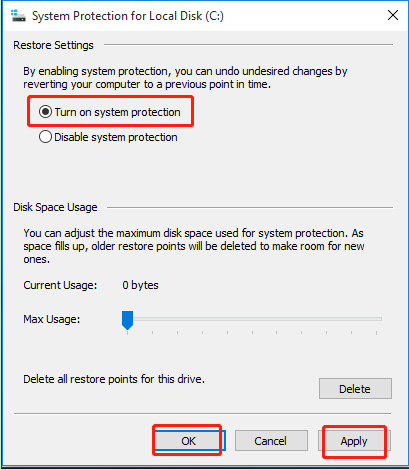
Step 5. Choose Turn on system protection. Then click Apply and OK to save changes.
Fix 2. Delete the WindowsImageBackup folder
To delete previous backup files and allow system backup, you can manually remove them by following these steps:
Step 1. Go Control Panel ﹥ System and Security ﹥ File History.
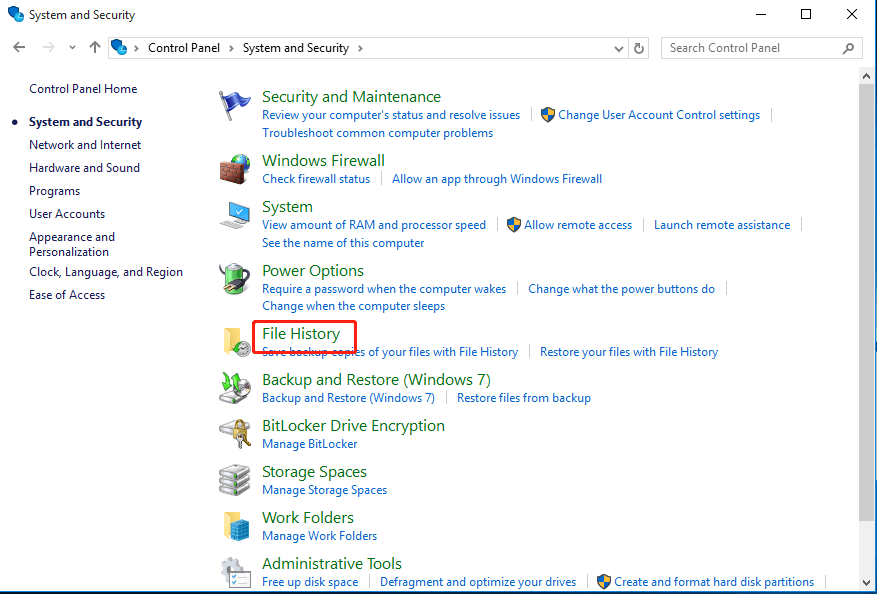
Step 2. Click System Image Backup in the lower left corner and find the location of this folder.
Step 3. Navigate to the exact location of WindowsImageBackup folder.
Step 4. Right click this folder then choose Delete.
Fix 3. Repair the corrupted files via chkdsk command
The corrupted files can be checked and repaired by chkdsk command. Here are operating steps.
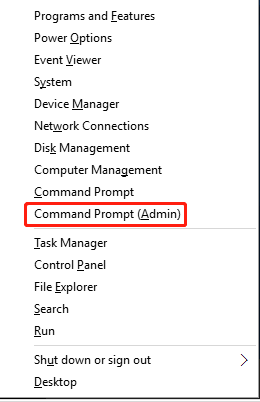
Step 1. Press Windows Key + X. Then select Command Prompt (Admin) from the menu.
Step 2. To run the Check Disk utility on your hard drive, open the Command Prompt, type `chkdsk /r X:`, where X represents the letter of your hard drive partition, and press Enter. For example, if your hard drive is on the D drive, you would type `chkdsk /r D:` and press Enter.
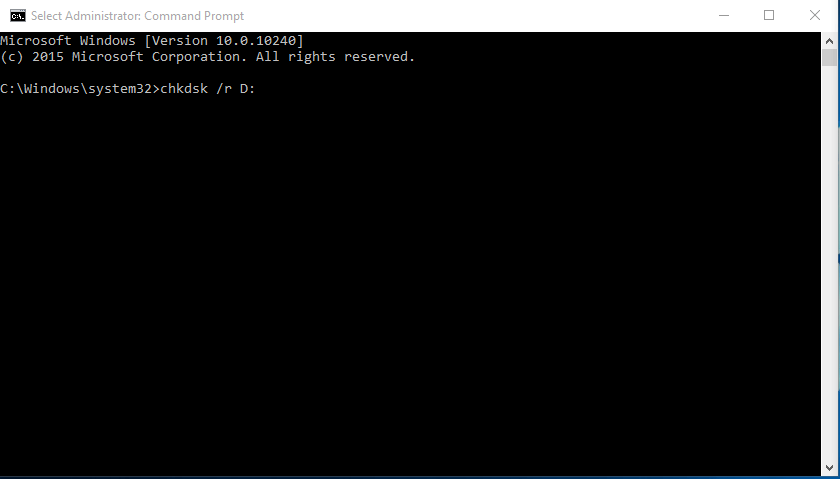
Step 3. Wait for the process to be completed and repeat the same process for all hard drive partitions.
Note: You might be unable to run the chkdsk command on the C drive and will be prompted to scan the C drive the next time your system restarts. You can press Y to scan and check the C drive.
The three methods mentioned earlier are complex and may not be suitable for those who are not tech-savvy, and operation errors can result in data loss. Fortunately, there is a better alternative that can make system image backup easy.
Freeware to backup system in Windows 11/10/8/7
Qiling Disk Master Standard has a feature called System Backup that allows users to create a system image with ease. This utility supports various Windows versions, including Windows 11/10/8.1/8/7/Vista/XP, and is available for free.
This freeware allows you to set up an automatic system backup based on Daily, Weekly, or Monthly, and also provides incremental and differential backup options for only backing up changed parts.
You can download this freeware to have a try. The detailed steps are shown below.
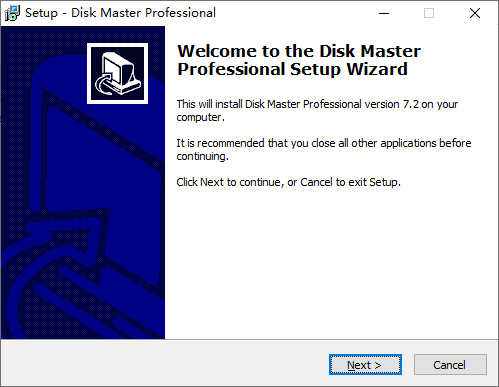
Step 1. Install and open this freeware.
Step 2. Click Backup and System Backup subsequently.

Step 3. The Task Name can be modified as desired. By default, the related system partitions are selected, so you can simply select the destination path to store the system image.

Step 4. Click Proceed to create system image.

- Notes:✎...
- Options: This feature offers four options: General, Backup Mode, Command, and Advanced. It allows setting up backup encryption for security, which can be enabled by clicking "Enable encryption for backups" under the General tab.
- Schedule Backup: The system can be automatically backed up using the schedule feature. This allows users to choose from daily, weekly, monthly, event triggers, or USB plug-in options, with the latter two options requiring an upgrade to the advanced version.
- Backup Scheme: In the paid version of Scheme, older backups are automatically deleted, and it offers three backup methods: Full, Incremental, and Differential Backup.
- To restore your computer, go to Home, then System Backup, and select Restore. Alternatively, if your computer is experiencing a boot failure, you can create a recovery environment in advance to facilitate the restoration process.
Verdict
This article discusses the common issues with Windows backup failing and offers three potential solutions. If these methods don't work, users can consider using Qiling Disk Master Standard as a free alternative.
Qiling Disk Master not only simplifies backup tasks but also allows for scheduled backups to prevent data loss. Additionally, it is specialized disk clone software that enables you to clone a smaller SSD to a larger one, offering more features that can be discovered by downloading the software.
Related Articles
- Windows 7 Backup Stuck at 97% or 57% [6 Ways + 1 Tip]
In this article, you will find 6 solutions to fix Windows 7 backup stuck at 97% or 57% error, and 1 tip for you to easily create Windows 7 system image. - Best Free Backup Software for Windows Server(2022 Featured Picks)
Data backup is the ideal solution to escape the risk of loss and piracy of the latter. The information below will help you choose the best free backup software specially designed to back up your Windows Server data. So kindly read the entire blog post and acquire the best solution. - How to Recover Deleted Restore Points in Windows 10/11?
This is especially helpful when you troubleshoot an error on your system and none of the solutions can fix the issue. If you're having problems with your windows, the following article can help you decide which recovery option to use. - Transfer Windows 7, 8, 10, 11 to New Hard Drive without CD [3 FREE Ways]
Learn how to Transfer Windows 7, 8, 10, 11 to New Hard Drive without CD with clear steps, key checks, and practical tips. - How to Turn on System Restore in Windows 7
To protect your computer well, you can turn on System Restore in Windows 7. Besides, you can create an image backup to get supplementary protection for your computer.
Products
Articles & Tutorials
- Data Recovery
- Data Backup
- File Recovery
- File Backup
- File synchronize
- System Backup and Restore
- Disk and Partition Clone
- Technical articles
- Disk Master Help
- Windows Deleted File and Disk Recovery Tutorials
- Windows File and Data Recovery Tutorials
- More Windows Tutorials for Install, Security, Files, and PC Tips
- Windows Boot, Repair, and Recovery Environment Tutorials
- Windows Backup Tutorials
- Windows Restore Tutorials
- Windows Clone and Migration Tutorials
- Windows Server Backup, Recovery, and Management Tutorials
- Windows Disk, Partition, and Storage Management Tutorials