What is MBR2GPT Tool in Windows 10 and How to Use it?
MBR2GPT tool in Windows 10 & 11
MBR2GPT is a Windows tool that converts an MBR disk to a GPT disk without modifying data, and can be run from a Windows PE command prompt or Windows 10 operating system with the /allowFullOS option.
The MBR2GPT tool allows you to convert an MBR-formatted system disk to GPT, including operating system disks with earlier versions of Windows 10, by running the tool in Windows 10 version 1703 or later and performing an offline conversion.
Why use MBR2GPT to convert MBR to GPT?
MBR (Master Boot Record) and GPT (GUID Partition Table) are two different disk partition styles that allow a disk to be used for storing data and the operating system after initialization. Once initialized, the disk is referred to as an MBR/GPT disk.
The MBR (Master Boot Record) partition style has limitations on hard disk capacity and the number of primary partitions, whereas GPT (GUID Partition Table) does not, making GPT a more common choice, especially for Windows 11 upgrades, which often require a conversion from MBR to GPT using tools like MBR2GPT.
How to use MBR2GPT tool to convert MBR to GPT in Windows 11/10/8/7
To convert a MBR system disk to GPT disk using the MBR2GPT tool in Windows 11, follow these command lines in different situations. You can use the command "mbr2gpt /allowFailure /validate /allowTrim" to convert the disk, or use the command "mbr2gpt /allowTrim" to convert the disk without validating it.
If you are working under Windows PE, type: mbr2gpt /convert /disk:n
If you're working in the full OS environment, type: mbr2gpt /convert /disk:n /allowfullOS
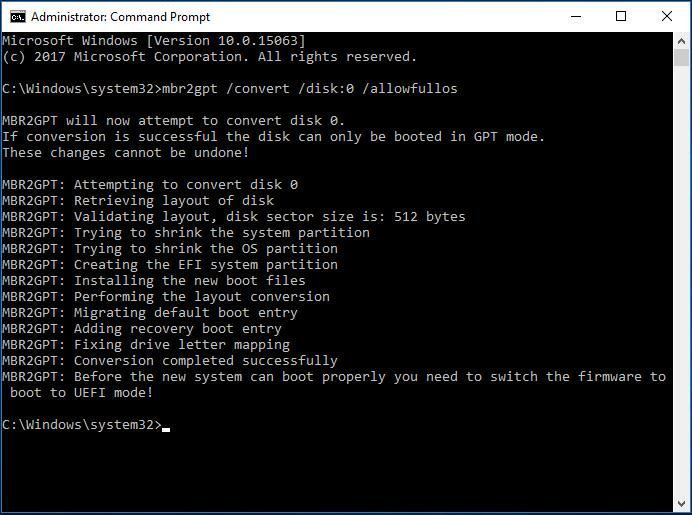
Notes:
▪ To convert your OS disk to GPT, you'll need to ensure that your computer supports UEFI, which is a type of firmware that replaces the traditional BIOS. This is because UEFI is required for GPT support, as it allows for the creation of larger partitions and better support for modern storage devices.
▪ After the MBR OS disk has been converted to GPT partition style, you need to reconfigure the firmware to boot in UEFI mode.
Error: MBR to GPT conversion failed
The MBR2GPT tool in Windows 10 allows you to safely and non-destructively convert a Windows 10 computer from legacy BIOS to UEFI disk partitioning, and also convert OS disks with earlier versions of Windows 10 installed, as long as you run the tool while booted into Windows 10 version 1703 or later and perform an offline conversion.
However, offline conversion of system disks with earlier versions of Windows installed like Windows 7 or Windows 8/8.1 are not officially supported, so you must upgrade the operating system to Windows 10 first to perform the MBR to GPT conversion with MBR2GPT tool, and you may encounter the problem "disk layout validation failed for disk 0".
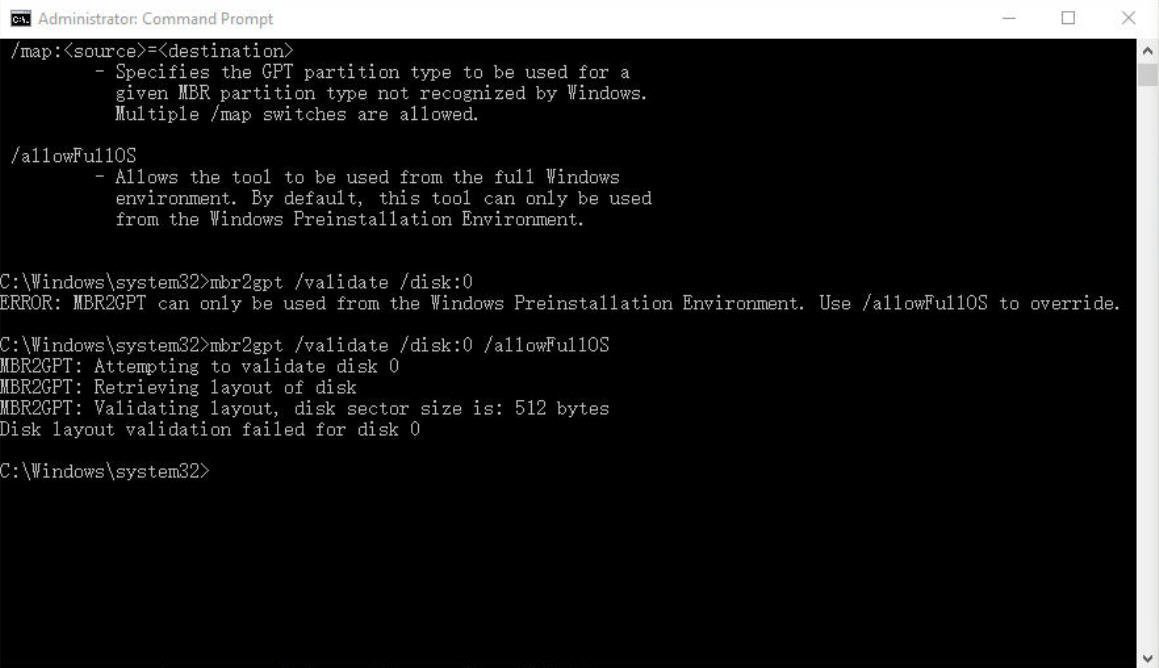
Or the problem that "MBR2GPT.EXE has stopped working":
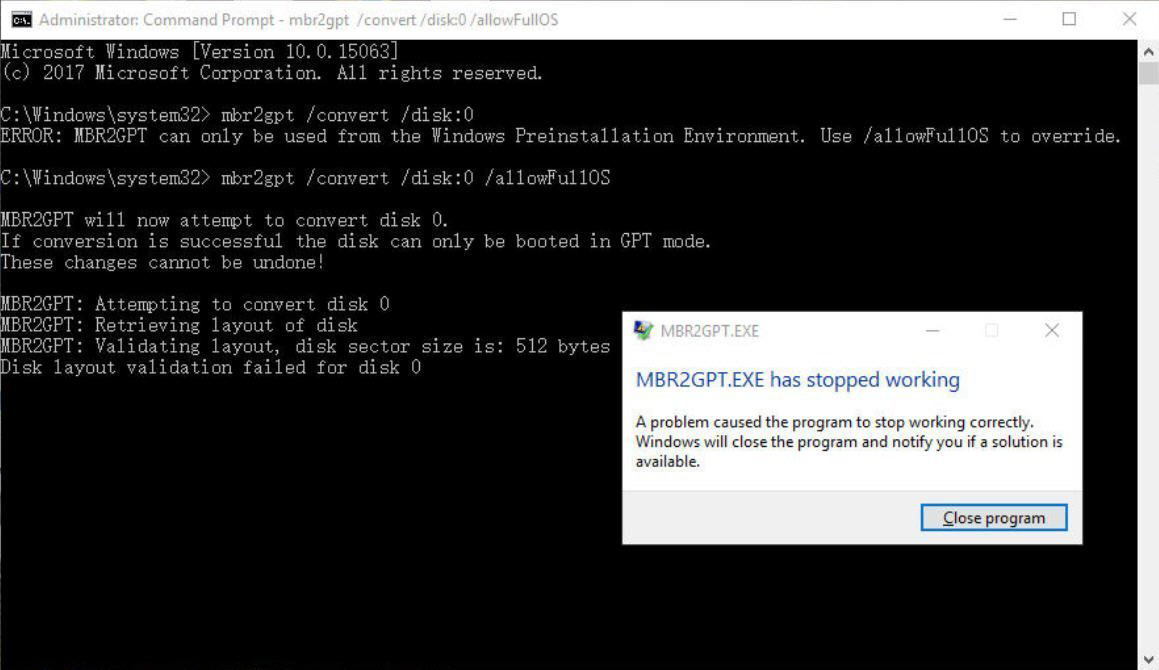
When encountering MBR2GPT errors, consider switching to a different third-party software to convert your MBR disk to GPT.
A simple alternative to the MBR2GPT tool Windows 10
While MBR2GPT is a popular tool, the process can be too complicated for users without a computer background. To simplify this, I recommend using Qiling Disk Master Professional, which can help users with no computer experience navigate the process.
A software tool, designed for Windows users, serves as an alternative to the MBR2GPT tool for Windows 10, allowing the conversion of system/data disks from MBR to GPT without data loss, making it suitable for converting MBR to GPT for Windows 11.
Before using Qiling Disk Master to convert the MBR system disk to GPT, ensure that your computer's motherboard supports UEFI mode. Then, you can proceed with the conversion process using the software as guided.
Step1. Install and launch Qiling Disk Master, right-click the hard drive you need to convert to GPT, and select Convert to GPT.
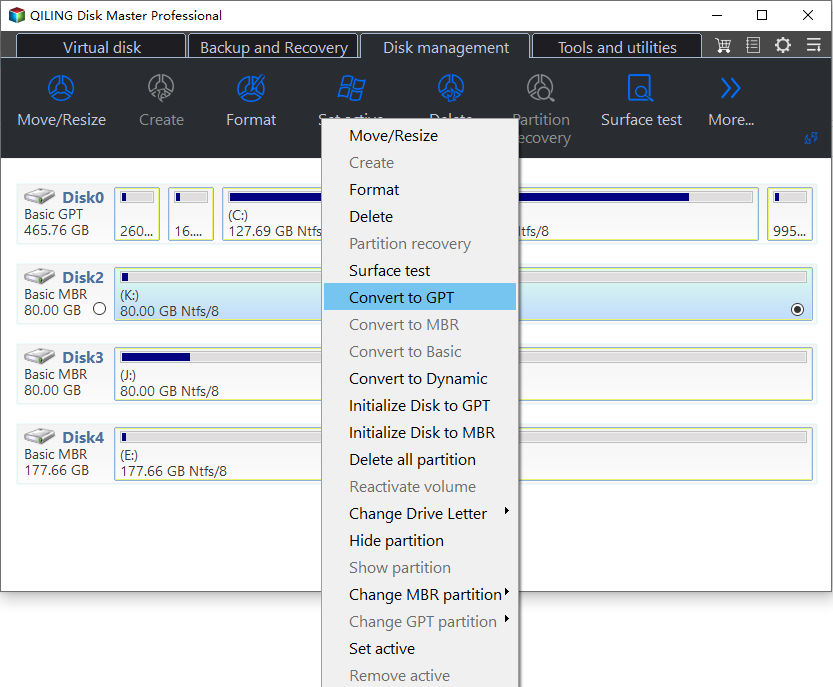
Step2. Then, you waiting a memont for coverting to GPT.
To finalize the conversion of your MBR OS disk to a GPT disk without losing data, you'll need to change your BIOS settings to UEFI mode. This is necessary because GPT system disks require UEFI boot mode to function properly.
Conclusion
Qiling Disk Master is a powerful tool that can convert MBR to GPT disks, recover lost data, delete large files, and move installed programs between drives, with a server version available for Windows Server.
FAQs about MBR2GPT tool Windows 10
Where can I download MBR2GPT?
MBR2GPT.EXE is a utility that can be found in the Windows\System32 directory of a Windows-enabled computer.
How do I know if my disk is MBR or GPT?
In Disk Management, right-To check if your partition style is MBR or GPT, click on the disk number you want to check, then click Properties. In the new window that opens, go to the Volumes tab to find the disk information, where you'll see if it's MBR or GPT.
How long does it take to convert MBR to GPT?
The time required to convert an MBR disk to GPT is relatively fast and depends on the disk size, computer hardware speed, and conversion method or tool used.
Can I change MBR to GPT without data loss?
To convert an MBR disk to GPT without losing data, follow a careful process using a reliable tool like Qiling Disk Master Professional. This involves creating a backup of the disk, identifying the disk and its partitions, converting the disk to GPT, and verifying the conversion. By doing so, you can ensure a smooth transition from MBR to GPT without compromising your data.
Related Articles
- Find The Best Alternative to MBR2GPT Disk Conversion Tool
This guide explains Find The Best Alternative to MBR2GPT Disk Conversion Tool with clear steps, key checks, and practical tips. - Best Free MBR to GPT Converter for Windows 11/10/8/7 (No Data Loss)
In this post, we will share you with 3 free MBR to GPT converters. Two are Windows built-in tools and the third is a piece of software, which can convert MBR to GPT without losing data for free in Windows 11,10, 8, 7. - How to Restore Windows 11 to Previous Date (2 Methods)
If Windows 11 upgrade or system issues cause problems, you can restore it to a previous date using two easy solutions. - How to Fix SanDisk 128GB USB Flash Drive is not Recognized on the Computer?
This article will assist you to fix SanDisk 128GB USB flash drive like Ultra series and Cruzer series that is not recognized on the computer in Windows 7/8/10/11 step by step. - How to Perform System Restore via Bootable CD
If the system can't boot, Qiling Disk Master can be used to restore the system from a disc, ensuring a secure boot. - How to perform UEFI Restore on a GPT Disk
You can easily perform UEFI restore on a GPT disk and make it bootable with the help of free disk recovery software - Qiling Disk Master Standard.
Products
Articles & Tutorials
- Data Recovery
- Data Backup
- File Recovery
- File Backup
- File synchronize
- System Backup and Restore
- Disk and Partition Clone
- Technical articles
- Disk Master Help
- Windows Deleted File and Disk Recovery Tutorials
- Windows File and Data Recovery Tutorials
- More Windows Tutorials for Install, Security, Files, and PC Tips
- Windows Boot, Repair, and Recovery Environment Tutorials
- Windows Backup Tutorials
- Windows Restore Tutorials
- Windows Clone and Migration Tutorials
- Windows Server Backup, Recovery, and Management Tutorials
- Windows Disk, Partition, and Storage Management Tutorials