How to Perform System Restore via Bootable CD
This article discusses how to restore system with Qiling Disk Master to avoid system reinstallation when Windows can't boot normally. For answers about why system restore is needed and preparations before system restore, please refer to the last tutorial "How to do system restore".
If Windows won't boot, you'll need a bootable CD or USB drive to run Qiling Disk Master. To create this, follow the steps in "How to make a bootable CD" to make a bootable disk, which will allow you to restore your system.
Operating Steps of System Restore from Disc
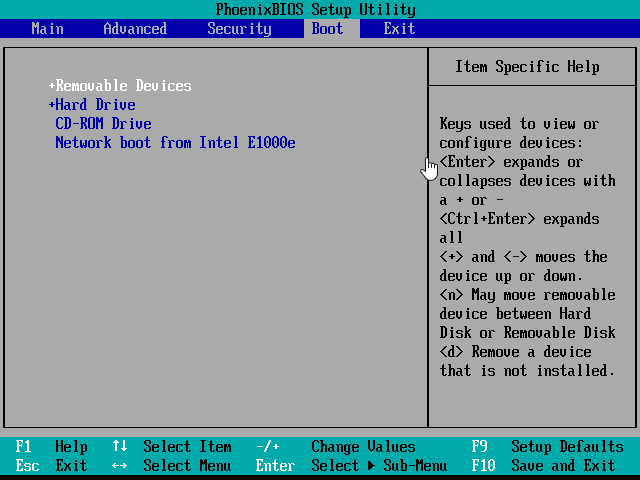
To access the BIOS settings and set the CD-ROM as the first boot device, insert the bootable CD into the CD drive and set the CD-ROM as the first boot device in the BIOS settings. The process may vary depending on the computer type, but generally, you can access BIOS by continuously pressing the "Delete" button for desktop computers or "F2" for laptops. Refer to the motherboard instructions for specific guidance. When starting the computer, follow the prompt information to set the first boot device, and for more detailed operations, refer to the article "How to Set BIOS to Boot from CDROM".
When the computer boots from the CD-ROM, Qiling Disk Master on the disc will run automatically, allowing you to easily complete system restore operations.
 Tip: download Qiling Disk Master, install and launch it.
1. To set up the Qiling Disk Master, enter the BIOS, set the CD-ROM drive as the first boot device, and press Enter. This will automatically start the Qiling Disk Master.
2. To restore a system image, click the "Restore" option and select the "Image File" item to browse for the system image file. If the backup is saved on a NAS network drive, you need to specify the network location and then select the desired backup to restore.

3. In the pop-up window, select an image.

4. To restore your backup, select the option to restore the entire backup image or a specific part, and then click the "Next" button.

5. The system will be restored to the original system partition by default, but you can choose to restore it to a different location by selecting the corresponding box. Here, we're restoring the system to a different location as an example.
6. Select a partition to restore the operating system, and then click "Next". Here, we set Disk 2 as the example.

7. Confirm the operations, and then click "Proceed" to begin the operations. When the operation is done, click "Finish" to exit.

After completing system restore, eject the bootable CD or USB flash drive, and let the operating system reboot automatically. Then, access BIOS to reset the first boot device.
Related Articles
- Configure Email Notification for Windows Server 2012 (R2) Backup (2 Ways)
This article introduces 2 effective ways to enable and configure email notifications for Windows Server Backup 2012 (R2). Learn more about them now! - Reset Windows Server Backup with Step-by-Step Guide
This guide explains Reset Windows Server Backup with Step-by-Step Guide with clear steps, key checks, and practical tips. - How to Restore VHD File in Windows 2008 (R2) Server
If you want to restore VHD file in Windows 2008 (R2) server, but Microsoft does not find the backup image on network, please continue to see below and this article offers you 2 helpful methods. - How Does Windows Server Backup Compression Work?
This article tells you 2 helpful ways for Windows Server backup compression and the flexible one can compress backup image in all aspects. - Clonezilla Clone Larger Disk to Smaller Disk vs Easier Way
It's possible to use Clonezilla clone larger disk to smaller disk but the steps are a little tricky. So you can try an easier way to complete the task - disk cloning software Qiling Disk Master Standard. - Clonezilla Failed to Clone - Why and What to Do?
It's recommended to use advanced parameters in the export mode to fix Clonezilla failed to clone due to bad sectors or disk size. If it doesn't work, you can try an easier alternative.
Products
Articles & Tutorials
- Data Recovery
- Data Backup
- File Recovery
- File Backup
- File synchronize
- System Backup and Restore
- Disk and Partition Clone
- Technical articles
- Disk Master Help
- Windows Deleted File and Disk Recovery Tutorials
- Windows File and Data Recovery Tutorials
- More Windows Tutorials for Install, Security, Files, and PC Tips
- Windows Boot, Repair, and Recovery Environment Tutorials
- Windows Backup Tutorials
- Windows Restore Tutorials
- Windows Clone and Migration Tutorials
- Windows Server Backup, Recovery, and Management Tutorials
- Windows Disk, Partition, and Storage Management Tutorials