How Does Windows Server Backup Compression Work?
Question: How does Windows Server Backup compression work?
Windows Server Backup (WSB) was first introduced in Windows Server 2008 as a replacement for the built-in Windows NTBackup utility.
Microsoft made some changes that users liked and some that they found annoying. For instance, a full server backup is often smaller than the original data because it excludes unnecessary files like page files and temporary files, but users may still find the compression rate in Windows Server Backup to be slow.
Windows Server Backup compression works by compressing the backup data at the file system level, not during the backup process. To enable compression for the entire volume, you can use the built-in Windows feature called "Compression" in the Disk Management console. However, this will only compress new data written to the volume after compression is enabled. To compress existing data, you'll need to use a third-party tool or script. For the .VHD file, you can use the built-in Windows feature "Compact" to compress the file after backup.
Windows Server Backup in Windows Server 2008R2 and 2012 does not compress backed up data by default, unless the storage devices are DVDs.
The tool will attempt to compact the target backup image, similar to how it creates a VHD file, by removing gaps in subsequent backup images created after changes and deletions to the source data, potentially freeing up disk space.
How to perform Windows Server backup compression
To compress a backup image, you can use DiskPart to compact the image file, which will reduce its size. This is different from WSB, which only compacts the image file without compressing it.
- Please locate the .vhd file first.
- To access Command Prompt, press the Windows key + R, type "cmd" and press Enter. You can then use the following commands in order, pressing Enter after each line.
diskpart
select vdisk file="path\filename.vhd"
compact vdisk
exit
*Please insert your own file path.
The compression method in Windows Server Backup has limitations, as it doesn't allow for choosing the compression ratio, making it less desirable. A better alternative is Qiling Disk Master Server, which offers the flexibility to choose different compression ratios to suit various needs.
Flexible way to compress backup image to smaller one
Having multiple backups is a good habit for data safety, but uncompressed backups can take up a lot of disk space. To avoid this, consider using a flexible backup software like Qiling Disk Master Server, which can help manage your backups efficiently.
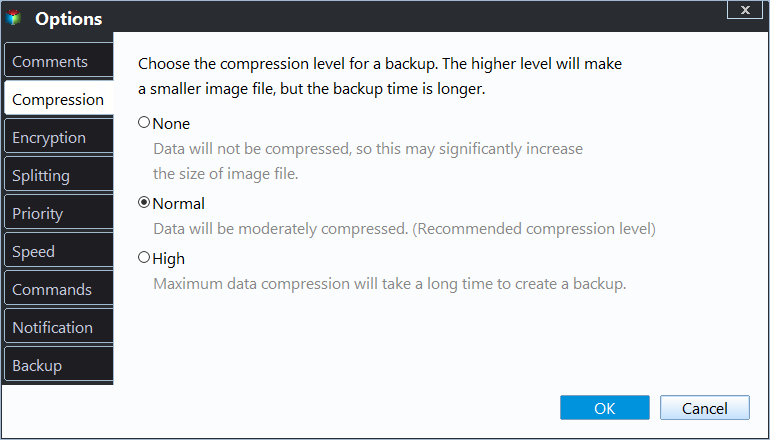
By default, the scheduled task will compress the backup image with normal compression, requiring no configuration. However, you can switch to high compression for a higher level of compression, albeit at the cost of longer processing time. Additionally, other features can be utilized to further minimize disk space usage.
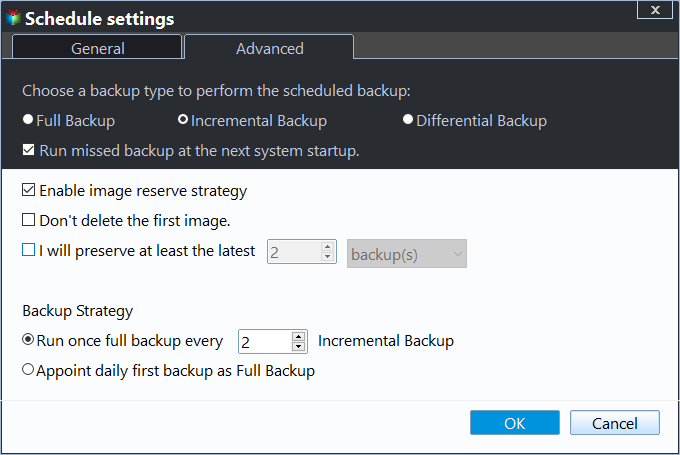
- Incremental or differential backup: Both tools can backup only changed files, making them ideal for scheduled tasks, particularly when used in conjunction with the schedule backup feature.
- The software provides three automatic backup cleanup options: By quality, By time, and By daily/weekly/monthly. This feature enables you to regularly delete old backup images, thereby directly reducing disk usage.
- Intelligent sector backup: It only backs up used sectors of the file system, resulting in a smaller backup image size and reduced backup time.
- Splitting: The backup software automatically splits large backup image sizes when backing up large files, and also allows users to customize the desired image size.
This software allows you to back up images of various devices, including CDs, internal or external hard drives, and network drives, by downloading and running the server backup software.
The trial version only works within 30 days. To ensure continuous data protection, please upgrade to the server trial version. This page offers a $100 discount for the server edition and up to 40% off the premium version.
1. Click "Backup" and then choose "System Backup".

2. Please select a destination location to receive the image backup, as the source location has already been included.

3. To change the compression level, click on "Options" > "Advanced" > "Compression" and select either "Normal" or "High" compression level. The default is usually set to "Normal". Additionally, you can also configure settings for splitting or intelligent sector backup within this section.
4. Click "Schedule Backup" and enable it, then select Daily, Weekly, Monthly, Event Triggers, or USB plug in options. The USB plug in option is recommended if your target drive is USB and you don't want to always keep it connected on your computer.

5. Go to "Backup Scheme", set the backup and cleanup method. You have 3 options, full/incremental/differential backup or By quality, By time, By daily/weekly/monthly. Select the corresponding option and click "Proceed" to backup Windows Server without taking up much space.
With the suggested features, you can keep multiple backups and ensure the backup disk always has enough space for new backups. In the event of something bad happening, you can restore the system image to a new hard drive or computer with dissimilar hardware.
If you need to install a system on 25 or more computers, consider using image deployment software. This software allows you to create a system image and then deploy it to multiple computers simultaneously over a network, making the process more efficient and streamlined.

Wrapping things up
Windows Server backup compression is limited to CD/DVD devices, making it necessary to use a reliable backup tool like Qiling Disk Master Server, which supports compressing backup images on various devices, including external hard drives, USB drives, and network drives, offering additional useful features.
Qiling Disk Master offers a range of features to minimize disk usage, including compression levels, incremental or differential backup, automatic backup cleanup, and intelligent sector backup, among others. This comprehensive software is definitely worth trying to protect your data.
Related Articles
- Windows Server Backup Encryption – Double Protection for Your Data
You can set Windows Server 2008/2008 R2/2012/2012 R2/2016/2019/2022 backup encryption using BitLocker or third-party backup software - Qiling Disk Master. - Create Windows Server 2012 (R2) Backup to USB Drive with an Easier Way
This article will introduce how to create Windows Server 2012 backup to USB drive or other external hard drives with detailed steps. - How to Create Bare Metal Backup with Wbadmin(3 Ways included)?
You will learn 3 ways to create bare metal backup to protect data and system, namely, Wbadmin command line, Qiling.exe and GUI-based backup software. - How to Let Windows Server Backup Overwrite Old Backups?
You can perform Windows Server backup overwrite old backups manually with 3 methods in simple steps, to make it flexible and automatic, try professional backup and restore software. - How to Fix Unformatted Hard Drives in Windows 10/8/7 Easily?
Learn how to Fix Unformatted Hard Drives in Windows 10/8/7 Easily with clear steps, key checks, and practical tips. - How to Fix USB Flash Drive Not Detected in Windows 10/8/7?
This article provides a solution to the issue of a USB flash drive not being detected in Windows 10/8/7. It explains why this problem occurs and offers a simple and easy-to-follow guide to resolve it.
Products
Articles & Tutorials
- Data Recovery
- Data Backup
- File Recovery
- File Backup
- File synchronize
- System Backup and Restore
- Disk and Partition Clone
- Technical articles
- Disk Master Help
- Windows Deleted File and Disk Recovery Tutorials
- Windows File and Data Recovery Tutorials
- More Windows Tutorials for Install, Security, Files, and PC Tips
- Windows Boot, Repair, and Recovery Environment Tutorials
- Windows Backup Tutorials
- Windows Restore Tutorials
- Windows Clone and Migration Tutorials
- Windows Server Backup, Recovery, and Management Tutorials
- Windows Disk, Partition, and Storage Management Tutorials