Reset Windows Server Backup | Step-by-Step Guide
Scenarios to reset Windows Server Backup to default
Windows Server Backup (WSB) is a feature provided by Microsoft that allows users to backup and restore their Windows Server systems. It can be used to protect against data loss or corruption, ransomware, hardware or system failure, and other disaster scenarios, and is compatible with Server 2012, 2016, 2019, 2022, and other versions.
Windows Server Backup may not work well in certain situations, requiring a reset, typically when it encounters issues or when its configuration needs to be refreshed. This can happen when the backup process is stalled, or when the backup configuration has been altered, necessitating a restart to ensure the backup process resumes correctly. In such cases, resetting Windows Server Backup can help resolve the problem and get the backups running smoothly again.
- Not satisfied with the current backup settings. You don't want to change them back, but don't want to do it manually. Thus, it's a sensible idea to directly reset Windows Server Backup settings to the default.
- Windows Server Backup not working. When it fails or stops working, resetting it to the default settings can sometimes be a viable method.
How to reset Windows Server Backup (step-by-step tutorial)
You can reset the Windows Server Backup on your 2012 server by utilizing the reset option in the Dashboard, which allows you to perform a reset of the backup. To do this, follow this example.
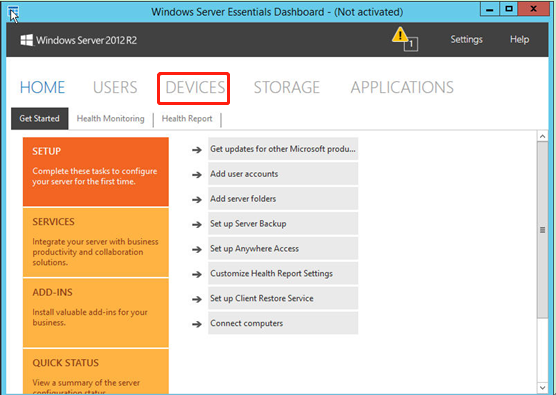
Step 1. Open the Dashboard. Then open the Devices page.
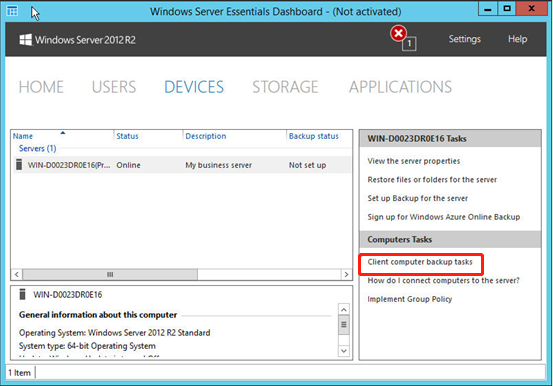
Step 2. Click Client computer backup tasks in Computers Tasks.
Step 3. On the Computer Backup tab of the Client computer and backup settings and tools page, click Reset to defaults.
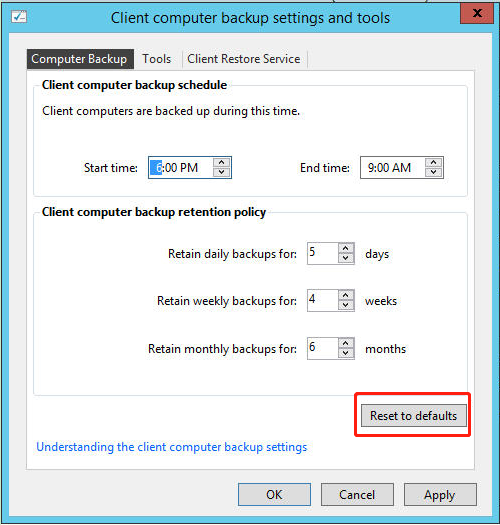
Tip: You can write down the customized schedule and retention policy settings, as they will be lost when you reset to the default settings.
Step 4. Click Apply and OK subsequently.
It's essential to note that the more you set before resetting, the longer the process takes. Additionally, caution is required to avoid serious problems that might arise if you make an error during the process.
Effective and easy-to-use Windows Server Backup alternative
If you're unhappy with WSB's functionality or have had enough of troubleshooting it, you can try Qiling Disk Master Server, which offers more features and options than WSB and is easy to use.
The backup process won't interrupt operations in progress as this utility is equipped with VSS (Volume Shadow Copy Service) technology, and automatic backup server is also supported.
The software's operating steps are less complicated than WSB, and it supports a wide range of Windows Server versions, including 2022/2019/2016/2012/2008/2003 (with R2) and SBS 2003/2008/2011, as well as Windows client systems. To create a system image backup for Windows Server, you can follow the software's straightforward process.
How to backup Windows Server in simple steps?
Step 1. Install and open this backup utility.
Step 2. Click System Backup under Backup tab.

Step 3. Then Task Name can be modified as you like. The related system partitions are selected by default, and you need to select the destination path.

Step 4. Confirm your operations and then click Proceed.

Tips:
- To prevent unauthorized access, create a Windows Server backup encryption by clicking Options > General > Enable encryption for backups in Step 4.
- If you want to restore the system later, go to Home, then System Backup task, and select Restore.
- Universal restore is a feature in Qiling Disk Master Server that enables the restoration of an image to a machine with different hardware.
In the Step 4, you have other two options to configure (optional):
1. The Backup Schedule option allows you to set up automatic backups based on various time intervals, including daily, weekly, monthly, event triggers, USB plug-in, and file sync.
- Daily/Weekly/Monthly: To automate the backup process, set up a schedule to run the backup task daily, weekly, and monthly. This ensures that backups are performed regularly without relying on manual reminders or risking forgotten backups.
- Event Triggers: The four events that trigger the backup task are User logon, User logoff, System startup, and System shutdown.
- Qiling Disk Master automatically backs up data from a USB device or local data to the USB device once it's plugged in, making it easy and convenient.
- File Sync: To ensure that all files are up-to-date and safely stored, I recommend implementing an automatic file synchronization system. This system would continuously monitor changes to files and automatically transfer them to a designated safe location, such as a cloud storage service or an external hard drive, as soon as they are modified.

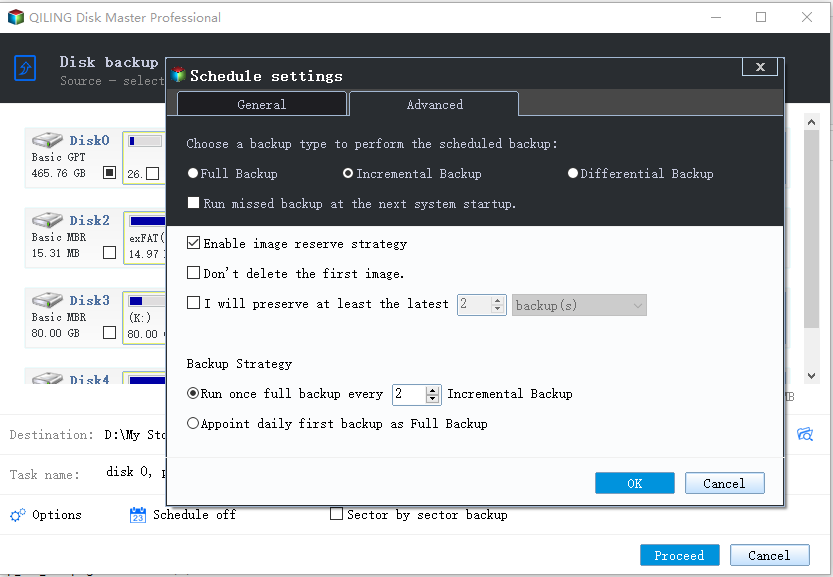
2. To customize the retention policy, click Backup Scheme -> Enable Automatic Backup Cleanup in Step 4 before backing up.
There are 5 backup schemes that allow for automatic deletion of old backup images: Full Backup, Incremental Backup, Differential Backup, Space Management, and Other Backup. These schemes can help maintain a specified number of backups and free up space by automatically deleting old images. You can refer to the details of each scheme to learn more.
Verdict
If you're looking to reset Windows Server Backup, there's a more efficient method to do so. Alternatively, you can use Qiling Disk Master Server to backup your server, which is a more professional and convenient option. This utility offers various backup options, including system backup, disk backup, partition backup, file backup, and file sync, allowing you to choose the one that suits your needs.
Related Articles
- How to Perform Windows Server Backup Restore? (Step-by-Step Guide)
Set up perform Windows Server Backup Restore (Step-by-Step Guide) with practical backup or sync options, storage checks, and safer ways to protect files. - Windows Server Backup Not Deleting Old Backups - Fixed
This guide explains Windows Server Backup Not Deleting Old Backups - Fixed with clear steps, key checks, and practical tips. - WBAdmin Delete Backups for Windows Server 2016/2012/2008
Learn how to use "wbadmin delete backup" command to remove backups created by Windows Server Backup in Windows Server 2016/2012/2008 so as to save backup disk space. - Windows Server Backup Bare Metal Recovery to Different Hardware
This guide explains Windows Server Backup Bare Metal Recovery to Different Hardware with clear steps, key checks, and practical tips. - Restore Windows Server 2008 R2 to Previous Date | 3 Ways
Learn how to Restore Windows Server 2008 R2 to Previous Date | 3 Ways with clear steps, key checks, and practical tips. - Best Free File History Alternative for Windows 8/8.1/10
This guide explains Best Free File History Alternative for Windows 8/8.1/10 with clear steps, key checks, and practical tips.
Products
Articles & Tutorials
- Data Recovery
- Data Backup
- File Recovery
- File Backup
- File synchronize
- System Backup and Restore
- Disk and Partition Clone
- Technical articles
- Disk Master Help
- Windows Deleted File and Disk Recovery Tutorials
- Windows File and Data Recovery Tutorials
- More Windows Tutorials for Install, Security, Files, and PC Tips
- Windows Boot, Repair, and Recovery Environment Tutorials
- Windows Backup Tutorials
- Windows Restore Tutorials
- Windows Clone and Migration Tutorials
- Windows Server Backup, Recovery, and Management Tutorials
- Windows Disk, Partition, and Storage Management Tutorials