Configure Email Notification for Windows Server 2012 (R2) Backup (2 Ways)
Windows Server Backup Does Not Support Email Notification
Windows Server Backup (WSB) is replacing NTBackup in Windows Server 2008 and later versions, providing a tool to backup and restore files, operating systems, and other data. The Wbadmin command allows users to create system state backups, full backups, and more, offering a range of backup options.
If you're looking to receive email notifications for your Windows backups, you'll need to look beyond Windows Server Backup, which doesn't offer this feature. However, there are alternative backup tools that can help you set up email alerts, and this article will show you two effective ways to do so.
- Create Powershell Script Files to Enable Email Alert in Server 2012 [Verified]
- Easier Way to Configure Windows Server Backup Email Notification
Create Powershell Script Files to Enable Email Alert in Server 2012 [Verified]
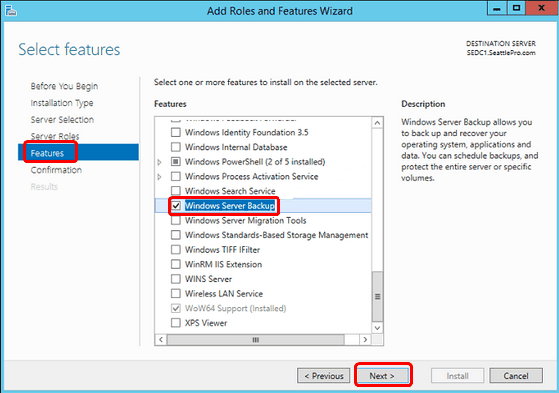
To set up Windows Server Backup on a Windows Server 2012 system, you need to install it first by adding the "Windows Server Backup" feature through Server Manager, then create a scheduled backup job using WSB. Once installed, you can create two scripts to automate the backup process.
Create Powershell Scripts File
: Send an email to the system administrator when the backup is successful. The script will be triggered when the backup script finishes successfully and will send an email with the subject "Backup Successful" and the message "Backup completed successfully". The email will be sent to the specified email address. You can replace the red placeholders with your own email address and other details.
#Send Backup Success Email
$secpasswd = ConvertTo-SecureString "YOUREMAILPASSWORD" -AsPlainText -Force
$mycreds = New-Object System. Management. Automation.PSCredential ("support@idiskhome.com", $secpasswd)
Send-MailMessage is sent to support@idiskhome.com with a subject of "Success Windows Server backup", a body of "YOUR COMPANY Windows Server Backup is successful", and credentials $mycreds, to be sent via SMTP server YOUR.SMTP.SERVER on port 587 using SSL and from address support@idiskhome.com.
#Send Backup Failure Email
$secpasswd = ConvertTo-SecureString "YOUREMAILPASSWORD" -AsPlainText -Force
$mycreds = New-Object System. Management. Automation.PSCredential ("support@idiskhome.com", $secpasswd)
Send-MailMessage -To "support@idiskhome.com" -Subject "Windows Server backup failure" -Body "YOUR COMPANY Windows Server backup failed" -SmtpServer "YOUR.SMTP.SERVER" -Credential $mycreds -Port 587 -UseSsl -from "support@idiskhome.com"
✥ Notes:
✿ 465 and 587 are two common ports used for outgoing email (SMTP) connections. 465 is typically used for SSL/TLS connections, while 587 is used for regular connections.
✿ The YOUREMAILPASSWORD could be an authorization code.
✿ Parameters after Send-MailMessage cannot be executed on a new line.
✿ After creating your PowerShell script file, you can right-click on it and select "Edit" to open it in the Windows PowerShell ISE. This allows you to verify the correctness of the script file and receive an email notification if everything is in order.
✿ If you're getting the error "cannot be loaded because the execution of scripts is disabled on this system", you can resolve it by running the command "Set-ExecutionPolicy RemoteSigned" in Windows Powershell to allow .ps1 file execution.
Create Task for Backup Success or Failure Email Notification
To create backup success or failure email alerts, run Task Scheduler in Server Manager's Tool Menu.
Create Backup Success Email Notification
1. Choose Create Task to open the interface.
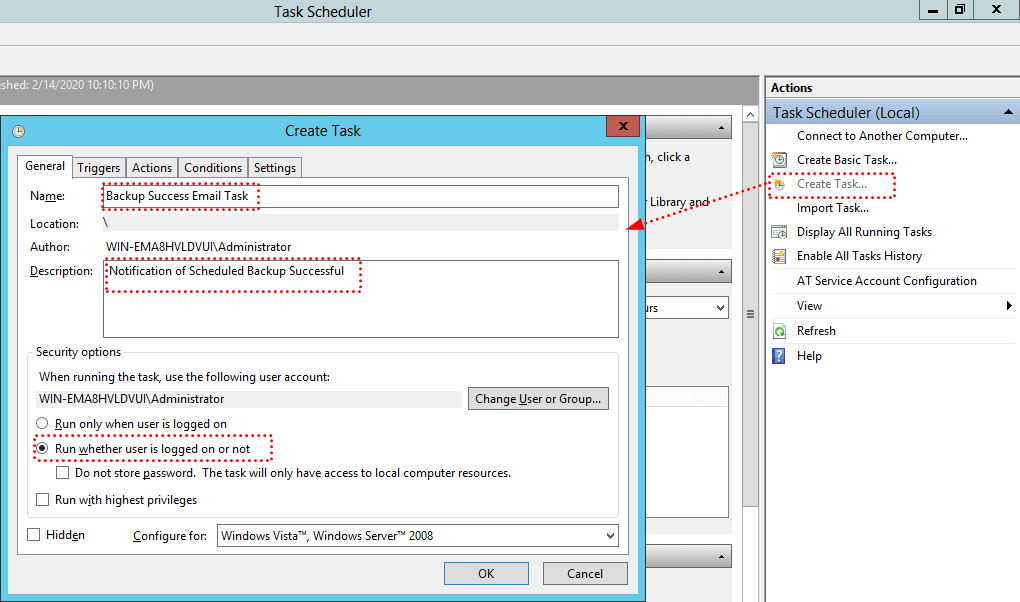
2. In the General tab, specify a name and description, and enable the option to run the task whether the user is logged on or not.
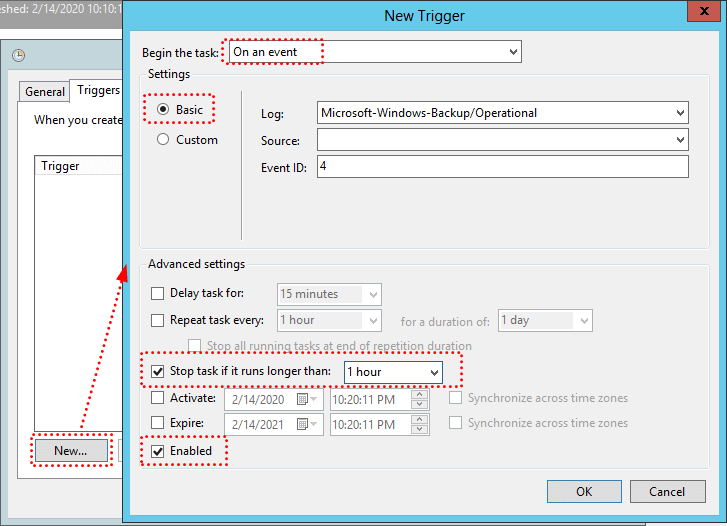
3. In the Triggers tab, select New, then choose On an Event in the Begin the task box, select Basic for settings, and choose Microsoft-Windows-Backup/Operational for Log and 4 for Event ID, then check Stop task if it runs longer than 1 hour and Enable, and click OK.
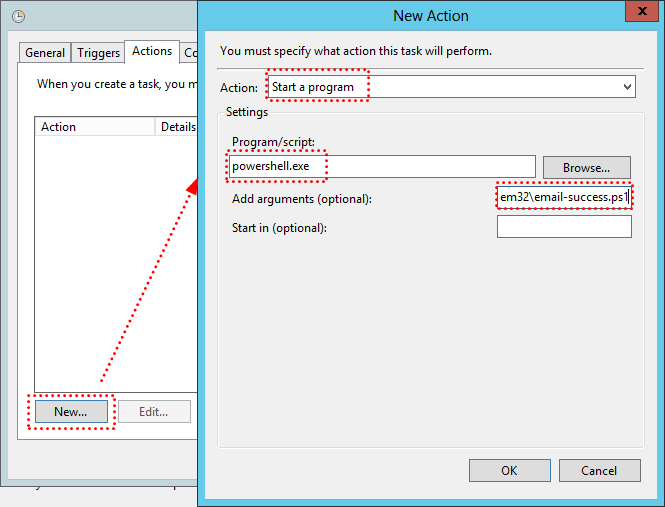
4. In the Actions tab, click New, select Start a program, enter powershell.exe in Program/script, input -EP Bypass c:\Windows\System32\email-success.ps1 in Add arguments, and press OK.
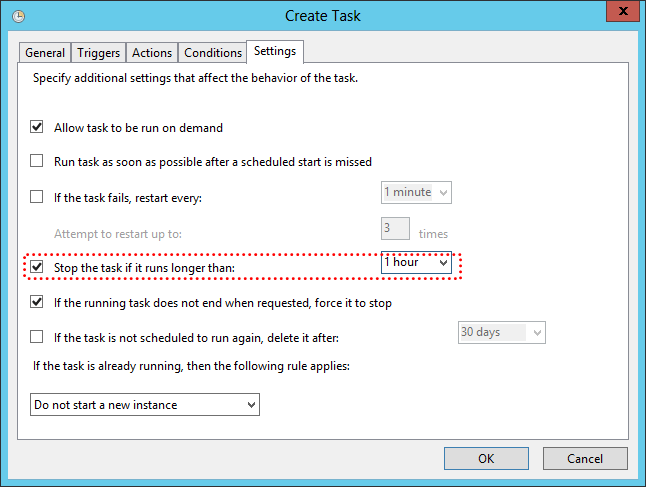
5. In the Settings tab, check Stop the task if it runs longer than and set it to 1 hour, then click OK and enter credentials as needed.
Create Backup Failure Email Notification
To create a backup failure email notification, follow the same steps as above (steps 1-5). The only differences are that you should create a new notification for backup failure, which will be triggered when the backup process fails. This notification will be sent to the specified email address when the backup fails.
1. In General tab, specify another different Name and Description.
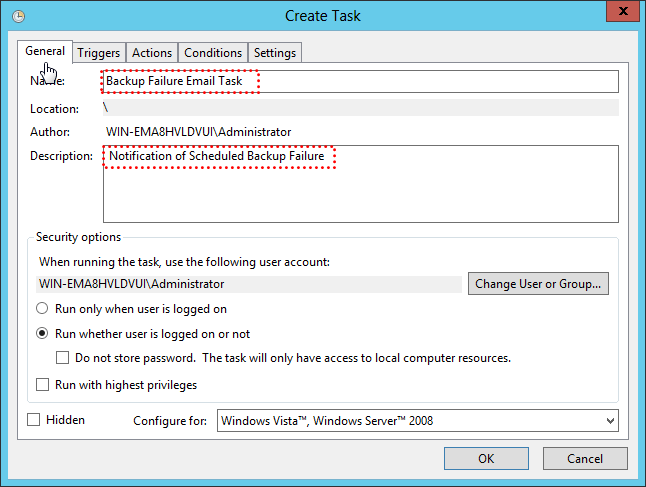
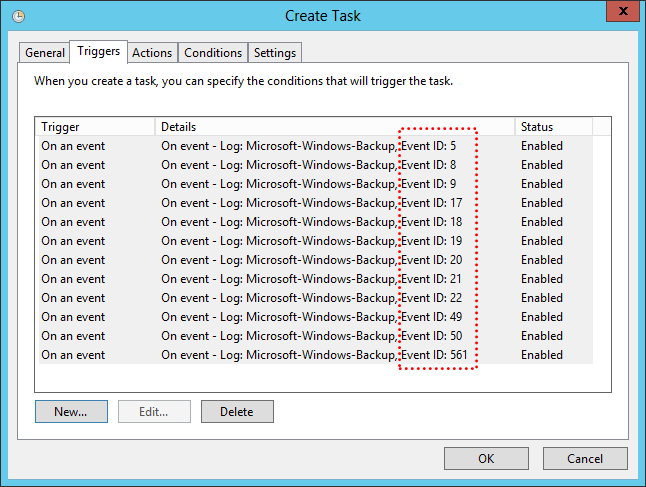
2. In the Triggers tab, create individual triggers for Events 5, 8, 9, 17, 18, 19, 20, 21, 22, 49, 50, and 561.
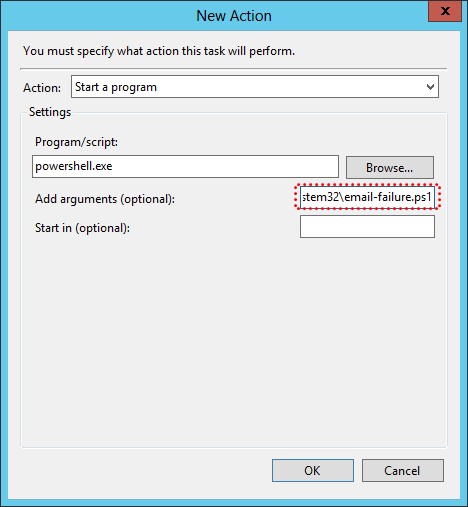
3. In the Actions tab, replace the existing command with -EP Bypass c:\Windows\System32\email-failure.ps1 in the Add arguments box.
Now, wait for the scheduled task to run at the scheduled time. If you set it correctly, after the backup is finished or failed, you will receive the email immediately.
While the complex method is available, it's not ideal for everyday users. Fortunately, there's a simpler way to set up email notifications for Windows Server Backup in 2012 (R2) and other server systems, which will be explained in the next part.
Easier Way to Configure Windows Server Backup Email Notification
You can still use Windows Server backup software like Qiling Disk Master Server to configure email notifications, even if you're not creating Powershell Script files.
- Windows Server operating systems from 2003 to 2022, including R2, and all Windows PCs.
- The application can enable email notifications to inform you of the backup or sync task status if needed.
- This software allows for system, disk, partition, and file backup, and also enables file synchronization between Windows Servers, providing flexibility and control over data management.
- It allows setting schedule settings like daily, weekly, and monthly. For backups, it offers features such as compression, splitting, incremental, and differential backups, as well as automatic cleanup.
To configure email notification, you'll need to download Qiling Disk Master Server first. You can use the technician or techplus edition of Qiling Disk Master to perform this task on unlimited PCs or servers, and you can even create a portable version of it without needing to reinstall.
To configure email alerts in Windows Server 2012 (R2) for disk backup, follow these steps:
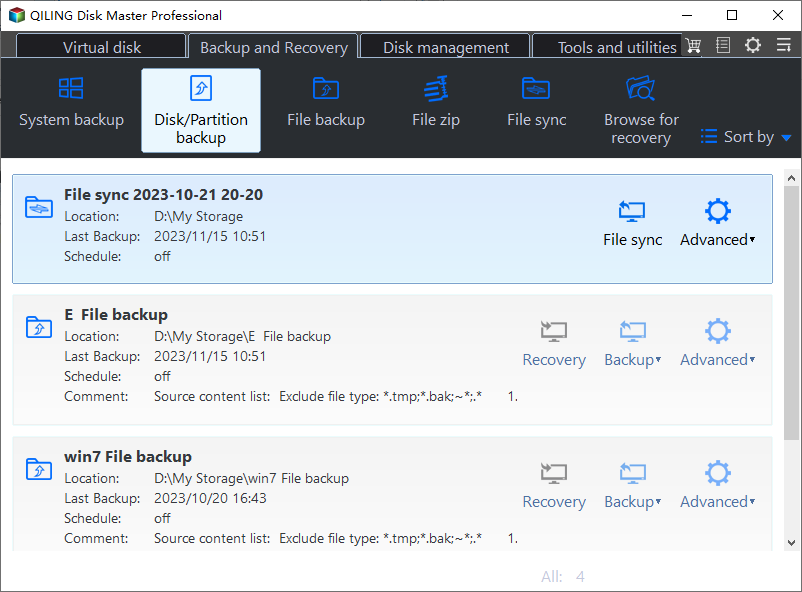
1. After installing, run the Qiling Disk Master Server and select "Backup" -> "Disk Backup" in sequence.
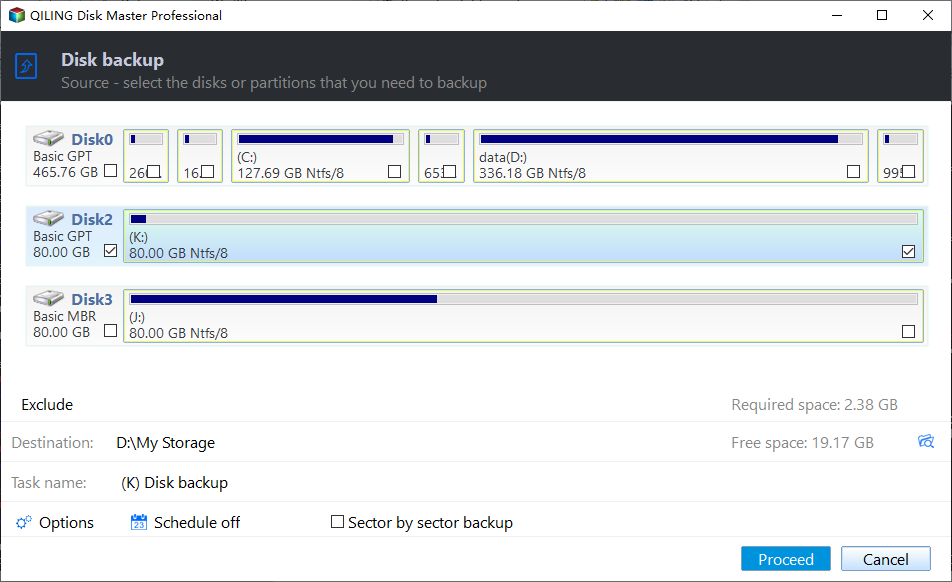
2. Click Disks button and select the hard drive you are going to backup.
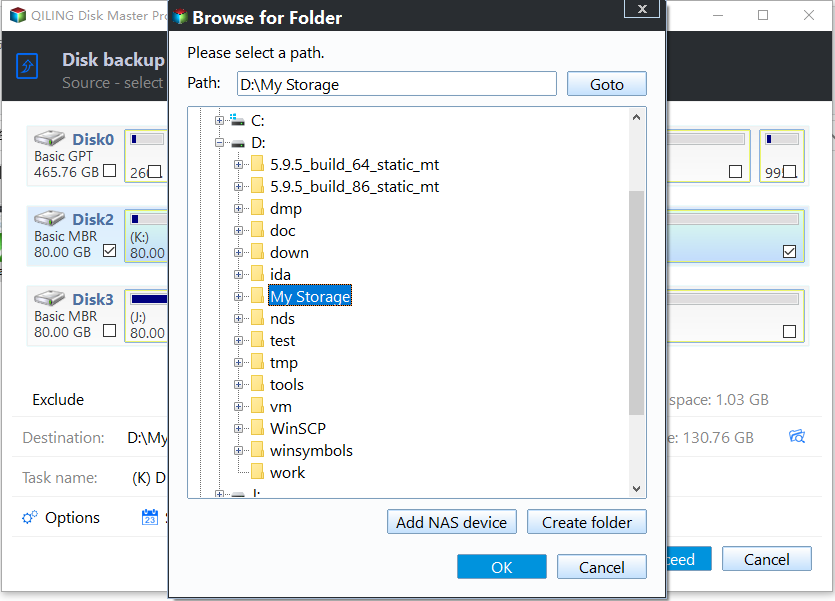
3. Select a destination for your disk backup image file, which can be a new hard drive (HDD or SSD), USB drive, network drive, or NAS.
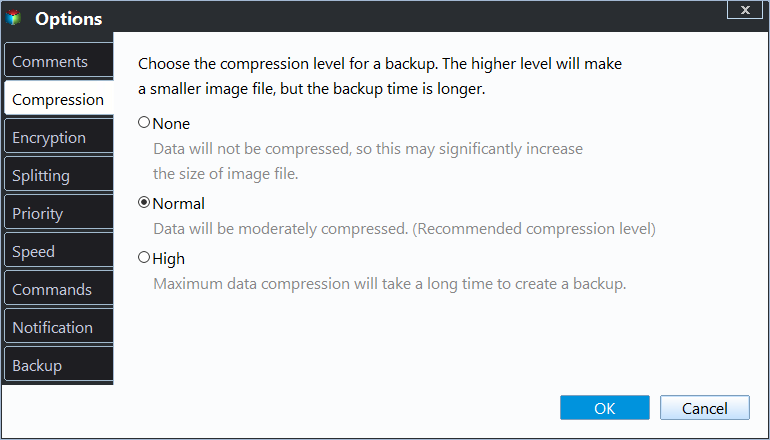
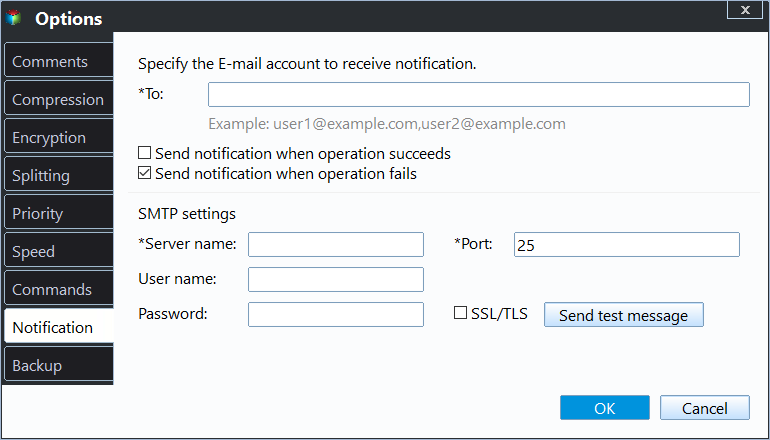
4. To enable email notifications, click Options at the bottom left corner, turn on Email notification in the General tab, and then click OK.
5. To configure your mailbox or mail server, go to Settings > Notifications, enable email or SMS notification, select one, enter your email address or phone number, and test the configuration.
Notes:
✿ In the Notification settings, you can choose when to send email notifications (for success, failure, or when user interaction is needed) and select the mail format (HTML or plain text).
✿ After configuring the app, you can simply turn on the notification switch for each backup or sync task, and it will send you notifications via email or phone, keeping you informed without needing to manually check the app.
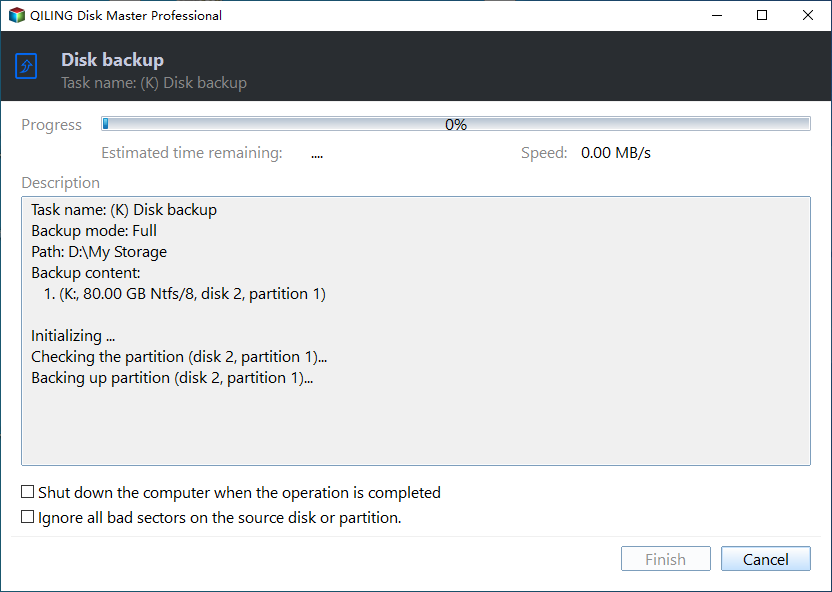
6. Click Proceed to create disk backup in Windows Server 2012 (R2) with email notification.
There are other helpful features you can use:
✿ Schedule Backup: This software enables automatic backups with customizable frequencies, ranging from hourly to monthly, and also allows for event triggers or USB plug-in backups.
✿ Backup Scheme: This system allows for customizable backup methods, including full, incremental, and differential backups, to only save changed files, as well as cleanup methods such as By quantity, By time, By daily, weekly, and monthly, to efficiently manage storage space.delete old backups automatically.
Wait for the backup task to finish. Once it's done, you'll get an email or SMS with the backup result.
The Epilogue
Configuring email notifications for Windows Server 2012 (R2) is a straightforward process with Qiling Disk Master. To do so, simply enable email notifications in the Options and then set your email address or phone number in the Settings.
This tool allows you to create various types of backups, such as system, partition, and file backups, as well as different sync methods like real-time file syncing. It also sends notifications when backups are completed or when issues arise, provided you have previously set up a mailbox or mail server and enabled the notification switch.
Related Articles
- Use Wbadmin to Perform Windows Server 2012 Backup and Recovery
This article is to illustrate how to use Windows Server 2012 Wbadmin or an easier alternative to backup, restore or delete images. Get it now! - [Solved] Windows Server Backup Schedule Not Running Error
This guide explains Windows Server Backup Schedule Not Running Error with clear steps, key checks, and practical tips. - Windows Server Backup Retention Policy-Can It Be Specified?
You will learn the Windows Server Backup retention policy precisely and how to delete old backups using Wbadmin and professional server backup software. - Windows Server Backup Schedule to Remote Shared Folder-Overcome the Limitation
Learn how to use Windows Server Backup for schedule to remote shared folder in Windows Server 2008/2012/2016 and overcome the limitations. - 3 Methods to Create New Partition in Windows Server
Learn how to create a new partition in Windows Server systems with built-in Disk Management and Windows Server partition manager software. - Create Hard Disk Partitions Before Installing Windows 10/8/7
Learn how to create hard disk partitions before installing Windows 11/10/8/7 operating system on your hard drive for your system, applications, games and other data better organized.
Products
Articles & Tutorials
- Data Recovery
- Data Backup
- File Recovery
- File Backup
- File synchronize
- System Backup and Restore
- Disk and Partition Clone
- Technical articles
- Disk Master Help
- Windows Deleted File and Disk Recovery Tutorials
- Windows File and Data Recovery Tutorials
- More Windows Tutorials for Install, Security, Files, and PC Tips
- Windows Boot, Repair, and Recovery Environment Tutorials
- Windows Backup Tutorials
- Windows Restore Tutorials
- Windows Clone and Migration Tutorials
- Windows Server Backup, Recovery, and Management Tutorials
- Windows Disk, Partition, and Storage Management Tutorials