Windows Server Backup Delete Old Backups | 3 Ways
Does Windows Server Backup delete old backups?
Summary:
You have a Server 2012 Hyper-V host using Windows Server Backup (WSB) to back up 670 GB of data to 3x 1 TB USB drives, which have run out of space, causing backups to fail since about a month ago.
Questions:
Windows Server Backup does not automatically delete old backups. To delete old backups, you can use the Windows Server Backup console or PowerShell. In the console, go to the "Backup" section, select the backup you want to delete, and click "Delete".
Windows Server Backup automatically deletes old backups using its built-in disk space management feature, but if this feature is not functioning as expected, the wbadmin command line tool can be used to manually delete old backups in Windows Server 2008 and later versions, including R2, by utilizing specific syntax and parameters.
You can use professional server backup software to automatically delete old backups when your backup disk is full, integrating the deletion process into the backup process, freeing your hands while meeting your needs.
Windows Server Backup delete old backups automatically
In Windows Server Backup, automatic disk usage management is a feature that manages disk space for scheduled backups. It shrinks the storage space allocated for snapshots to create space for new backups, and once the space is shrunk, old snapshots and corresponding backup versions are deleted. This feature was first introduced in Windows Server 2008 and has been inherited in newer versions.
After running scheduled backups a few times, you may encounter the "Windows Server Backup does not delete old backups" error due to limited disk space. This is because Windows Server Backup (WSB) doesn't automatically manage disk usage, and it won't shrink the backup space even if it exceeds 1/8 of the target volume size, leading to backup task failures, especially when using an external hard drive.
If this is your case, please keep reading below and learn the other 2 deletion methods.
Overwrite old backups manually with Wbadmin command line
To resolve the Windows Server Backup not deleting old backups error, try manually deleting old backups using Wbadmin. Open Command Prompt as an administrator and run `wbadmin delete backup -backuptarget:<drive> -systemState` or `wbadmin delete backup -backuptarget:<drive> -nonSystemState`, replacing `<drive>` with the drive where the backups are stored.
# Delete system state backup
The `wbadmin` command provides three parameters to help specify how to delete backups based on your needs.
- -version: to delete specific version(s).
- -keepVersions: to delete all backups but the specified ones.
- -deleteOldest: delete the oldest backup.
To delete all system backups except for the one specified as "3", you can open the Command Prompt and type the following command and press Enter to initiate the process.
wbadmin delete systemstatebackup -keepVersions:3
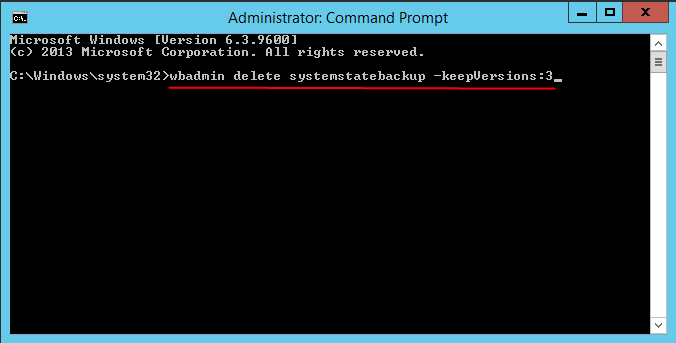
This command line deletes backup files that only contain system state backups, otherwise it displays an error message stating "ERROR - No system state backups were found."
This command is used to delete backups that only contain the system state, so please ensure you have a separate system state backup.
# Delete non-system state backup
To delete old backups in Windows Server 2012, you can use the following command:
Wbadmin delete backup -version: 05/04/2015-18:25 -backupTarget: G: machine: Win-9814GD4FH95
Notes :
-backupTarget: delete the system state backup stored on specific volume.
-machine: When backing up multiple computers to the same location, the `--user` option is only necessary to specify the user account under which the backup will run. This is typically not needed when backing up a single computer, as the backup will run under the current user account by default.
The "wbadmin delete backup" command can still be used to delete old backups on Windows Server 2016/2019/2020, but it's not compatible with Windows Server 2008 R2 and earlier versions. However, a workaround is available using the DiskShadow.exe utility, which can be used to achieve the same result.
To delete old backups in Windows Server 2008 R2, type "DiskShadow.exe" in the command prompt (as an administrator) and press Enter. Then, input the command line "delete shadows oldest G:", replacing "G" with your backup drive letter or volume GUID, to initiate the deletion process.
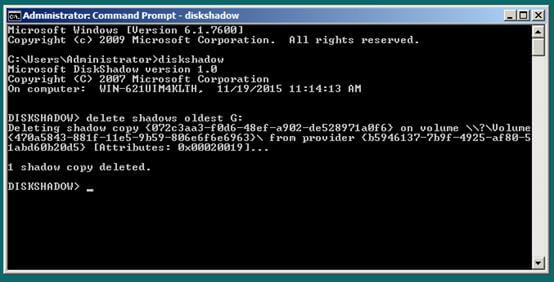
Some users find that the "DiskShadow.exe" utility only allows deleting all backups or the oldest one at a time, requiring multiple runs to remove unwanted backups.
Many users struggle with deleting old backups, which can be a lengthy and potentially hazardous process. Learning the parameters to delete backups can take a long time, and using the command line incorrectly can lead to irreversible data loss.
Consider using GUI-based server backup software to manage disk space automatically, saving time and effort.
💡Tip: Best 2 server backup software to delete old backups automatically
Qiling Disk Master Server
The best server backup software Qiling Disk Master Server provides comprehensive server backup solutions, supporting various backup types such as system, disk, partition, and file backup.incremental and differential backup, and schedule backup.
Here you can use the "Backup Scheme" in Qiling Disk Master Server to automatically delete old backups, which is integrated into the backup process, allowing you to schedule backups and automatically delete old backups without performing deletion multiple times separately.
This software allows you to set the number of backup sets to keep, delete backups at a specific time, or combine different time intervals (e.g. daily, weekly, monthly) for automatic deletion of old backups when the specified number or time is exceeded, freeing up space for new backups.
To automatically delete old backups, download the 30-day free trial Qiling Disk Master Server, which supports Windows Server 2003/2008/2012/2016/2019/2022, including R2 versions.
1. To perform the backup and deletion task, connect an external hard drive and launch Qiling Disk Master Server. Then, choose the "System Backup" option under the Backup tab.

To use a network drive or NAS as your destination, ensure you have write access to it. For cloud drives, sign in with your account credentials.
2. The program will automatically select system and boot-related partitions, and you only need to choose a destination location to save the image backups, which can be saved to an external hard drive, network share, or NAS.

3. To schedule a backup, click on the "Schedule" tab and select one or more backup settings that suit your needs. This will allow you to automate the backup process and ensure that your data is protected at regular intervals.
- Daily/Weekly/Monthly backup allows for automatic system backup on a daily, weekly, or monthly schedule.
- The "Event triggers" feature allows you to schedule backups at specific events, giving you four options: system startup, system shutdown, user logon, and user logoff.
- The feature allows users to automatically back up their system to a USB drive when it's plugged in.

To set up the backup scheme, click on "Backup Scheme" and select two options: "Backup Method" and "Enable Automatic Backup Cleanup". This will allow you to schedule backups and automatically delete old backups.
- By default, the backup method is Incremental Backup, which only backs up changes after previous backups, taking less backup time and disk space. Alternatively, you can use Differential Backup, which achieves the same goal.
- To enable automatic backup cleanup, you have three options: "By quality", "By time", or "By daily/weekly/monthly". Select the method that best suits your needs.

5. Confirm the backup settings and click Proceed to start the task, which will automatically delete old backups in Windows Server when the set backup number or time is reached.
Notes:
• Don't manually delete backups of the scheduled incremental backup, as deleting one can invalidate the entire set and prevent restoration to an earlier date.
• To create a bootable media for your computer, you can use it to restore your system even if it's unbootable, and it can be used on various PCs and servers, including Windows Server 2020/2019/2012/2008/2003 and R2 versions, as well as Windows 10/8/7/XP/Vista.
With multiple backups in hand, you can restore a backup image to a new computer, even with dissimilar hardware, thanks to the "Universal Restore" feature, which resolves incompatibility issues between different computers.
Final words
Windows Server backup automatically deletes old backups when the used disk space reaches 1/8 of the total disk space in Windows Server 2008, 2008 R2, 2012 R2, 2016, 2019, and 2022. However, this feature does not work when the used space reaches 1/8 of the total space.
Currently, deleting old backups requires manual intervention using Wbadmin or DiskShadow.exe, which can be a hassle, especially when the backup disk is full. This process also demands a good understanding of command-line operations, making it challenging for many users.
You can use a professional disk space manager, Qiling Disk Master Server, to automatically delete old backups due to its combined schedule backup and disk space management features, allowing you to manage all tasks in one place.
Related Articles
- How to Let Windows Server Backup Overwrite Old Backups?
You can perform Windows Server backup overwrite old backups manually with 3 methods in simple steps, to make it flexible and automatic, try professional backup and restore software. - [Solved] Windows Server 2008/2012/2016 Backup Disk Full
This guide explains Windows Server 2008/2012/2016 Backup Disk Full with clear steps, key checks, and practical tips. - Fix Windows Server Backup Failed Not Enough Space on the Disk
Learn how to Fix Windows Server Backup Failed Not Enough Space on the Disk with clear steps, key checks, and practical tips. - Windows Server Backup Limitations You Should Know
This guide explains Windows Server Backup Limitations You Should Know with clear steps, key checks, and practical tips. - Let Windows 7 Backup and Restore Automatically Delete Old Backups
This guide explains Let Windows 7 Backup and Restore Automatically Delete Old Backups with clear steps, key checks, and practical tips. - Top 2 Ways to Transfer OS from Laptop to Desktop🔥
You can transfer an operating system from a laptop to a desktop in two ways: by backing up the entire laptop and restoring it, or by creating a clone and booting it on the desktop. A detailed tutorial on how to do this using a professional backup and cloning tool can be found in the post.
Products
Articles & Tutorials
- Data Recovery
- Data Backup
- File Recovery
- File Backup
- File synchronize
- System Backup and Restore
- Disk and Partition Clone
- Technical articles
- Disk Master Help
- Windows Deleted File and Disk Recovery Tutorials
- Windows File and Data Recovery Tutorials
- More Windows Tutorials for Install, Security, Files, and PC Tips
- Windows Boot, Repair, and Recovery Environment Tutorials
- Windows Backup Tutorials
- Windows Restore Tutorials
- Windows Clone and Migration Tutorials
- Windows Server Backup, Recovery, and Management Tutorials
- Windows Disk, Partition, and Storage Management Tutorials