How to Change My Documents Location Windows 10 Registry?
Why change my Documents location Windows 10?
On Windows, you'll often download programs or save data, which are stored in various folders under the User Profile in C:\Users\Username by default. Among these folders (Documents, Downloads, Favorites, Music, Pictures, Videos, etc.), Documents is typically the most frequently used.
Here are some common scenarios where you might need to change the location of your Documents folder in Windows 10:
| 🚩The C drive is full. | After a long time of using your computer, your Documents folder can accumulate a lot of data, taking up valuable space on your C drive. Moving the Documents location to a different drive can help free up space on your C drive. |
| 🔔The computer runs slower. | If the C drive is running low on space, it can cause issues with Windows running smoothly, as the operating system is also installed on this drive. This can lead to problems with the system, such as slow performance, freezing, or even crashes.slow performance of PCChanging the location of the Documents folder can ensure that the computer runs in a good environment. |
| 🔰Keep your data safe. | If you're used to storing important data in the Documents folder, and you need to reinstall your OS, moving the Documents location can prevent your data from being erased. |
How to Change Documents location using Windows 10 Registry?
Changing the location of the Documents folder in Windows 10 can be a bit tricky, especially when trying to move it using the built-in "Move" feature. However, you can use the Windows Registry to set a new location as desired. To change the Documents location using the Registry, you can follow a step-by-step tutorial that involves modifying specific registry keys to point to the new desired location. By doing so, you can successfully relocate the Documents folder to a different drive as needed.
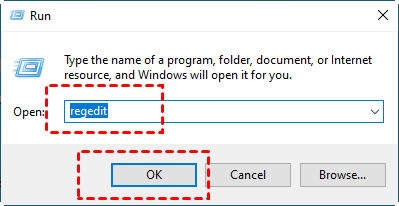
1. To open the Run box, press the Windows key and the "R" key at the same time. This will open a small window where you can type a command or path to open a specific application, file, or folder.
2. To run the Registry Editor, open the Command Prompt, type "regedit" or "regedit.exe", and click "OK" to open the Registry Editor window.
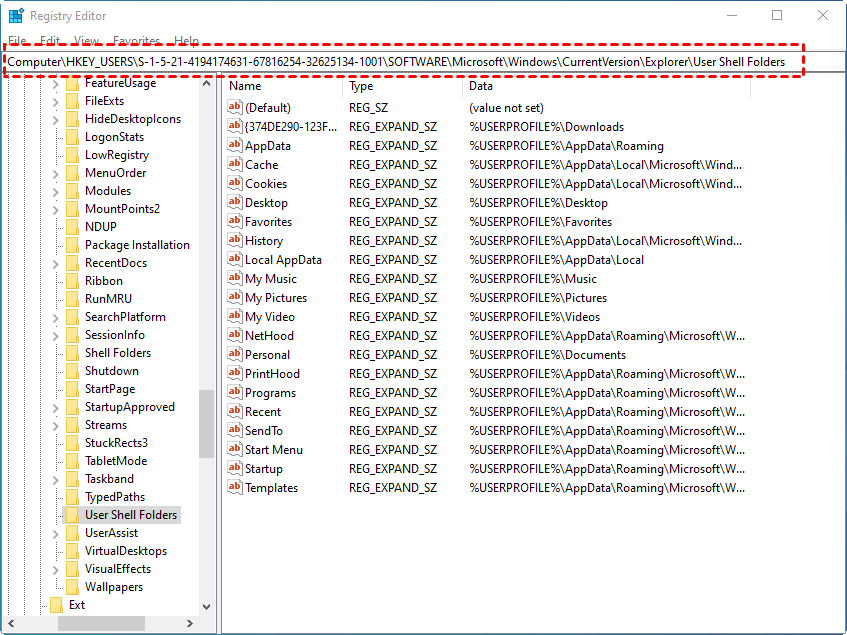
3. To view all the User folders listed, follow the path: "HKEY_CURRENT_USER\Software\Microsoft\Windows\Current Version\Explorer\User Shell Folders".
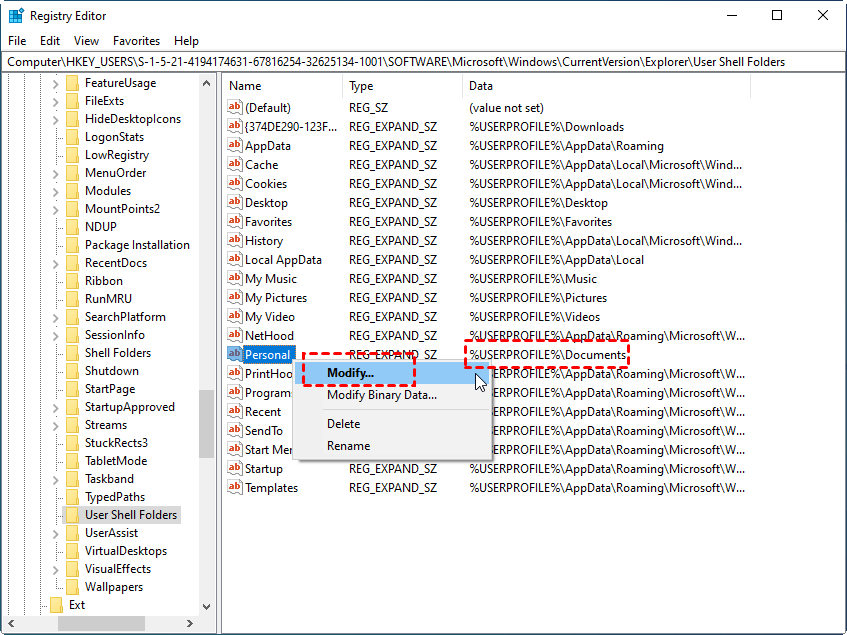
4. Find the string named "%USERPROFILE%\Documents" and modify it by right-clicking on it.
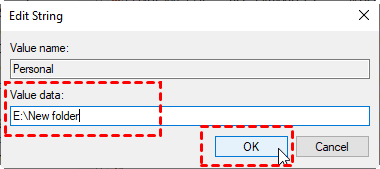
5. In the Edit String window, under "Value data", type the new path for the selected folder, such as "E:\New folder", and click "OK".
6. Close the Registry Editor and press "Ctrl + Shift + Esc" to open the Task Manager.
7. To restart Windows Explorer, find it under the Processes tab, right-click it, and select "restart".
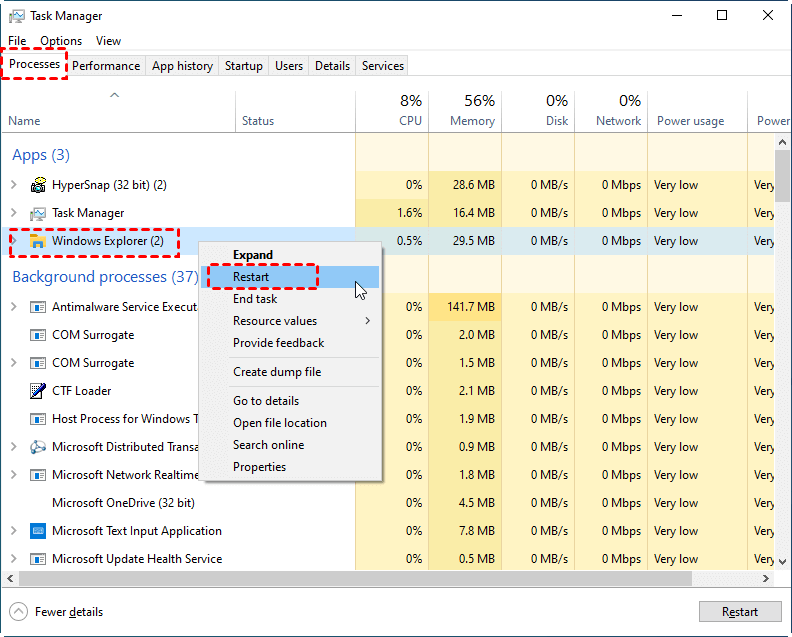
8. Finally, restart your computer and you can get everything done.
♦ Note: If you're a computer novice or unfamiliar with computer operations, this method is not recommended for you, as the Registry is a critical database in Microsoft Windows. Operating outside of recommended guidelines can lead to failing to set the new location, and in the worst-case scenario, cause a system crash.
The Registry alternative - Qiling Disk Master
Since the Windows Registry has numerous steps and poses a risk of damaging the system, a safer and easier method to change the Documents location to a new location can be considered. A powerful partition manager like Qiling Disk Master Professional can be used to accomplish this task.
The "APP Mover" can move folders and migrate programs and applications, making it a powerful tool for Windows users. Compatible with almost all Windows editions, from Windows 10 to XP, Vista, and the newest Windows 11, this software can help you change the location of your Documents folder and more.
Conclusion
Now that you know how challenging it is to change the Documents location in Windows Registry, you'll find Qiling software much handier. With its help, you can easily change the location of folders or files as you wish, and also experience other useful functions like cloning partitions, migrating OS to HDD/SSD, deleting large files, and more. Additionally, if you're using Windows Server 2022/2019/2012/2008, you can try Qiling Disk Master Server.
Related Articles
- Windows 11 Move Documents Folder to Another Drive
This post will show that in Windows 11 move Documents folder to another drive to reclaim more free space on the C drive. - 3 Ways to Extend C Drive in Windows 10 Easily
When your C drive is almost full and computer runs slower, you can extend C drive in Windows 10 or 11 via Disk Management, DiskPart, and a third-party free partition manager. Each one can help you increase C drive space easily. - How to Move OneDrive from C Drive to D Drive in Windows?
If you're still wondering how to move OneDrive from C drive to D drive, you've come to the right place. In the post, I'll provide the 2 most reliable ways to help move OneDrive from C to D without data loss. - How to Backup PS4 Game Save Data to the Cloud?
Learn how to backup PS4 Game Save Data to the PlayStation Plus Online Storage as well as to mainstream Cloud Storage like Google Drive and OneDrive step by step. - Fixed: Missing Operating System Error in Dell (4 Ways Included)
This guide explains Fixed: Missing Operating System Error in Dell (4 Ways Included) with clear steps, key checks, and practical tips. - Move Data from Windows 7 to Windows 10[5 Ways Included]
Learn how to Move Data from Windows 7 to Windows 10 with clear steps, key checks, and practical tips.
Products
Articles & Tutorials
- Data Recovery
- Data Backup
- File Recovery
- File Backup
- File synchronize
- System Backup and Restore
- Disk and Partition Clone
- Technical articles
- Disk Master Help
- Windows Deleted File and Disk Recovery Tutorials
- Windows File and Data Recovery Tutorials
- More Windows Tutorials for Install, Security, Files, and PC Tips
- Windows Boot, Repair, and Recovery Environment Tutorials
- Windows Backup Tutorials
- Windows Restore Tutorials
- Windows Clone and Migration Tutorials
- Windows Server Backup, Recovery, and Management Tutorials
- Windows Disk, Partition, and Storage Management Tutorials