Quick Fixes: System Restore Did Not Complete Successfully
Quick Navigation:
- Overview of “system restore did not complete successfully” issue
- [3 solutions] to typical System Restore failed errors
- [5 solutions] to other System Restore error codes
- Free and safe system restore software – Qiling Disk Master
- Conclusion
Overview of “system restore did not complete successfully” issue
Windows has its own System Restore feature which is very useful. If something bad happens to your system, you can use it to recover your system.
When attempting System Restore, you may encounter an error message stating that the process did not complete successfully, and your computer's system files and settings were not changed.
Users often encounter error messages with accompanying error codes, such as 0x80070002, 0x80070005, 0x80070091, 0x8000ffff, 0x81000203, or 0x80070002, which can be used to verify and troubleshoot the issue.
[3 solutions] to typical System Restore failed errors
The "System Restore did not complete successfully" error is often accompanied by three common error codes: 0x8000ffff, 0x80070005, and 0x80070091. These error codes can be resolved by following specific troubleshooting steps, which can help fix the issue and allow System Restore to complete successfully.
System Restore error 0x80070005
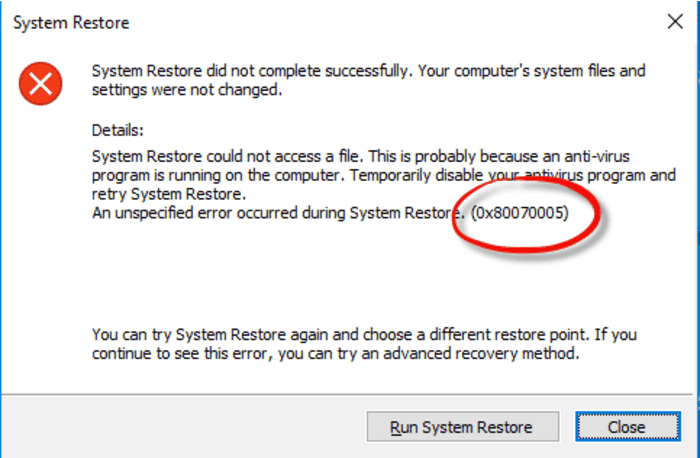
An unspecified error occurred during System Restore, indicated by error code 0x80070005. This issue typically occurs when System Restore cannot access a file due to Windows Backup and Restore not functioning properly. To resolve this problem, follow the steps to troubleshoot and fix the issue.
1. Type services.msc in the Start/taskbar search field. Hit Enter.
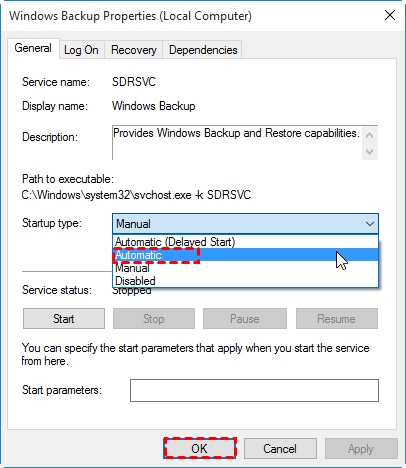
2. To enable Windows Backup, double click on "Windows Backup" to open its settings, select "Automatic" in the Startup type, and then click "OK" to save the changes.
3. Then right click Windows Backup and select Start.
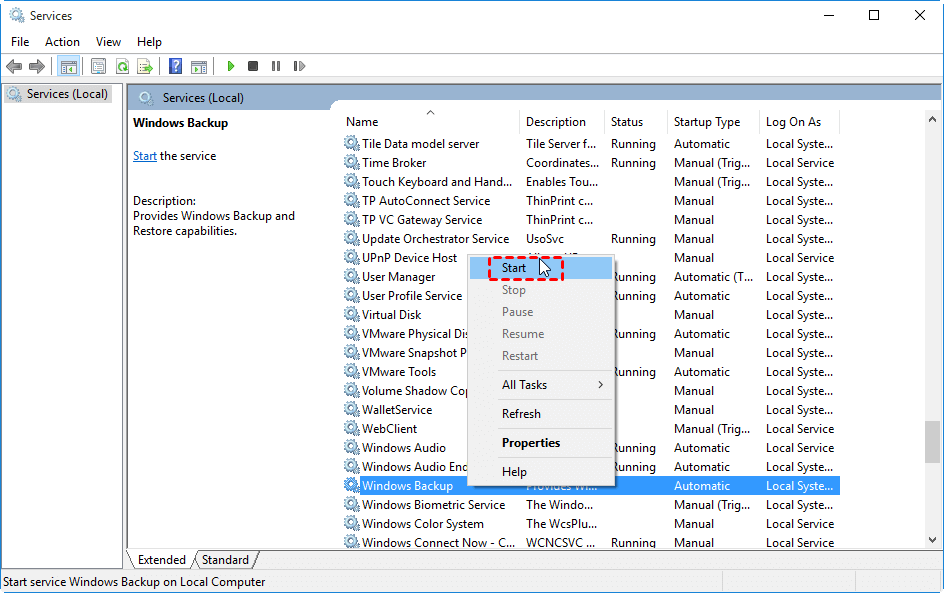
4. To set Windows Backup, ensure that Microsoft Software Shadow Copy Provider, Task Scheduler, and Volume Shadow Copy are started and set to run automatically.
5. To troubleshoot the error 0x80070005, try restarting your PC to see if the issue resolves itself. This simple step can often resolve connectivity and installation issues.
System Restore error 0x8000ffff
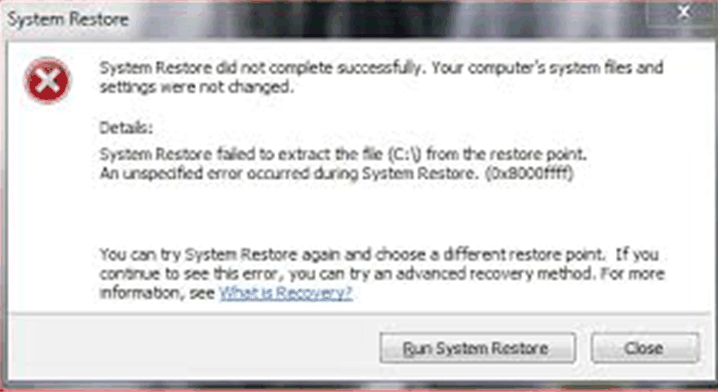
An unspecified error occurred during System Restore (0x8000ffff), which prevented it from completing successfully. This error often occurs when a file conflict arises during the restore process, causing certain files to not be replaced correctly. To resolve this issue, you can try using a different system restore point.
1. To create a restore point, open the Start menu, type "Create a restore point" in the search field, and press Enter. This will open the System Properties window, where you can click on the "Create" button to create a new restore point.
2. In the System Properties window, click the System Restore button.
3. Click the "Next" button in the System Restore dialog box on the first screen.
4. Select a restore point, and then click Next.
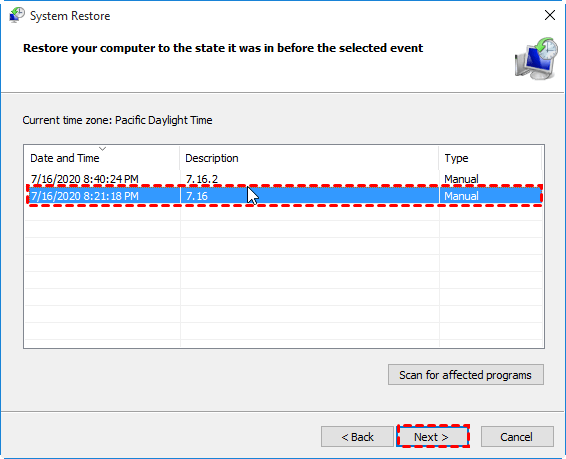
Tips: If you want to know what programs will be deleted or restored using this restore point, you may click "Scan for affected programs" to check.
5. If you're seeing a blue screen of death (BSOD) with a stop error, you can try to recover your system by booting into the Windows Recovery Environment (WinRE). To do this, restart your computer and immediately start tapping the F8 key. This will bring up the Advanced Boot Options menu.
System Restore error 0x80070091
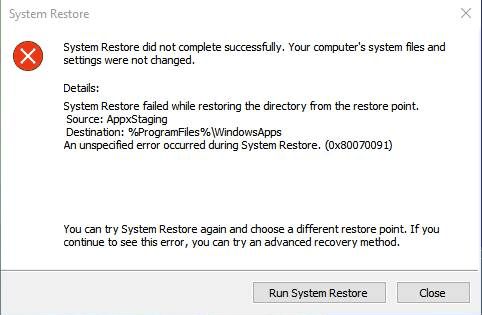
An unspecified error occurs during System Restore, specifically error code 0x80070091, due to a problem with the AppxStaging folder. To resolve this issue, try renaming the WindowsApps folder, rebooting the system, and then attempting a system restore again. This process can be initiated in Safe Mode.
1. To resolve the issue, boot your computer into Safe Mode, then right-click on the Start button and select Command Prompt (Admin).
2. Type the commands below one by one.
- cd C:\Program Files
- takeown /f WindowsApps /r /d Y
- icacls WindowsApps /grant "%USERDOMAIN%\%USERNAME%":(F) /t
- attrib WindowsApps –h
- rename WindowsApps WindowsApps.old
3. Reboot your computer and run System Restore.
[5 solutions] to other System Restore error codes
Common errors that may occur during System Restore include 0x81000202, 0x81000203, 0x80070002, 0x800423F3, and others, which can be caused by various issues.
▶ Reasons
The "System Restore did not complete successfully an unspecified error occurred" error can be caused by several reasons. These reasons can be verified and may include various factors that prevent the System Restore process from completing successfully.
1. Transient error.
2. System Protection settings corruption.
3. Antivirus or security software may change file or registry permissions to secure the system, preventing you from accessing or modifying them.
4. System file corruption.
▶ Solutions
You can try the following solutions to resolve common System Restore errors.
Method 1: For transient errors, you can try to do System Restore again later.
Method 2: Fix System Protection settings.
- Right click Computer/This PC and select Properties.
- To enable System Protection on your main system drive, go to System Protection, select the main system drive, turn on System Protection, and then click Configure.
- To restore system settings and previous versions of files, follow these steps: In Windows 7, click on "Restore system settings and previous versions of files" and then click "OK". In Windows 10, click on "Turn on system protection" and then click "OK". This will allow you to restore system settings and previous versions of files.
Method 3: To resolve the issue, disable or uninstall security programs in your operating system. After removing the security software, you can use a vendor's clean tool to delete any remaining files and settings from the uninstallation process. This may allow you to successfully complete System Restore.
Method 4: Run the `sfc /scannow` command to check and repair corrupt system files that may be causing the "System Restore did not complete successfully" error in Windows 10/8/7.
Method 5: If the above methods don't work, you can try running System Restore from Safe Mode, which may help resolve issues with your computer's functionality.
- In Windows 7, restart your computer and press F8 before the Windows logo appears. Select Safe Mode and press Enter. Once Windows loads, try to do System Restore to see if it works.
- For Windows 10 users, learn how to perform System Restore from Safe Mode in Windows 10 by following the steps outlined in the provided link.
Free and safe system restore software – Qiling Disk Master
If you've tried all the steps to fix the issue "System Restore did not complete successfully" but still can't resolve it, you might want to consider using a third-party software like Qiling Disk Master Standard, which is a free and user-friendly backup and restore tool with a clean interface.
>> You can create a system backup and do a system restore with just a few clicks.

>> You can create a bootable rescue media with Qiling Disk Master, allowing you to restore your system even if it's unbootable.

Qiling Disk Master allows you to restore your system even if your C drive has been deleted, a feature not available with Windows' System Restore. This is because System Restore relies on System Protection being enabled, which is not the case if your C drive has been deleted. If System Protection is turned off, all restore points are deleted and cannot be recovered until System Protection is turned on again and a new restore point is created.
Conclusion
If you're experiencing issues with System Restore not completing successfully in Windows 10/8/7, you can try the methods mentioned above. Alternatively, if you're looking for a more advanced tool to perform Windows backup and restore, Qiling Disk Master is a great option. Not only can it help with backup and restore, but it can also be used as a free PC clone software to clone your PC's hard drive. You can try it out right now!
Related Articles
- Fixed: System Restore Failed to Extract the File in Windows 7/8/10
- An Unspecified Error Occurred during System Restore 0x80070002-Fixed
- (Fixed) System Restore Not Working in Windows 10
- Difference Among Full, Incremental and Differential Backup
Learn how to fix the issue of System Restore failing to extract the original copy of the directory from the restore point in Windows 10, 8, 7 with the easiest solution. - Auto Backup Windows 7 Computer or Files to External Hard Drive
This article helps you backup Windows 7 to external hard drive to protect it safely, whether you want to create full backup or file backup. - Backup Windows 7 to Network Drive with 2 Free Methods
This page shows you how to backup Windows 7 to network drive in two free ways and demonstrates the advantages of backing up to network drive.
Products
Articles & Tutorials
- Data Recovery
- Data Backup
- File Recovery
- File Backup
- File synchronize
- System Backup and Restore
- Disk and Partition Clone
- Technical articles
- Disk Master Help
- Windows Deleted File and Disk Recovery Tutorials
- Windows File and Data Recovery Tutorials
- More Windows Tutorials for Install, Security, Files, and PC Tips
- Windows Boot, Repair, and Recovery Environment Tutorials
- Windows Backup Tutorials
- Windows Restore Tutorials
- Windows Clone and Migration Tutorials
- Windows Server Backup, Recovery, and Management Tutorials
- Windows Disk, Partition, and Storage Management Tutorials