Auto Backup Windows 7 Computer or Files to External Hard Drive
Backup Windows 7 to external hard drive is necessary
Windows 7 has reached its end-of-life milestone, with technical support no longer available from Microsoft since January 14, 2020. If you're still using Windows 7, it's recommended that you back up your data to an external hard drive to ensure you don't lose any important files in case you need to switch to a newer operating system.
Your computer is vulnerable to damage from viruses, bugs, hackers, and other malicious attacks, which can compromise your backed-up Windows 7 image and even lead to data loss, as seen in the example of the Wannacry attack.
What does Windows 7 backup actually backup?
Windows 7 has a built-The Backup and Restore software allows you to backup your entire system, including Windows 7, system settings, installed programs, and files saved on the system drive. You can also use it to restore your computer to an earlier date. Additionally, it enables you to backup data files for newly created users and libraries.
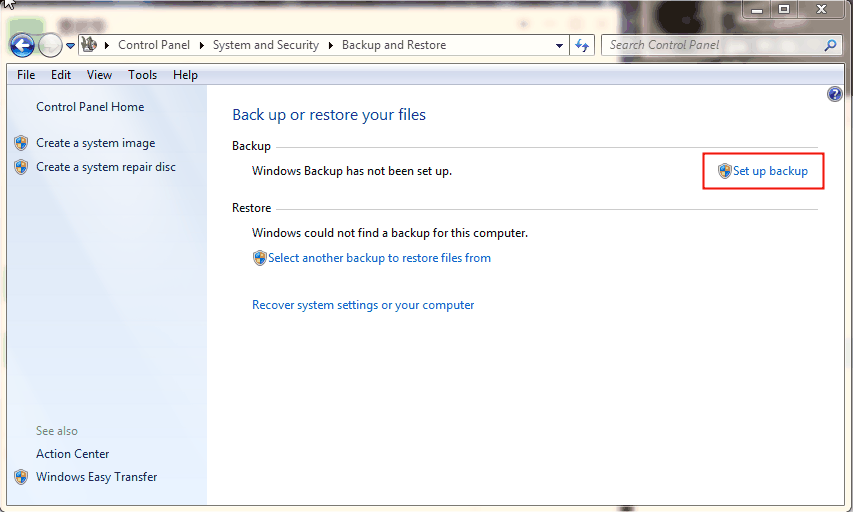
However, backup and restore is not working as usual sometimes. And you may receive many error messages, such as, "a volume shadow copy service component encountered an unexpected error", "the system cannot find the file specified", "windows backup service cannot be started", "system image restore fails because of efi/bios", etc.
This software is not stable and using "Backup and Restore" to backup Windows 7 is a high-risk operation. A reliable backup software is recommended instead.
How to backup Windows 7 computer to external hard drive safely
To backup a Windows 7 computer to an external hard drive, you can use Qiling Disk Master Standard, a free backup software that allows you to create a system image, disk backup, partition backup, or file backup with ease, and offers features such as scheduling, compression, and encryption.
- Schedule Backup: This feature is important for users who want to continuously protect their system and data, especially with Windows 7's extended end of life. It allows for daily, weekly, or monthly backups.
- Incremental backup: If you think a full backup is unnecessary, you can do an incremental backup, which only saves changed files, at no extra cost, and still compresses or splits the backup image as needed.
And then You can easily and quickly restore a system image from an external hard drive, even without booting into Windows, by creating a bootable USB or CD/DVD that allows you to recover your system in a disaster situation.
If you're using Windows 7 and it's 2020 or later, it's highly recommended that you create a system backup to prevent data loss in case of a system crash, disk failure, or virus attack.
To backup Windows 7-based computer, use the following steps:
Step 1. Preparing for backup tasks.
- To back up your data, download and run the free but professional Qiling Disk Master Standard software. For server users, you may want to try the Qiling Disk Master Server version instead.
- Connect the external hard drive to your computer and ensure it can be detected. Also, verify that the disk space on the system partition is larger than or equal to the Windows 7 requirements.
Step 2. Under the "Backup" tab, select "System Backup".
Qiling Disk Master automatically includes system-related partitions in backups, as these partitions are often necessary for a computer to boot and may be overlooked by users who are not familiar with the boot process.

Step 3. Select the connected external hard drive as destination path.
To access the external hard drive, click on the Start menu, click on "This PC" in the pop-up window, select the external hard drive, and then click "OK" to open it.

Step 4(Important). Click "Schedule Backup" and select daily, weekly, or monthly backup.
Windows 7 computers are now vulnerable due to lack of security updates and bug fixes. To keep your computer safe and minimize data loss, it's recommended to schedule a backup of your Windows 7 system, which will protect all your current and future data, including installed programs and any modifications or new additions.

Despite reducing backup size through methods like automatic splitting, compression, and incremental backups, many users eventually run into the problem of full backup disks unless they regularly delete old backup images.
To avoid the problem of automatic backup cleanup not working, enable the premium feature, automatic backup cleanup, in the backup scheme, which is supported by the professional version.

Step 5. Confirm all the backup settings and click "Proceed" to run the Windows 7 computer backup.
Tips:
• To avoid backup failures due to disconnected external hard drives, consider setting up a backup schedule that doesn't rely on the drive being connected at a specific time. Instead, you can use a backup software that can automatically detect and connect to the external drive when it's plugged in, or use a cloud-based backup service that doesn't require a physical drive. This way, you can ensure that your backups are always up-to-date and reliable.backup Windows 7 to USB drive with USB plug in This feature automatically backs up your Windows device whenever it's plugged into a power source, eliminating the need for manual intervention. The backup process is seamless and occurs in the background, ensuring your data is safely stored and readily available in case of a system failure or other issues.
• To alleviate the backup disk full issue, consider using incremental backups, which only backup changed files. However, when trying to restore the system from an external drive, you may find this approach useless due to the specific rules of this backup. To prevent this, try using a full backup alongside incremental backups, ensuring you have a complete system image to restore from. differential backup on the premium versions. For details, see the edition comparison page.
How to automatically backup files to an external hard drive in Windows 7
Qiling Disk Master Standard can be used to automatically backup files to an external hard drive, in addition to its system backup features.
Step 1. Launch this software again, choose "Backup" and "File Backup" subsequently.

Step 2. To select files to backup, click on the "Files" or "Folder" option, or alternatively, you can type a new task name to differentiate it from other backups.

Step 3. Click the folder shaped button and then select the connected external disk to store file backup image.

4. To automatically backup files to an external hard drive, click on "Schedule Backup" and enable it. You can then choose the frequency of the backups, such as daily, weekly, or monthly, or set it to trigger on specific events or when the USB drive is plugged in.
The professional version offers additional features, including USB plug-in, incremental or differential backup, and automatic backup cleanup, which can be set in the "Backup Scheme" to prevent backup disk full. This is recommended for users with a USB drive who want to maintain a connected backup.
5. To backup files to an external hard drive in Windows 7, click the "Proceed" button after selecting the files to backup. This will automatically transfer the chosen files to the external hard drive.

Written in the end
Windows 7's end-of-life was initially set for 2020, but its extension has allowed users to continue using the operating system without receiving technical support from Microsoft. As a result, backing up Windows 7 computers or files to an external hard drive is crucial. To ensure a seamless backup process, users can rely on a trustworthy software like Qiling Disk Master, which not only automates backups but also resolves issues related to a full backup disk.
Qiling Disk Master can be used for various purposes beyond just backing up Windows 7 to an external hard drive, including cloning a disk to a larger one, migrating an OS to a smaller SSD, and deploying a system image to multiple computers over a network. Its technician or techplus edition also allows for presetting computer name, IP address, and universal restore feature.
Related Articles
- How to Automatic Backup Windows 7 to External Hard Drive
You will learn how to automatic backup Windows 7 to external hard drive easily. Both ways are included. - How to Backup Files in Windows 7 to External Hard Drive
Learn how to Backup Files in Windows 7 to External Hard Drive with clear steps, key checks, and practical tips. - Auto Backup PC Files to External Hard Drive in Windows 10/8/7
It's a wise move to backup comptuer to external hard drive in Windows 11/10. Learn how to do it automatically and try the best external drie backup software to simplify the process. - Top Three Ways to Automatic Backup Windows 7 to Network Drive
This article will show you 3 ways to automatic backup Windows 7 to network drive, the last one is much easier. Go head and check it. - Can I Transfer My SSD with Installed OS and Programs to Another Computer?
This guide explains Can I Transfer My SSD with Installed OS and Programs to Another Computer with clear steps, key checks, and practical tips. - How to Transfer Windows 10 OS to SSD Without Reinstalling Windows
This guide explains How to Transfer Windows 10 OS to SSD Without Reinstalling Windows and provides practical steps, tips, or recovery options to help you complete the task safely.
Products
Articles & Tutorials
- Data Recovery
- Data Backup
- File Recovery
- File Backup
- File synchronize
- System Backup and Restore
- Disk and Partition Clone
- Technical articles
- Disk Master Help
- Windows Deleted File and Disk Recovery Tutorials
- Windows File and Data Recovery Tutorials
- More Windows Tutorials for Install, Security, Files, and PC Tips
- Windows Boot, Repair, and Recovery Environment Tutorials
- Windows Backup Tutorials
- Windows Restore Tutorials
- Windows Clone and Migration Tutorials
- Windows Server Backup, Recovery, and Management Tutorials
- Windows Disk, Partition, and Storage Management Tutorials