How to Reset Windows 11 without Losing Data and Apps
Reset Windows 11 to Fix System Problems
After upgrading to Windows 11, users may experience issues such as a non-functional taskbar, random freezing, or a black screen after the update.
Even if you temporarily fix issues, new problems may arise due to various factors, and in severe cases, a Windows 11 reset may be the only solution.
You can reset Windows 11 using the built-in "Reset PC" option, which can help you reset the operating system without losing data. This method is faster than a clean installation and can be a good alternative. However, it's still recommended to back up your important files and data before proceeding, as some data may still be lost during the reset process. The "Reset PC" option can be found in the Settings app, under the "Update & Security" section.
Will You Lose Data If You Reset Windows 11?
When resetting Windows 11, you have the option to retain your personal files or erase them. If you choose to reset with the "Keep my files" option, Windows will first move your personal files to a safe location, format the Windows partitions to perform a fresh installation, and then restore your files.
The feature only preserves user files and manufacturer-installed programs, while changes to settings, apps, and drivers installed by the user are not retained.
 Qiling Disk Master
If you want to make sure all your data and apps stay 100% safe, it's more recommended to make a backup before resetting.
How to Reset PC and Keep Files in Windows 11
To reset Windows 11 and keep your personal data, you can use the built-in feature. This process will remove any apps, settings, and preferences that you've added, but it will preserve your personal files, such as documents, photos, and videos.
Step 1. Locate the Reset PC feature.
To reset Windows 11, there are generally two approaches, depending on your specific situation.
▪ If you're still able to access Windows, click the Start button and choose Settings > System > Recovery. Under Recovery options, you can find the "Reset this PC" feature, and click Reset PC to start the process.
▪ If you're having trouble launching Windows 11, try turning off your PC by holding the power button on the startup screen, then turn it back on. Repeat this process 3 times to enter the recovery environment. From there, select "Troubleshoot" and then "Reset this PC". Follow the same steps afterwards.
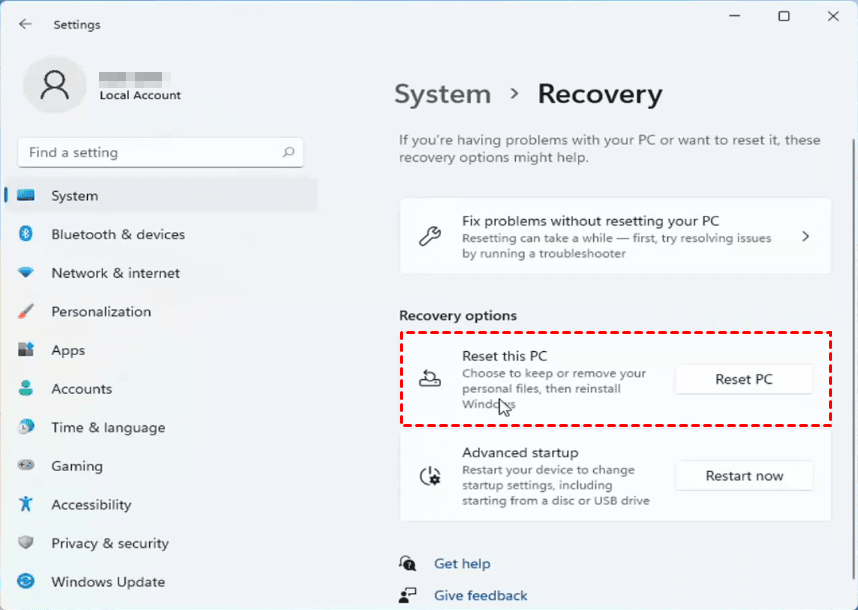
Step 2. Keep your data during resetting Windows 11.
The Windows 10 upgrade process will give you the option to either Keep my files or Remove everything, with the former being the recommended choice, which will also remove apps and settings.
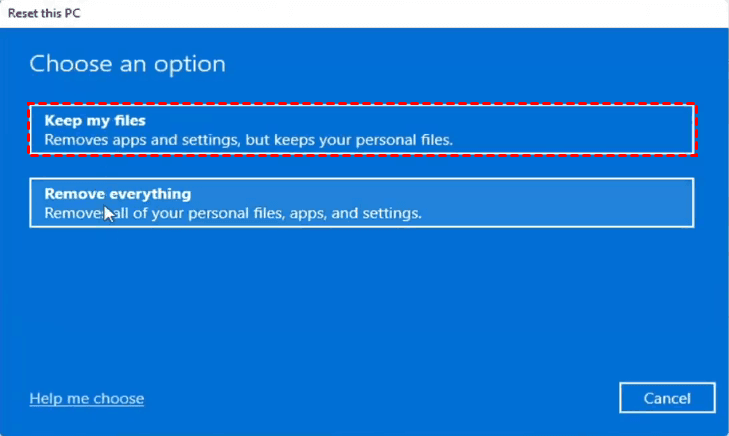
Step 3. Follow the guidance to complete other settings.
Here, you can choose between cloud download and local reinstall.
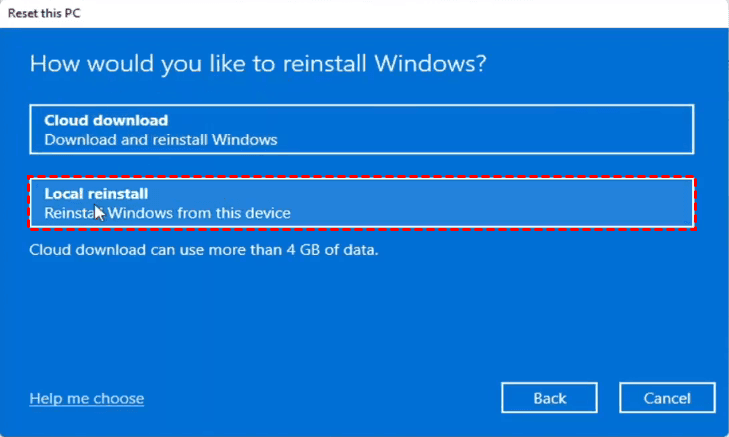
The data will be cleaned and preprocessed based on the initial configuration. Additional settings can be configured, such as whether to clean the data.
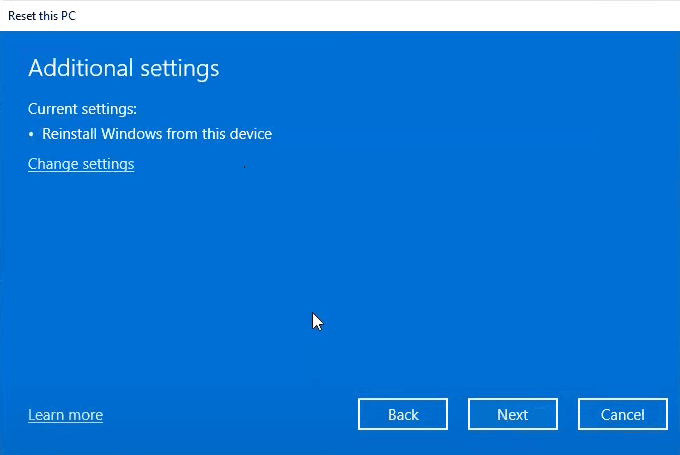
Step 4. Confirm the settings and start resetting Windows 11.
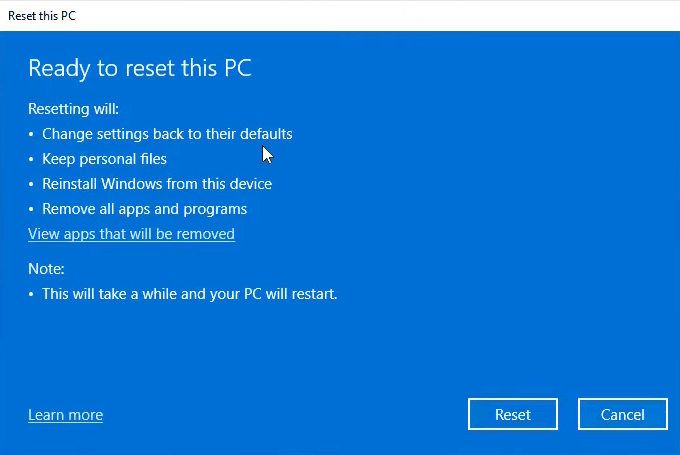
After confirming it, you'll need to wait a bit until the Ready to reset this PC window appears, showing you what will be reset. Clicking Reset will initiate the process.
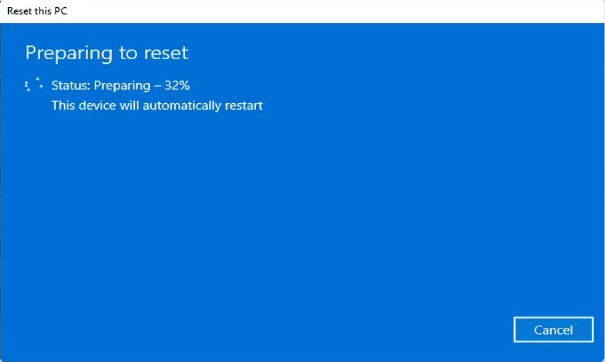
The operation is complete, and the device is restarting. You can now use it as normal.
Secure Way to Reset Windows 11 without Losing Files and Apps
Backing up your data before resetting Windows 11 is the best way to ensure data integrity. While resetting the operating system doesn't guarantee 100% protection, it's still crucial to develop good backup habits in your daily use to prevent data loss.
I recommend using a reliable freeware to auto backup Windows 11, such as.Qiling Disk Master Standard.:
- The system can create a backup that includes all system files, applications, and settings, allowing for a complete restoration of the system in case of a failure or malfunction.
- The task can be performed automatically at set intervals using the schedule options, allowing for efficient and timely execution.
- To free up space, consider using incremental or differential backups to capture only the changed data, or opt for a higher compression level for your backups.
- This software provides an alternative to factory resetting Windows 11, allowing users to restore the operating system to an earlier state without losing data or programs. It also offers the option to restore a system backup to a computer with different hardware, making it a useful tool for those who need to recover their system to a previous state or transfer it to a new machine.
This software is compatible with all PCs running Windows 11, 10, 8, 7, Vista, and XP, and can be downloaded and installed for free use.
🌟Create a system backup in case of any data loss:
1. Navigate to the Backup tab and select System Backup, which offers additional options like Disk Backup, Partition Backup, and File Backup to cater to different needs.

2. The system partitions will be automatically selected, and you just need to specify a destination to save the system image. It's recommended to save the OS to an external hard drive, USB drive, or cloud drive.

Options: Compress level, backup mode, image splitting, comment, email notifications.
Backup Schedule: Automatic backup can be set up based on daily, weekly, or monthly triggers, as well as on specific events or when a USB device is plugged in. The latter two options are available in advanced editions. Additionally, in the Pro edition, automatic backup cleanup can be enabled in the Backup Scheme to automatically delete older backups.
3. Click Proceed and wait for the process to complete.

If your PC won't boot, you can create a recovery media from the Tools tab to boot it into WinPE, allowing you to back up and restore your computer.
🌟Restore Windows 11 to earlier state if necessary:
If your computer is running smoothly, create a system backup, and when issues arise, you can restore to the previous working state.
1. Switch to the Restore tab, and choose Select Task or Select Image File to locate the system backup you made.

2. To restore a system image, choose the "Restore this system image" option and click "Next". If you're not restoring Windows 11 to its original location, select "Restore system to other location" and specify the target path on the next page.

3. Confirm the operation and Proceed.

If you want to restore a system image created on a different computer, make sure to tick "Universal Restore" (available in Pro edition) to ensure it boots properly after restoration.
Conclusion
If you're experiencing issues with your Windows 11 PC, such as slow performance or unresolved problems, you can try using the "Reset this PC" feature. This option allows you to keep your personal data, but it may not guarantee the safety of your settings and apps, and sometimes it may not work as expected.
Using Qiling Disk Master to backup Windows 11 regularly is a more reliable option, especially when resetting Windows 11 without losing apps, allowing for easy retrieval of lost data and restoring the computer to its recent normal state if needed.
Related Articles
- How to Reset or Refresh Windows 10 without Losing Programs?
- Repair Windows 11 with Command Prompt | Complete Guide
- Fixed: Windows 11 Go Back to Windows 10 Not Working
- How to Reset Windows 10 PC and Keep My Files? (2 Methods)
- Home Office Setup: Setting Up Home Office for Remote Work
Here are 3 methods to refresh Windows 10 without losing programs and data, which can help you fix Windows 10 system error but not lose personal data and installed apps. - Should I Backup Before Windows 10 Upgrade/Reinstallation? 2022 New!
This guide helps individual users determine whether to back up their data before upgrading to Windows 10, and provides preparation and backup steps using Qiling Backup.
Products
Articles & Tutorials
- Data Recovery
- Data Backup
- File Recovery
- File Backup
- File synchronize
- System Backup and Restore
- Disk and Partition Clone
- Technical articles
- Disk Master Help
- Windows Deleted File and Disk Recovery Tutorials
- Windows File and Data Recovery Tutorials
- More Windows Tutorials for Install, Security, Files, and PC Tips
- Windows Boot, Repair, and Recovery Environment Tutorials
- Windows Backup Tutorials
- Windows Restore Tutorials
- Windows Clone and Migration Tutorials
- Windows Server Backup, Recovery, and Management Tutorials
- Windows Disk, Partition, and Storage Management Tutorials