Repair Windows 11 with Command Prompt (SFC, DISM, etc)
Find Windows 11 corrupted?
After six years since Windows 10 was first released, Windows 11 has finally arrived, bringing a new modern design, sounds, and features such as a centered Start menu, personalized Widgets, and optimized efficiency. However, some users have encountered errors, including app crashes, glitchy displays, and sudden black screens, with a small number getting stuck on Windows 11 startup. To resolve these issues, users need to find a solution.
Quick fix to Windows 11 problems
To fix a problem with a specific component or feature, you can use Windows troubleshooters to resolve the issue. Follow these steps:
1. Press the Win + I keys to open Settings.
2. In Windows Settings, click System > Troubleshoot > Other troubleshooters.
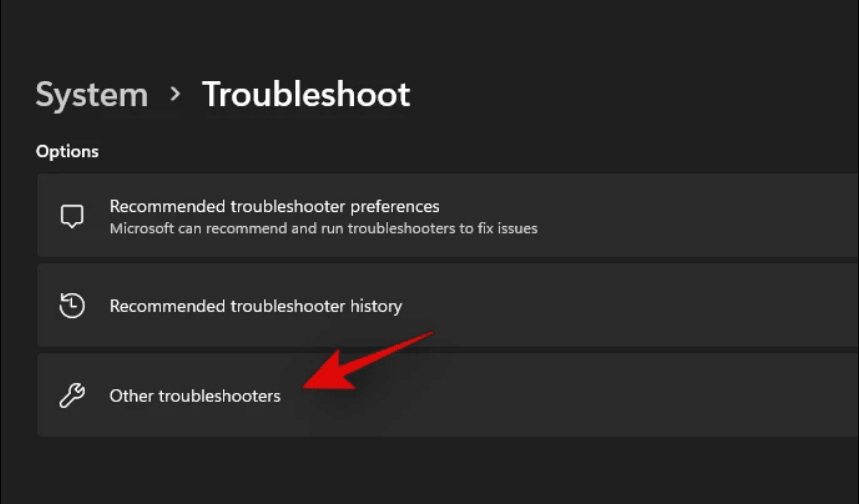
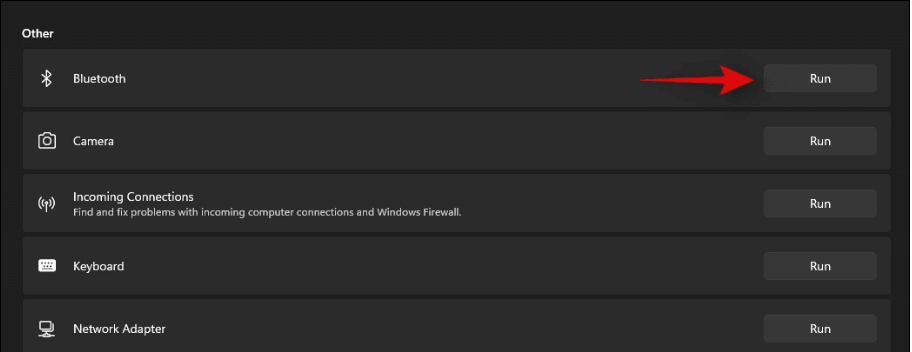
3. Select the component or feature you're experiencing issues with, and then click on the Run button to initiate the troubleshooter process. The troubleshooter will automatically detect and resolve any problems it identifies with the selected component or feature.
Advanced way to fix corrupted Windows 11
If your problems are concerning system files or Windows boot, you can resort to Command Prompt to repair it. To do this, open Command Prompt as an administrator, type "sfc /scannow" and press Enter to scan and replace corrupted system files. If the issue persists, type "dism /online /cleanup-image /restorehealth" and press Enter to repair Windows components.
How to open Command Prompt in Windows 11
Depending on whether you can boot into Windows 11 or not, you may need to launch Command Prompt in different ways, as the boot process can affect the availability of this feature.
▶ Situation 1: Windows 11 loads normally▶
To open Command Prompt, type "cmd" in the search box and select Command Prompt from the list, or right-click on Command Prompt and select Run as administrator to open an elevated version.
▶ Situation 2: Windows 11 fails to load▶
To access Command Prompt, you'll need to insert your Windows installation media, such as a USB drive or CD/DVD, and boot from it. Once you're in the installation menu, select your language preferences and click on "Repair your computer" instead of "Install now".
1. Boot your computer from Windows installation media.
2. When the Windows setup wizard appears, you can open Command Prompt by selecting the "Command Prompt" option from the list of setup options, or by pressing the Windows key + X and selecting Command Prompt from the menu, or by typing "cmd" in the Run dialog box, or by searching for Command Prompt in the Start menu. Alternatively, you can also open Command Prompt by right-clicking on the Start button, selecting "Command Prompt (Admin)" from the context menu, or by searching for Command Prompt in the search bar.
- Press the Shift + F10 keys to open the Command Prompt window.
- In the Windows setup wizard, select "Repair your computer" > "Troubleshoot" > "Advanced options" > "Command Prompt" to open the Command Prompt and execute the command "bcdboot C:\ /s C:" to restore the Boot Configuration Data (BCD) to the default settings, which will allow Windows to boot normally again.
How to fix Windows 11 using Command Prompt🔥
To repair Windows 11, four different commands are available: SFC, DISM, bootrec.exe, and rstrui.exe. Depending on your specific situation, you can choose one of these methods to help resolve issues with your operating system. Each command serves a unique purpose, and selecting the correct one will ensure you get the desired results. By using the right tool for the job, you can efficiently troubleshoot and fix problems with your Windows 11 installation.
Method 1: Repair Windows 11 via SFC commands
The System File Checker (SFC) tool checks the integrity of protected system files and replaces any corrupted or missing files with correct versions from C:\Windows. To run SFC commands, follow these steps.
1. Open an elevated Command Prompt as mentioned in Part 2.
2. In the Command Prompt window, type sfc /scannow and press Enter.
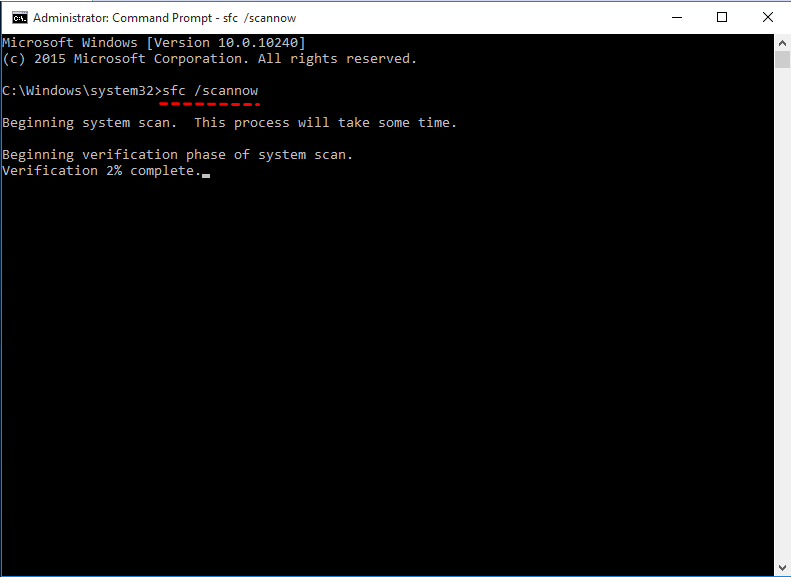
3. Wait until the verification process reaches 100%. Exit Command Prompt to see if your problem is solved.
Method 2: Repair Windows 11 with DISM commands
DISM (Deployment Image Servicing and Management) is a command-line tool used to service Windows images, allowing you to install, uninstall, configure, and update features, packages, drivers, and international settings in a .wim file or VHD.
1. Open an elevated Command Prompt as described in Part 2.
2. To check the Windows 11 image for issues, you can use the following command: `dism /get-wiminfo /wimfile:C:\path\to\your\image.wim` and then `dism /checkhealth /wimfile:C:\path\to\your\image.
- DISM /Online /Cleanup-Image /CheckHealth
- DISM /Online /Cleanup-Image /ScanHealth (a more advanced scan)
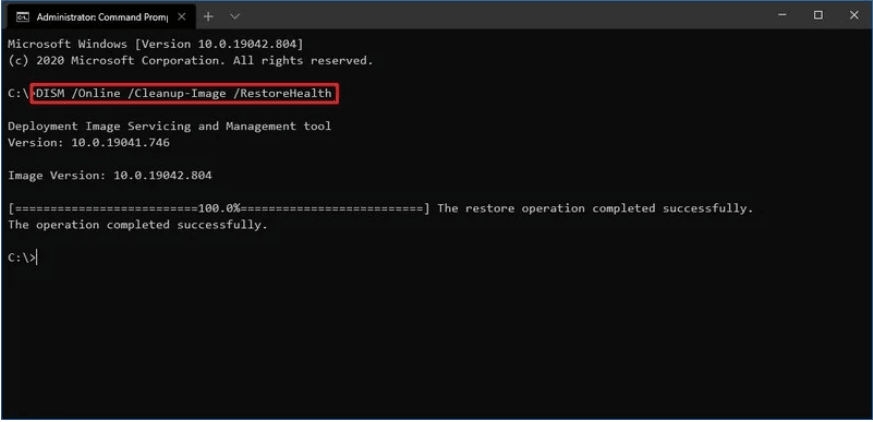
3. If there are problems detected, run the command DISM /Online /Cleanup-Image /RestoreHealth to repair the Windows 11 image.
Method 3: Fix Windows 11 boot issues using bootrec.exe
If you're experiencing boot issues with Windows 11, the bootrec.exe tool can usually help resolve the problem. To fix boot issues, follow these steps:
1. Open Command Prompt as mentioned in Part 2.
2. To reset the permissions of the System32 folder, open the Command Prompt as an administrator, navigate to the System32 folder using `cd C:\Windows\System32`, and then run the `icacls` command to view the current permissions. Next, run the `icacls` command with the `/reset` option to reset the permissions.
- bootrec.exe
- BOOTREC /FIXMBR
- BOOTREC /FIXBOOT
- BOOTREC /RebuildBcd
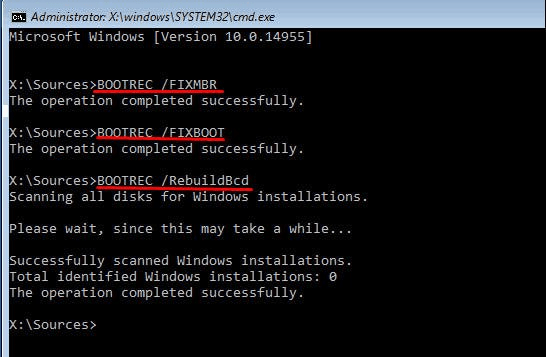
3. After the process is finished, exit the recovery screen and try booting into Windows again.
Method 4: Restore Windows 11 by running rstrui.exe
To restore Windows 11 to a previous working state using rstrui.exe, follow these steps:
Note: This method is only applicable on condition that you have created a restore point before.
1. Open Command Prompt as mentioned in Part 2.
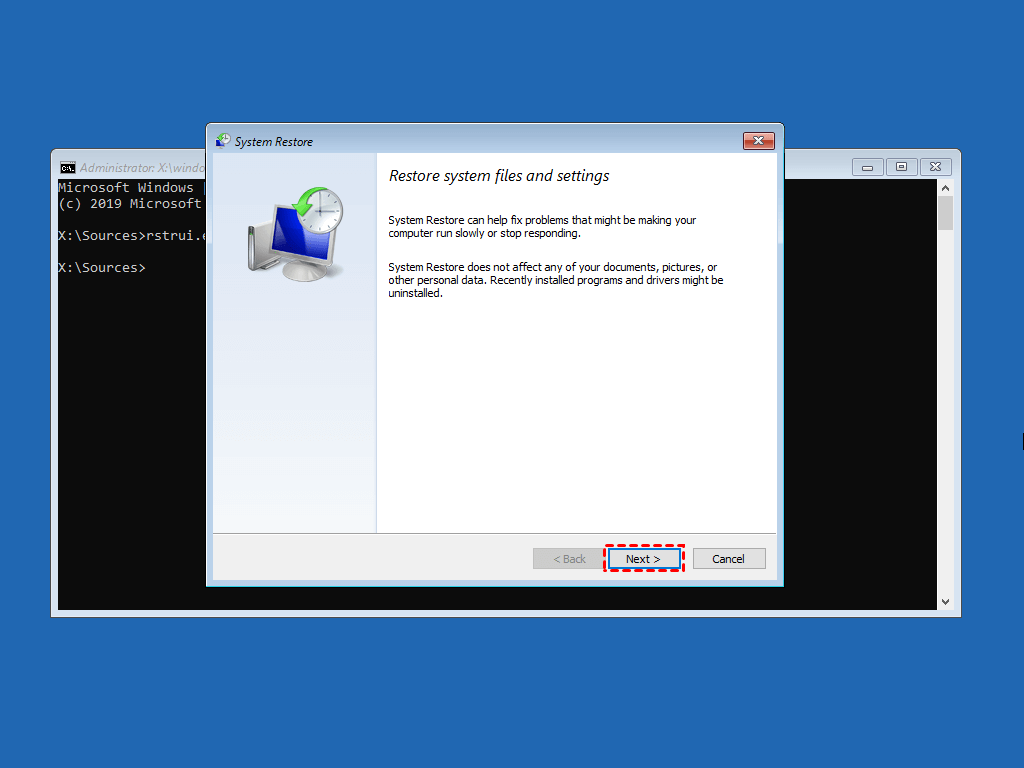
2. Launch the System Restore wizard by typing `rstrui.exe` and pressing Enter.
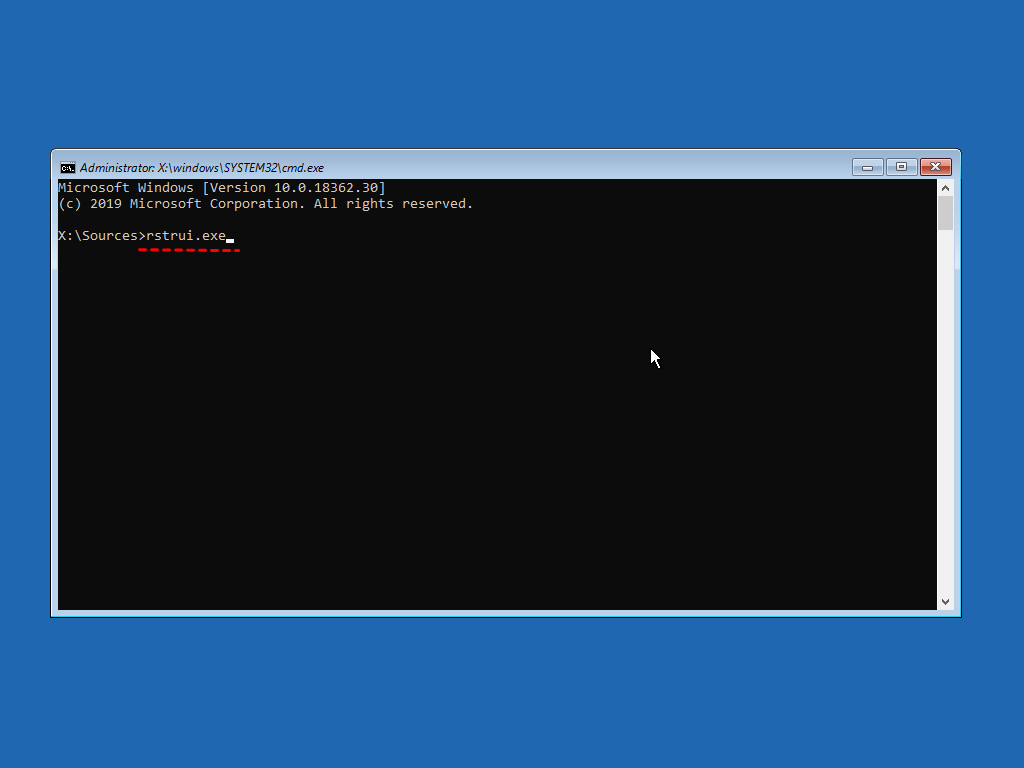
3. Follow the on-screen instructions to complete the system restore process.
Backup Windows 11 in case of serious system errors🔥
To prepare for potential Windows 11 issues, it's a good idea to create a system image backup beforehand. This can be a lifesaver if your Windows 11 encounters problems, as it allows for efficient repair and recovery.
The easiest way to create backups for Windows 11 is by using Qiling Disk Master Standard, a free Windows 11 backup software that can help with this task.
◑ Qiling Backup offers various backup options, including system backup, disk backup, partition backup, and file backup, to cater to different user needs.
◑ The Schedule feature allows for automatic backups of changed data without requiring human intervention, ensuring that critical information is always up-to-date and readily available.
◑ This software enables users to save backup images to various locations, including external hard drives, USB flash drives, and network shares.
◑ This software is compatible with all Windows PC operating systems, including Windows 11, 10, 8.1, 8, 7, Vista, and XP, in both 32-bit and 64-bit versions.
Download Qiling Disk Master now to try it out. To create a Windows 11 system image backup, click Backup > System Backup, select a destination path, and click Proceed to start the process.

Tip: For advanced users, you can upgrade to Qiling Disk Master Professional to perform backup/restore operations using Qiling command lines, or clone a hard drive via Command Prompt with the Pro edition.
Summary
You can use four different tools from the Command Prompt to repair Windows 11, including SFC, DISM, bootrec.exe, and rstrui.exe. To be prepared for potential system errors, consider creating backups of your Windows 11 system using Qiling Disk Master, which can also help you recover lost files and clone your SSD to a larger one. This way, you'll be able to easily restore your system and recover important files if anything goes wrong.
Related Articles
- How to Run System Restore via Command Prompt in Windows 10, 11
This article will introduce how to launch System Restore from command prompt and run system restore in Windows 10/11 to repair your computer. - How to Fix or Reset Windows Update in Windows 10, 11 (6 Methods)
If you get stuck downloading Windows Update in Windows 10/11, try following methods to fix it or reset Windows Update components. Also, here are some effective tips if you receive serious errors after upgrading. - Windows 10, 11 Startup Repair Not Working: Solved
When you encounter Windows 10/11 Startup Repair not working problems, you can refer to this article and find effective solutions here. - How to Restore Default Programs in Windows 7 Easily
Learn how to Restore Default Programs in Windows 7 Easily with clear steps, key checks, and practical tips. - Seagate Backup Software Download | Back Up Seagate External Hard Drive
Users often turn to reliable Seagate backup software to overcome issues with their hard drives, allowing them to successfully perform backups. - Seagate One Touch VS. Seagate Expansion: Which is Better
Seagate One Touch VS. Seagate Expansion: Which is Better: this guide summarizes the key steps, practical tips, and safer options so you can finish the task clearly and avoid common mistakes.
Products
Articles & Tutorials
- Data Recovery
- Data Backup
- File Recovery
- File Backup
- File synchronize
- System Backup and Restore
- Disk and Partition Clone
- Technical articles
- Disk Master Help
- Windows Deleted File and Disk Recovery Tutorials
- Windows File and Data Recovery Tutorials
- More Windows Tutorials for Install, Security, Files, and PC Tips
- Windows Boot, Repair, and Recovery Environment Tutorials
- Windows Backup Tutorials
- Windows Restore Tutorials
- Windows Clone and Migration Tutorials
- Windows Server Backup, Recovery, and Management Tutorials
- Windows Disk, Partition, and Storage Management Tutorials