6 Methods | Fix or Reset Windows Update in Windows 11/10
- Windows Latest Version: Windows 11 23H2 Update
- Having Trouble Updating Windows?
- How to Reset Windows Update in Windows 11/10 (6 Methods)
- Method 1. Fix errors via Windows Update Troubleshooter
- Method 2. Repair corrupted system files with Command Prompt
- Method 3. Clear Windows Update cache
- Method 4. Reset Windows Update components and policies
- Method 5. Install the latest Servicing Stack Update
- Method 6. Install the latest update manually
- How to Rollback Windows 11/10 Update If You Don't Want It
- How to Restore Windows 10/11 to Earlier State to Fix System Issues
- FAQs About Reset Windows Update in Windows 10
- Conclusion
Windows Latest Version: Windows 11 23H2 Update
Released on October 31, 2023, Windows 11 23H2, also known as the Windows 11 2023 Update, marks the second major update to the operating system, bringing the latest features and enhancements.
1. Innovative AI Digital Assistant:
- Meet Copilot, the advanced AI-based digital assistant taking over from Cortana.
2. Improved File Explorer:
- The new version features a fresh visual design, an improved Gallery page, a Details pane, and built-in support for popular compressed file formats like RAR, 7z, GZ, and TAR. It also includes a streamlined Nearby Sharing feature, making it easier to transfer files between computers.
3. Broadened App and Tool Enhancements:
- Microsoft has released updates to several Windows tools, including a revamped Windows Backup app and a redesigned Outlook email client. Additionally, improvements have been made to various other tools like Paint, Photos, Snipping Tool, Clipchamp, Notepad, and more. These updates aim to enhance user experience and functionality across the board.
The latest Windows 11 23H2 update has been released, but it has also brought some issues, including reporting errors. Some users have chosen to uninstall the update to avoid these problems, and it's recommended to back up your system before updating to protect your data.
⚠️Notes: To avoid constant system errors, it's recommended to establish a backup plan in Windows 10/11. By scheduling regular system backups, you can easily restore your system to a previous working state if problems arise, making troubleshooting unnecessary. Qiling Disk Master Standard is a suitable option for this purpose.
To restore Windows 10/11 to an earlier state and fix system issues, follow these steps: Create a system image or a backup using the built-in tool or a third-party software. Boot from a USB drive or CD/DVD with the installation media.
Having Trouble Updating Windows?
Installing Windows 11 or 10 updates The Windows Update process allows users to explore new features, address security threats, and enhance system performance. However, users may encounter issues such as being unable to search for new updates, getting stuck during the download process, or ultimately failing to install the update, as exemplified by recent reports of users struggling with installing the KB5034441 update.
In these cases, you may wonder how to reset Windows UpdateYou install an update, but it causes system errors or prevents the computer from starting, prompting a desire to rollback or uninstall the update.
How to solve these problems? Here's a comprehensive tutorial.
How to Reset Windows Update in Windows 11/10 (6 Methods)
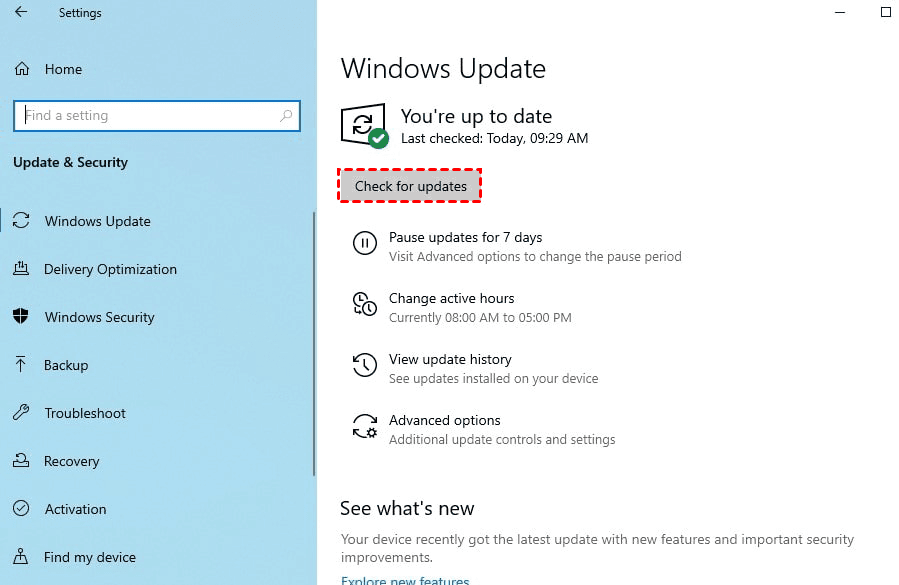
You can check and download new updates in Settings > Update & Security > Windows Update, but if you encounter issues like Windows Update getting stuck, you can try troubleshooting methods to fix or reset it.
| 🩺Windows Update Troubleshooter | Use toubleshooter to fix downloading or installing errors.»
|
| 💻Command Prompt | You can use the System File Checker (SFC) and Deployment Image Servicing and Management (DISM) commands to fix corrupted system files.»
|
| 🚀Clear cache | Clear Windows Update cache to reset the download.»
|
| 💱Reset components and policies | Use Command Prompt to reset Window Update components.»
|
| 💾Install the latest SSU | Servicing Stack Updates provide fixes to the servicing stack, which is responsible for installing Windows updates.»
|
| 📂Install the update manually | You can also manually download the update file to install it.»
|
Backing up your Windows system regularly is crucial for preventing errors and minimizing data loss. This process involves creating copies of your important files and system data, which can be restored in case of a system failure or data corruption. To do this, you can use built-in tools like File History or Windows Backup, or third-party software such as Qiling Disk Master.
✍Tips: Always Be Prepared
To prevent various Windows errors and data loss, it's also a necessity to backup your system regularly.
Method 1. Fix errors via Windows Update Troubleshooter
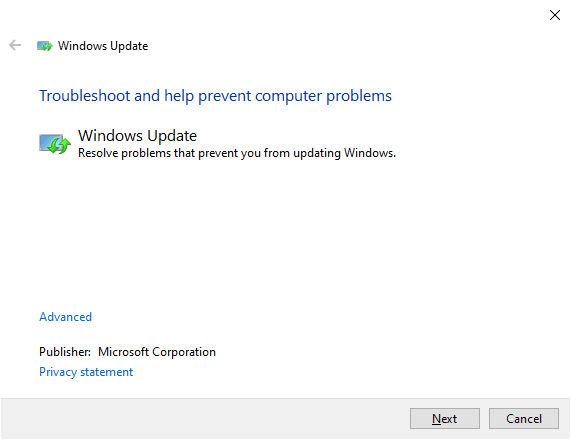
To reset Windows Update in Windows 11 or Windows 10, first try the Windows Update Troubleshooter, which is designed to fix downloading or installing errors of Windows updates. If you receive any error during the process, this tool can be a helpful solution.
1. In Windows 10, you can run the Windows Update troubleshooter by going to "Start" > "Settings" > "Update & Security" > "Troubleshoot" > "Additional troubleshooters" > "Windows Update" > "Run the troubleshooter".
If you can't find the "Additional troubleshooters" option, you can find it in the Control Panel by selecting "Troubleshooting", then "View all", and finally "Windows Update".
To download the WindowsUpdateDiagnostic.diagcab directly, click HERE.
👉To reset Windows 11 update, go to "Start" > "Settings" > "System" > "Troubleshoot" > "Other Troubleshooters", scroll down to "Windows Update" and select Run to launch the Software update troubleshooter, which will check and fix issues during the process.
2. This troubleshooter helps find and fix issues that stop Windows updates from working properly, and gives the option to run it with administrator privileges.
Method 2. Repair corrupted system files with Command Prompt
Windows Update problems may be caused by corrupted system files, which can be resolved using the Command Prompt. The SFC and DISM commands are commonly used to fix these issues.
1. To open the Command Prompt in Windows 10/11, search for "Command Prompt" in the Start menu or type "cmd" in the search bar, and then right-click on the result to select "Run as administrator". This will open the Command Prompt with elevated privileges, allowing you to run commands that require administrative access.
2. `sfc /scannow` and press Enter to check and fix system files.
sfc /scannow
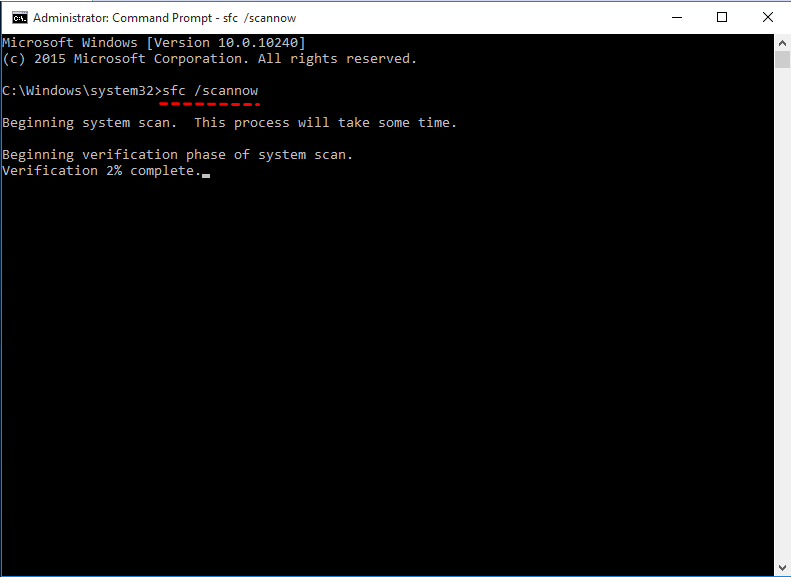
If the SFC tool can't fix the problem or you can't run it, another option is to try the DISM tool. The command to run the DISM tool is:
dism.exe /Online /Cleanup-image /Restorehealth
After fixing corrupted system files, restart the computer to see if Windows 11/10 Update works normally now.
Method 3. Clear Windows Update cache
If Windows Update is experiencing issues, clearing the cache can help resolve the problem by resetting the download process, which can be caused by corrupted or overloaded cache files in Windows 11/10.
1. To stop the Windows Update service, first search for "services" on the taskbar, then run it as administrator. Next, find "Windows Update" in the list and select "Stop" to halt the service. This will prevent Windows from automatically updating while you work on the task.
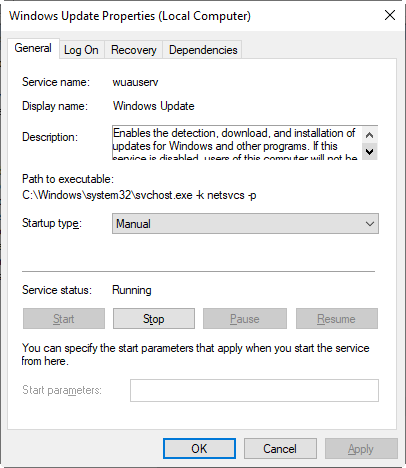
2. Go to C:\Windows\SoftwareDistribution\Download, and delete all the files in it. Thus the Windows Update cache is cleared.
3. Select the Windows Update service again by the path in Step 1, and start it.
The solution to the problem is to check for updates and download the latest version of the software.
Method 4. Reset Windows Update components and policies
Fixing issues with Windows Update can be done by resetting its components. This can be a bit cumbersome to do manually through the Command Prompt in Windows 10/11, but a Windows Update reset script can automate the process.
Fortunately, you can find a bat file for resetting Windows Update components.
Download the bat file from the pages below:
How to Reset Windows Update in Windows 10
How to Reset Windows Update in Windows 11
To resolve most Windows Update issues, follow the guide: 1) Restart your computer, 2) Run the Windows Update troubleshooter, 3) Check for any pending updates, 4) Clear the Update Cache, 5) Run the System File Checker (SFC) scan, and 6) Run the DISM scan. By following these steps, most Windows Update issues should be resolved at once.
Note: You should sign in as an administrator to reset Windows 11/10 update.
Method 5. Install the latest Servicing Stack Update
Servicing Stack Updates provide fixes to the Windows update component, which installs updates. Installing the latest SSU manually may resolve Windows Update errors.
1. To update the servicing stack, go to the Microsoft Update Catalog, search for "servicing stack update", and download the latest Servicing Stack Updates, which come in different versions for x86, ARM64, and x64 architectures.
To find your computer's architecture, go to the "Control Panel" > "System" > "System type".
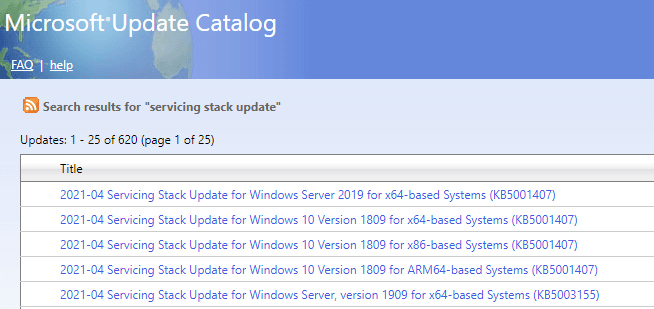
2. Double-click the downloaded file to install the SSU update.
If you're experiencing issues with your computer, try restarting it to see if that resolves the problem. This simple step can often resolve a wide range of issues, from software glitches to hardware problems.
Method 6. Install the latest update manually
If you're unable to download the update in Settings, you can manually download the update file and install it.
1. To find the latest version of Windows 10 or 11, you can view the Windows Update history page. If you're having trouble searching for new updates, you can find the KB number of the latest version on this page, which will help you identify the issue.
2. Search for the version number in Microsoft Update Catalog, it will provide download links for different architectures (x86/ARM64/x64).

3. Run the downloaded file to install this Windows update.
After finishing and restarting, your update problems should be solved.
How to Rollback Windows 11/10 Update If You Don't Want It
If you install an update and experience significant system issues, you can revert to the previous version as a solution, but the methods for rolling back major and minor updates differ.
☛ After a major Windows update, Windows retains the previous version of files for 10 days, allowing you to revert back. If you don't revert within 10 days, the old files are deleted and cannot be recovered. So, act quickly.
The path to uninstall a major update in Windows 10:
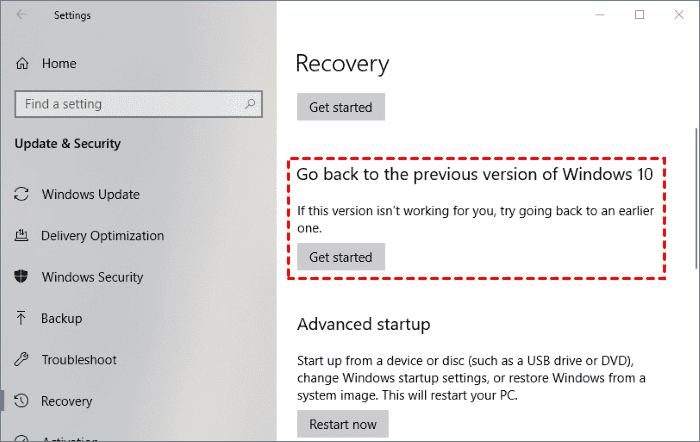
To go back to a previous version of Windows 10, go to Start, then Settings, then Update & Security, then Recovery, then Go back to the previous version of Windows 10, and finally Get started.
If you've updated the document more than 10 days ago and there's no "Go back to the previous version" section, it means the changes you made were likely intentional and you probably don't need to revert.
To uninstall a major update in Windows 11:
To restore Windows 10 to a previous version, go to Start, then Settings, followed by System, then Recovery, and finally select "Previous version of Windows 10" and click on "Go back" to access the backup.
It helps you return Windows 11 to Windows 10.
☛ For a smaller Windows update that just fixes some minor bugs and improves system performance, you can usually undo it by going to the "Update & Security" section in the Settings app, clicking on "View update history", and then selecting "Uninstall updates" to roll back to the previous version. However, if the update was a major one that introduced significant changes, it might be more complicated to undo, and it's always a good idea to consult Microsoft's support resources or a professional for assistance.
The path to uninstall a minor update in Windows 10:
To uninstall a Windows update, go to Start, then Settings, followed by Update & Security, then Recovery, then Windows Update, and finally View update history. From there, select the problematic update and click Uninstall updates.
If you want to uninstall a minor update in Windows 11:
To uninstall updates in Windows, go to Start, then Settings, followed by Windows Update, and click on Update history. From there, select Windows Update, then Related settings, and finally Uninstall updates.
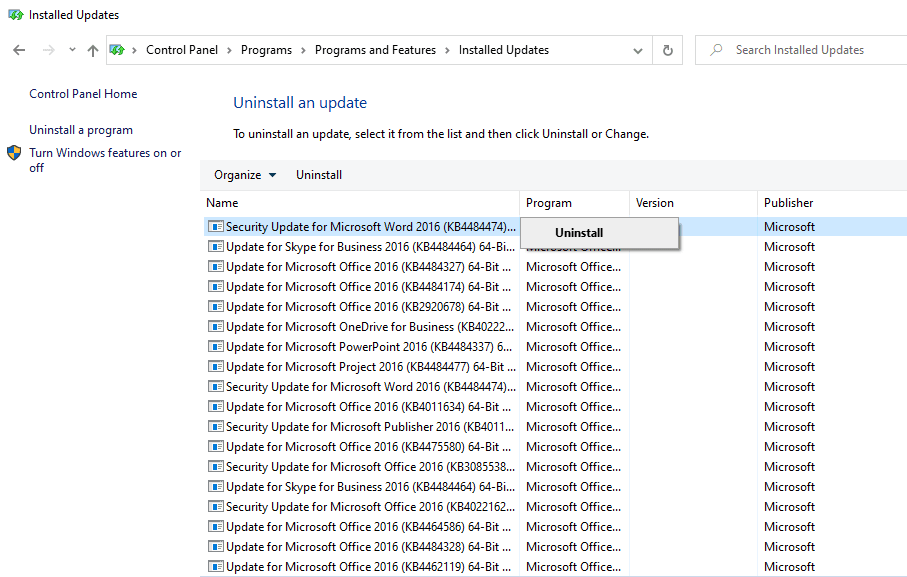
In the popping-To uninstall an update, navigate to the "Control Panel" and then click on "Programs and Features" (in Windows 10) or "Add or Remove Programs" (in older Windows versions). In the list of installed programs, look for the update you want to remove and select it.
If the above methods don't work or other system issues persist, consider implementing a more robust disaster recovery strategy.
How to Restore Windows 10/11 to Earlier State to Fix System Issues
Windows is a powerful operating system, but its complexity can sometimes lead to unexpected issues and problems.Known issues include "Some Windows devices may start up to an error (0xc000021a) with a blue screen, which can be caused by various factors such as corrupted system files, driver issues, or problems with the Windows boot process." and "Security update for Secure Boot DBX might fail to install"We are less able to predict the consequences of the next update.
Developing a good backup strategy in Windows 10/11 can help prevent system errors caused by various reasons, aside from Windows Update issues. This can save you the trouble of troubleshooting every single time.
You can set up a regular system backup task to ensure that you can quickly restore your system to a previous state in case something goes wrong. This way, you can have a safety net in place to prevent data loss and minimize downtime.Qiling Disk Master Standard can be a good choice.
- Versatile Diverse backup options are available, allowing for easy backup of the Windows OS to various devices and restoration whenever needed.
- Scheduled and Efficient BackupTo efficiently manage backups, consider implementing a scheduling system to automate the process. This can help save storage space by utilizing incremental or differential backup methods, which only record changes made since the last backup, rather than duplicating entire files.
- Versatile Backup: Enjoy the flexibility of backing up your data in various ways. You can back up your entire operating system, individual partitions, or even specific files and folders, giving you control over the scope of your backups.
- Efficient The sync feature allows for seamless folder synchronization, whether it's syncing a local folder to a network drive or vice versa, maintaining an intact copy of your files effortlessly.
If your PC won't boot due to system errors, creating a bootable media with Qiling Disk Master can help. This allows you to boot the computer into WinPE and perform a system restore as usual.
In advanced editions like Professional, you can also restore system images to other computers, set up a scheme for automatically deleting old backups, and more.
What you could do for OS and data protection:
◉ Download and install Qiling Disk Master.
◉ Launch the software and go to Backup tab to create a scheduled System Backup It's recommended not to store system images on the local drive.

◉ Go to Tools tab and use Create Bootable Media tool in case of boot failures.
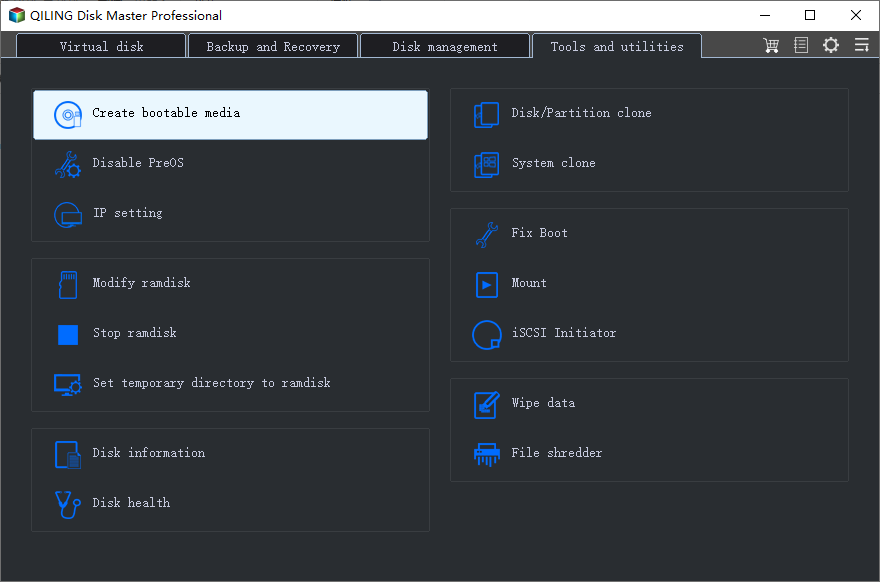
How to restore Windows 10/11 to an earlier normal state:
1. Go to Restore tab, choose Select Task/Select Image File to locate the system backup you created.

2. Choose Restore this system backupIf the drive letters and folders have changed, please tick the box to update the drive letters and folders in the program.Restore system to other location and specify the path you want.

The Standard edition allows system image restoration to a new hard drive on the same computer. Upgrading to the Pro edition is necessary to restore the system image to a different computer with unique hardware, and the Universal Restore feature should be selected.
3. Confirm the operation and Proceed.

FAQs About Reset Windows Update in Windows 10
To manually reset Windows Update, use the Windows Update Troubleshooter tool or reset Windows Update components by stopping services and deleting temporary update files using Command Prompt with administrative privileges. Execute commands like net stop wuauserv, net stop cryptSvc, net stop bits, delete SoftwareDistribution and Catroot2 folders, and then restart the services.
To fix a corrupted Windows 10 update, use the Windows Update Troubleshooter, reset Windows Update components, or run the DISM and SFC tools to repair corrupted system files, or download the update manually from the Microsoft Update Catalog.
To reset Windows Update in Windows 10, create a batch file that automates the process. In Notepad, paste the commands: `net stop wuauserv`, `net stop cryptSvc`, `net stop bits`, `ren C:\Windows\SoftwareDistribution SoftwareDistribution.old`, `net start wuauserv`, `net start cryptSvc`, `net start bits`. Save the file with a `.bat` extension, then right-click and select "Run as administrator" to execute the script. This batch file stops Windows Update services, renames the SoftwareDistribution folder, and restarts the services, effectively resetting Windows Update components.
To reset Windows Update in Server 2016, download and run the Windows Update Troubleshooter tool from Microsoft's website, following on-screen instructions to diagnose and repair issues, or manually stop the Windows Update service, delete temporary update files, and restart the service.
Conclusion
If you're experiencing issues with Windows Update, such as failures to download or install updates, you can try resetting Windows Update to start the process again. Alternatively, if a Windows Update causes system problems, including preventing your computer from booting, you can uninstall the update to revert to the previous state. However, for a more comprehensive solution to resolve system issues, you may want to consider using a tool like Qiling Disk Master.
This feature allows for automatic system backups and the ability to restore to any previous version, even in the event of a sudden computer breakdown, by using a system image and recovery media on a separate working PC.
This software not only backs up data but also allows users to clone their hard drive, making it easy to transfer data and operating systems from one drive to another, such as transferring Windows 10 from an SSD to another or cloning a hard drive in Windows 11.
Related Articles
- Control Windows 10 updates through the registry
Record existing policy values before changing automatic-update behavior. - Reset/Refresh Windows 10 without Losing Programs (3 Ways)
This article tells you how to refresh Windows 10 without losing programs and data. It seems a good idea to reinstall Windows 10 when serious system problem occurs. Read on to learn more. - How to Reset Windows 10 PC and Keep My Files (2 Methods)
Learn how to Reset Windows 10 PC and Keep My Files (2 Methods) with clear steps, key checks, and practical tips. - How to Restore SQL Database from Bak File? (3 Methods)
After completing the backup successfully, you can restore SQL database from bak file any time you need. In this post, you will find 3 methods to do this, including SSMS, T-SQL query and command line. - How to Use SSD Unallocated Space in Windows 10,8,7? [2 Ways Included]
Learn how to Use SSD Unallocated Space in Windows 10,8,7 with clear steps, key checks, and practical tips. - How to Dual Boot Windows 7 and Windows XP?
If you want to run both Windows 7 and Windows XP on the same computer, you can dual boot them. To do this, you'll need to follow a step-by-step process that allows you to install and configure both operating systems on your machine. - How to Partition a Hard Drive in Windows 7 Without Formatting?
Learn how to partition a hard drive in Windows 7 with free partition software for Windows. Which can extend system drive or resize partition without data loss.
Products
Articles & Tutorials
- Data Recovery
- Data Backup
- File Recovery
- File Backup
- File synchronize
- System Backup and Restore
- Disk and Partition Clone
- Technical articles
- Disk Master Help
- Windows Deleted File and Disk Recovery Tutorials
- Windows File and Data Recovery Tutorials
- More Windows Tutorials for Install, Security, Files, and PC Tips
- Windows Boot, Repair, and Recovery Environment Tutorials
- Windows Backup Tutorials
- Windows Restore Tutorials
- Windows Clone and Migration Tutorials
- Windows Server Backup, Recovery, and Management Tutorials
- Windows Disk, Partition, and Storage Management Tutorials