How to Dual Boot Windows 7 and Windows XP?
About Windows 7
Windows 7 has many new features compared to its predecessors, including advances in touch and handwriting recognition, support for virtual hard disks, improved performance on multi-core processors, and faster boot times. Many users are interested in trying Windows 7, but may not be ready to give up their existing Windows XP installation. In this case, they may want to dual-boot both operating systems on the same computer.
How to dual boot Windows 7 and Windows XP?
To install Windows 7, first partition your hard drive and create a new partition for the installation. Then, install Windows 7 on the new partition.
Step 1. Create a partition for Windows 7 under Windows XP
To create a partition in Windows XP, you can use Qiling Disk Master Professional, a free and reliable partition software that allows you to perform both basic and advanced partition operations.
1. Install and run Qiling Disk Master Professional.
2. Select a partition with sufficient free space to create a new partition for Windows 7 installation, such as the C drive, and choose the "Create Partition" option.
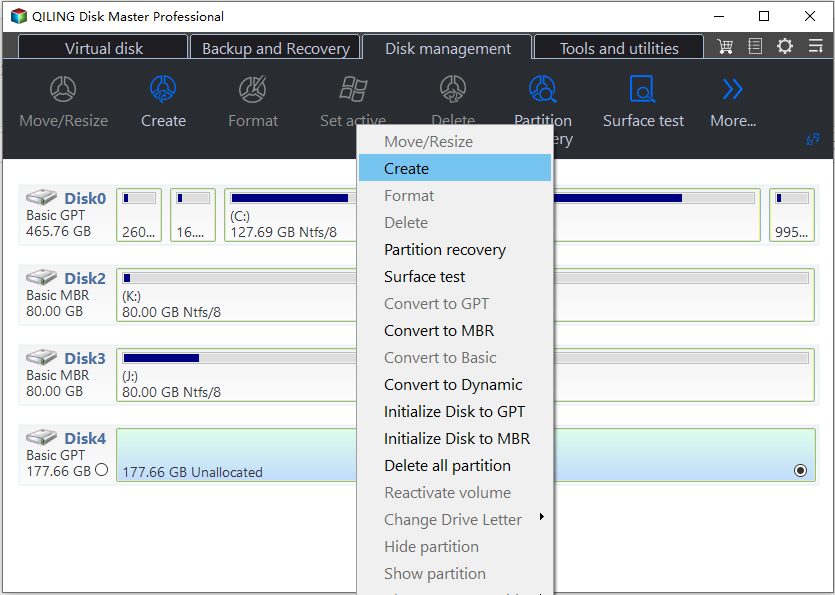
3. In the next window, edit the new partition created from the C partition, and set it as a primary partition.
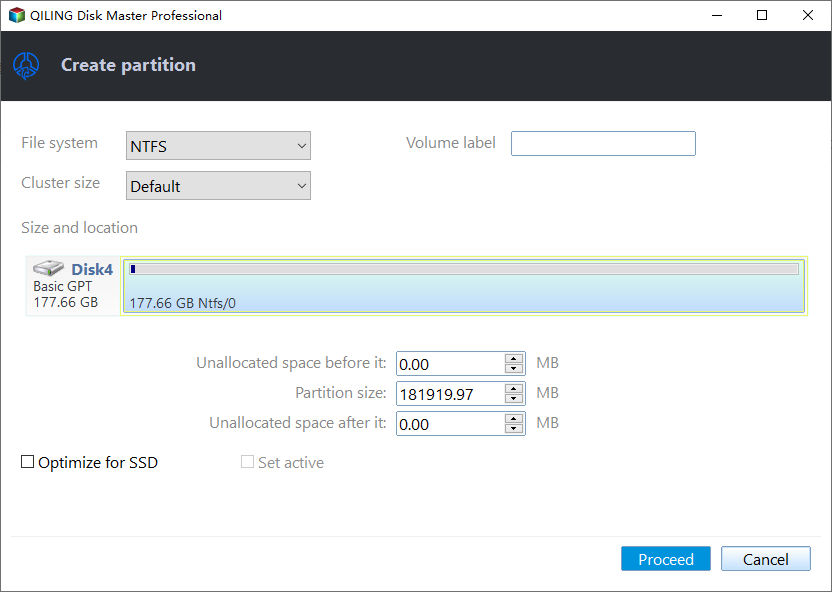
4. Click "Apply" to commit the pending operation.
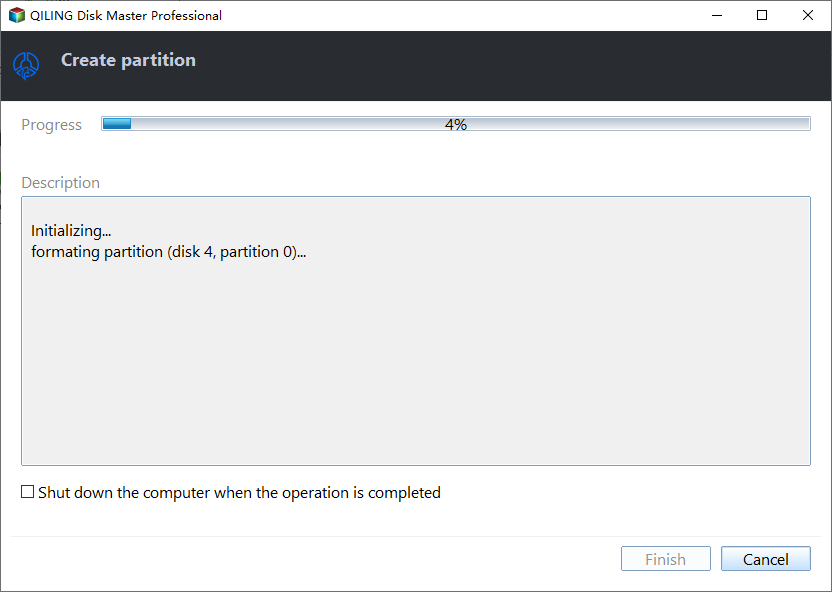
After creating a new partition, you can proceed to install Windows 7 on it. To do this, follow the next section, which will guide you through the installation process.
Step 2. Install Windows 7 on the new partition
1. To install Windows 7, insert your Windows 7 CD/DVD into the optical drive, reboot your computer, and ensure booting from the DVD drive is enabled in the system BIOS.
2. The installation wizard is straightforward and guides you through the process. When selecting the installation type, choose Custom (advanced) to ensure a proper installation.
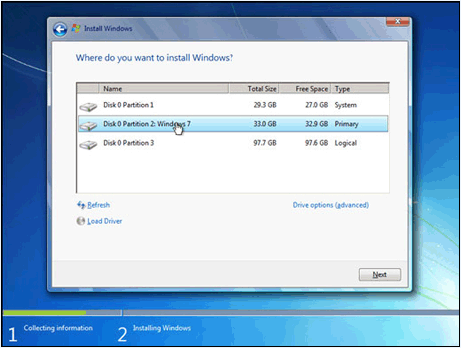
3. Choose the new partition you created and click "Next".
Note: Be careful when choosing the partition to install Windows on, as selecting the wrong one could inadvertently wipe your other Windows installation. Therefore, make sure to select the new partition you just created.
4. Windows will run through some installation bits, and restart a few times, then prompt you to set up your account, enter your license key, and set up Windows.
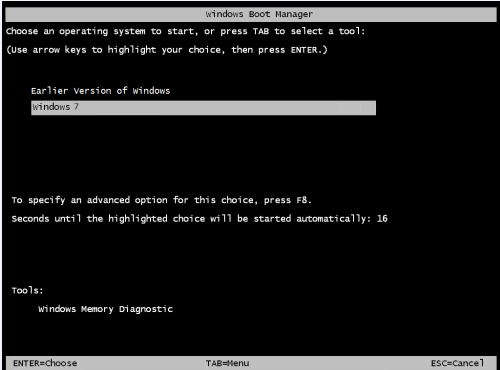
You can easily boot from Windows XP or Windows 7, gain access to all the tools needed to dual boot Windows 7 and XP, and then proceed with the installation process.
To sum up
To dual boot Windows 7 and Windows XP, install XP first, then Windows 7. If you need to migrate settings, documents, and applications from XP to Windows 7, use the Partition Clone Wizard feature in Partition Assistant, which can also merge partitions, clone hard disks, transfer OS to SSD drives, and more. For Windows Server users, Qiling Disk Master Server is available.
Related Articles
- How to Create A Partition in Windows 7 without Formatting?
Learn how to Create A Partition in Windows 7 without Formatting with clear steps, key checks, and practical tips. - How to Fix MBR in Windows 7 With or Without Installation CD or DVD?
This article provides a step-by-step guide on how to fix the Master Boot Record (MBR) in Windows 7, whether or not you have a Windows installation disc. - How to Format Windows 7 With CD Step by Step?
In this article, we will show you how to format Windows 7 with CD step by step. Besides, you can also learn how to format Windows 7 with a USB drive. - How to Ghost a Hard Drive of Windows 7/8/10/11 (Easy and Safe)
As for the task of ghosting Windows 7/8/10/11 hard drive, you have two effective ways, either imaging or cloning. Learn more about them now! - How Do You Fix External Hard Drive Won't Format in Windows 10/8/7?
If your external hard drive won't format or you have received "the format did not complete successfully" when you format your external hard drive, this post will help you to solve the problem with several practical ways. - Use EZ Gig IV Handy Alternative to Migrate OS to SSD
You can use a free alternative to EZ Gig IV to migrate your OS from a hard drive (HDD) to a smaller solid state drive (SSD) with easier operation. This page will guide you through using a different tool for OS migration. -
Remove Dual Boot from Windows 10
Remove a dual boot menu and old OS partition without deleting the wrong files.
Products
Articles & Tutorials
- Data Recovery
- Data Backup
- File Recovery
- File Backup
- File synchronize
- System Backup and Restore
- Disk and Partition Clone
- Technical articles
- Disk Master Help
- Windows Deleted File and Disk Recovery Tutorials
- Windows File and Data Recovery Tutorials
- More Windows Tutorials for Install, Security, Files, and PC Tips
- Windows Boot, Repair, and Recovery Environment Tutorials
- Windows Backup Tutorials
- Windows Restore Tutorials
- Windows Clone and Migration Tutorials
- Windows Server Backup, Recovery, and Management Tutorials
- Windows Disk, Partition, and Storage Management Tutorials