How to Create A Partition in Windows 7 without Formatting
Why need to create new partitions in Windows 7/8/10/11?
A hard disk drive (HDD) can be divided into separate partitions, allowing you to install multiple operating systems, such as Windows 7, and store different types of data in each partition.
It's not recommended to keep your data, applications, and operating system on the same partition, as it increases the risk of data loss if your Windows 7 crashes. Instead, consider partitioning your hard drive into separate sections for your system, software, data, and backup. This way, if something goes wrong, you can minimize the damage and prevent data loss.
How to create a partition with Disk Management
Windows 7/8/10/11 has a built-in tool called Disk Management that allows users to create new partitions, format partitions, extend volumes, delete volumes, and perform other disk management operations.
To create a new partition:
1. To open Disk Management, right-click on My Computer, select Manage, then click on Storage and finally Disk Management.
2. To create a new partition on a Windows system, right-click the partition you want to use and select "Shrink Volume." Then, enter the desired amount of space to shrink and click "Shrink Volume" to proceed. Follow the on-screen guide to complete the remaining steps.
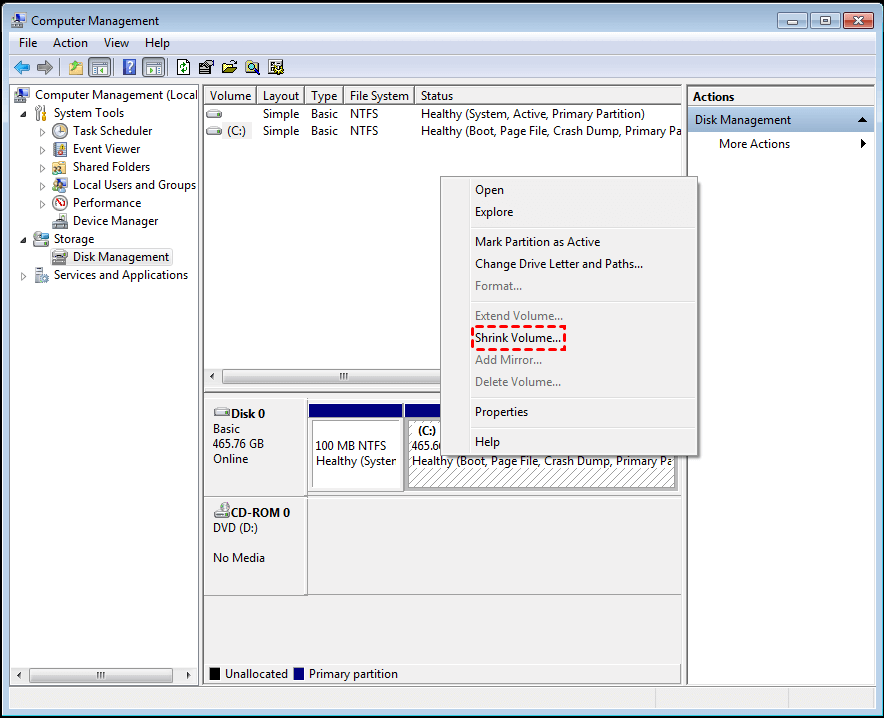
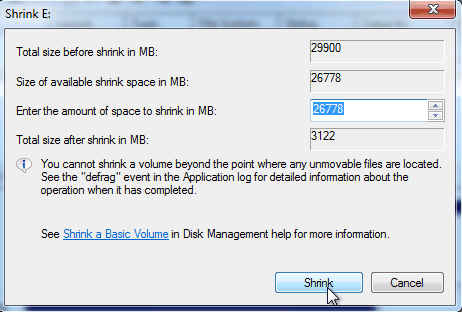
3. To create a new partition, right-click the unallocated space and select "New Simple Volume". This will launch the New Simple Volume Wizard, which should be followed to create a new partition.
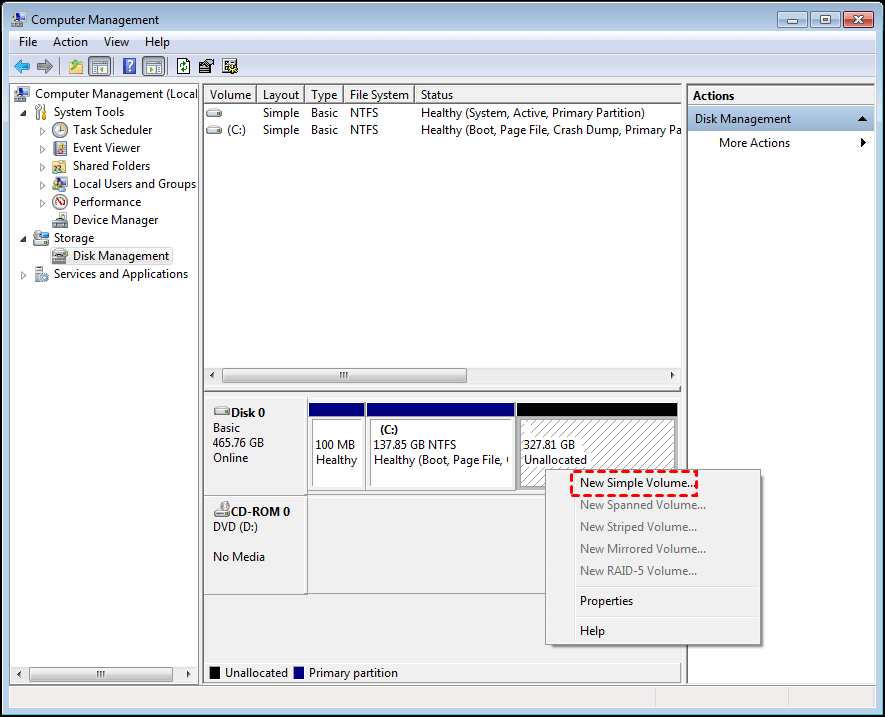
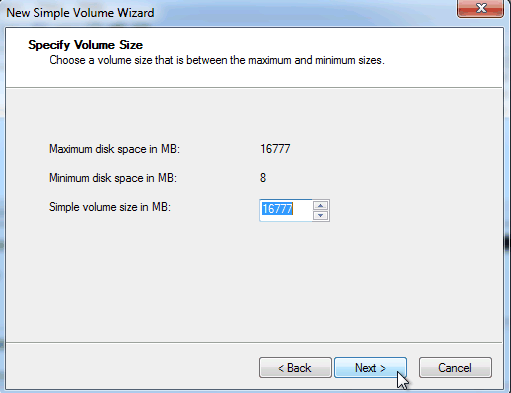
If you're using Windows 7/8/10/11 and your disk style is MBR, you may encounter an issue where creating partitions fails due to the maximum number of partitions being reached or the disk being converted to a dynamic disk. This is because MBR disks can only hold up to 4 primary partitions. To resolve this, you can either convert your MBR disk to a GPT disk or use third-party software to create a partition.
Alternative to create a partition on Windows 7/8/10/11
Qiling Disk Master Professional is a powerful utility that allows you to create Windows 7/8/10/11 partitions in various ways on Windows 11/10/8.1/8/7/XP/Vista. To do this, you can follow the simplest method, which involves using the software to create a new partition on your computer. This can be done by selecting the desired partition size and location, and then clicking on the "Create Partition" button to initiate the process. The software will then guide you through the steps to complete the partition creation process.
You can also shrink a partition to create unallocated space and then use the unallocated space to create a Windows 7 partition. This allows for more flexible management of disk and partitions. What's more, Qiling enables you to shrink a partition from both sides, allowing for even greater flexibility in partitioning your disk.
More about Qiling Disk Master
Qiling Disk Master Professional is a utility that helps manage disks and partitions in Windows, allowing for easy partition creation and other features like OS migration, file system conversion, and disk copying. It supports various file systems and storage devices.
Related Articles
- How to Convert SSD to GPT via Command Prompt in Windows 11/10/8/7?
To convert an SSD to GPT using command prompt in Windows 11/10/8/7, you can follow the steps on this page and learn how to do it. - 3 Methods to Create New Partition in Windows Server
Learn how to create a new partition in Windows Server systems with built-in Disk Management and Windows Server partition manager software. - 3 Ways to Defrag Hard Disk on Window 7 PC
Learn to defrag hard disk in Windows 7 in 3 ways with two Windows tools and a free defrag tool. - How to Delete EFI System Partition in Windows 10,8,7?|Freeware
This guide explains How to Delete EFI System Partition in Windows 10,8,7?|Freeware and provides practical steps, tips, or recovery options to help you complete the task safely. - How to Delete or Create Windows Server 2022 Recovery Partition
Learn how to Delete or Create Windows Server 2022 Recovery Partition with clear steps, key checks, and practical tips. - How Does Windows Server Backup Compression Work?
This article tells you 2 helpful ways for Windows Server backup compression and the flexible one can compress backup image in all aspects.
Products
Articles & Tutorials
- Data Recovery
- Data Backup
- File Recovery
- File Backup
- File synchronize
- System Backup and Restore
- Disk and Partition Clone
- Technical articles
- Disk Master Help
- Windows Deleted File and Disk Recovery Tutorials
- Windows File and Data Recovery Tutorials
- More Windows Tutorials for Install, Security, Files, and PC Tips
- Windows Boot, Repair, and Recovery Environment Tutorials
- Windows Backup Tutorials
- Windows Restore Tutorials
- Windows Clone and Migration Tutorials
- Windows Server Backup, Recovery, and Management Tutorials
- Windows Disk, Partition, and Storage Management Tutorials