How to Delete or Create Windows Server 2022 Recovery Partition
- What is recovery partition in Windows Server 2022?
- Delete Windows Server 2022 recovery partition to gain more space
- Is it safe to delete the recovery partition on Server 2022?
- How to remove recovery partition in Windows Server 2022
- Create Windows recovery partition with Qiling Disk Master
- FAQ on Windows Server 2022 recovery partition
- To sum up
What is recovery partition in Windows Server 2022?
In Windows Server 2022, the recovery partition is a hidden partition that can be accessed through Disk Management, but it does not have a drive letter assigned to it and only displays a "Help" option.The recovery partition is a special partition on the disk that helps restore the factory settings of the OS in case of system issues.
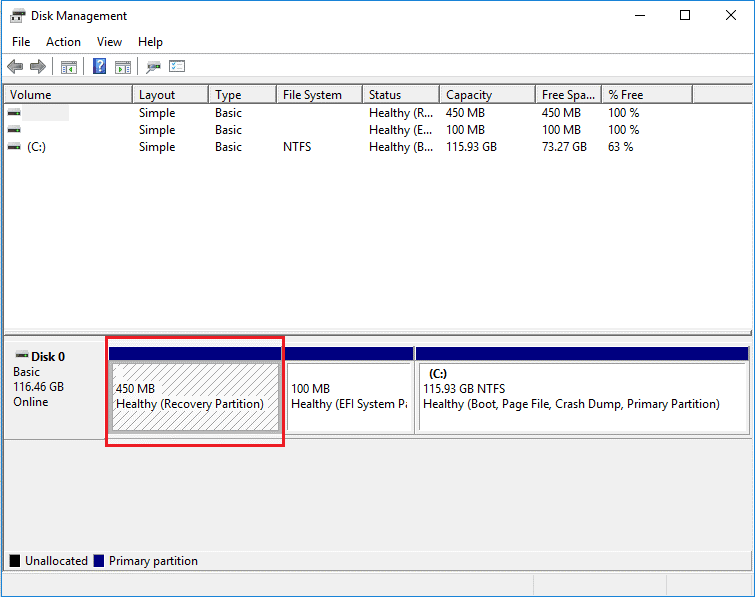
If you want to create one recovery partition in a simple and reliable way, please refer to:
Delete Windows Server 2022 recovery partition to gain more space
Users often wonder if the Windows Server recovery partition is necessary and if it's safe to delete it. If the recovery partition is deleted, what happens and does it affect the operating system running on the server? Let's discuss in detail.
Is it safe to delete the recovery partition on Server 2022?
Removing the recovery partition from your computer is generally safe, but the approach may vary depending on the specific Windows Server version you're using. For Windows Server users, it's recommended to follow different procedures to ensure a smooth removal process. Each version has its own set of guidelines, so it's essential to consult the relevant documentation or seek guidance from a qualified IT professional to avoid any potential issues.
◑ It's not recommended to delete the recovery partition in Windows Server 2022, as it can be used to recover the operating system in case of a crash or damage, allowing for a simpler and faster recovery process without needing to reinstall the OS.
◑ For advanced users, deleting the recovery partition can free up storage space, but it's crucial to have a Windows Server system image backup before doing so, allowing for easy restoration if the OS is damaged or performance issues arise.
How to remove recovery partition in Windows Server 2022
You can't delete the Windows Server recovery partition using Disk Management, but instead, you're given the option to seek help. Fortunately, there are two effective ways to erase the recovery partition in Windows Server 2022.
#1. Delete recovery partition with DiskPart.exe
To erase the recovery partition, you can use the built-in Windows utility called Diskpart, which can be accessed through the command prompt.
- Click "Search" icon, and type "cmd" on the box.
- Right-click on the "Command Prompt", choose "Run as Administrator".
- To open DiskPart, launch the Command Prompt, type "diskpart" and press Enter.
- Input and press Enter to run following commands one by one:
● list disk (display all the disks)
● select disk n (where n is the disk number containing the recovery partition)
● list partition (list all the partitions on the selected disk)
● select partition n (choose the recovery partition number)
● delete partition
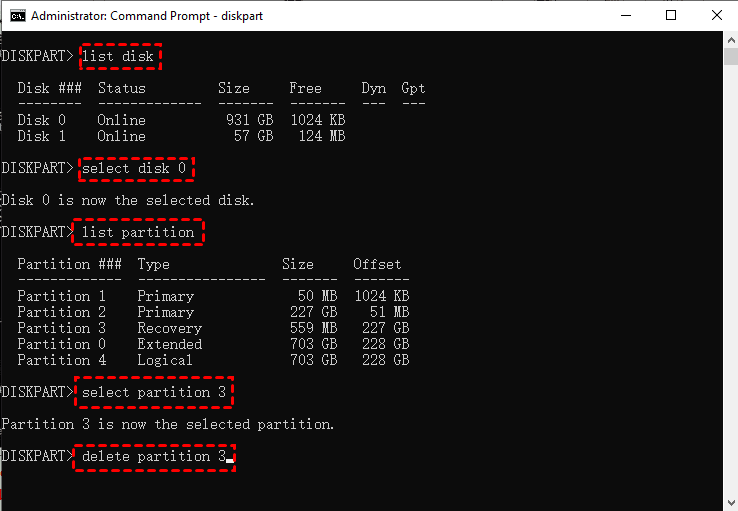
After deleting the recovery partition, the remaining space becomes unallocated space. This space can be utilized to either create a new volume or expand an existing partition, thereby maximizing the use of the disk storage space.
#2. Delete Recovery Partition while Creating Recovery Drive
There's an alternative way to delete a partition, and it appears during the process of creating a USB recovery drive.
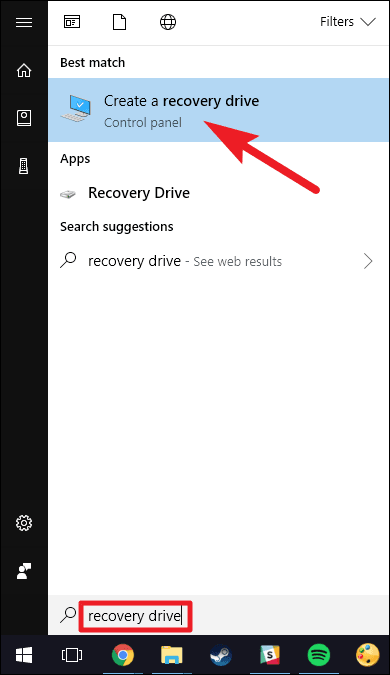
- To create a recovery drive, click the "Search" icon on your Windows computer, enter "recovery drive" in the search box, and select "Create a recovery drive" from the results.
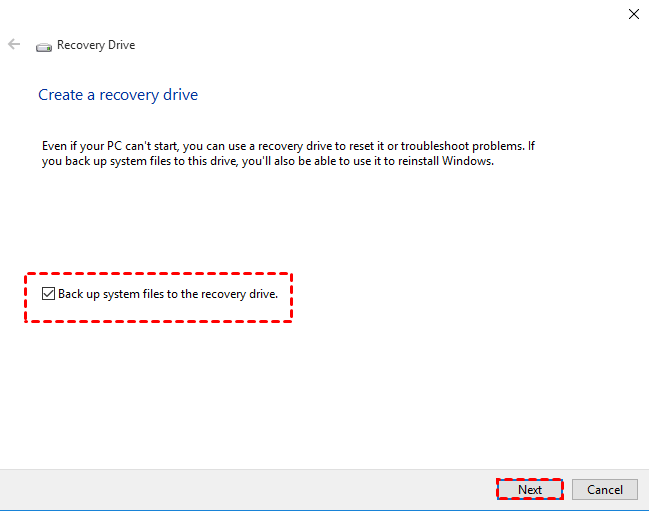
- After the recovery drive tool opens, select the option to back up system files to the recovery drive and then click Next.
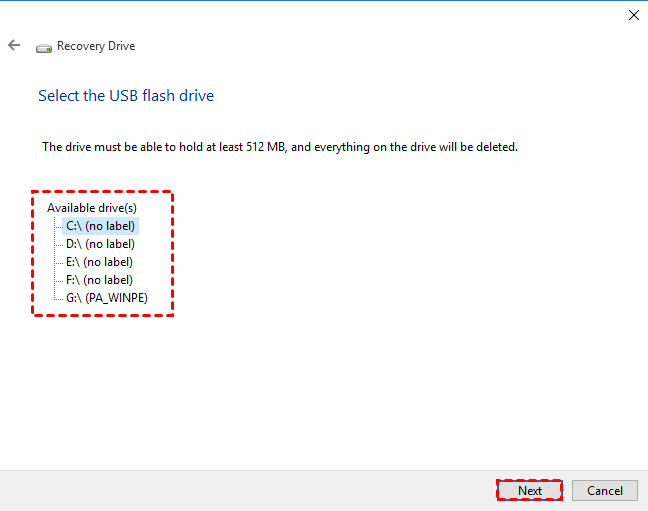
- Insert a USB flash drive into your PC that's at least as large as the size indicated on the screen, select the connected drive and click "Next" to proceed.
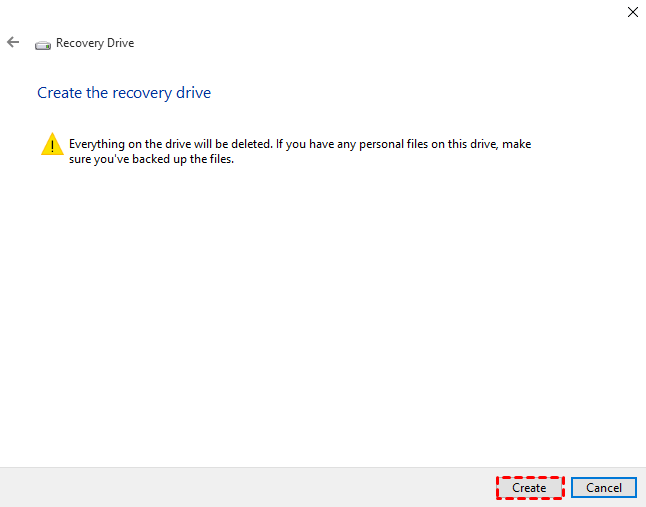
- Click "Create" to begin creating the recovery drive.
- When the process is done, do not select Finish. Select Delete the recovery partition to remove the recovery partition from your PC and free up disk space. Then click on Delete. This will free up the disk space used to store your recovery image. When the removal is done, select Finish.
Note✍: If your PC doesn't have a recovery partition that uses additional disk space, you won't have the option to delete it. This is because there is no recovery partition to delete.
Create Windows recovery partition with Qiling Disk Master
If you're unable to find a recovery partition on your computer, you can create one by using the built-in Windows feature called "Reset this PC" or by using a third-party tool like Qiling Disk Master. This process will help you create a recovery partition on your computer, allowing you to restore your system to its factory settings in case of any issues.
To create a Windows recovery partition, I recommend using a qualified Disk Master and recovery solution, such as Qiling Disk Master, which supports all Windows PCs and Servers. This tool allows you to easily back up your system to a factory partition or another location in case of a system failure.
- Qiling Disk Master allows you to backup your system to a recovery partition and other external devices, such as external hard drives, USB flash drives, CDs, or DVDs.
- It is able to compress or encrtpt backup image.
- It can automatically back up the system on a regular schedule, such as daily, weekly, or monthly, to ensure data safety and security.
- It supports both F11 or A recovery key and boot menu at the system startup.
To try this out, download Qiling Disk Master and follow along as I show you how to create a Windows recovery partition safely on Server 2022.
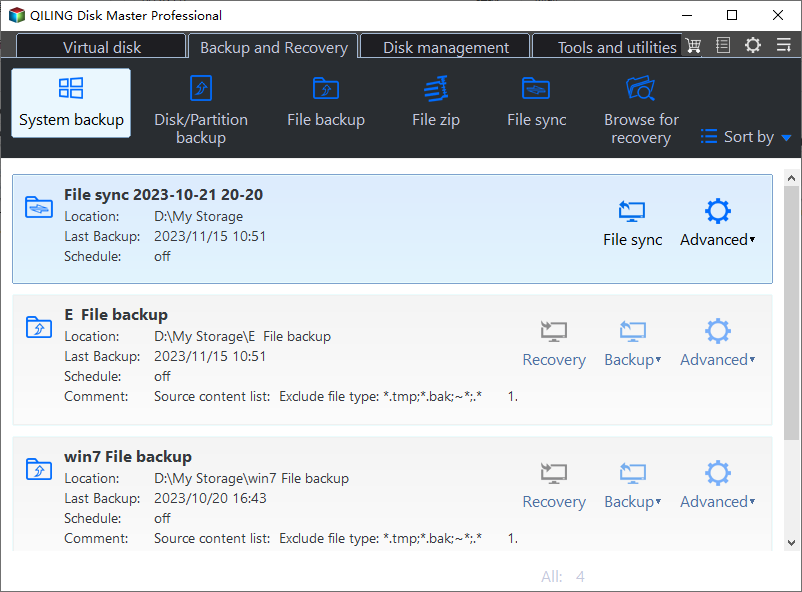
Step 1. Install Qiling Disk Master on your computer and launch it. Choose System Backup.
Step 2. Select the "Backup system to Qiling Disk Master Partition (Recommended)" option and click "Next".

Note✍: If your computer's system partition is running out of space, you can back up the system to another location, such as an internal secondary disk, external hard drive, or a removable USB flash drive, to avoid running out of disk space.
Step 3. Click "Proceed" after confirmation.

When the creation process is complete, you will have a system image backup and recovery partition that can be used to recover your computer in the event of a disaster.
►Bonus tip: You can create a system backup for your computer using Qiling Disk Master to prevent future system failures.
FAQ on Windows Server 2022 recovery partition
1. How do I access the recovery partition in Windows Server 2022?
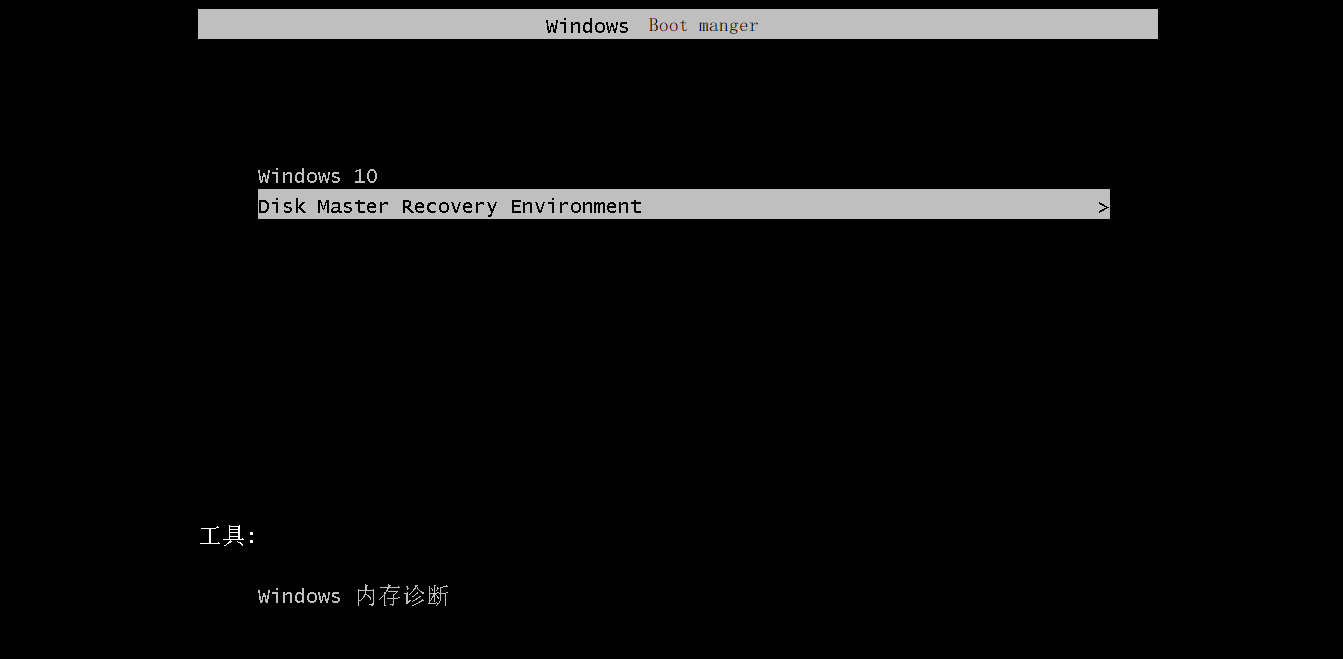
To access the recovery partition in Windows Server 2022, press a specific key combination during boot, such as F8 or F11, or boot from installation media and access through the Windows Recovery Environment (WinRE) or advanced startup options.
2. Can I customize the recovery partition in Windows Server 2022?
In Windows Server 2022, the recovery partition can be customized to some extent, allowing you to add additional tools or utilities for recovery purposes, as long as they do not interfere with the recovery process or compromise system integrity.
3. What are the common uses of the recovery partition in Windows Server 2022?
The recovery partition in Windows Server 2022 serves as a repository for various system recovery and troubleshooting tools, allowing users to perform tasks like repairing the OS, restoring system backups, troubleshooting startup issues, and accessing advanced recovery options like system image recovery or Command Prompt for manual repairs.
4. What is recovery environment in Windows Server 2022?
The Windows Recovery Environment in Windows Server 2022 is a pre-installed, minimal operating system environment that provides a recovery platform for troubleshooting and repairing system issues that may prevent normal booting of the server. It allows for diagnosing and fixing various problems related to the operating system, startup process, or system files.
The Recovery Environment in Windows Server 2022 offers a set of tools and functionalities designed to help users recover their system in case of a failure or other issues. This includes features such as System Restore, which allows users to revert their system to a previous state, and Automated System Recovery (ASR), which automates the recovery process by creating a recovery point and then restoring the system to that point.
- Automatic Startup Repair: WinRE automatically detects and attempts to repair common startup problems that may prevent Windows Server from booting properly, enabling it to troubleshoot and resolve issues related to boot configuration, registry corruption, and other system problems.
- System Restore: This feature allows users to restore their server's system files and settings to a previous state, often a restore point created before encountering issues, thereby resolving problems and returning the system to a stable condition.
- System Image Recovery: This feature allows users to restore their server from a system image backup, which includes the entire system configuration, settings, and data, effectively reverting the server to a previous state.
- Command Prompt: The Command Prompt provides a text-based interface for executing command-line tools and utilities, allowing advanced users to troubleshoot and repair the system manually.
- Startup Settings: Allows access to advanced startup options, including Safe Mode and Debugging Mode, which can aid in troubleshooting and resolving boot-related problems.
- Access to File Explorer: In some versions of WinRE, users may have limited access to File Explorer, allowing them to browse and manipulate files on the server's hard drive.
5. Why are there 2 recovery partitions?
In some Windows Server installations, two recovery partitions may be present, which can cause confusion and potentially lead to issues with the system's boot process. These partitions are typically labeled as "Microsoft Reserved Partition" and "Recovery Partition" and are usually located at the end of the disk. They are created by the Windows Setup process and are used for system recovery and boot purposes.
- One type of recovery partition is created when Windows is installed on a GPT disk, which contains the Windows Recovery Environment (WinRE), taking up negligible disk space, and is usually referred to as Windows recovery partitions.
- The second type of recovery partition is set by the computer manufacturer, such as Lenovo, Dell, or HP. It consumes a lot of disk space and contains the manufacturer's default settings, application drivers, and other content that allows for a factory reset. This partition is specifically marked as "OEM Partition" or "computer supplier's recovery partitions".
The recovery partitions in a computer system, namely the System Reserved Partition and the Recovery Partition, serve different purposes. The System Reserved Partition is primarily used for storing the system's boot files, firmware settings, and other system-related data, while the Recovery Partition contains a copy of the system's original operating system and drivers, allowing for a complete system recovery in case of a major failure.
- The OEM recovery partition is primarily used to restore the server to its original factory settings and configurations provided by the manufacturer, focusing on the recovery of the system to its initial state.
- The WinRE partition is designed for repairing and recovering Windows Server, regardless of its original state, whereas the Recovery partition is intended to return the server to its factory state.
Having both partitions offers redundancy and flexibility in case of system failures or issues, allowing administrators to restore the server by reverting to the factory settings or repairing the Windows Server installation.
To sum up
It's crucial to have a Windows Server 2022 recovery partition, as it enables you to restore the system to its factory settings in case the hard drive fails.
If you have a recovery partition, you can first back it up to another location, then create a bootable media to restore it in case your computer can't boot. After that, you can delete the recovery partition to free up storage space.
If you don't have a recovery partition in Windows Server 2022, Qiling Disk Master can help you create one. This tool can assist in system recovery and is a good option if you need to set up a recovery partition. You can download and try it out for yourself.
Related Articles
- Windows Server Backup Bare Metal Recovery to Different Hardware
This guide explains Windows Server Backup Bare Metal Recovery to Different Hardware with clear steps, key checks, and practical tips. - How to Perform Windows Server Backup Restore (Stepwise Guide)
Learn how to Perform Windows Server Backup Restore (Stepwise Guide) with clear steps, key checks, and practical tips. - Top 2 Ways to Create Windows Server 2012 Recovery Disk
If you are looking for a way to create Windows Server 2012 recovery disk in case your computer fails and restore it to previous date, please continue to read this article and learn the operating steps. - [Full Guide] How to Move Steam Games to External Hard Drive
Move Steam games to an external hard drive with steps for relocating game files and avoiding download or launch issues. - Learn How to Deploy Windows 10 Image via WinPE USB Disks
This guide explains Learn How to Deploy Windows 10 Image via WinPE USB Disks with clear steps, key checks, and practical tips. - How to Disable OneDrive, Here are 5 Ways!
This article describes how to disable OneDrive in 5 ways as well as alternative solution to prevent data loss after disabling OneDrive. Please read on.
Products
Articles & Tutorials
- Data Recovery
- Data Backup
- File Recovery
- File Backup
- File synchronize
- System Backup and Restore
- Disk and Partition Clone
- Technical articles
- Disk Master Help
- Windows Deleted File and Disk Recovery Tutorials
- Windows File and Data Recovery Tutorials
- More Windows Tutorials for Install, Security, Files, and PC Tips
- Windows Boot, Repair, and Recovery Environment Tutorials
- Windows Backup Tutorials
- Windows Restore Tutorials
- Windows Clone and Migration Tutorials
- Windows Server Backup, Recovery, and Management Tutorials
- Windows Disk, Partition, and Storage Management Tutorials