[Full Guide] How to Move Steam Games to External Hard Drive
Help! How to move Steam games to external hard drive
To move your Steam games to an external hard drive, you can use Steam's built-in feature called "Steam Library" or "Steam Library Folders". You can create a new library on the external hard drive, and then move your games to that library. To do this, go to Steam > Settings > Downloads > Steam Library Folders, and add the external hard drive as a new library. You can then move your games to that library, and Steam will automatically update the game files to point to the new location. This way, you can free up space on your main drive and still play your games from the external hard drive.
People may want to move their Steam games to an external hard drive for several reasons.
✦ Running out of storage space: Steam games can take up a lot of space on a computer's hard drive, freeing up space on the computer's hard drive for other files and applications by moving them to an external hard drive.
✦ Portability: Moving Steam games to an external hard drive allows users to take their games with them and play them on any computer with Steam installed.
✦ Backup: An external hard drive can serve as a backup for Steam games in case the computer's hard drive fails or is replaced.
✦ Speed: Some people may prefer to install games on an external hard drive with faster read/write speeds than their computer's hard drive, resulting in faster load times and smoother gameplay.
Overall, moving Steam games to an external hard drive can provide more flexibility, storage, and convenience for gamers. Can you install steam games on external hard drive? Don't worry, please continue to read.
(2 ways) How to move Steam games from PC to external hard drive
To move Steam games to an external hard drive, you can follow these two great ways. First, go to Steam's "Settings" and then click on "Storage" to see how much space your games are taking up.
▶ Method 1. Move Steam games through Steam Settings
Connect your external hard drive to your computer and verify that it is detected by your system. Once it's recognized, you can proceed with the steps to transfer your files.
• To access the Steam settings, click on the "Steam" menu in the top left corner of the client and select "Settings."
• To configure your Steam library folders, navigate to the Settings window, click on the "Downloads" tab, and then click on the "Steam Library Folders" button.
• Click on the "Add Library Folder" button and select the external hard drive as the location to create a new library folder.
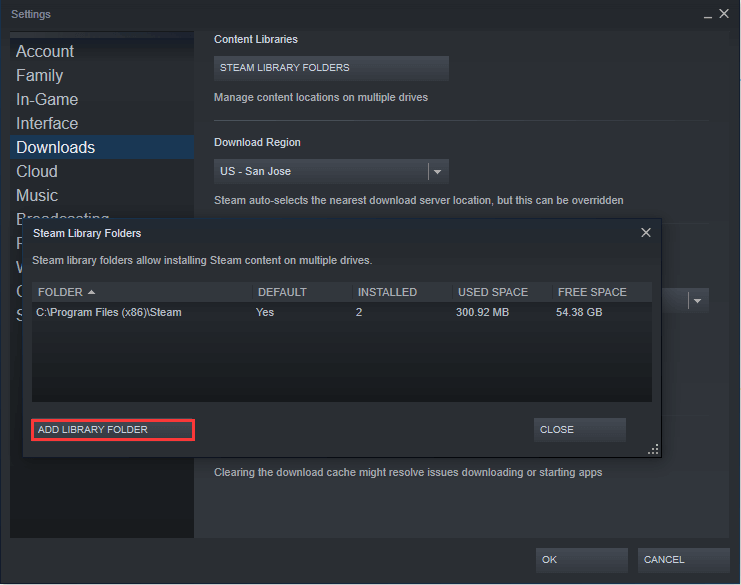
• Once you have added the new library folder on the external hard drive, close the Settings window.
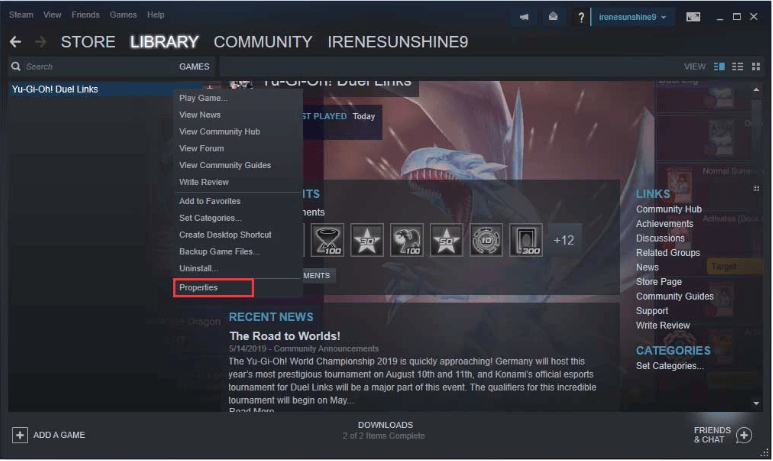
• Right-click on the game you want to move in your Steam library and select "Properties."
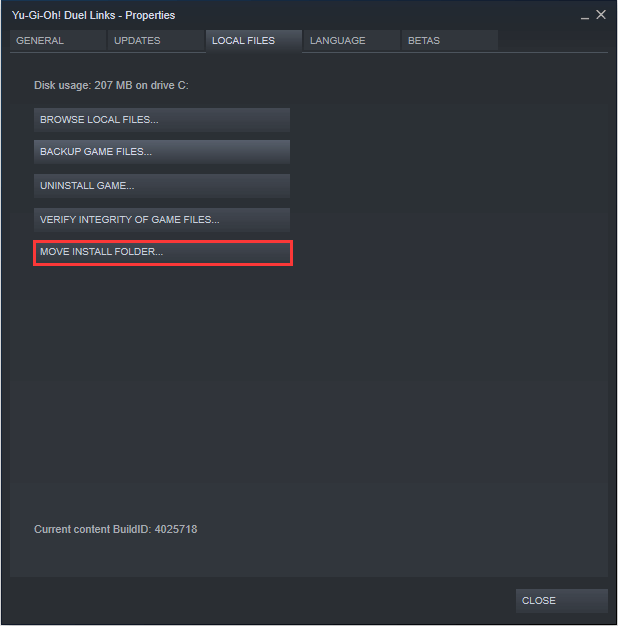
• In the Properties window, click on the "Local Files" tab and then click on the "Move Install Folder" button.
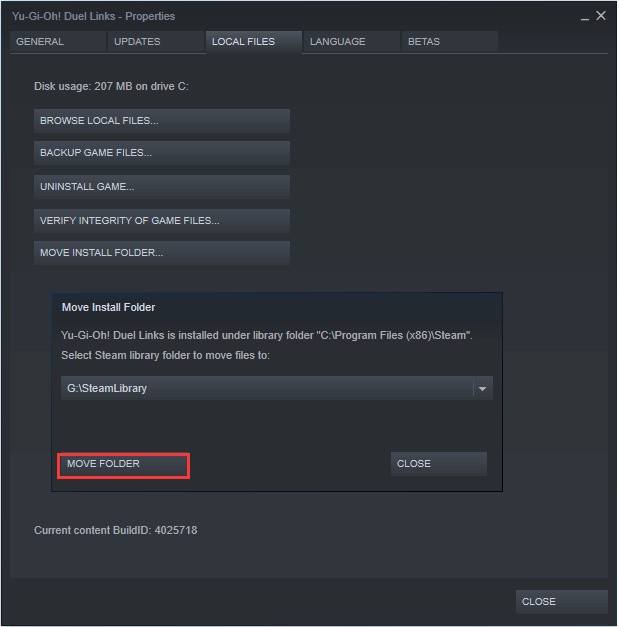
• To move the game files to the new library folder on the external hard drive, select the folder as the destination location. This will relocate the game's files to the external drive, freeing up space on the internal drive.
• Click "Move Folder" to transfer the game files to the external hard drive, starting the process of relocating the game files.
• Once the game files are moved, you can delete the original game files from your PC to free up space.
• 7-11 steps for moving games to an external hard drive: Repeat steps 7-11 for any other games you want to move to the external hard drive. 7.
Note: You can also set the external hard drive as the default location for all new games downloaded, so any future downloads will be automatically installed on the external hard drive.
▶ Method 2. Move Steam games with apps transfer tool
To move multiple Steam games at once, you can use the "Move" feature in the Steam Settings, but you have to do it one game at a time, which is time-consuming and inefficient.
You can use Qiling Disk Master Professional to move Steam games to an external hard drive. This full-features application transfer tool allows you to move Steam games or non-Steam games to an external hard drive without losing data, and its graphic user interface makes it easy to perform various operations with just a few clicks.
You can also try allocating free space from one drive to another, fixing bad sectors on external hard drive, initializing external hard drive, and defraging external hard drive to make it run faster, among other features.
Bottom line
To move Steam games to an external hard drive, you can use one of two methods. If you need to move applications or folders, you can use the App Mover feature on Windows Server. However, for moving Steam games specifically, you can use the methods outlined in this post, which provide a straightforward solution.
Related Articles
- How to Change Steam Install Location in Windows 10?
- How to Transfer Programs to External Hard Drive in Windows 10?
In this page, I am going to show you how to transfer programs to external hard drive without reinstalling on Windows 11/10/8/7, and offer a step-by-step guide. - How to Move Steam Games to Another Drive without Redownloading 2021?
Learn how to Move Steam Games to Another Drive without Redownloading 2021 with clear steps, key checks, and practical tips. - How to Recover Unallocated Space on USB Flash Drive?
Learn how to Recover Unallocated Space on USB Flash Drive with clear steps, key checks, and practical tips. - How to Extend Dynamic System Volume in Windows Server 2003?
To extend the dynamic system volume in Windows Server, you can utilize the flexible methods provided by Qiling Dynamic Disk Manager, which offers various ways to expand your system partition. - Best Way to Backup Outlook Emails to Thumb Drive Easily
Backup Outlook emails to thumb drive can save your important files from accidental issues. This guide will explain the best way to do the task with a few clicks.
Products
Articles & Tutorials
- Data Recovery
- Data Backup
- File Recovery
- File Backup
- File synchronize
- System Backup and Restore
- Disk and Partition Clone
- Technical articles
- Disk Master Help
- Windows Deleted File and Disk Recovery Tutorials
- Windows File and Data Recovery Tutorials
- More Windows Tutorials for Install, Security, Files, and PC Tips
- Windows Boot, Repair, and Recovery Environment Tutorials
- Windows Backup Tutorials
- Windows Restore Tutorials
- Windows Clone and Migration Tutorials
- Windows Server Backup, Recovery, and Management Tutorials
- Windows Disk, Partition, and Storage Management Tutorials