Best Way to Backup Outlook Emails to Thumb Drive Easily
How do I copy emails to a USB flash drive?
Email has become an essential tool in today's digital age, allowing us to communicate with others and store important information such as contacts, calendars, and documents.
To keep your email data available, it is important to back up Outlook emails regularly. A local copy can protect messages, contacts, calendars, and attachments from hardware failure, software crashes, account issues, or cyber-attacks.

To back up Outlook emails to a thumb drive, you can export emails to a PST file and save the file on the thumb drive, or use a third-party tool to back up Outlook data directly to the device. This gives you a portable copy of important emails that can be restored when your computer fails or your mailbox becomes unavailable.
How to backup Outlook emails to USB in 2 easy ways
To back up Outlook emails to a thumb drive, you can use Outlook's built-in Import/Export feature or create an automatic email backup with Qiling Disk Master. Choose the manual method for a one-time export, or the automatic method for regular protection.
- Manual solution to save Outlook emails to thumb drive
- Automatic solution to save Outlook emails to thumb drive
Manual solution to save Outlook emails to thumb drive
Outlook provides a built-in Import/Export wizard to export emails and other mailbox data to a PST file. You can then save the PST file to a thumb drive for backup or transfer.
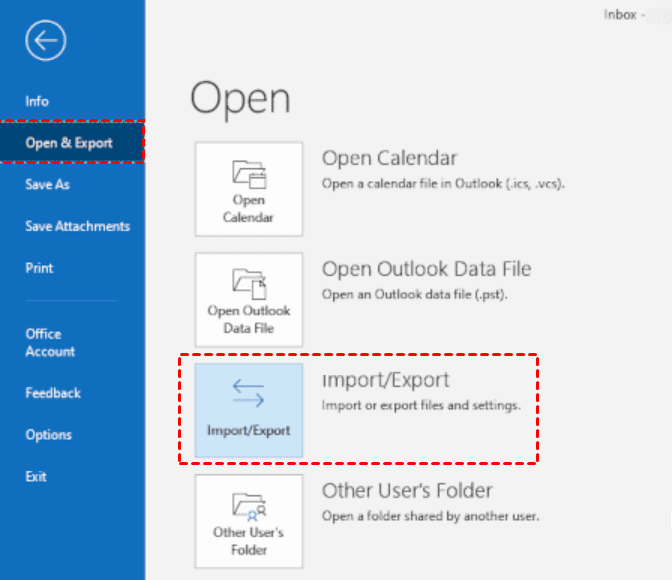
1. Open Outlook and click on the "File" tab in the top-left corner of the window.
2. To import or export data, click on the "Open & Export" option and then select "Import/Export" from the dropdown menu.
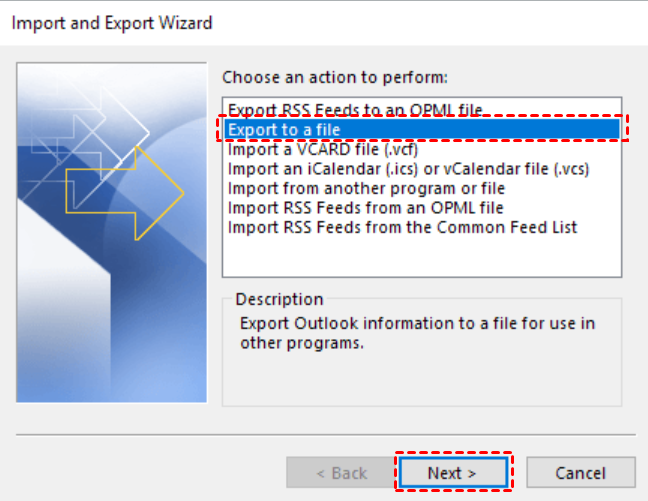
3. In the Import and Export Wizard, select "Export to a file" and click "Next".
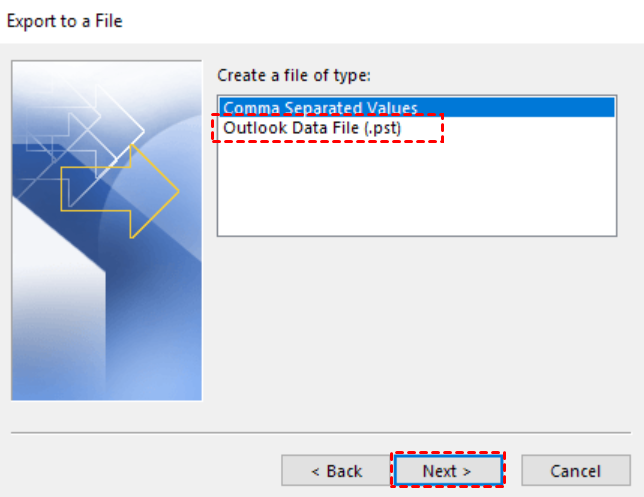
4. Select "Outlook Data File (.pst)" and click "Next".
5. Select the mailbox folder you want to export, and choose whether to include subfolders, then click "Next".

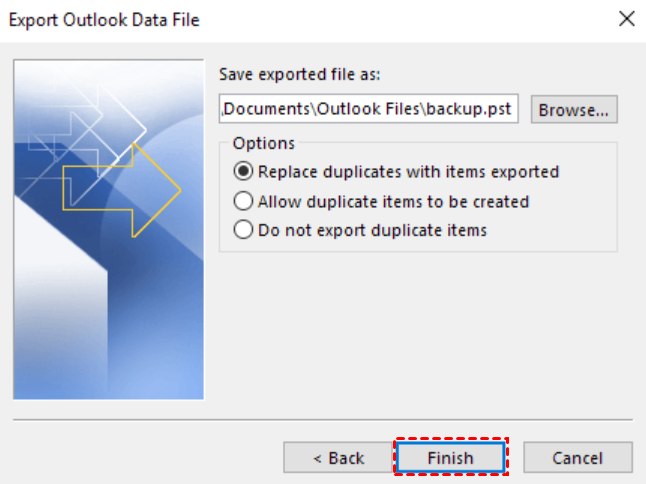
6. Choose a location on your thumb drive where you want to save the backup file, then click "Finish".
7. Enter a password to protect your PST file, then click "OK" to set it.
8. Outlook will export your emails to a PST file, with the time taken depending on the size of your mailbox or folder.
Automatic solution to save Outlook emails to thumb drive
Using Outlook's export tool is suitable for a one-time backup, but it cannot schedule automatic backups. If the PST file is very large or frequently moved, it may also be harder to manage.
For users who need a more flexible way to back up Outlook emails, Qiling Disk Master Professional can create scheduled email backups to a thumb drive or another storage location.
👣 It offers an Outlook backup feature to backup data on Outlook, including emails, attachments, calendar, contacts, etc.
👣 This tool allows you to backup your Outlook emails and other data to various destinations, including external hard drives, cloud storage, local disks, and NAS devices, in addition to thumb drives.
👣 This tool enables automatic backup of Outlook emails at customizable intervals, including daily, weekly, monthly, or event-driven triggers, and also allows for scheduled backups to run at specific times, even waking the computer if necessary.
👣 This software is compatible with all Windows PC operating systems, including Windows 11, 10, 8.1, 8, 7, XP, and Vista. It also has a server version, Qiling Backup Server, for server users.
Download this reliable email backup software on your PC and follow the graphical steps to backup your Outlook emails to a thumb drive.
Step 1. After adding the account including emails you want to backup in Outlook, you can start the backup task. To do this, open Qiling Disk Master Professional and click on the "Backup" and "File Backup" options.

Step 2. Click Add Outlook data and select the account with the emails you want to backup.

Step 3. Click the second box to select the prepared thumb drive to save all emails in Outlook.

Step 4. To set up a scheduled backup, enable Daily, Weekly, or Monthly backup and select "Wake the computer to run scheduled task" if needed.
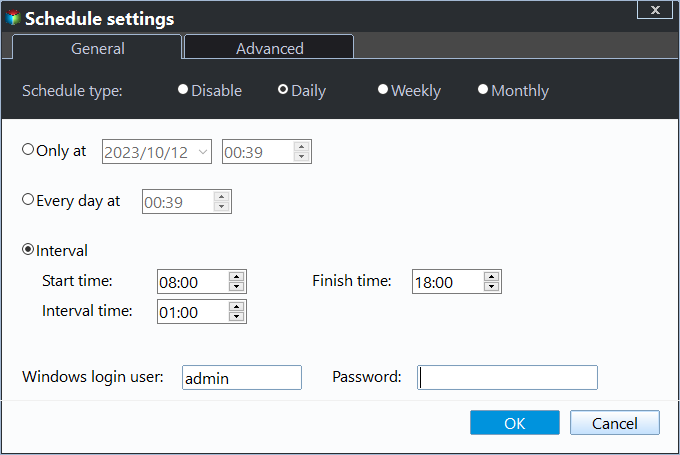
Step 5. Confirm the settings and click Proceed to save emails to USB or other thumb drive.
Backup Scheme: To reduce backup time and image size, you can run incremental or differential backups. Additionally, enabling automatic backup cleanup methods can help resolve the issue of a full backup disk by regularly deleting older backup images.
Your turn
To back up Outlook emails to a thumb drive, use Outlook Export for a manual PST copy or Qiling Disk Master for scheduled email backups. The manual method is simple for occasional use, while the automatic method is better for ongoing Outlook data protection.
Qiling Disk Master can simplify and automate Outlook email backup, helping you save emails, attachments, contacts, and other Outlook data to a thumb drive or another backup destination.
Related Articles
- 2 Common Ways | Backup Outlook Emails to USB
Learn how to backup Outlook emails to USB easily on this page. This article provides you with 2 ways, one is to use its built-in function, and the other is to use reliable third-party software. If you are interested, keep reading! - How to Backup Outlook Emails to External Hard Drive (2 Ways)
Learn why you should back up Outlook emails to an external hard drive and how to complete the task with two practical methods. - Backup Outlook Emails with Attachments: A How-To Guide
Learn how to Backup Outlook Emails with Attachments: A How-To Guide with clear steps, key checks, and practical tips. - Best Way to Backup Outlook Emails to Thumb Drive Easily
Backup Outlook emails to thumb drive can save your important files from accidental issues. This guide will explain the best way to do the task with a few clicks.
Products
Articles & Tutorials
- Data Recovery
- Data Backup
- File Recovery
- File Backup
- File synchronize
- System Backup and Restore
- Disk and Partition Clone
- Technical articles
- Disk Master Help
- Windows Deleted File and Disk Recovery Tutorials
- Windows File and Data Recovery Tutorials
- More Windows Tutorials for Install, Security, Files, and PC Tips
- Windows Boot, Repair, and Recovery Environment Tutorials
- Windows Backup Tutorials
- Windows Restore Tutorials
- Windows Clone and Migration Tutorials
- Windows Server Backup, Recovery, and Management Tutorials
- Windows Disk, Partition, and Storage Management Tutorials