Backup Outlook Emails with Attachments: A How-To Guide
User Case: How to Backup Outlook Email with Attachments
"I work for a small business and have always wanted to join a network for safety, security and backup reasons. I just wanted to start with backing up emails, since they've had "lost email" issues before. We use MS Outlook and I need some simple quick solution to be able to back up all their emails and attachments (attachments are important) to an external hard drive on a weekly basis. Since management doesn't know what to do, I'm going to make a backup."
- Question from TechRepublic
Needs to Backup Outlook Emails with Attachments
People may need to back up Outlook emails with attachments to preserve important messages and files, keep business records, recover from data loss or system crashes, and move data to another computer or email client.
🔮 Long-term storage: Backing up emails with attachments can help preserve important information for a longer period, especially for businesses or individuals who need to keep records for legal, compliance, or regulatory reasons.
🍩 Disaster recovery: Backing up email with attachments can help prevent data loss in case of hardware failure, software errors, or other disasters by having a duplicate copy of the data.
🍅 Migrating to a new system: When switching to a new email system or computer, people may want to back up their emails with attachments to ensure they can migrate their data without losing any.
🍧 Collaboration: People may want to share emails with attachments with colleagues or collaborators, and backing up emails ensures that they can be accessed and shared even if the original copy is lost or deleted.
Backing up Outlook emails with attachments keeps important data available when the original mailbox is damaged, deleted, or inaccessible.
Backup All Emails with Attachments in Outlook via Import/Export
To export Outlook emails to a hard drive or other locations, users can use manual steps or the built-in import/export wizard. The wizard allows backing up Outlook emails with attachments and exports data in PST format, which can be restored when needed. To do this, users can follow the provided steps to learn how to backup Outlook emails to a hard drive.
- To export Outlook data, open Outlook, go to the File tab, click on Open & Export, and then select Import/Export.
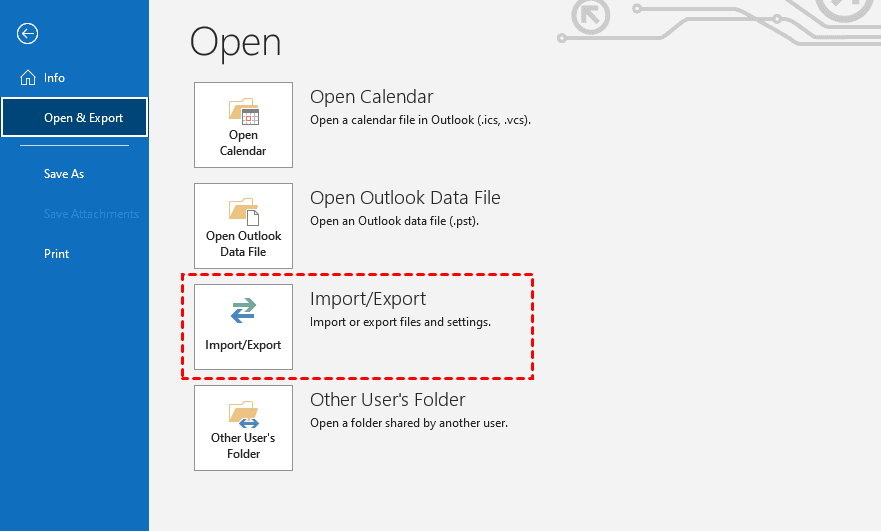
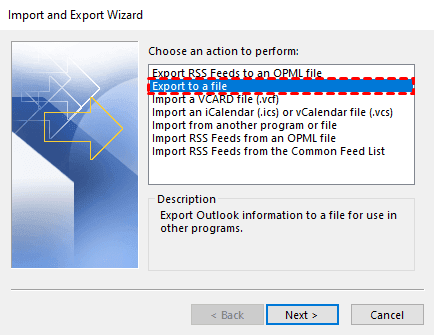
- The Import and Export Wizard will open. Select Export to a file and click Next.
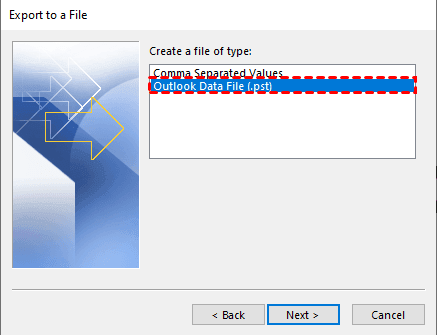
- To export a specific folder from Outlook, select the "Outlook Data File (.pst)" option and choose the folder you want to export.
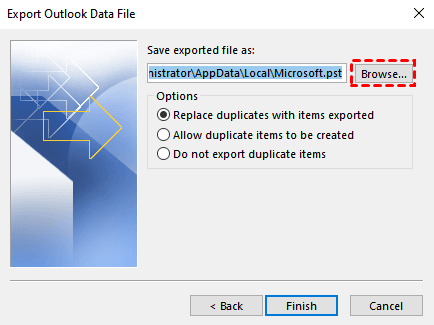
- Select the folders you want to export, click Next, then choose a location to save the PST file and click Finish.
- You can add a password to your PST file or skip it.
Easier Way to Backup Outlook Emails with Attachments
Outlook's built-in Import/Export Wizard can back up emails and attachments to a PST file, but it is manual and can be time-consuming when you have many folders or need regular backups.
Qiling Disk Master offers a simpler email backup solution. It can create a complete backup of Outlook emails and attachments and supports scheduled backup tasks for ongoing protection.
🌸 Easy to Use: Unlike Outlook's built-in tool, Qiling Disk Master is user-friendly and intuitive, making it accessible even to those who are new to disk management.
🌸 Fast: Qiling Disk Master can quickly back up emails and attachments without slowing down your computer.
🌸 Comprehensive: With Qiling Disk Master, you can back up all your Outlook data, including emails, attachments, contacts, and settings.
🌸 Flexible: Qiling Disk Master enables users to schedule automatic backups, compress backups, and select the backup location, providing a convenient and organized way to manage their data.
To back up your Outlook emails and attachments with Qiling Disk Master, download and install the software on your computer. For server users, try Qiling Disk Master Server. Simply follow the steps to complete the backup process.
- To backup Outlook emails using Qiling Disk Master Professional, open Outlook and log in with your account, then launch Qiling Disk Master Professional and click on "Backup" and "File Backup".

- To add Outlook data, click "Add Outlook data" and then select the account that contains the emails and attachments you want to backup.

- Click the second box to select a local path, network or NAS location, or cloud drive to store your Outlook emails and attachments.

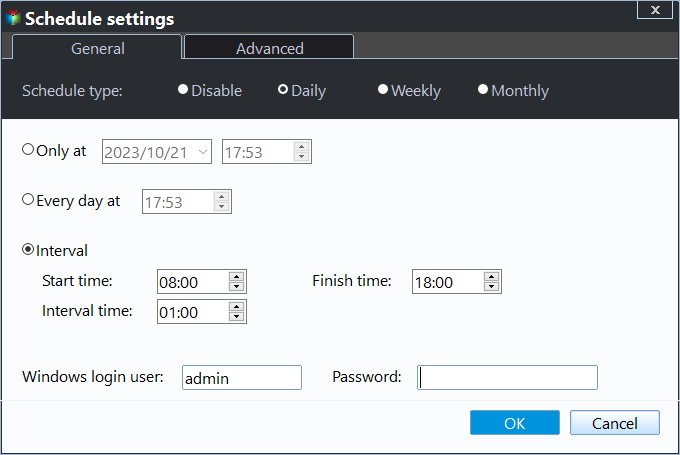
- Schedule automatic backup of Outlook emails and attachments by enabling daily, weekly, monthly, or event triggers, and clicking proceed to initiate the backup process.
☞ Notes:
- You can change "Incremental Backup (default)" to "Differential Backup" in Backup Scheme.
- To resolve backup disk full issues, enable automatic backup cleanup in Backup Scheme to remove old backup images regularly.
Wrapping Up
To back up Outlook emails with attachments, use Outlook's Import/Export Wizard for a manual PST backup or Qiling Disk Master for a more automated backup task.
Qiling Disk Master supports backing up Outlook emails, attachments, contacts, and other mailbox data, and it can restore backed-up emails when needed.
Related Articles
- Why and How to Convert to Dynamic Disk in Windows 10 or 11?
Converting a basic disk to a dynamic disk in Windows 10 and 11 can be done using the built-in Disk Management tool or a third-party tool, allowing for conversion without data loss. - 3 Methods to Create Bootable USB Windows 10 [Full Guide]
Here, we collect three different methods to help you create bootable USB in Windows 10 easily and effectively. - Is There Any Way to Create Windows 10 Bootable USB from the Current System?
This guide explains Is There Any Way to Create Windows 10 Bootable USB from the Current System with clear steps, key checks, and practical tips. - [Detail Guide] Create Windows 10 Bootable USB from ISO
To create a Windows 10 bootable USB from an ISO file for installation or a portable Windows environment, you can use either the Diskpart tool or the Windows To Go feature, both of which enable you to boot Windows 10 from a USB drive.
Products
Articles & Tutorials
- Data Recovery
- Data Backup
- File Recovery
- File Backup
- File synchronize
- System Backup and Restore
- Disk and Partition Clone
- Technical articles
- Disk Master Help
- Windows Deleted File and Disk Recovery Tutorials
- Windows File and Data Recovery Tutorials
- More Windows Tutorials for Install, Security, Files, and PC Tips
- Windows Boot, Repair, and Recovery Environment Tutorials
- Windows Backup Tutorials
- Windows Restore Tutorials
- Windows Clone and Migration Tutorials
- Windows Server Backup, Recovery, and Management Tutorials
- Windows Disk, Partition, and Storage Management Tutorials